
Intel i7-13700F
Intel Core i7-13700F Processor & GIGABYTE Z790 Motherboard User Manual
Model: i7-13700F
1. Introduction
This manual provides comprehensive instructions for the installation, operation, and maintenance of your Intel Core i7-13700F Desktop Processor and GIGABYTE Z790 Motherboard. Please read this manual thoroughly before beginning installation to ensure proper setup and optimal performance.

Image 1.1: Intel Core i7-13700F Processor box and GIGABYTE Z790 Motherboard. This image displays the retail packaging for the Intel Core i7-13700F processor alongside the GIGABYTE Z790 motherboard, highlighting the two primary components of this bundle.
2. Product Overview
The Intel Core i7-13700F processor and GIGABYTE Z790 motherboard combination offers a robust foundation for high-performance computing. Key features include:
- Processor: 16 cores (8 Performance-cores + 8 Efficient-cores) and 24 threads, with a maximum clock speed of up to 5.2 GHz and 30MB Cache. Features performance hybrid architecture for optimized workload distribution.
- Motherboard Compatibility: Designed for Intel LGA 1700 Socket, supporting 13th and 12th Gen Intel Core Series Processors.
- Memory Support: Dual Channel DDR5 compatibility with 4 DIMM slots.
- Power Design: Sturdy 16+1+1 Twin Hybrid Phases Digital Power Design with 60A DrMOS.
- Thermal Management: Comprehensive thermal design including Fully Covered MOSFET Heatsinks, M.2 Thermal Guard, Ultra Durable Armor, and a 6-layer PCB for efficient heat dissipation.
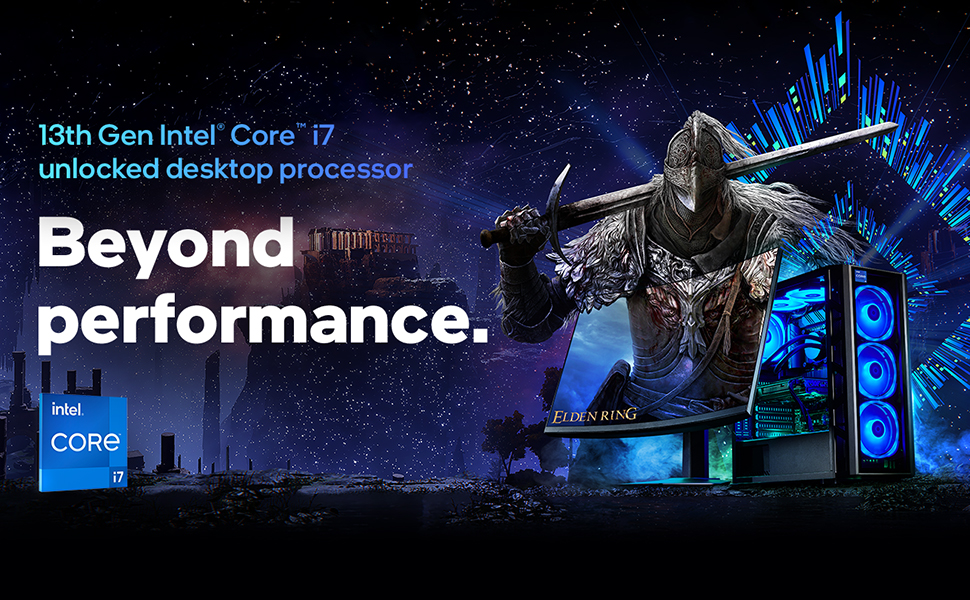
Image 2.1: Overview of 13th Gen Intel Core i7 Processor capabilities. This image illustrates the "Beyond performance" concept associated with the 13th Gen Intel Core i7 desktop processor, emphasizing its advanced capabilities for demanding tasks.

Image 2.2: Visual representation of Intel's Performance Hybrid Architecture. This graphic depicts how the performance hybrid architecture integrates different core microarchitectures to optimize performance by intelligently distributing workloads.
3. Setup and Installation
This section outlines the general steps for installing the Intel Core i7-13700F processor onto the GIGABYTE Z790 motherboard and integrating it into a PC system. Professional installation is recommended if you are unfamiliar with PC component assembly.
3.1. Before You Begin
- Ensure your power supply unit (PSU) is compatible and provides sufficient wattage for all components.
- Gather necessary tools: Phillips head screwdriver, anti-static wrist strap, thermal paste (if not pre-applied on cooler).
- Familiarize yourself with your PC case and its component mounting points.
3.2. Processor Installation (LGA 1700 Socket)
- Carefully open the CPU socket retention lever on the motherboard.
- Align the triangular mark on the processor with the corresponding mark on the socket.
- Gently place the processor into the socket. Do not force it.
- Close the retention lever to secure the processor.
- Install the CPU cooler according to its manufacturer's instructions, ensuring proper thermal paste application.
3.3. Motherboard Installation
- Install standoffs in your PC case that align with the GIGABYTE Z790 motherboard's mounting holes.
- Carefully place the motherboard into the case, aligning it with the standoffs and the I/O shield.
- Secure the motherboard with screws.
3.4. Memory (RAM) Installation
- Open the clips on the DDR5 DIMM slots.
- Align the notch on the DDR5 memory module with the key in the DIMM slot.
- Press down firmly on both ends of the memory module until the clips snap into place.
- For dual-channel operation, refer to your GIGABYTE Z790 motherboard manual for recommended slot configurations.
3.5. Connecting Peripherals and Power
- Connect the 24-pin ATX power connector and the 8-pin (or 4+4 pin) CPU power connector from your PSU to the motherboard.
- Install your graphics card into the primary PCIe x16 slot.
- Connect storage devices (SSDs/HDDs) via SATA or M.2 slots.
- Connect front panel headers (power button, reset button, USB ports, audio jacks) according to the motherboard manual.
4. Operating Instructions
Once all components are installed and connected, you can proceed with system boot-up and operating system installation.
4.1. First Boot and BIOS Setup
- Connect a monitor, keyboard, and mouse.
- Power on your system.
- Press the designated key (usually DEL or F2) repeatedly during boot-up to enter the BIOS/UEFI setup utility.
- Verify that all components (CPU, RAM, storage) are recognized.
- Configure boot order to install your operating system from a USB drive or optical media.
- Save changes and exit BIOS.
4.2. Operating System Installation
Follow the on-screen prompts to install your preferred operating system (e.g., Windows, Linux). Ensure you download and install the latest drivers for your GIGABYTE Z790 motherboard and Intel Core i7-13700F processor from the respective manufacturer websites for optimal performance and stability.
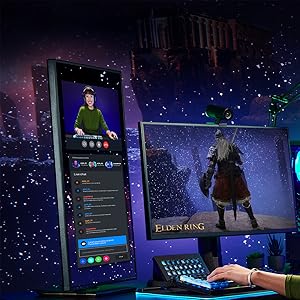
Image 4.1: Example of system usage for gaming and streaming. This image shows a user engaged in gaming while simultaneously streaming, demonstrating the multi-tasking capabilities supported by the processor.
Image 4.2: Example of system usage for content creation. This image illustrates a user utilizing the system for creative tasks, highlighting the processor's suitability for demanding applications like video editing or graphic design.
5. Maintenance
Proper maintenance ensures the longevity and stable performance of your processor and motherboard.
- Dust Removal: Regularly clean dust from inside your PC case, especially from CPU cooler fins and motherboard components, using compressed air. Ensure the system is powered off and unplugged before cleaning.
- Driver Updates: Keep your motherboard chipset drivers, CPU drivers, and BIOS/UEFI firmware updated to the latest versions available from Intel and GIGABYTE's official websites.
- Thermal Monitoring: Use monitoring software to keep an eye on CPU temperatures. Excessive temperatures can indicate insufficient cooling or dust buildup.
- BIOS/UEFI Settings: Avoid making drastic changes to BIOS/UEFI settings unless you understand their function. Incorrect settings can lead to system instability.
6. Troubleshooting
This section provides basic troubleshooting steps for common issues.
6.1. System Does Not Power On
- Check if the power supply unit (PSU) is switched on and properly connected to the wall outlet and motherboard.
- Ensure the front panel power button header is correctly connected to the motherboard.
- Test the PSU with another system or a PSU tester if available.
6.2. No Display Output
- Verify that the monitor is connected to the graphics card (not the motherboard's integrated graphics ports, as the i7-13700F does not have integrated graphics).
- Reseat the graphics card and memory modules.
- Check if the graphics card requires additional PCIe power connectors from the PSU.
6.3. System Instability or Crashes
- Ensure CPU cooler is properly installed and making good contact with the CPU. Monitor CPU temperatures.
- Run memory diagnostic tools to check for RAM errors.
- Update all drivers and BIOS/UEFI firmware to the latest versions.
- Check for loose power or data cables.
For more detailed troubleshooting, refer to the official GIGABYTE Z790 motherboard manual or visit the support sections of the Intel and GIGABYTE websites.
7. Specifications
| Feature | Detail |
|---|---|
| Product Name | Intel Core i7-13700F Desktop Processor + GIGABYTE Z790 Motherboard |
| Processor Model | Intel Core i7-13700F |
| Processor Cores | 16 (8 P-cores + 8 E-cores) |
| Processor Threads | 24 |
| Max Turbo Frequency | Up to 5.2 GHz |
| Cache | 30MB Intel Smart Cache |
| Processor Socket | LGA 1700 |
| Motherboard Chipset | Intel Z790 |
| Memory Type Supported | DDR5 (Dual Channel) |
| DIMM Slots | 4 |
| Integrated Graphics | None (Discrete Graphics Required) |
| Platform | Windows |
| First Available Date | April 8, 2024 |
8. Warranty and Support
For specific warranty information regarding your Intel Core i7-13700F processor and GIGABYTE Z790 motherboard, please refer to the documentation included with your product or visit the official websites of Intel and GIGABYTE.
Intel Support: For processor-related inquiries and drivers, visit the Intel Support Website.
GIGABYTE Support: For motherboard-related inquiries, drivers, and BIOS updates, visit the GIGABYTE Support Website.
You can also visit the Intel Store on Amazon for additional product information and resources.
Related documentsi7-13700F


Ask a question about this manual
Ask about setup, troubleshooting, compatibility, parts, safety, or missing instructions. Manuals+ will review the question and use this page’s manual context to help answer it.