
EXWAY Rexus Remote
Exway Rexus Remote Control User Manual
Model: Rexus Remote | Brand: EXWAY
Introduction
This manual provides comprehensive instructions for the setup, operation, maintenance, and troubleshooting of your Exway Rexus Remote Control. Designed for use with Exway electric skateboards like the Flex Pro and Atlas Pro, this remote features an HD touch display, gesture control, and robust design for an enhanced riding experience.
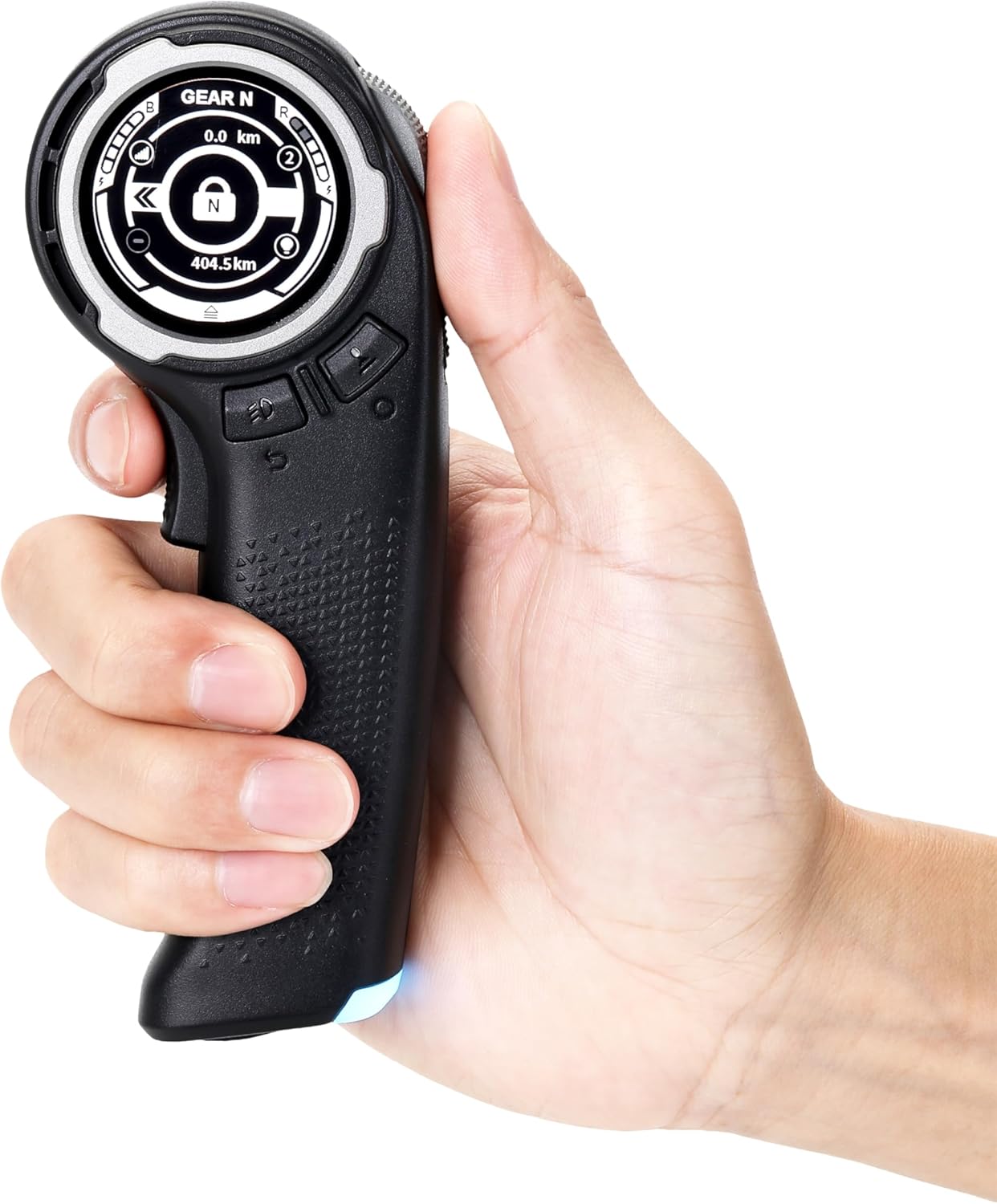
Image: The Exway Rexus Remote Control, showcasing its ergonomic design and vibrant display.
Setup
1. Charging the Remote
The Rexus Remote Control features a long-lasting battery, providing 6 to 10 hours of operation. It can be charged while in use. Connect the remote to a power source using the provided charging cable. A charging indicator will show the battery status.

Image: A visual representation of the remote's battery life and charging capability.
2. Initial Pairing and Display Setup
The remote is designed for seamless integration with Exway Flex Pro and Atlas Pro electric skateboards. Upon first use, follow the on-screen prompts to pair with your skateboard. The 1.32-inch HD touch screen allows for easy navigation and customization of the interface, including language settings and a user-friendly drop-down toolbar.

Image: A detailed view of the remote's high-brightness, large touch screen displaying various information.
3. Attaching Accessories
The remote features a quick-release expansion slot, allowing for easy attachment of accessories such as flashlights or action cameras. This modular design enhances the versatility of your remote. The remote is also built to automatically detach upon impact to prevent damage to itself and attached accessories.

Image: The remote demonstrating its quick-release feature for attaching external devices like a flashlight or camera.
Operating Instructions
1. Touch Screen Navigation
The 1.32-inch HD touch screen provides comprehensive information including speed, trip distance, and battery level. Use the capacitive touch interface to quickly toggle functions and customize your display via the user-friendly drop-down toolbar.
2. Gesture-Controlled Navigation
Utilize the advanced ASM posture sensor technology for intuitive gesture control. This allows you to effortlessly activate turn signals, adjust screen orientation, or wake the screen by simply lifting your hand, contributing to battery life preservation.

Image: The remote's display showing the screen rotation feature, activated by gesture control.
3. Precision Control and Safety Features
- Large Metal Scroll Wheel: The ultra-wide metal scroll wheel offers precise control over your skateboard's speed and braking.
- Unlock Trigger Key: An integrated unlock trigger key prevents accidental activation, enhancing safety during use.
- Multi-functional Brake Light: The added multi-functional brake light increases safety during rides, offering vibrant RGB lighting for various signals, including cycling warning lights and synchronized lighting.
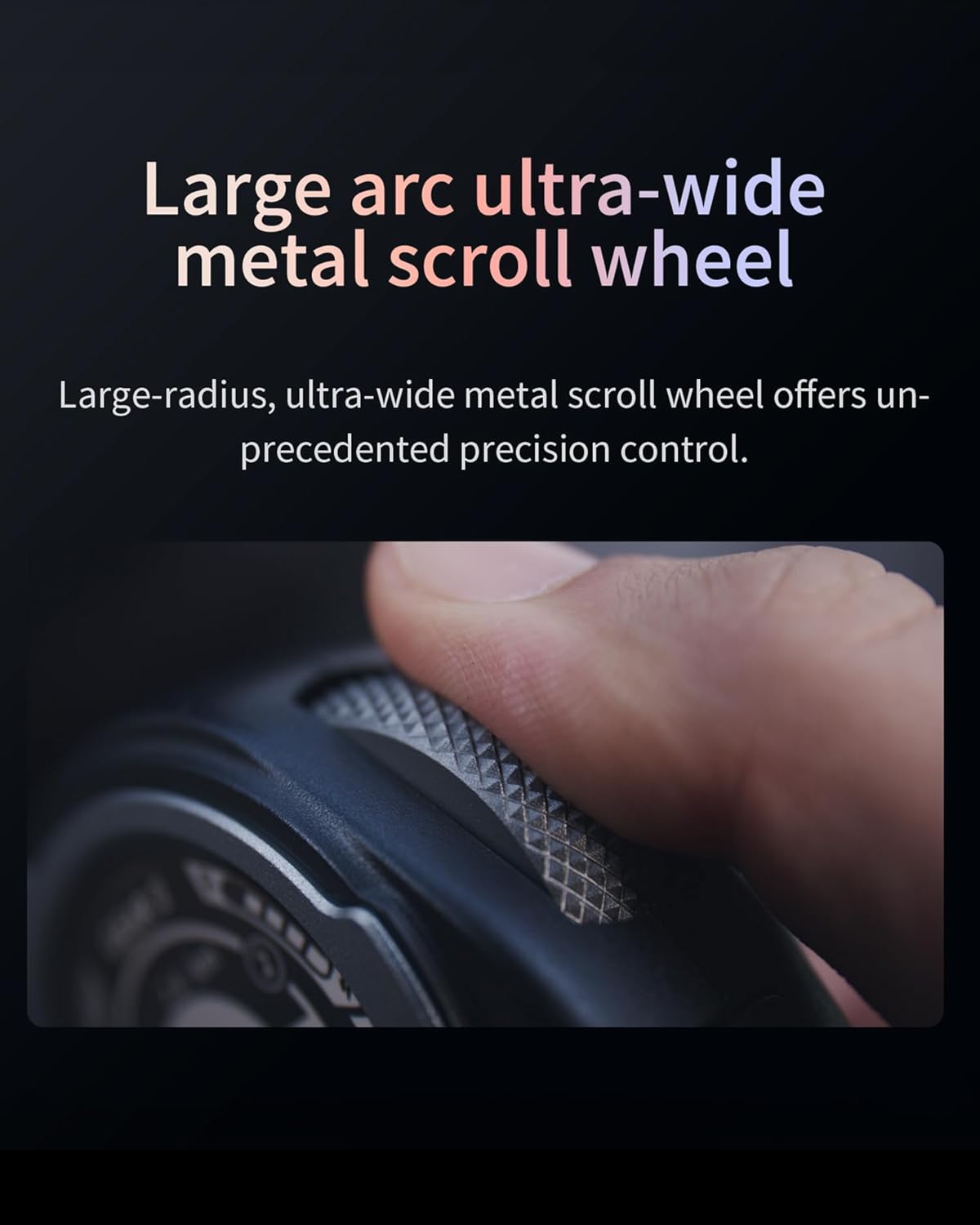
Image: A close-up view of the large arc ultra-wide metal scroll wheel, designed for precise control.

Image: The remote's built-in multi-functional brake light illuminated, indicating its safety feature.
Video: An official product video demonstrating the Exway Rexus Remote Control's features, including its display, gesture controls, and accessory compatibility.
Maintenance
1. Screen Protection
The remote is equipped with a metal screen protector to reduce damage from drops and minimize the likelihood of screen shattering. Additional accessories like a remote control case and tempered glass are available for enhanced protection.
2. Software Updates
Keep your remote updated with the latest features and improvements through Over-The-Air (OTA) updates via the ExSkate APP. Regularly check for updates to ensure optimal performance and access to new functionalities.
Troubleshooting
| Issue | Possible Cause | Solution |
|---|---|---|
| Remote not turning on | Low battery; Power button not pressed correctly. | Charge the remote fully. Press and hold the power button for a few seconds. |
| Unable to pair with skateboard | Skateboard not in pairing mode; Remote too far from skateboard; Interference. | Ensure skateboard is in pairing mode. Bring remote closer to skateboard. Move away from strong electronic interference. |
| Display is unresponsive or frozen | Software glitch; Excessive static. | Restart the remote. If issue persists, check for available OTA updates via the ExSkate APP. |
| Gesture control not working | ASM posture sensor obstruction; Software issue. | Ensure no physical obstruction to the sensor. Restart the remote. Check for software updates. |
Specifications
| Feature | Detail |
|---|---|
| Model Number | Rexus Remote |
| Item Weight | 3.53 ounces |
| Display | 1.32-inch HD Touch Colour Display |
| Control Wheel | Large Grain Metal Scroll Wheel |
| Special Features | Backlit, Digital Display, Glow In The Dark Button, Lightweight, Rechargeable, Screen Rotation, Brake Lights, Gesture Control, Quick-Release Expansion Slot |
| Compatible Devices | Exway Flex Pro, Exway Atlas Pro |
| Battery Life | 6 to 10 hours (approx.) |
Warranty and Support
For product support, warranty information, or any inquiries, please contact ExwayBoard directly. They aim to respond within 24 hours.
- Email: amazon@exwayboard.com
- Seller: ExwayBoard
Protection plans may be available for purchase separately to extend coverage beyond the standard warranty. Please refer to your purchase details for specific return policies and protection plan options.

Image: Exway customer support team ready to assist with inquiries.
Related documentsRexus Remote


Ask a question about this manual
Ask about setup, troubleshooting, compatibility, parts, safety, or missing instructions. Manuals+ will review the question and use this page’s manual context to help answer it.