
ProtoArc T1 Plus
ProtoArc T1 Plus Bluetooth Multi-Touch Trackpad User Manual
Model: T1 Plus
Introduction
This manual provides detailed instructions for the setup, operation, maintenance, and troubleshooting of your ProtoArc T1 Plus Bluetooth Multi-Touch Trackpad. Please read this manual thoroughly before using the device to ensure optimal performance and longevity.
Package Contents
- ProtoArc T1 Plus Bluetooth Multi-Touch Trackpad
- USB-C Charging Cable
- User Manual
Product Overview
Familiarize yourself with the components of your ProtoArc T1 Plus trackpad.

Image: Top-down view of the ProtoArc T1 Plus trackpad, showcasing its sleek, dark surface and slim profile. The trackpad features three small indicator lights at the top and a subtle line marking the bottom edge.
- Touch Surface: Large multi-touch area for gesture control.
- Indicator Lights: Display connection status and battery level.
- USB-C Port: For charging the device.
- Power Switch: On/Off control.
- Bluetooth Channel Switch: Button to cycle through connected devices.
Setup
1. Charging the Trackpad
Before initial use, fully charge the trackpad using the provided USB-C cable.
- Connect the USB-C cable to the trackpad's charging port.
- Connect the other end of the cable to a USB power source (e.g., computer USB port, USB wall adapter).
- The indicator light will show charging status. A full charge typically takes 1-2 hours and provides up to 50 hours of working time.

Image: Close-up of the ProtoArc T1 Plus trackpad showing a USB-C cable connected to its charging port. Text overlays indicate "Type-C Rechargeable," "50 Hours Working Time," and "1-2 Hours Full Charged."
2. Pairing with Devices (Bluetooth)
The ProtoArc T1 Plus trackpad can connect to up to three devices via Bluetooth.
- Turn on the trackpad using the power switch.
- Press the Bluetooth channel switch button (B1, B2, or B3) to select an available channel. The corresponding indicator light will blink rapidly, indicating it's in pairing mode.
- On your computer (Windows 11/10/7):
- Go to Settings > Devices > Bluetooth & other devices.
- Ensure Bluetooth is turned On.
- Click Add Bluetooth or other device > Bluetooth.
- Select "ProtoArc T1 Plus" from the list of available devices.
- Follow any on-screen prompts to complete the pairing. The indicator light on the trackpad will stop blinking and remain solid when connected.
- Repeat these steps for up to two additional devices using the other Bluetooth channels (B2, B3).
Note: This trackpad is compatible with Windows 11, Windows 10, and Windows 7. It is not compatible with Apple, Chrome OS, or Linux devices.

Image: The ProtoArc T1 Plus trackpad on a desk, surrounded by a tablet and a smartphone, illustrating its multi-device connectivity. Bluetooth icons with numbers 1, 2, and 3 are shown, indicating the ability to switch between three paired devices.

Image: A desktop setup featuring the ProtoArc T1 Plus trackpad next to a monitor displaying Windows logos for Windows 7, Windows 10, and Windows 11, emphasizing its compatibility with these operating systems.
Operating Instructions
The ProtoArc T1 Plus trackpad supports various multi-touch gestures for efficient navigation and control.
1. Basic Gestures
- Single Finger Tap: Functions as a left-click.
- Two Finger Tap: Functions as a right-click.
- Two Finger Scroll: Drag two fingers up or down to scroll vertically. Drag two fingers left or right to scroll horizontally.
- Two Finger Pinch: Pinch in or spread out two fingers to zoom in or out.
- Three Finger Swipe Up: Opens Task View (Windows 10/11).
- Three Finger Swipe Down: Shows the desktop.
- Three Finger Swipe Left/Right: Switches between open applications.
- Four Finger Tap: Opens Action Center (Windows 10/11).
For a comprehensive list of Windows gestures, refer to your operating system's documentation.

Image: A hand demonstrating a single-finger gesture on the large touch surface of the ProtoArc T1 Plus trackpad. The image highlights the trackpad's 6.4-inch size and compares it to a normal laptop touchpad, indicating an "Upgraded Large Touch Screen."
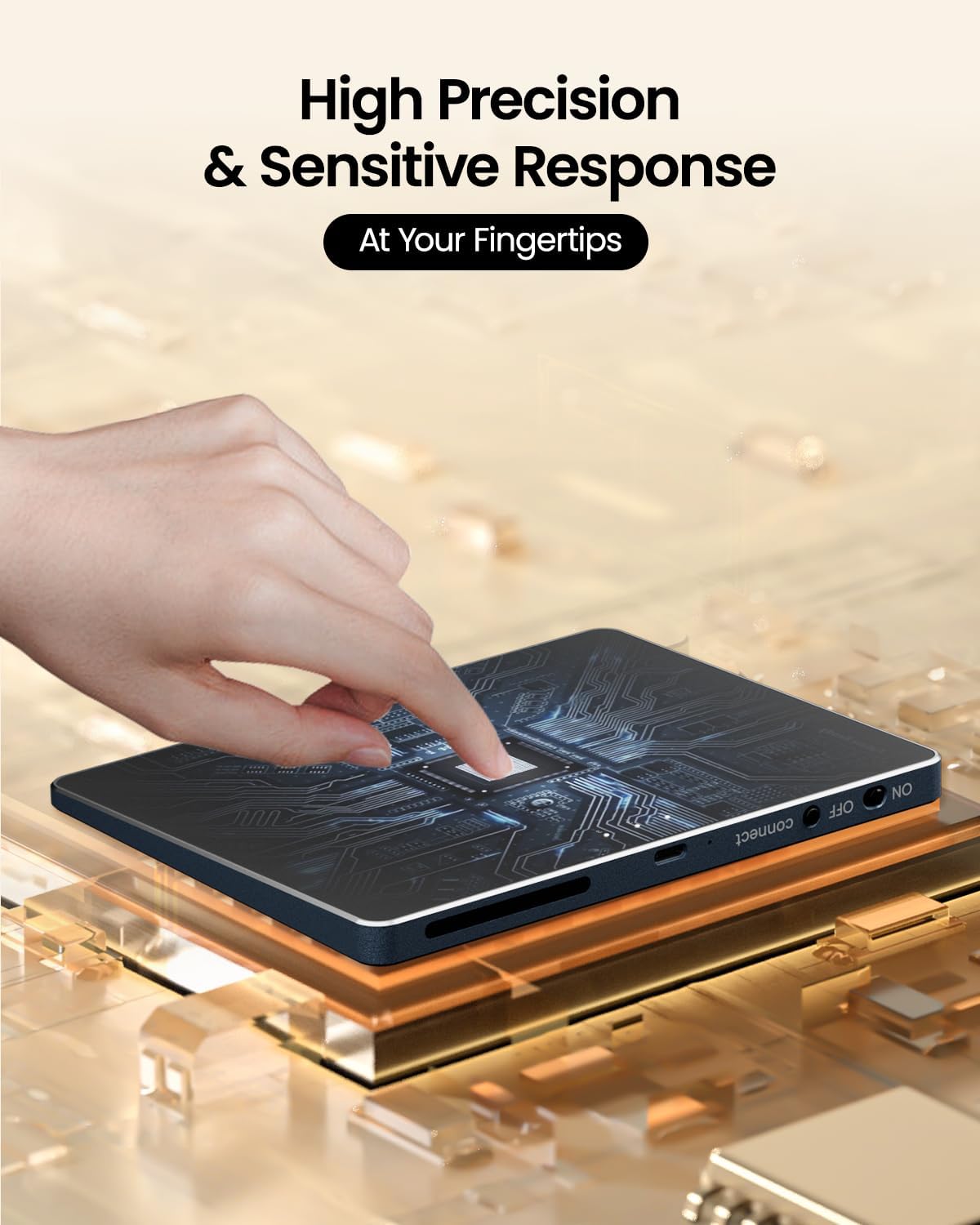
Image: A hand interacting with the ProtoArc T1 Plus trackpad, with an abstract circuit board graphic overlaid on the trackpad surface, symbolizing its "High Precision & Sensitive Response" capabilities. The power switch is visible on the side.
2. Physical Left and Right Clicks
In addition to tap gestures, the trackpad features integrated physical buttons for left and right clicks at the bottom edge.
- Press the lower-left area of the trackpad for a physical left-click.
- Press the lower-right area of the trackpad for a physical right-click.

Image: The ProtoArc T1 Plus trackpad on a desk, with glowing orange circles indicating the areas for the "Left and Right Physical Button" clicks at the bottom corners of the trackpad surface.
Maintenance
1. Cleaning
- Turn off the trackpad before cleaning.
- Use a soft, lint-free cloth slightly dampened with water or a mild screen cleaner.
- Avoid using harsh chemicals, abrasive cleaners, or aerosol sprays directly on the trackpad.
2. Battery Care
- To preserve battery life, avoid fully discharging the trackpad frequently.
- If storing the trackpad for an extended period, charge it to about 50% and store it in a cool, dry place.
- Recharge the trackpad periodically if not in use to prevent deep discharge.
Troubleshooting
| Problem | Possible Solution |
|---|---|
| Trackpad does not turn on. |
|
| Unable to pair via Bluetooth. |
|
| Trackpad is unresponsive or lagging. |
|
| Gestures are not working correctly. |
|
Specifications
| Brand | ProtoArc |
| Model Name | T1 Plus |
| Color | Black |
| Connectivity Technology | Bluetooth |
| Special Features | Multi-device switching, high-precision multi-touch, wide compatibility, ultra-slim metallic design, physical click buttons, Type-C rechargeable |
| Movement Detection Technology | Capacitive |
| Number of Buttons | 2 (physical left/right click) |
| Hand Orientation | Ambidextrous |
| Recommended Uses | Personal computing |
| Compatible Devices | Personal computer, laptop, desktop (Windows 11/10/7) |
| Battery | 500mAh rechargeable lithium battery |
| Working Time | Up to 50 hours (per full charge) |
| Charging Time | 1-2 hours |
| Dimensions | Approximately 16.3 x 12.2 x 1.0 cm (6.4 x 4.8 x 0.4 inches) |

Image: An angled view of the ProtoArc T1 Plus trackpad, showing both its top surface and its metallic blue underside. The underside features four anti-slip pads and product labeling. The image highlights its "0.4inch Anti-Slip Pads" and "Ultra Slim Metallic Design."
Warranty and Support
ProtoArc products are designed for reliability and performance. For warranty information, technical support, or customer service inquiries, please refer to the warranty card included in your package or visit the official ProtoArc website.
Please retain your proof of purchase for warranty claims.
Related documentsT1 Plus


Ask a question about this manual
Ask about setup, troubleshooting, compatibility, parts, safety, or missing instructions. Manuals+ will review the question and use this page’s manual context to help answer it.