
1. Introduction
This manual provides comprehensive instructions for the setup, operation, and maintenance of your AUSDOM 98Pro Silent Mechanical Keyboard. Designed for versatility and quiet performance, this keyboard features tri-mode connectivity, pre-lubed silent tactile switches, and a gasket structure for an enhanced typing experience. Please read this manual thoroughly before using the product to ensure optimal performance and longevity.

The AUSDOM 98Pro Silent Mechanical Keyboard, featuring a green and white color scheme.
2. Package Contents
Please verify that all items listed below are included in your package:
- Wireless Mechanical Keyboard x 1
- USB Receiver x 1
- Type-C Charging Cable x 1
- Instruction Manual x 1
- Mechanical Switch x 3
- Switch Puller x 1
3. Product Features
The AUSDOM 98Pro keyboard is equipped with advanced features to enhance your productivity and gaming experience:
- Tri-mode Connectivity: Supports Bluetooth 5.0, 2.4GHz wireless, and wired USB-C connections. Connect up to five devices simultaneously and switch easily.
- Pre-lubed Silent Tactile Switches: AUSDOM's self-developed switches provide a clear press feeling with a quiet typing environment, ideal for office use.
- Gasket Structure Design: Features a precision locking cover with gaskets and internal sound-absorbing/shock-absorbing layers to reduce typing noise and resonance.
- 95% Compact Layout (97 Keys): Saves desk space while retaining essential number and arrow keys.
- Hot-Swappable: Allows for easy replacement of 3-pin/5-pin switches and keycaps without soldering.
- Ergonomic & PBT Keycaps: Two-color PBT keycaps are sweat-proof, non-slippery, and colorfast. Two-stage feet allow for adjustable typing height.
- Single White Backlight: Offers 4 levels of brightness and 16 lighting effects.
- Customizable Software: Supports customizable gaming shortcuts and lighting effects (Windows system only, wired and 2.4G modes).
- Anti-Ghosting Key: Ensures no key conflicts with any key combination.
- Mac and Win Dual Layout: Easily switch layouts with FN+ key combination.

Overview of the AUSDOM 98Pro Mechanical Keyboard's key features, including connectivity, gasket structure, white backlight, battery, PBT keycaps, hot-swappable design, mute keyboard function, and Mac/Win layout switch.
4. Setup
4.1 Charging the Keyboard
Before first use, fully charge the keyboard using the provided Type-C charging cable. Connect one end to the keyboard's USB-C port and the other to a compatible USB power source (e.g., computer USB port, wall adapter).

The independent USB-C port for charging and wired connection.
4.2 Connecting the Keyboard
The AUSDOM 98Pro supports three connection modes: Bluetooth, 2.4GHz Wireless, and Wired USB-C.
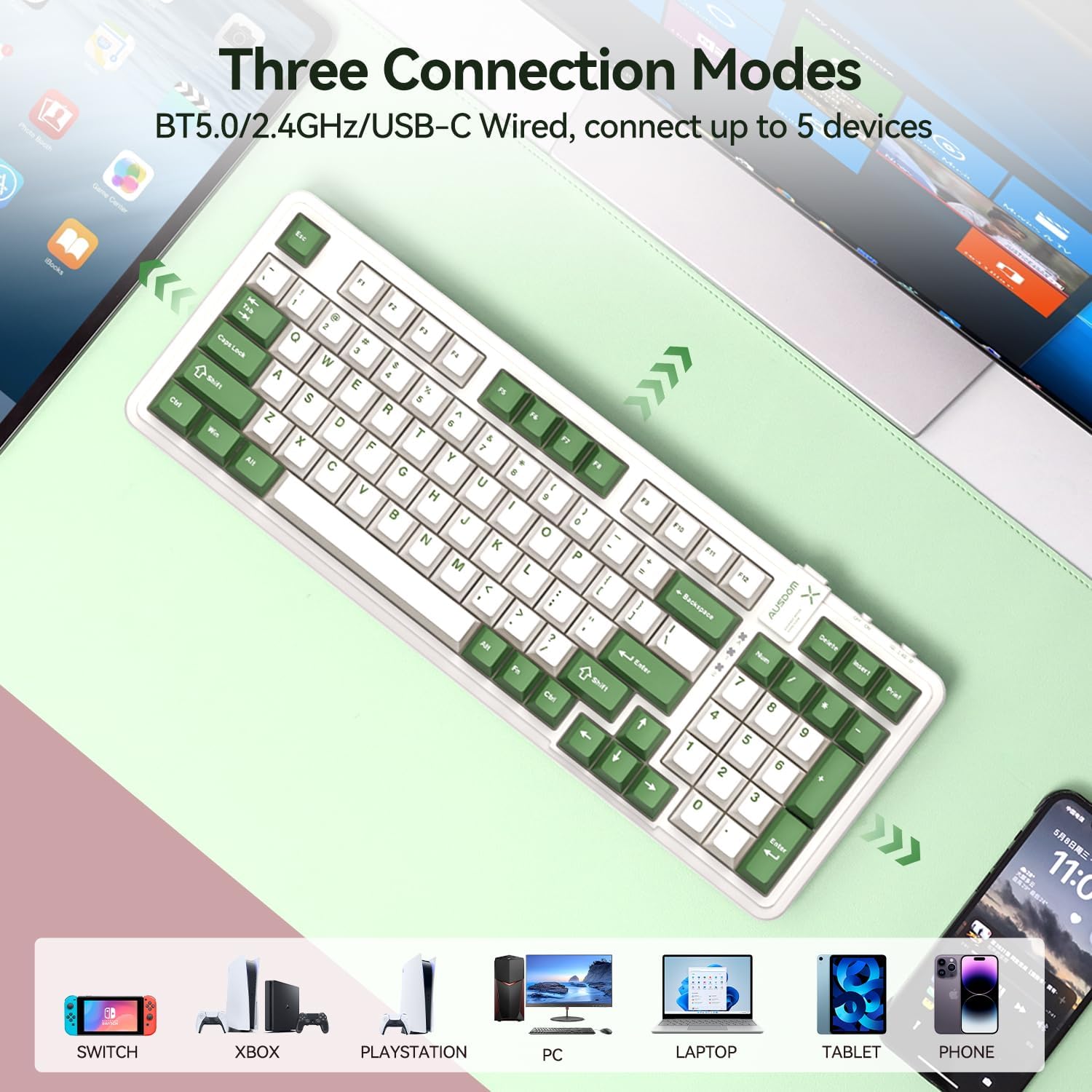
Visual representation of the three connection modes: Bluetooth 5.0, 2.4G wireless, and USB-C wired, showing compatibility with various devices like Switch, Xbox, PlayStation, PC, Laptop, Tablet, and Phone.
4.2.1 2.4GHz Wireless Connection
- Locate the USB receiver in the keyboard's storage slot.
- Plug the USB receiver into an available USB port on your computer or device.
- Switch the keyboard's mode selector to "2.4G" (usually located on the top edge of the keyboard).
- The keyboard should automatically connect. If not, press FN + 4 to initiate pairing.
4.2.2 Bluetooth Connection
The keyboard supports up to three Bluetooth devices (BT1, BT2, BT3).
- Switch the keyboard's mode selector to "BT".
- Press and hold FN + 1 (for BT1), FN + 2 (for BT2), or FN + 3 (for BT3) for 3-5 seconds until the indicator light flashes rapidly, indicating pairing mode.
- On your device (computer, tablet, phone), enable Bluetooth and search for "AUSDOM 98Pro".
- Select the keyboard to pair. The indicator light will stop flashing once connected.
- To switch between paired Bluetooth devices, simply press FN + 1, FN + 2, or FN + 3.
4.2.3 Wired USB-C Connection
- Connect the provided Type-C cable to the keyboard's USB-C port.
- Connect the other end of the cable to a USB port on your computer.
- Switch the keyboard's mode selector to "Wired" or ensure it's in a wired mode if no specific switch is present (often automatically detected when cable is plugged in).
5. Operating Instructions
5.1 Backlight Control
The keyboard features a single white backlight with multiple effects.
- Change Backlight Levels: Press FN + ← or FN + → to adjust backlight brightness (4 levels).
- Change Backlight Effects: Press FN + ↑ or FN + ↓ to cycle through 16 different lighting effects.

Illustrates how to change backlight levels using FN + left/right arrow keys and backlight effects using FN + up/down arrow keys.
5.2 Hot-Swappable Switches
The AUSDOM 98Pro allows you to easily change mechanical switches without soldering.
- Use the provided switch puller to gently remove the desired keycap.
- Use the switch puller to carefully grip and pull out the switch from its socket.
- Align the pins of the new 3-pin or 5-pin switch with the holes in the PCB socket.
- Gently press the new switch into place until it clicks securely.
- Replace the keycap.
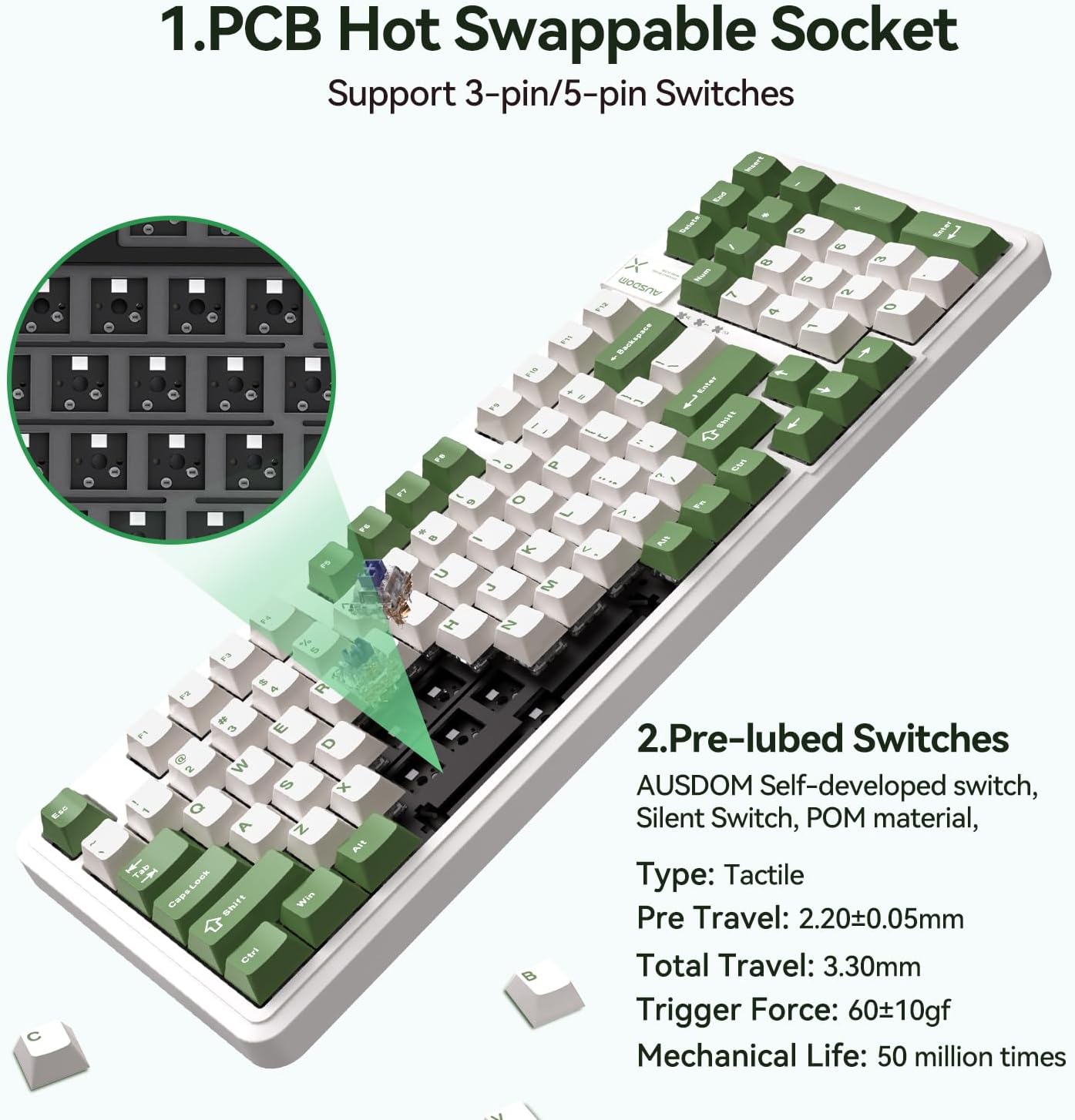
Detailed view of the PCB hot-swappable socket supporting 3-pin/5-pin switches and the pre-lubed tactile switches with their specifications.
5.3 Mac/Windows Layout Switching
To switch between Mac and Windows keyboard layouts, press FN + A for Windows layout or FN + S for Mac layout.
5.4 Custom Software (Windows Only)
For advanced customization of lighting effects and macro programming, download the official AUSDOM software. This software is compatible only with Windows operating systems and functions in wired and 2.4G modes.
- Customized light effects.
- All key support macro programmable.
- Customize the shortcut keys.
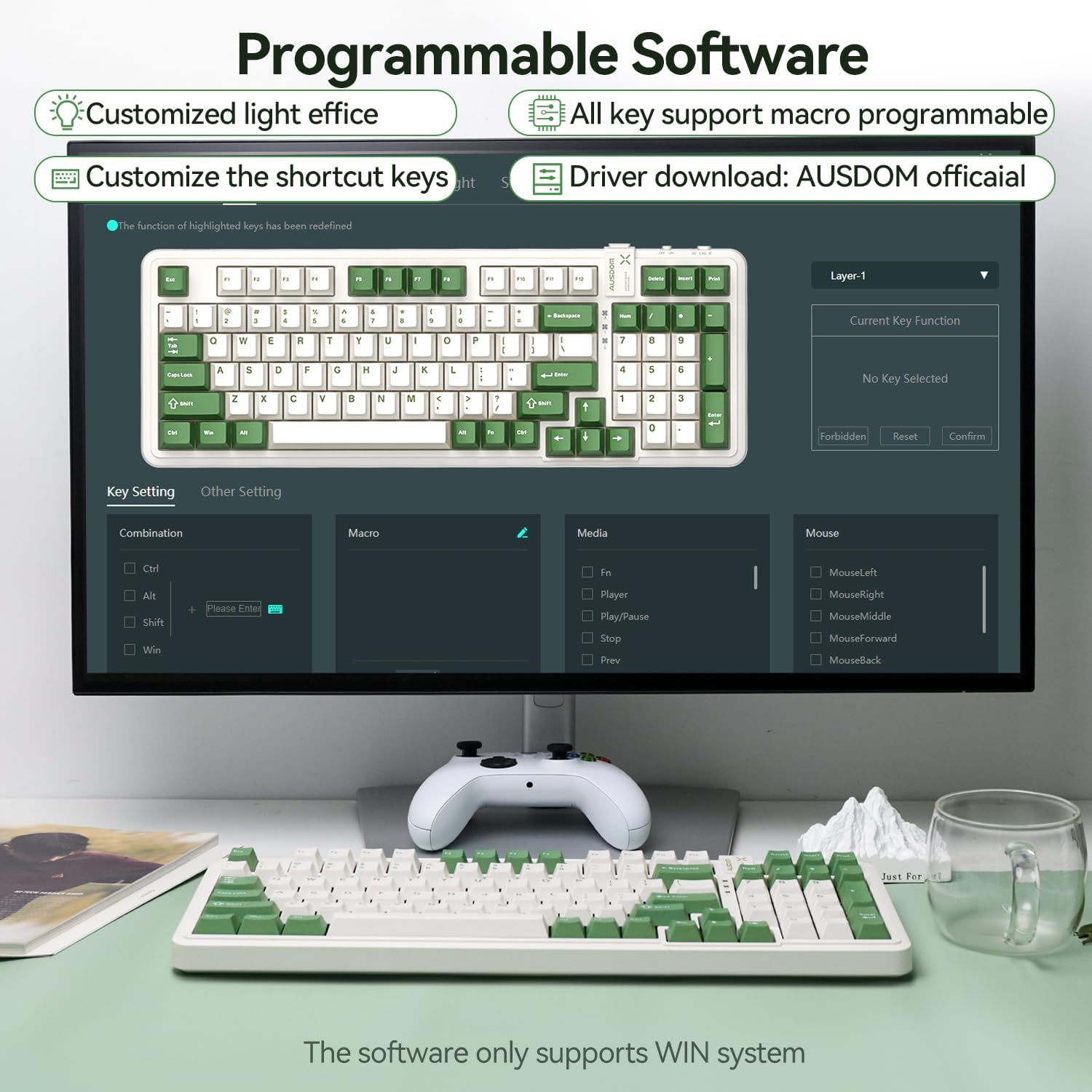
Screenshot of the programmable software interface, showing options for customized light effects, macro programming, and shortcut key customization. Note: Software supports Windows only.
6. Maintenance
- Cleaning: Use a soft, dry cloth to wipe the keyboard surface. For deeper cleaning, use a can of compressed air to remove dust and debris from between the keys. Avoid using harsh chemicals or abrasive materials.
- Storage: Store the keyboard in a cool, dry place away from direct sunlight and extreme temperatures.
- Battery Care: To prolong battery life, avoid fully discharging the keyboard frequently. Charge it regularly, especially if not used for extended periods.
- Keycap and Switch Removal: When removing keycaps or switches, do so gently to avoid damaging the components.
7. Troubleshooting
| Problem | Possible Cause | Solution |
|---|---|---|
| Keyboard not responding (Wireless) | Low battery; Incorrect connection mode; USB receiver not properly connected; Bluetooth not paired. | Charge the keyboard; Ensure the mode switch is set to 2.4G or BT; Re-insert the USB receiver; Re-pair Bluetooth (FN+1/2/3). |
| Keys not registering or double-typing | Dust/debris under keycap/switch; Faulty switch. | Remove keycap and clean with compressed air; Replace the switch using the hot-swappable feature. |
| Backlight not working or dim | Backlight turned off; Brightness set too low; Low battery. | Press FN + ←/→ to adjust brightness; Charge the keyboard. |
| Software not detecting keyboard | Keyboard not in wired or 2.4G mode; Software compatibility issue. | Ensure keyboard is connected via wired USB-C or 2.4G wireless; Confirm your operating system is Windows. |
| Difficulty switching Mac/Win layout | Incorrect key combination. | Press FN + A for Windows layout or FN + S for Mac layout. |
8. Specifications
| Feature | Detail |
|---|---|
| Product Dimensions | 15.51 x 5.59 x 1.46 inches |
| Item Weight | 2.9 pounds |
| Manufacturer | AUSDOM |
| Item Model Number | AUSDOM 98Pro-Green&White-Silent |
| Batteries | 1 Lithium Polymer battery required (included) |
| Connectivity Technology | 2.4G, Bluetooth, USB-C |
| Keyboard Description | Mechanical |
| Recommended Uses | Business, Gaming, Office Everyday Use, Personal, Student |
| Special Features | Backlit, Ergonomic, Hot-Swappable, Silent, Tri-mode Connect |
| Color | Green & White-Silent |
| Number of Keys | 97 |
| Keyboard Backlighting | Single Color (White) |
| Style | Modern |
9. Warranty and Support
For warranty information and technical support, please refer to the official AUSDOM website or contact their customer service directly. Keep your purchase receipt as proof of purchase for any warranty claims.
For further assistance, please visit: AUSDOM Official Store on Amazon