
1. Introduction
This manual provides detailed instructions for the setup, operation, and maintenance of your Yamnweo GX-06 6-Channel Portable Audio Mixer. Please read this manual thoroughly before using the device to ensure proper functionality and to maximize its performance.
Key Features:
- 6-channel mixer with 6 MIC/LINE mono inputs and 1 stereo input.
- Integrated 48V phantom power for condenser microphones.
- Bluetooth wireless connectivity for mobile devices.
- USB port for PC connection, recording, and audio playback.
- 99 built-in DSP reverb effects.
- Stereo equalization and gain fine-tuning on all channels.
- Headphone monitoring output.
2. Product Layout and Controls
Familiarize yourself with the various inputs, outputs, and controls on your GX-06 mixer.

Figure 2.1: Front and Rear Panel Layout of the Yamnweo GX-06 Mixer. This image displays the audio input channels (CH1-CH4), USB input, main output, headphone output, various control knobs (Gain, High, Low, FX, Volume), the display screen, function adjustment buttons, and the USB power port on the rear.
Control Descriptions:
- Audio Input (CH1-CH4): XLR/TRS combo jacks for microphones or line-level instruments.
- +48V Power Supply: Button to activate phantom power for condenser microphones on channels 1-4.
- PAD: Attenuation button for high-level input signals.
- Gain Knob: Adjusts the input sensitivity for each channel.
- High Knob: Adjusts the high-frequency (treble) equalization for each channel.
- Low Knob: Adjusts the low-frequency (bass) equalization for each channel.
- FX Knob: Controls the amount of effect sent from each channel to the built-in DSP effects processor.
- CH1-CH4 Volume Knobs: Adjusts the output level for individual channels.
- USB/LINE 5/6: Input for USB audio or stereo line-level devices.
- Display: Shows current effect number, mode, and other status information.
- Switch Knob: Navigates through menus and selects options.
- Function Adjustment Buttons: Control playback, pause, skip tracks, and mode selection for USB/Bluetooth.
- Main Output (MAIN OUT L/R): TRS jacks for connecting to main speakers or recording devices.
- Phones Output (6.5mm): Headphone jack for monitoring.
- Phones Volume Knob: Adjusts the headphone output level.
- Main Fader: Controls the overall output volume of the mixer.
- Reverb Knob: Adjusts the overall level of the selected reverb effect.
- USB Knob: Adjusts the volume of the USB/Bluetooth input.
- USB Power Port (Rear): 5V DC input for powering the mixer.
3. Setup and Connections
Follow these steps to connect your audio equipment to the GX-06 mixer.
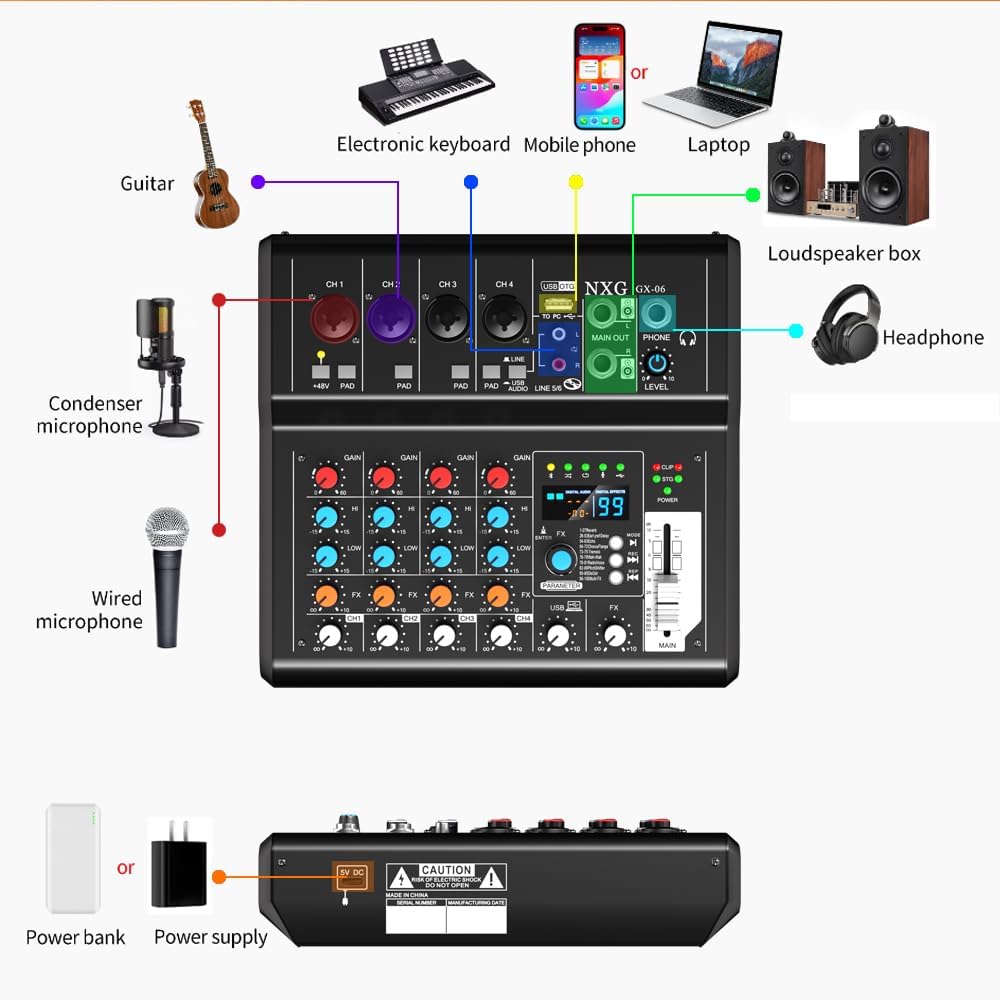
Figure 3.1: Connection diagram illustrating how to connect various devices such as microphones, guitars, electronic keyboards, mobile phones, laptops, loudspeakers, and headphones to the Yamnweo GX-06 mixer.
3.1 Power Connection
- Connect the provided 5V DC power adapter to the USB Power Port on the rear of the mixer.
- Plug the power adapter into a suitable power outlet.
3.2 Input Device Connections
- Microphones: Connect dynamic or condenser microphones to the XLR/TRS combo jacks (CH1-CH4). If using a condenser microphone, ensure the +48V phantom power is activated.
- Instruments: Connect instruments like guitars or electronic keyboards to the TRS inputs (CH1-CH4) or the stereo line input (USB/LINE 5/6).
- External Audio Devices: Connect mobile phones, tablets, or other audio players via Bluetooth or a 3.5mm to TRS cable to the stereo line input (USB/LINE 5/6).
3.3 Output Device Connections
- Main Speakers: Connect your main loudspeakers to the MAIN OUT L/R TRS jacks.
- Headphones: Connect your headphones to the 6.5mm PHONES output jack for monitoring.
3.4 Computer Connection

Figure 3.2: The Yamnweo GX-06 mixer connected to a laptop via a USB cable, demonstrating its capability for live streaming or recording with a computer.
Connect the mixer to your computer using a USB cable. The mixer will function as an audio interface, allowing for recording and playback through your computer's audio software.
4. Operating Instructions
4.1 Powering On/Off
Once all connections are made, turn on the mixer by connecting the power adapter. There is no separate power switch; the unit powers on when connected to power.
4.2 Adjusting Input Levels (Gain)
Use the Gain knob for each channel to set the input level. Adjust it so that the signal is strong but does not clip (indicated by the CLIP LED). If the input signal is too strong, press the PAD button to attenuate it.
4.3 Equalization
Use the High and Low knobs on each channel to adjust the treble and bass frequencies of the input signal. Turn clockwise to boost, counter-clockwise to cut.
4.4 Activating Phantom Power
For condenser microphones, press the +48V button. The corresponding LED will illuminate, supplying power to the connected microphone. Ensure dynamic microphones are not connected when phantom power is active, unless they are designed to handle it.
4.5 Using DSP Effects
The GX-06 features 99 DSP effects. Use the Switch knob to browse and select an effect number displayed on the screen. Adjust the FX knob on individual channels to send signal to the effects processor, and use the main Reverb knob to control the overall wet/dry mix of the effect.
4.6 Bluetooth Connectivity
- Press the Mode button (part of Function Adjustment) until "BT" or "Bluetooth" appears on the display.
- On your mobile device, search for Bluetooth devices and select "GX-06" to pair.
- Once paired, audio from your device will play through the mixer. Adjust its volume using the USB knob.
4.7 USB Recording and Playback
When connected to a computer via USB, the mixer acts as an audio interface. You can record the mixed output to your computer or play audio from your computer through the mixer. Use the USB knob to control the volume of the USB input/playback.
4.8 Monitoring with Headphones

Figure 4.1: A user wearing headphones connected to the Yamnweo GX-06 mixer, demonstrating the ear monitoring function for real-time sound feedback and adjustment.
Connect headphones to the Phones Output. Adjust the Phones Volume knob to set a comfortable listening level. This allows you to monitor the mix without affecting the main output.
5. Specifications
Technical specifications for the Yamnweo GX-06 Portable Audio Mixer.

Figure 5.1: Diagram showing the dimensions of the Yamnweo GX-06 mixer: approximately 20.2 cm (7.95 inches) in depth, 19.8 cm (7.80 inches) in width, and 5.5 cm (2.17 inches) in height.
| Feature | Specification |
|---|---|
| Brand | Yamnweo |
| Model Number | GX-06 |
| Number of Channels | 6 (4 mono MIC/LINE + 1 stereo USB/LINE) |
| Product Dimensions (D x W x H) | 7.87"D x 7.99"W x 2"H (20.0 cm x 20.3 cm x 5.1 cm) |
| Item Weight | 1227 Grams (2.7 lbs) |
| Connectivity Technology | Bluetooth, USB |
| Power Source | Battery Powered (via 5V DC USB input) |
| Output Connector Type | USB Type B, TRS (Main Out, Phones) |
| Audio Input | XLR/TRS Combo, USB |
| Voltage | 5 Volts |
| Phantom Power | 48V |
| DSP Effects | 99 Reverb Effects |
6. Troubleshooting
If you encounter issues with your GX-06 mixer, refer to the following common problems and solutions.
- No Sound Output:
- Check all cable connections to inputs, outputs, and speakers.
- Ensure the Main Fader and individual channel volume knobs are turned up.
- Verify that the input source (microphone, instrument, Bluetooth device) is active and sending a signal.
- Check if the correct input mode (e.g., USB, Bluetooth) is selected.
- Distorted Sound:
- Reduce the Gain knob for the affected channel.
- If the CLIP LED is lit, the input signal is too high; press the PAD button or lower the source volume.
- Ensure all cables are in good condition and properly connected.
- Phantom Power Not Working:
- Ensure the +48V button is pressed and its LED is illuminated.
- Verify that the condenser microphone is properly connected.
- Bluetooth Connection Issues:
- Ensure the mixer is in Bluetooth mode.
- Delete the mixer from your device's Bluetooth history and try pairing again.
- Ensure your device is within range of the mixer.
- USB Recording/Playback Problems:
- Verify the USB cable is securely connected to both the mixer and the computer.
- Check your computer's sound settings to ensure the GX-06 is selected as the input/output device.
- Ensure your recording software is configured to use the GX-06.
7. Maintenance
Proper care and maintenance will extend the life of your Yamnweo GX-06 mixer.
- Cleaning: Use a soft, dry cloth to clean the exterior of the mixer. Do not use liquid cleaners or solvents, as they may damage the finish or internal components.
- Storage: Store the mixer in a cool, dry place away from direct sunlight and extreme temperatures.
- Handling: Avoid dropping or subjecting the mixer to strong impacts. Do not place heavy objects on top of the unit.
- Ventilation: Ensure proper ventilation around the mixer to prevent overheating.
8. Warranty and Support
For warranty information or technical support, please refer to the documentation included with your purchase or contact Yamnweo customer service through their official website or the retailer where the product was purchased. Keep your proof of purchase for warranty claims.