
1. Overview
The KomShine QX55-S is a portable mini Optical Time Domain Reflectometer (OTDR) designed for efficient fiber optic network testing. This device integrates multiple functions including OTDR, Visual Fault Locator (VFL), Optical Power Meter (OPM), Optical Light Source (OLS), Fiber Inspection Probe (FIP), and RJ45 network testing, providing a comprehensive solution for fiber optic analysis and maintenance.
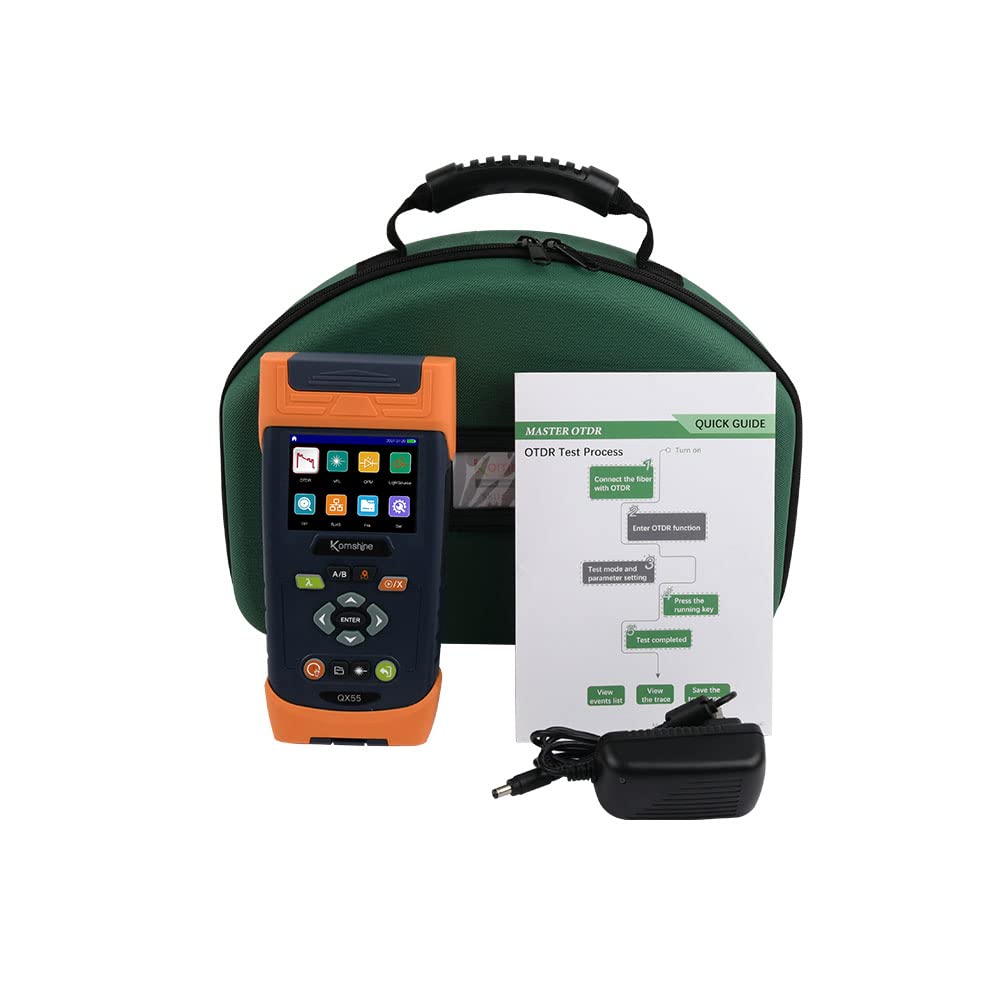
Figure 1: KomShine QX55-S Portable Mini OTDR
Key Features:
- Intelligent trace analysis with dynamic display of test results.
- Capable of testing three-level splitters, up to 1:16/32.
- Built-in Optical Power Meter (OPM), Visual Fault Locator (VFL), Optical Light Source (OLS), Fiber Inspection Probe (FIP), and RJ45 network testing.
- First-in-class OTDR self-calibration function.
- Link map and Pass/Fail judgment function for easy fault identification.
- Dual wavelength testing (1310/1550nm) simultaneously.
- Capable of detecting splicing loss as low as 0.04dB.
- Characterizes Passive Optical Networks (PON) through up to 1:16 splitters.
2. Package Contents
Verify that all items listed below are included in your package. If any items are missing or damaged, please contact your supplier.
- KomShine QX55-S Fiber OTDR Main Body
- Carrying Case
- Power Adapter
- Gallusus (Strap)
- Quick Reference Guide
- Inspection Certificate
- Calibration Certificate
- Brochure
- Toolkit

Figure 2: Standard Package Contents
3. Setup
3.1 Powering On/Off
- To power on the device, press and hold the power button located on the front panel until the screen illuminates.
- To power off, press and hold the power button again until the device shuts down.
3.2 Charging the Battery
- Connect the provided power adapter to the charging port on the device.
- Plug the adapter into a standard electrical outlet. The charging indicator will show the charging status.
3.3 Initial Connections
- For OTDR measurements, connect the fiber under test to the appropriate optical port on the device. Ensure connectors are clean before connection.
- For other functions like VFL or OLS, connect the fiber to their respective ports as needed.
4. Operating Instructions
4.1 User Interface Navigation
The QX55-S features a new, intuitive user interface designed for ease of use. Navigate through the menus using the directional buttons and the 'ENTER' key.
Video 1: Overview of the KomShine QX55-S Fiber Optic OTDR and its user interface.
4.2 OTDR Testing
The OTDR function allows for intelligent trace analysis and dynamic display of test results. It supports dual wavelength testing (1310/1550nm) simultaneously and can detect events with a dead zone of only 1 meter.
- From the main menu, select the 'OTDR' icon.
- Choose between 'Auto' mode for quick, intelligent testing or 'Manual' mode for experienced users to set specific parameters (pulse width, range, test time, wavelength).
- Press 'Test' to begin the measurement. The device will display the fiber trace and event table.
- The QX55-S can isolate and diagnose fiber faults in a timely manner, displaying up to three event parameters simultaneously.

Figure 3: OTDR Trace Analysis Display
4.3 Link Map Function
The Link Map function provides a simplified graphical representation of the fiber link, displaying events such as splices, connectors, and breaks with Pass/Fail judgment. This feature simplifies fault location for all users.
- After an OTDR test is complete, navigate to the 'Link Map' view.
- The screen will show icons representing different events along the fiber, along with their distances and loss values.

Figure 4: Link Map Function Icon Displays Events
4.4 Splitter Loss Test
The QX55-S is capable of characterizing Passive Optical Networks (PON) by testing through up to 1:16 splitters and even three-level splitters up to 1:32, providing detailed loss measurements.
- Configure the OTDR settings for PON testing, ensuring appropriate pulse width and range for the network architecture.
- Perform the OTDR test. The device will analyze the splitter losses and display them in the event table and trace.

Figure 5: Testing Three-level Splitters
4.5 Self-Calibration
The QX55-S features a user-independent self-calibration function. This allows users to calibrate and maintain the device's circuits, optical paths, and optical devices with one click, ensuring accuracy over time and reducing maintenance costs.
- From the main menu, navigate to 'Settings' and select 'Self Calibration'.
- Follow the on-screen prompts to initiate the calibration process. Ensure the device is in a stable environment and not connected to any live fibers during calibration.

Figure 6: Self-Calibration Interface
4.6 Data Processing and Reporting
The device supports powerful data processing functions, allowing for PC analysis of test results. You can connect the QX55-S to a computer to transfer data, generate reports, and customize output contents.
- Connect the QX55-S to a PC using a USB cable.
- Install the provided PC analysis software (if applicable).
- Transfer saved test data from the device to the PC for detailed analysis, report generation, and printing.

Figure 7: PC Analysis Operation
5. Maintenance
5.1 Cleaning the Device
- Regularly clean the exterior of the device with a soft, dry cloth.
- For optical ports, use specialized fiber optic cleaning tools (e.g., fiber optic cleaners, lint-free wipes with isopropyl alcohol) to ensure optimal performance and prevent contamination.
5.2 Protecting the Device
The QX55-S is equipped with a silicone sheath for enhanced protection against shock, dust, and rain. This sheath helps to reduce damage and prolong the service life of the device.
- Always use the provided silicone sheath during operation and transport.
- Store the device in its carrying case when not in use to protect it from environmental factors and physical damage.

Figure 8: Silicone Sheath Protection
6. Troubleshooting
This section provides solutions to common issues you may encounter with your KomShine QX55-S OTDR.
6.1 Device Does Not Power On
- Ensure the battery is charged. Connect the device to the power adapter and allow it to charge for at least 30 minutes.
- Verify that the power button is pressed and held for a few seconds until the screen lights up.
6.2 Inaccurate Measurement Results
- Clean all optical connectors and ports thoroughly. Contamination is a common cause of inaccurate readings.
- Perform a self-calibration of the device (refer to Section 4.5).
- Ensure the correct fiber type (SM) and wavelength (1310/1550nm) settings are selected for your test.
- Check the fiber under test for any physical damage or excessive bends.
6.3 Screen Freezes or Device Becomes Unresponsive
- Press and hold the power button for approximately 10-15 seconds to force a shutdown.
- Restart the device. If the issue persists, contact technical support.
7. Specifications
| Feature | Specification |
|---|---|
| Brand | KOMSHINE |
| Model Number | QX55-S 1310/1550nm 32/30dB |
| Power Source | Battery Powered |
| Style | QX55 OTDR |
| Color | Orange |
| Item Weight | 2.5 Kilograms (5.5 pounds) |
| Product Dimensions (L x W x H) | 17.72 x 9.84 x 13.78 inches |
| Specification Met | CE |
| UPC | 601236650221 |
| Hardware Platform | PC |
| Operating System | Linux |
8. Warranty and Support
8.1 Return Policy
This product is subject to a 30-day return policy for refund or replacement. Please refer to your purchase agreement or retailer's policy for specific terms and conditions.
8.2 Technical Support
For technical assistance, troubleshooting, or service inquiries, please contact KomShine customer support. You can find contact information on the official KomShine website or through your product documentation.
For additional resources and product information, visit the KOMSHINE Store.