
N newline Newpie 30
N newline NewPie 30 USB Conference Microphone Speaker User Manual
Model: Newpie 30
Brand: N newline
1. Introduction
The N newline NewPie 30 is a versatile USB conference microphone speaker designed for clear and efficient communication in various settings, including home offices, meeting rooms, and during business trips. It features 360° voice pickup, AI noise reduction, and multiple connection options to ensure a seamless audio experience for all participants.
2. What's in the Box
Upon unboxing your N newline NewPie 30, please ensure all the following components are present:
- NewPie 30 USB Conference Microphone Speaker
- USB Dongle
- USB-C to USB-A Cable

Image: The NewPie 30 speakerphone, accompanied by its USB dongles and the included USB-C to USB-A cable, showcasing all components in the package.
3. Key Features
- 360° Sensitive Voice Pickup & 4 MICS: Equipped with 4 smart omnidirectional microphones, the NewPie 30 captures voices within a 3-meter (10ft) radius, ensuring everyone in the room is heard clearly.
- Voice AI Noise Reduction & Speech Enhancement: Advanced AI algorithms eliminate background noise (e.g., keyboard typing, air conditioning) and suppress echoes, enhancing speech clarity for more efficient communication.
- Longer Battery Life & Portable Design: A built-in 2000 mAh battery provides up to 16 hours of call time on a single charge, making it ideal for all-day meetings and travel. Its compact design ensures portability.
- Wireless Connection & Wider Compatibility: Supports USB, Bluetooth, and dongle connections, compatible with various platforms like Zoom, Skype for Business, and WebEx.
- Full-Duplex Communication & Super Volume: Enables clear two-way audio simultaneously, allowing natural conversations without interruptions. Sufficient volume output ensures every word is audible.

Image: An overview of the NewPie 30's core features, including 360° voice pickup, AI noise reduction, multiple connection options, full-duplex audio, 4-microphone array, and extended battery life.
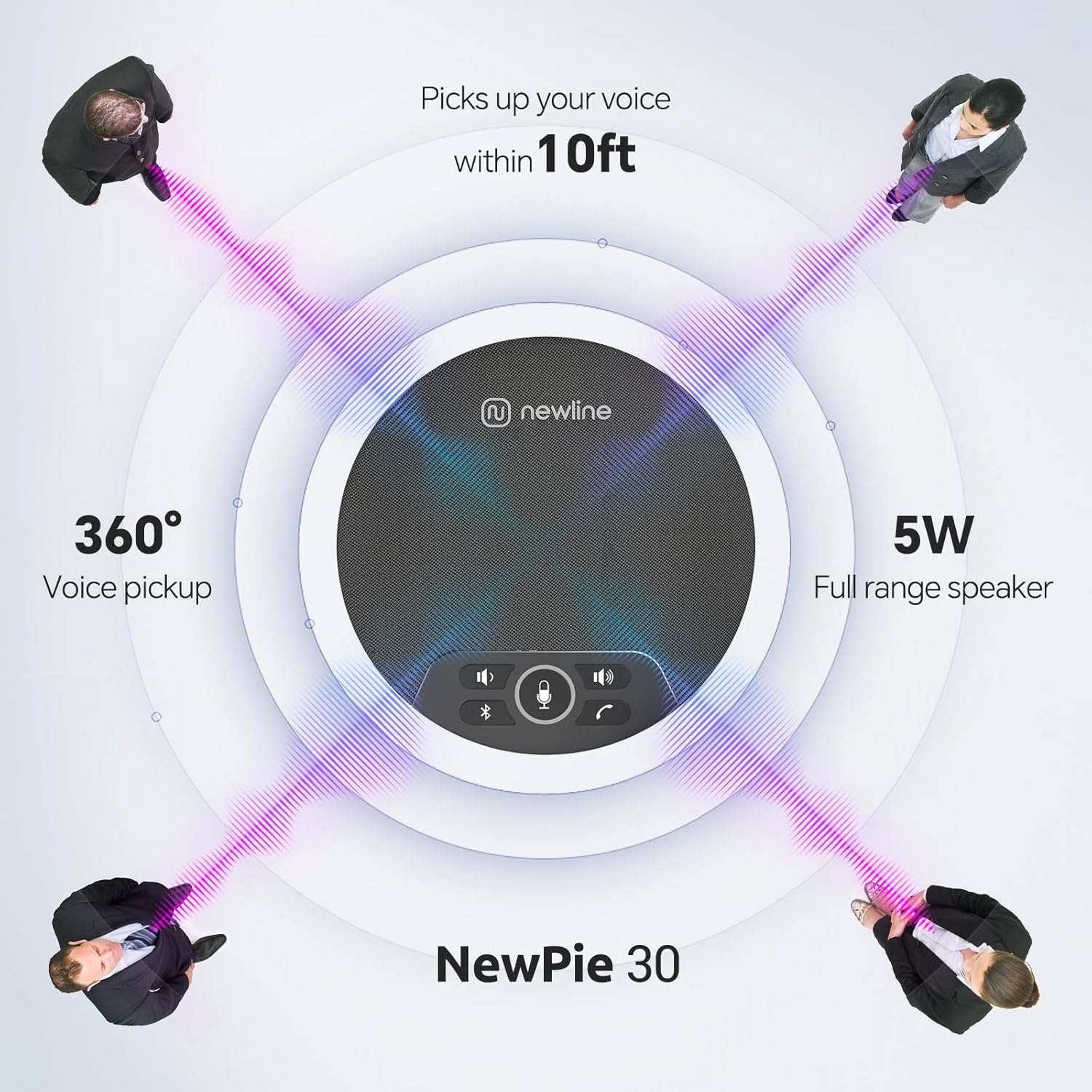
Image: This diagram illustrates the NewPie 30's omnidirectional 360° voice pickup capability, effectively capturing audio from all directions within a 10-foot range, suitable for multiple participants.
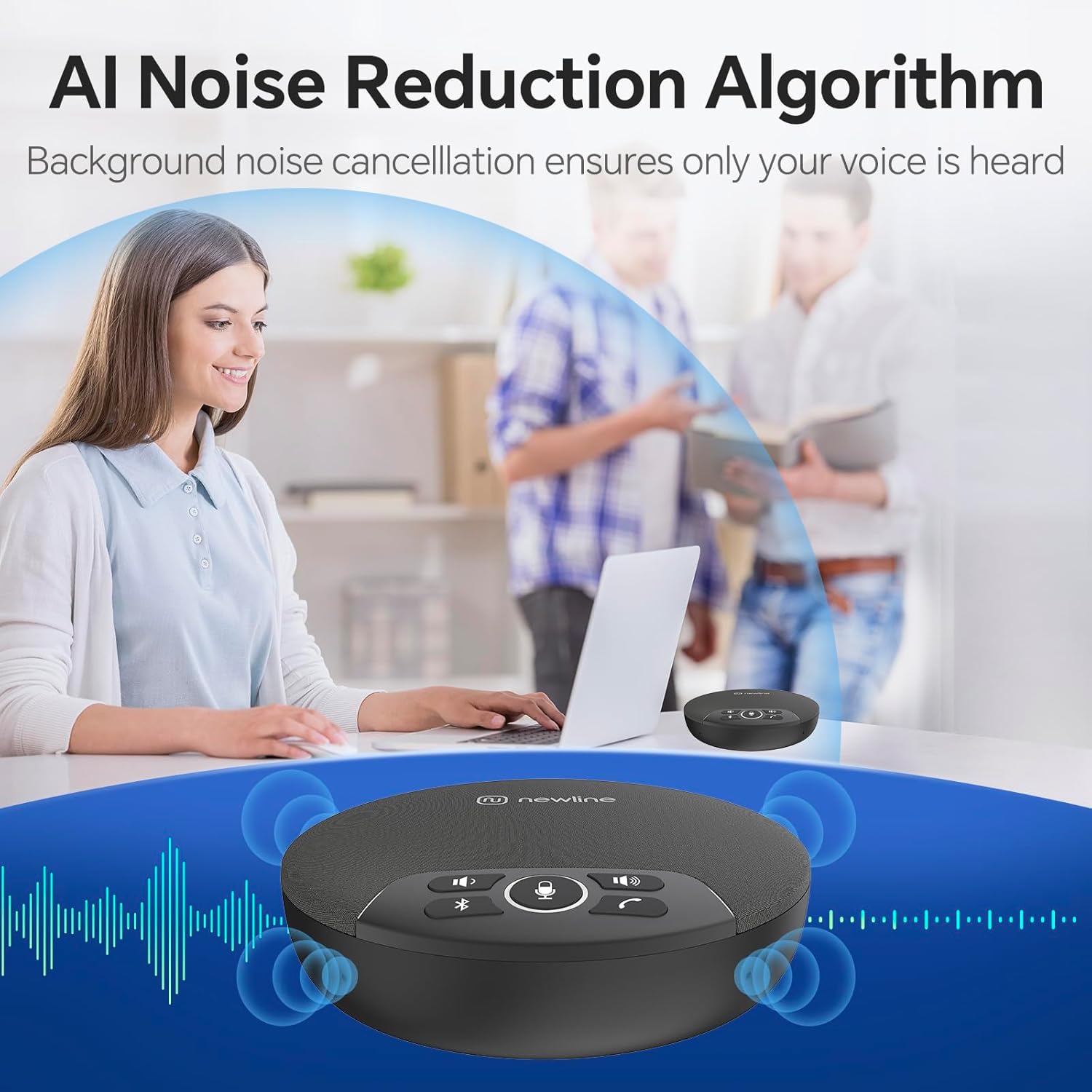
Image: The NewPie 30 actively uses its AI Noise Reduction Algorithm to filter out distracting background sounds, ensuring that only the speaker's voice is clearly transmitted during calls.

Image: Highlighting the superior battery capacity of the NewPie 30, which features a 2000mAh battery, providing up to 24 hours of call time on a single charge for extended use.
4. Setup
4.1 Charging the Device
Before first use, fully charge your NewPie 30. Connect the included USB-C to USB-A cable to the speakerphone's USB-C port and the other end to a USB power adapter (not included) or a computer's USB port. The charging indicator light will show the charging status.
4.2 Connection Methods
The NewPie 30 offers three primary ways to connect to your devices:
- USB Wired Connection (Plug & Play):
- Connect the NewPie 30 to your computer using the provided USB-C to USB-A cable.
- The device will be automatically recognized by your operating system (Windows, macOS, etc.) as an audio input and output device.
- Select "NewPie 30" as your microphone and speaker in your communication software (e.g., Zoom, Teams, Skype).
- Bluetooth Wireless Connection:
- Press and hold the Bluetooth button on the NewPie 30 until the indicator light flashes, indicating pairing mode.
- On your device (smartphone, tablet, laptop), go to Bluetooth settings and search for "NewPie 30".
- Select "NewPie 30" to pair. Once connected, the indicator light will turn solid.
- USB Dongle Connection (Enhanced Wireless Stability):
- Insert the USB dongle into an available USB port on your computer.
- Power on the NewPie 30. The device and dongle should automatically pair.
- Select "NewPie 30" as your audio device in your computer's sound settings and communication applications.

Image: This visual guide demonstrates the three flexible connection options for the NewPie 30: direct wired USB, Bluetooth for mobile devices, and a USB dongle for enhanced wireless stability with computers.
5. Operating Instructions
5.1 Control Buttons
The NewPie 30 features intuitive control buttons on its top surface:
- Mute Microphone Button: Press to mute or unmute the microphone. The indicator light will change to show mute status.
- Volume Down Button: Decreases the speaker volume.
- Volume Up Button: Increases the speaker volume.
- Answer/Hang Up Call Button: Press to answer an incoming call or end an ongoing call.
- Bluetooth/Mode Button: Press and hold to enter Bluetooth pairing mode. Short press to switch between connection modes if applicable.
5.2 Voice Pickup and Audio Quality
The 4 omnidirectional microphones are designed to capture sound from all directions. For optimal performance, ensure the device is placed centrally on a table, within 10 feet (3 meters) of all participants. The AI noise reduction actively works to filter out ambient sounds, providing a clear audio experience for remote participants.

Image: The NewPie 30 is equipped with four AI-powered omnidirectional microphones, strategically placed to ensure comprehensive voice pickup and clear sound quality from all directions, regardless of the meeting environment.
5.3 Full-Duplex Communication
The NewPie 30 supports full-duplex audio, meaning both parties can speak and be heard simultaneously without audio cutting out. This facilitates more natural and fluid conversations during conference calls.
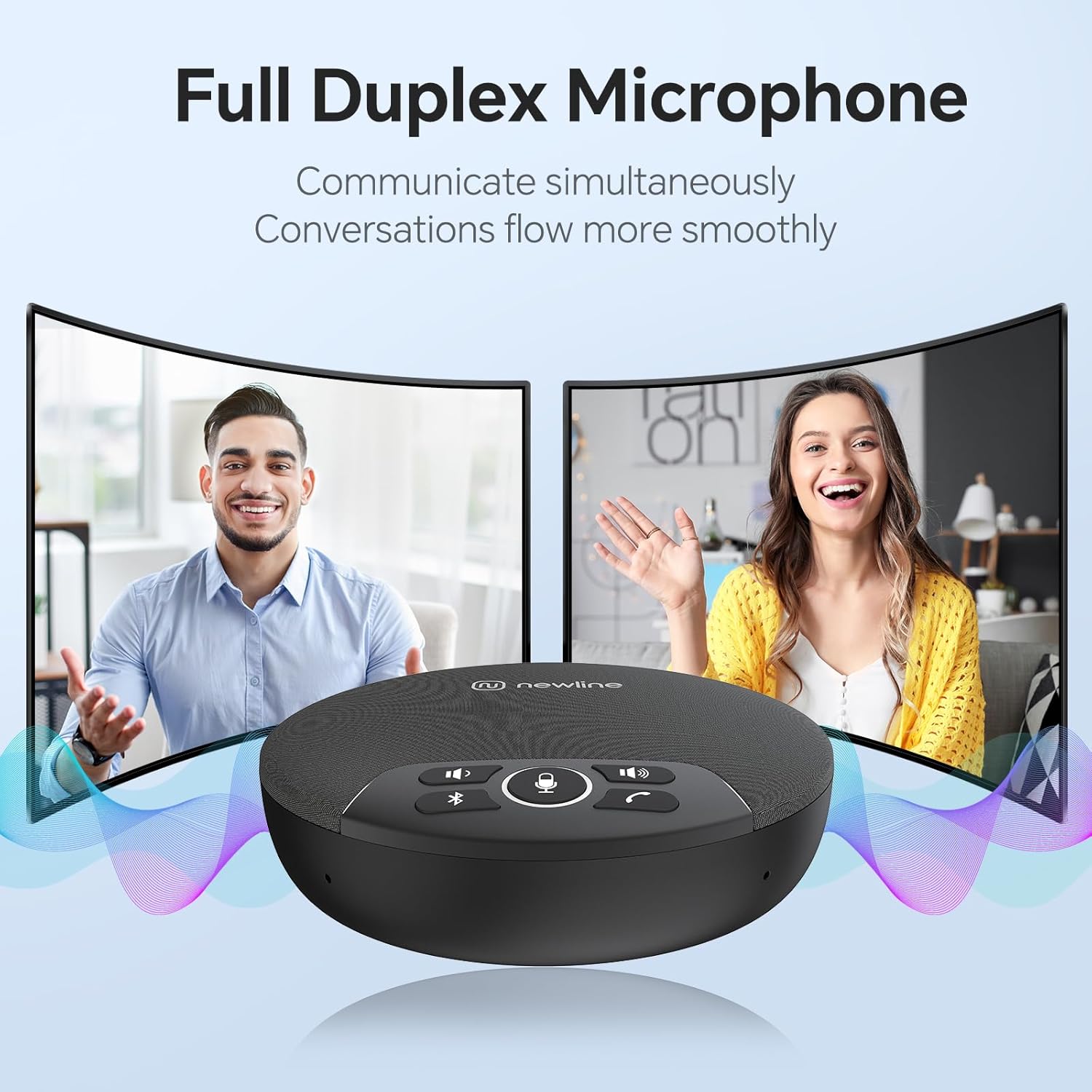
Image: Demonstrating the full-duplex microphone capability of the NewPie 30, which allows for simultaneous two-way communication, ensuring conversations flow smoothly and naturally without interruptions.
6. Maintenance
To ensure the longevity and optimal performance of your NewPie 30, follow these simple maintenance guidelines:
- Cleaning: Use a soft, dry, lint-free cloth to wipe the surface of the device. Avoid using abrasive cleaners, solvents, or strong chemicals, as they may damage the finish or internal components.
- Storage: When not in use for extended periods, store the device in a cool, dry place away from direct sunlight and extreme temperatures.
- Handling: Avoid dropping the device or subjecting it to strong impacts, which could damage internal circuitry.
7. Troubleshooting
If you encounter issues with your NewPie 30, refer to the following common problems and solutions:
| Problem | Possible Cause | Solution |
|---|---|---|
| No sound from speaker / Low volume | Volume too low; Incorrect audio output selected; Device not connected properly. | Increase volume using the device buttons or computer settings. Ensure "NewPie 30" is selected as the output device. Reconnect the device (USB, Bluetooth, or dongle). |
| Microphone not picking up voice / Low microphone volume | Microphone muted; Incorrect audio input selected; Device placement; OS audio settings. | Ensure microphone is not muted. Select "NewPie 30" as the input device in your application/OS. Place the device centrally within 10ft. Check and adjust microphone input levels in your computer's sound settings. Some users found elevating the speaker to eye level improved mic pickup. |
| Bluetooth connection unstable or fails | Device too far from host; Interference; Pairing issue. | Ensure the device is within Bluetooth range (10 meters). Avoid obstacles. Unpair and re-pair the device. Try connecting via USB or dongle if issues persist. |
| Device not recognized by computer | Loose connection; Driver issue; USB port issue. | Ensure USB cable/dongle is securely connected. Try a different USB port. Restart your computer. No specific drivers are usually needed for plug-and-play, but ensure your OS is up to date. |
| Battery not charging | Faulty cable/adapter; Device not properly connected. | Try a different USB cable or power adapter. Ensure the cable is fully inserted into the charging port. |
8. Specifications
| Feature | Detail |
|---|---|
| Model Name | Newpie 30 |
| Speaker Type | Multimedia |
| Compatible Devices | Desktop, Laptop, Smartphone, Tablet |
| Controller Type | Button |
| Battery Life | 16 Hours (call time) |
| Included Components | Dongle, Microphone (speakerphone unit) |
| Item Weight | 0.5 Kilograms (1.1 pounds) |
| Is Waterproof | FALSE |
| Battery Capacity | 2000 Milliamp Hours |
| Charging Time | Approximately 16 Hours (for full charge, based on battery life spec) |
| Warranty Type | Limited |
| Control Method | Voice (AI noise reduction), Button |
| Wireless Communication Technology | Bluetooth |
| Power Source | Battery Powered |
| Number of Batteries | 1 Lithium Ion (included) |
| Audio Driver Type | Dynamic Driver |
| Bluetooth Range | 10 Meters |
| Connectivity Protocol | Bluetooth, USB |
| Speaker Maximum Output Power | 10 Watts (5W full range speaker mentioned in image) |
| Audio Output Mode | Mono |
| Mounting Type | Tabletop Mount |
9. Warranty and Support
The N newline NewPie 30 comes with a limited warranty. For specific warranty terms and conditions, please refer to the documentation included with your purchase or visit the official N newline website.
For product support, troubleshooting assistance, or to inquire about extended protection plans, please visit the official N newline store or contact customer service:
- N newline Official Store: https://www.amazon.com/stores/Nnewline/page/483ACBCA-DF1A-4EE3-A042-C0B3C43889E1
Ask a question about this manual
Ask about setup, troubleshooting, compatibility, parts, safety, or missing instructions. Manuals+ will review the question and use this page’s manual context to help answer it.