
Ourlife AT-M40R-32GB
Ourlife 5K Action Camera User Manual
Model: AT-M40R-32GB
Introduction
Welcome to your Ourlife 5K Action Camera. This manual provides essential information for setting up, operating, and maintaining your camera to capture high-quality videos and photos in various environments.
Key Features
- Dual Display Screen: Innovative design with a front screen for selfies and a 2-inch back screen for easy operation.
- High Resolution Capture: Records 5K 30fps video and captures 50MP photos.
- Electronic Image Stabilization (EIS): Built-in 6-axis gyro minimizes shake, providing smooth footage. Supports 4K (60FPS/30FPS) and 2.7K (60FPS/30FPS) video resolutions with EIS.
- Remote Control: Included remote allows for convenient hands-free operation from up to 10 meters.
- Wireless Microphone Support: Compatible with wireless microphones (not included) for enhanced audio recording.
- Wi-Fi Connectivity: Built-in Wi-Fi for easy connection to your smartphone via the "SupCam Pro" app, enabling live view, playback, and direct sharing.
- Waterproof Capability: Waterproof up to 100FT (30M) when used with the included waterproof housing.
- Ultra Wide Angle Lens: 170° ultra-wide-angle view with adjustable angle settings.
- Multi-functional Modes: Includes underwater mode, car mode, timed shooting, high-speed continuous shooting, delayed recording, slow motion recording, and short video recording.
Package Contents
Please verify that all items are present in your package:
- Ourlife Action Camera (Camera Body)
- Waterproof Housing
- Remote Control
- 32GB Micro SD Card
- USB Charging Cable
- Mounting Accessories (various clips and mounts)
- User Manual (this document)
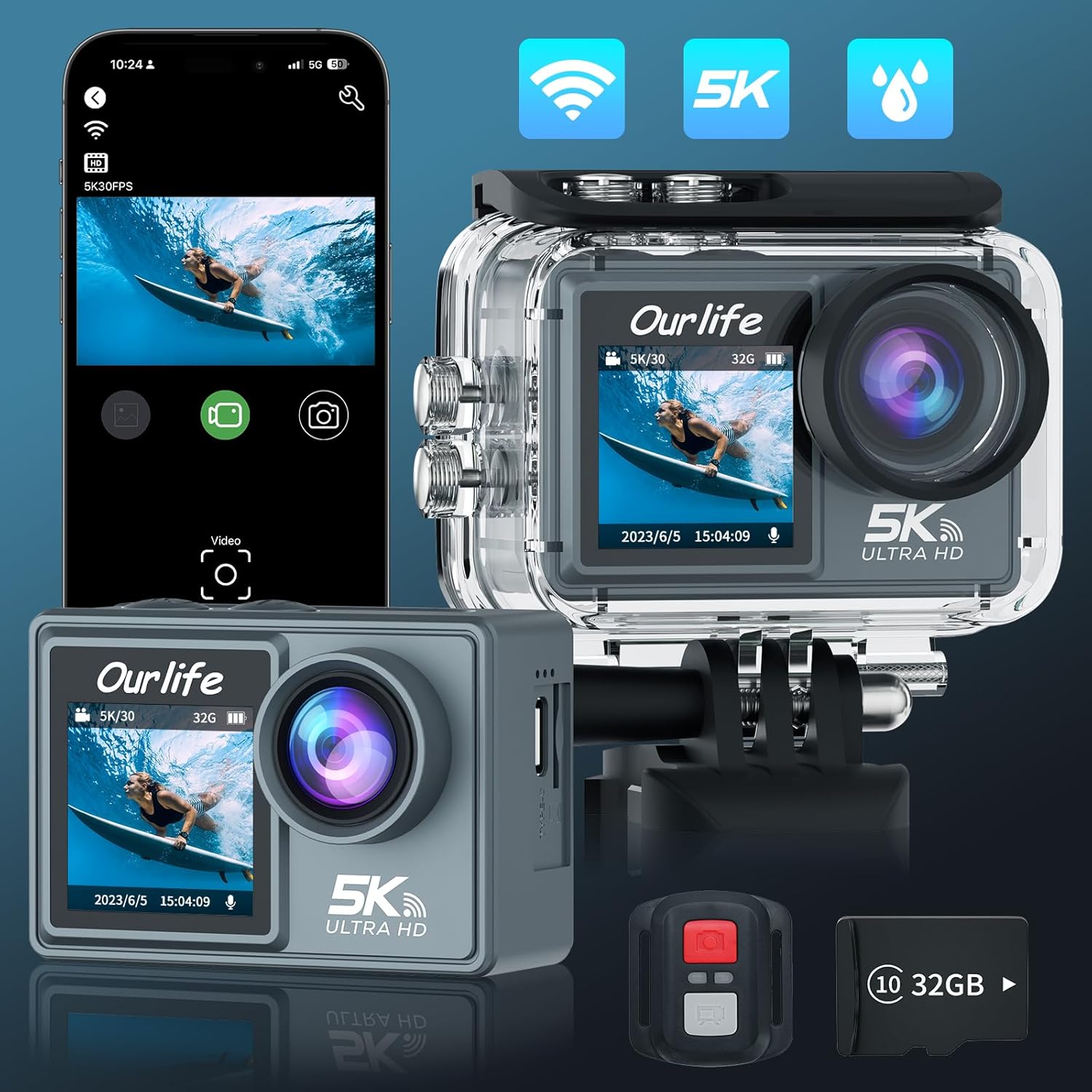
Image: The Ourlife Action Camera, remote control, and 32GB SD card, illustrating the main components included in the package.
Getting Started
Charging the Battery
Before first use, fully charge the camera's battery. Connect the camera to a USB power source (e.g., computer, wall adapter) using the provided USB cable. The charging indicator light will illuminate during charging and turn off when fully charged.
Inserting the Micro SD Card
The camera supports Micro SD cards up to 128GB (Class 10 or higher recommended). Open the battery compartment/card slot cover on the side or bottom of the camera. Insert the Micro SD card with the contacts facing the correct direction until it clicks into place. Close the cover securely.

Image: A detailed view of the Ourlife Action Camera, highlighting its compact design and the included remote control and SD card.
Attaching the Waterproof Housing
For underwater use or protection against dust and impact, place the camera inside the waterproof housing. Ensure the camera is dry and clean before insertion. Close the latch firmly to create a watertight seal. The camera itself is not waterproof without this housing.

Image: The Ourlife Action Camera securely enclosed within its transparent waterproof housing, surrounded by water droplets, demonstrating its readiness for aquatic environments.
Camera Operation
Powering On/Off
Press and hold the Power/Mode button (usually on the front or top) for a few seconds to turn the camera on or off.
Mode Switching
Once powered on, short press the Power/Mode button repeatedly to cycle through different modes: Video Recording, Photo Capture, Playback, and System Settings.
Video Recording
In Video Recording mode, press the Shutter/OK button (usually on the top) to start recording. A red indicator light will blink, and a timer will appear on the screen. Press the Shutter/OK button again to stop recording.
For smoother footage, ensure Electronic Image Stabilization (EIS) is enabled in settings, especially when recording at 4K (60FPS/30FPS) or 2.7K (60FPS/30FPS).
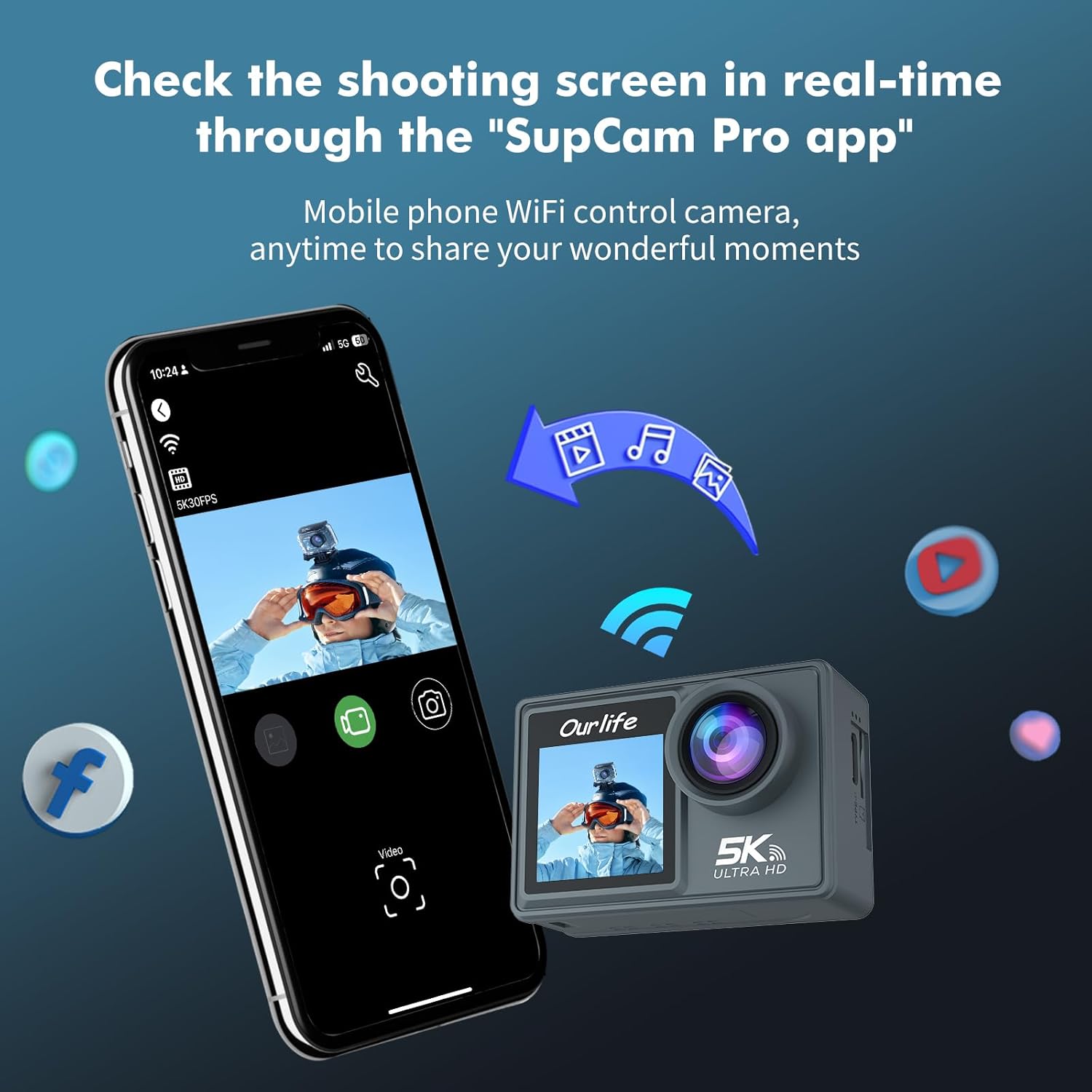
Image: The Ourlife Action Camera mounted on a bicycle handlebar, illustrating its use in dynamic environments where Electronic Image Stabilization (EIS) provides smooth video capture.
Photo Capture
In Photo Capture mode, press the Shutter/OK button to take a still photograph. The camera supports up to 50MP resolution.

Image: The Ourlife Action Camera showcasing its display screen with a captured photo, emphasizing its high-resolution imaging capabilities.
Wi-Fi Connection
To connect your camera to a smartphone:
- Enable Wi-Fi on your camera through the System Settings menu.
- Download and install the "SupCam Pro" app on your iOS or Android smartphone.
- On your smartphone, go to Wi-Fi settings and connect to the camera's Wi-Fi network (SSID and password will be displayed on the camera screen).
- Open the "SupCam Pro" app to view live footage, control the camera, download files, and share content directly.
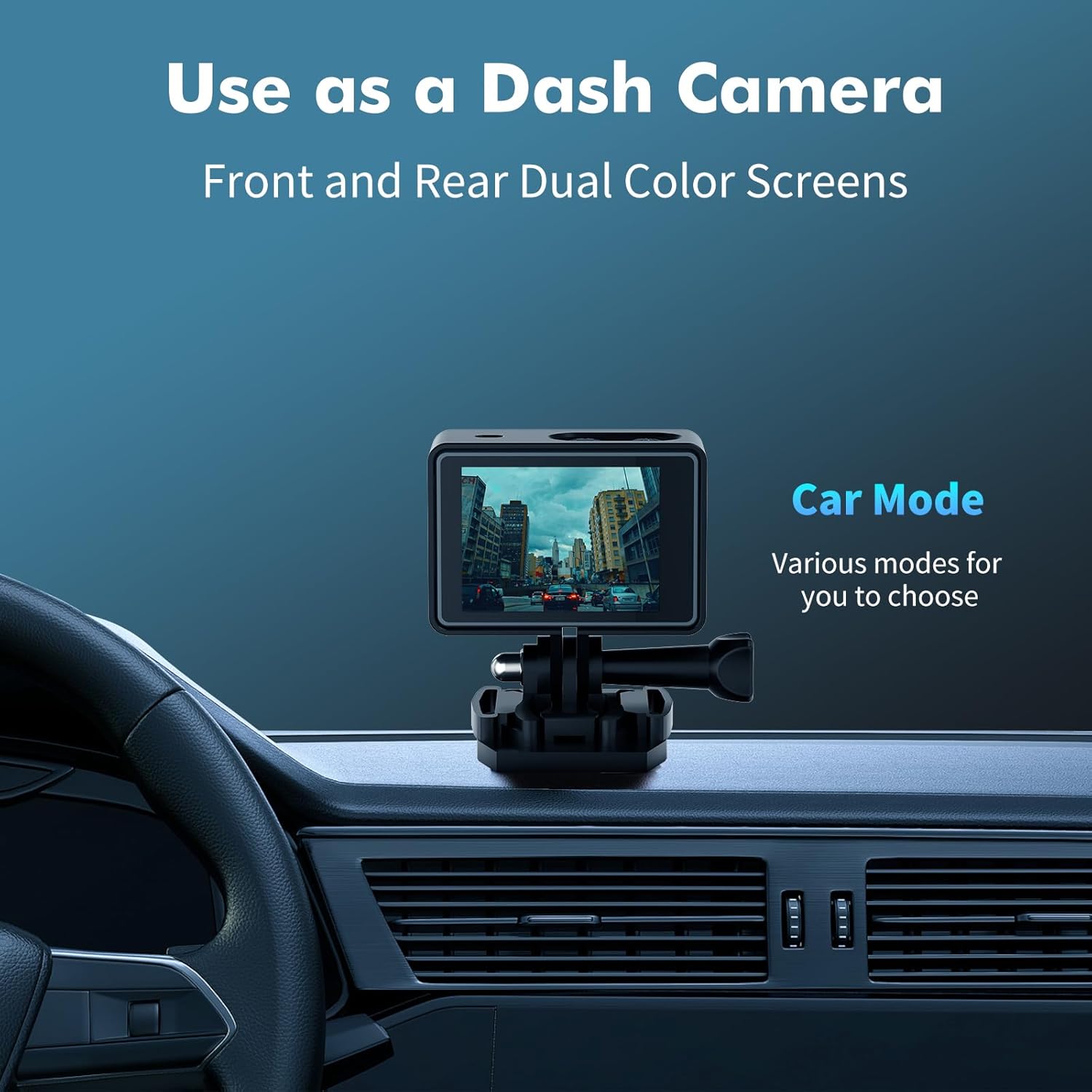
Image: The Ourlife Action Camera wirelessly connected to a smartphone, demonstrating the real-time viewing and control capabilities through the "SupCam Pro" app.
Using the Remote Control
The included remote control allows you to conveniently operate the camera from a distance. It typically has dedicated buttons for starting/stopping video recording and taking photos. Ensure the remote's battery is functional and it is within the 10-meter operating range of the camera.
Dual Screen Functionality
The Ourlife Action Camera features both a front-facing screen and a larger rear screen. The front screen is ideal for framing selfies and vlogs, while the rear screen provides a comprehensive view for general operation, menu navigation, and playback.
Adjustable Viewing Angle
The camera's 170° ultra-wide-angle lens captures a broad field of view. You can adjust the viewing angle settings within the camera's menu to suit different shooting scenarios, from expansive landscapes to close-up action.
Multi-functional Modes
Explore various shooting modes to enhance your creativity:
- Underwater Mode: Optimizes color and clarity for submerged environments.
- Car Mode: Functions as a dash camera, often with loop recording and auto power on/off.
- Timed Shooting: Set a delay before a photo is taken.
- High-Speed Continuous Shooting: Capture multiple photos in quick succession.
- Delayed Recording: Start video recording after a set delay.
- Slow Motion Recording: Capture high frame rate video for slow-motion playback.
- Short Video Recording: Create short, shareable video clips.
Image: The Ourlife Action Camera mounted on a car dashboard, demonstrating its capability to function as a dash camera with various car modes available.
Care and Maintenance
- Cleaning: Use a soft, lint-free cloth to clean the camera lens and screens. For stubborn smudges, a small amount of lens cleaning solution can be used.
- Waterproof Housing Care: After using the waterproof housing in saltwater, rinse it thoroughly with fresh water and allow it to air dry. Ensure no sand or debris is trapped in the seals.
- Temperature and Storage: Avoid exposing the camera to extreme temperatures (hot or cold) or direct sunlight for extended periods. Store the camera in a cool, dry place when not in use.
- Battery Care: Do not expose the battery to fire or extreme heat. If the camera will not be used for a long time, charge the battery to about 50% before storing.
- SD Card Management: Regularly back up your photos and videos to a computer or cloud storage. Format the Micro SD card periodically within the camera's settings to maintain optimal performance.
Troubleshooting
Camera Not Turning On
- Ensure the battery is fully charged.
- Try connecting the camera to a power source to see if it powers on.
- Remove and reinsert the battery if applicable.
SD Card Error / Cannot Record
- Ensure the Micro SD card is inserted correctly and fully.
- Use a high-speed Micro SD card (Class 10 or UHS-I/UHS-3 recommended).
- Format the SD card in the camera's settings (this will erase all data).
- Try a different, known-good Micro SD card.
Poor Video/Photo Quality
- Ensure the lens is clean and free of smudges or debris.
- Check the resolution settings in the camera menu; higher resolutions yield better quality but larger file sizes.
- Ensure adequate lighting for your shooting environment.
- For shaky footage, verify EIS (Electronic Image Stabilization) is enabled in settings.
Wi-Fi Connection Issues
- Ensure Wi-Fi is enabled on both the camera and your smartphone.
- Restart both the camera and your smartphone.
- Ensure you have the correct "SupCam Pro" app installed and it is up to date.
- Move closer to the camera to ensure a strong Wi-Fi signal.
Remote Control Not Responding
- Check the battery in the remote control and replace if necessary.
- Ensure the remote is within the effective operating range (approx. 10 meters) and there are no major obstructions.
- Ensure the camera's remote control function is enabled in settings, if applicable.
Technical Specifications
| Feature | Detail |
|---|---|
| Brand | Ourlife |
| Model Number | AT-M40R-32GB |
| Video Resolution | 5K 30FPS, 4K 60FPS/30FPS, 2.7K 60FPS/30FPS (with EIS) |
| Photo Resolution | 50MP |
| Waterproof Depth | 100FT (30M) with housing |
| Image Stabilization | Electronic Image Stabilization (EIS) with 6-axis gyro |
| Connectivity | Wi-Fi |
| Lens | 170° Ultra Wide Angle |
| Display | Dual Screen (Front & 2-inch Rear) |
| Storage | Micro SD (up to 128GB, Class 10+) |
| Special Features | Anti-Shake, Waterproof, Remote Control, Wireless Microphone Support |
| Photo Sensor Technology | CMOS |
| Video Capture Format | MOV |
| Supported Audio Format | AAC |
| Flash Memory Type | Micro SD |
| Maximum Aperture | 2.68 f |
| Maximum Focal Length | 5 |
Warranty and Support
For detailed warranty information, product registration, and technical support, please visit the official Ourlife website or contact their customer service department. Please retain your purchase receipt as proof of purchase for any warranty claims.
Related documentsAT-M40R-32GB

Ask a question about this manual
Ask about setup, troubleshooting, compatibility, parts, safety, or missing instructions. Manuals+ will review the question and use this page’s manual context to help answer it.