
1. Product Overview
The DERAPID PCE-AC1200 is a PCI Express WiFi card designed to provide high-speed wireless connectivity and Bluetooth functionality to your desktop computer. It supports dual-band Wi-Fi, operating on both 2.4GHz and 5GHz frequencies, offering a combined speed of up to 1200 Mbps (300 Mbps on 2.4GHz and 867 Mbps on 5GHz). This card is equipped with high-gain antennas for extended Wi-Fi coverage and features Bluetooth 4.0 for connecting various wireless peripherals.
The card is compatible with Windows 11, 10, 8, and 7 (32/64-bit) operating systems. It is designed for easy installation into PCI Express X1, X4, X8, or X16 slots and includes both low-profile and standard-profile brackets to fit various PC case sizes.

Image: The PCE-AC1200 WiFi card with its dual high-gain antennas, showcasing its AC1200 speed and Bluetooth 4.0 capabilities.

Image: Illustration highlighting the 6dBi high-gain antennas, designed to extend Wi-Fi coverage and improve signal stability.
2. What's in the Box
Please verify that all items are present in the package:
- DERAPID PCE-AC1200 PCI Express WiFi Card
- High-Gain Antennas (2x)
- Low Profile Bracket
- Bluetooth USB Cable
- Driver CD
- Mounting Screws
3. Specifications
| Feature | Description |
|---|---|
| Model Number | PCE-AC1200 |
| Brand | DERAPID |
| Hardware Interface | PCI Express x1, x4, x8, x16 |
| Data Link Protocol | IEEE 802.11ac, Bluetooth 4.0 |
| Data Transfer Rate | Up to 1200 Mbps (867 Mbps on 5GHz, 300 Mbps on 2.4GHz) |
| Frequency Bands | 2.4GHz, 5GHz |
| Antennas | 2x 6dBi High-Gain Detachable Antennas |
| Compatible Devices | Desktop PCs |
| Operating System Support | Windows 11/10/8/7 (32/64-bit) |
| Item Weight | 0.13 Kilograms |
| Built-In Media | Low profile bracket, Bluetooth cable |
4. Setup and Installation
Follow these steps to install your DERAPID PCE-AC1200 WiFi Card:
- Step 1: Prepare Your PC
Power off your computer and unplug all cables. Open the side cover of your PC chassis. Locate and remove the chassis back panel corresponding to an available PCI-E slot. - Step 2: Insert the WiFi Card
Carefully align the PCE-AC1200 card with an available PCI Express slot (X1, X4, X8, or X16) on your motherboard. Gently push the card down until it is securely seated in the slot. - Step 3: Secure the Card and Attach Antennas
Use the provided fixing screws to secure the card's baffle to the host box. Then, screw on the two high-gain antennas to the connectors on the card's back panel. - Step 4: Connect Bluetooth USB Cable
Connect the 9-pin end of the Bluetooth USB cable to a F_USB connector (9-pin USB port) on your motherboard. Connect the 4-pin end of the Bluetooth cable to the dedicated Bluetooth port on the PCE-AC1200 network card. This connection is essential for Bluetooth functionality.

Image: Visual guide illustrating the four installation steps: opening the PC case, inserting the card, securing it, and connecting the Bluetooth cable.
Driver Installation
After physical installation, you need to install the necessary drivers:
- Step 1: Install Software
Insert the included driver CD into your computer's optical drive and follow the on-screen instructions to install the Wi-Fi and Bluetooth drivers. If your PC does not have an optical drive, download the latest drivers from the DERAPID official website. - Step 2: Connect to Network
Once drivers are installed, restart your computer. Scan for available Wi-Fi networks and connect to your preferred network. For Bluetooth, ensure the Bluetooth USB cable is correctly connected and pair your devices through Windows settings.
Important Note: If you have existing Wi-Fi or Bluetooth drivers from previous hardware, it is recommended to disable them in Device Manager before installing new drivers to prevent conflicts and ensure proper operation.
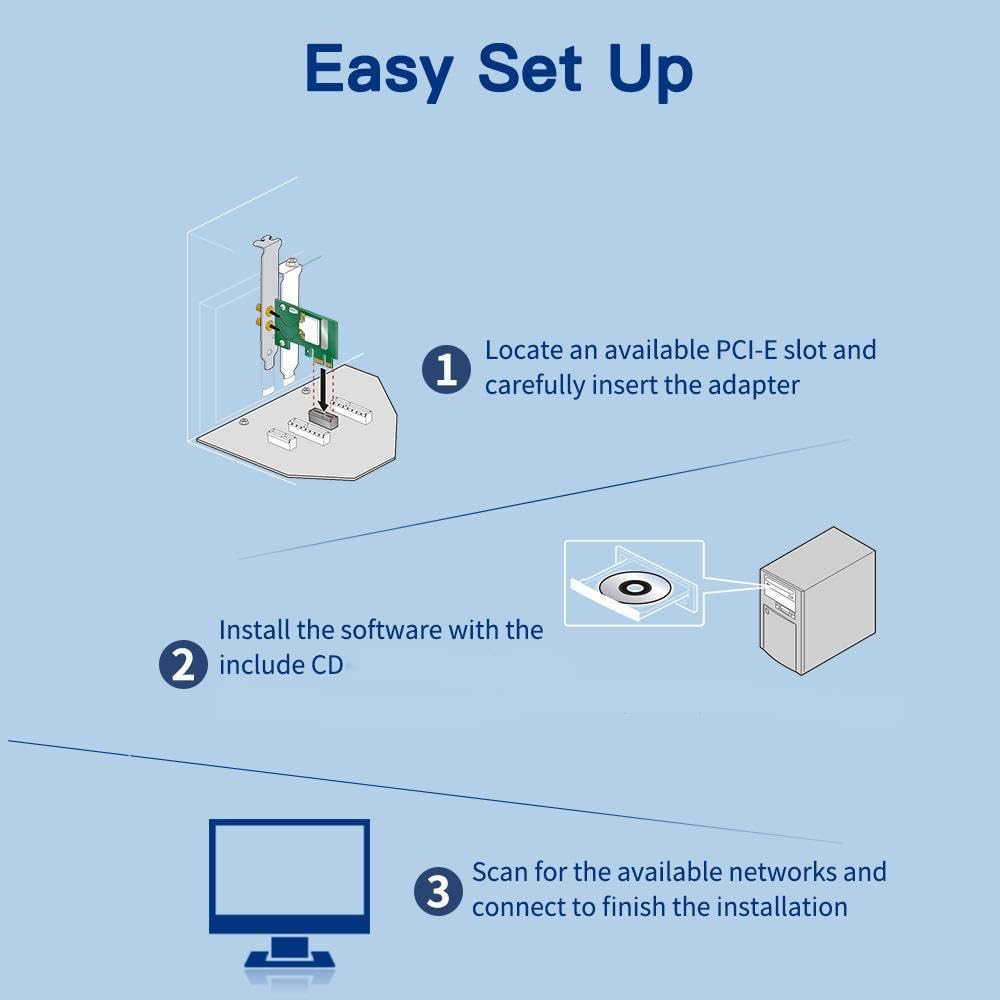
Image: Simplified diagram showing the three easy setup steps: locating a PCIe slot, installing software via CD, and scanning for networks.
Installation Video Guide
Video: An official product video demonstrating the installation process and features of the AC1200 PCIe WiFi card.
5. Operating Instructions
Wi-Fi Connection
- Ensure the Wi-Fi drivers are installed correctly.
- Click on the Wi-Fi icon in your system tray (usually bottom-right corner of the screen).
- Select your desired Wi-Fi network from the list of available networks.
- Enter the network password if prompted and click 'Connect'.
- The card supports both 2.4GHz and 5GHz bands. For optimal performance, connect to the 5GHz band if your router supports it and you are within close range. The 2.4GHz band offers wider coverage but lower speeds.
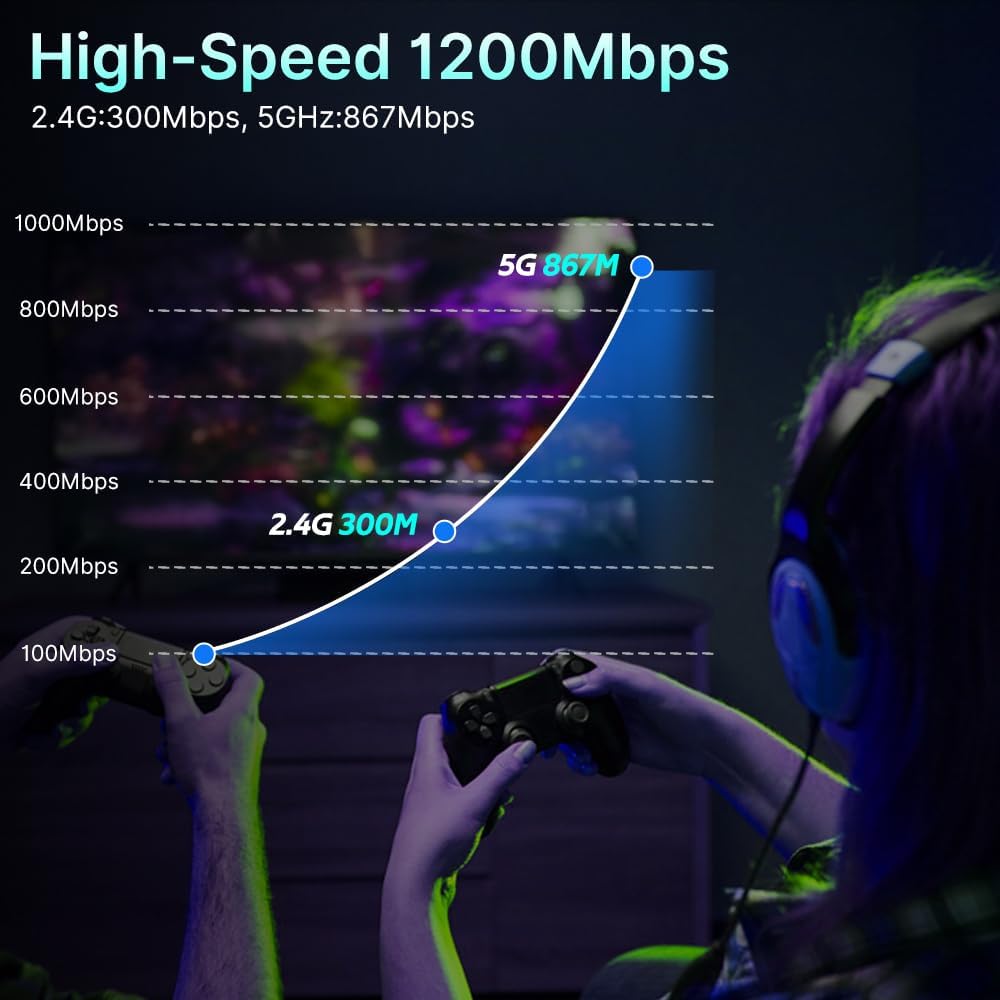
Image: A graph illustrating the speed differences between 2.4GHz (300Mbps) and 5GHz (867Mbps) Wi-Fi bands, emphasizing higher speeds on 5GHz.
Bluetooth Connection
To use Bluetooth functionality, ensure the Bluetooth USB cable is connected to both the card and the motherboard, and the Bluetooth drivers are installed.
- Go to your computer's Bluetooth settings (e.g., in Windows, navigate to Settings > Devices > Bluetooth & other devices).
- Turn on Bluetooth.
- Put your Bluetooth device (e.g., mouse, keyboard, headphones) into pairing mode.
- Click 'Add Bluetooth or other device' on your computer and select 'Bluetooth'.
- Select your device from the list and follow any on-screen prompts to complete pairing.

Image: Diagram showing various devices compatible with Bluetooth 4.0, including headphones, speakers, game controllers, printers, mice, keyboards, tablets, and smartphones.
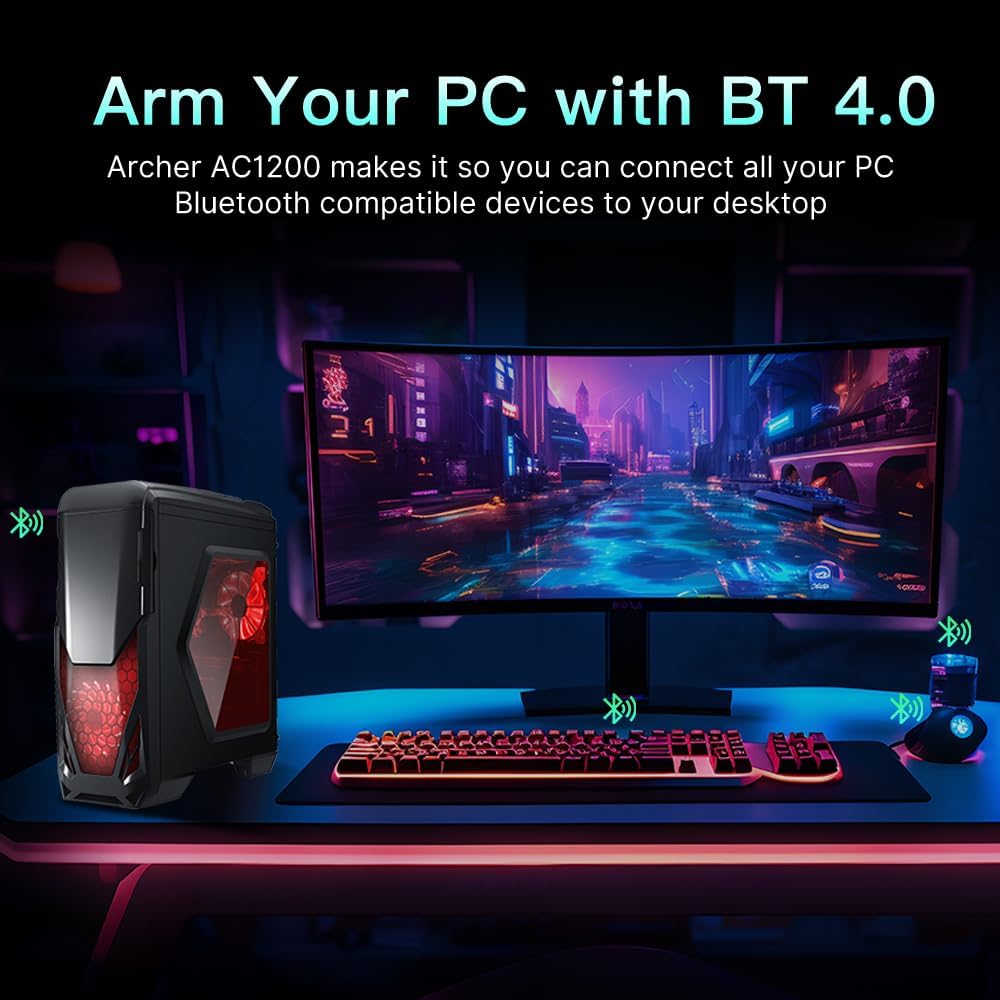
Image: A desktop PC setup demonstrating how the PCE-AC1200 enables Bluetooth connectivity for various peripherals.
6. Maintenance
- Driver Updates: Regularly check the DERAPID official website for the latest Wi-Fi and Bluetooth drivers to ensure optimal performance and security.
- Physical Inspection: Periodically check the antennas to ensure they are securely attached and positioned for the best signal reception.
- Dust Cleaning: If your PC case accumulates dust, carefully clean the area around the Wi-Fi card to prevent overheating and maintain performance. Ensure the PC is powered off and unplugged before cleaning.
7. Troubleshooting
- No Wi-Fi Connection:
- Verify the card is correctly seated in the PCI-E slot.
- Ensure antennas are securely attached.
- Check Device Manager to confirm Wi-Fi drivers are installed and the device is recognized without errors. Reinstall drivers if necessary.
- Disable any old or integrated Wi-Fi adapters in Device Manager to avoid conflicts.
- No Bluetooth Functionality:
- Confirm the Bluetooth USB cable is properly connected to both the card and the motherboard's F_USB header.
- Check Device Manager for Bluetooth drivers and device status. Reinstall drivers if necessary.
- Ensure Bluetooth is enabled in Windows settings.
- Slow Wi-Fi Speeds or Frequent Disconnections:
- Adjust antenna orientation for better signal reception.
- Ensure your PC is within reasonable range of your Wi-Fi router.
- Update Wi-Fi drivers to the latest version.
- Consider connecting to the 5GHz band if available and closer to the router, as it generally offers higher speeds.
- Card Not Detected by System:
- Reseat the card in the PCI-E slot. Try a different PCI-E slot if available.
- Ensure your motherboard's BIOS/UEFI settings are configured to allow PCI-E devices.
8. Warranty and Support
For warranty information, technical support, or further assistance, please refer to the warranty card included with your product or visit the official DERAPID website. You may also contact DERAPID customer service directly for support inquiries.
