
1. Introduction
This manual provides detailed instructions for the setup, operation, maintenance, and troubleshooting of your Machenike K500B-B87 75% TKL Mechanical Wired Gaming Keyboard. Please read this manual thoroughly before using the product to ensure proper functionality and longevity.

Image 1.1: Machenike K500B-B87 Mechanical Gaming Keyboard, showcasing its compact 75% TKL layout with RGB backlighting and white/blue keycaps.
2. Package Contents
Verify that all items are present in the package:
- Machenike K500B-B87 Mechanical Gaming Keyboard
- USB Cable (for wired connection)
- User Manual (this document)
Note: Additional accessories such as a keycap puller, switch puller, or extra switches may be included depending on the specific product bundle.
3. Setup Guide
3.1. Connecting the Keyboard
- Locate the USB-C port on the Machenike K500B-B87 keyboard, typically found on the top edge.
- Connect one end of the provided USB cable to the keyboard's USB-C port.
- Connect the other end of the USB cable to an available USB-A port on your computer (Laptop, Mac, or PC).
- The keyboard will be automatically recognized by your operating system. No additional drivers are typically required for basic functionality.
3.2. Initial Power On
Upon successful connection, the keyboard's RGB backlighting will illuminate, indicating it is powered on and ready for use.
4. Operating Instructions
4.1. Key Layout and Functions
The Machenike K500B-B87 features an 87-key TKL (Tenkeyless) layout, which is a compact design that retains essential function keys and a number row while saving desktop space.

Image 4.1: The keyboard demonstrating N-Key Rollover, allowing multiple simultaneous key presses without conflict.
The keyboard supports N-Key Rollover, ensuring that all key presses are registered accurately, even during rapid typing or complex gaming sequences.
4.2. RGB Backlighting Control
The keyboard features dynamic RGB backlighting with 11 different lighting modes. Use the following key combinations to adjust the lighting effects:
| Key Combination | Function |
|---|---|
| FN + INS | Switch Lighting Modes (Cycle through 11 modes) |
| FN + ← / → | Adjust Lighting Speed |
| FN + ↑ / ↓ | Adjust Lighting Brightness |

Image 4.2: Illustration of the keyboard's multiple lighting modes and control key combinations.
4.3. Software Support
For advanced customization, including lighting adjustments, macro programming, and personalized keyboard control, dedicated software is available. This software is primarily compatible with Windows operating systems.
- Download the official software from the Machenike website.
- Install the software on your Windows PC.
- Use the software to configure RGB effects, create custom macros, and remap keys.
Note: Settings configured via the software on a Windows PC will be saved to the keyboard's onboard memory and will persist when connected to other devices (e.g., Mac) that do not support the software.
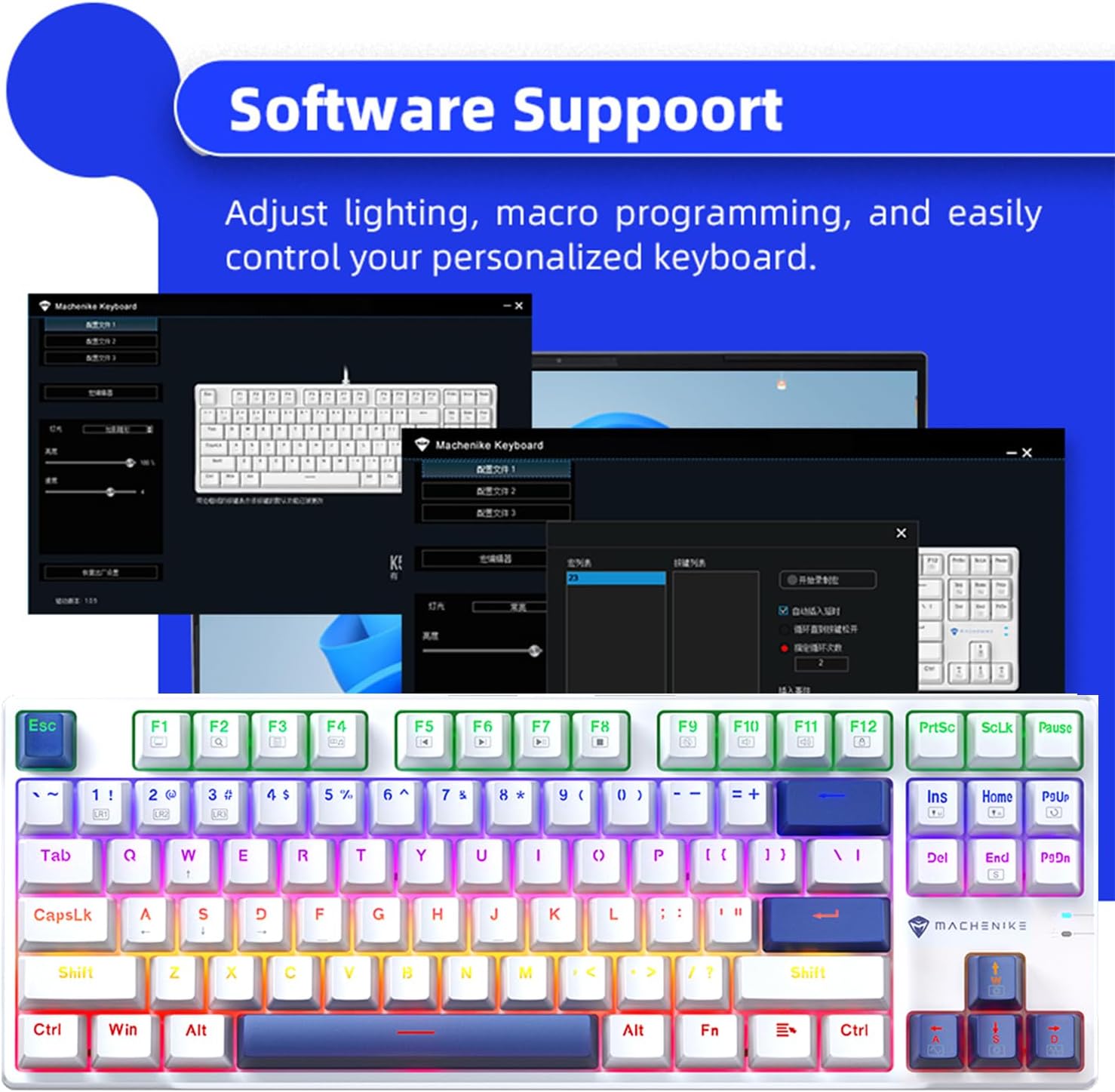
Image 4.3: Screenshot of the Machenike keyboard software interface, demonstrating customization options.
5. Maintenance
5.1. Cleaning the Keyboard
- Disconnect the keyboard from your computer before cleaning.
- Use a can of compressed air to remove dust and debris from between the keycaps.
- Wipe the keycaps and keyboard surface with a soft, slightly damp, lint-free cloth. Avoid excessive moisture.
- Do not use harsh chemicals, abrasive cleaners, or solvents, as these can damage the keycaps or finish.
5.2. Hot-Swappable Switches and PBT Keycaps
The Machenike K500B-B87 features hot-swappable mechanical switches (3-pin compatible) and durable double-shot PBT keycaps. This allows for easy customization and replacement of switches and keycaps.
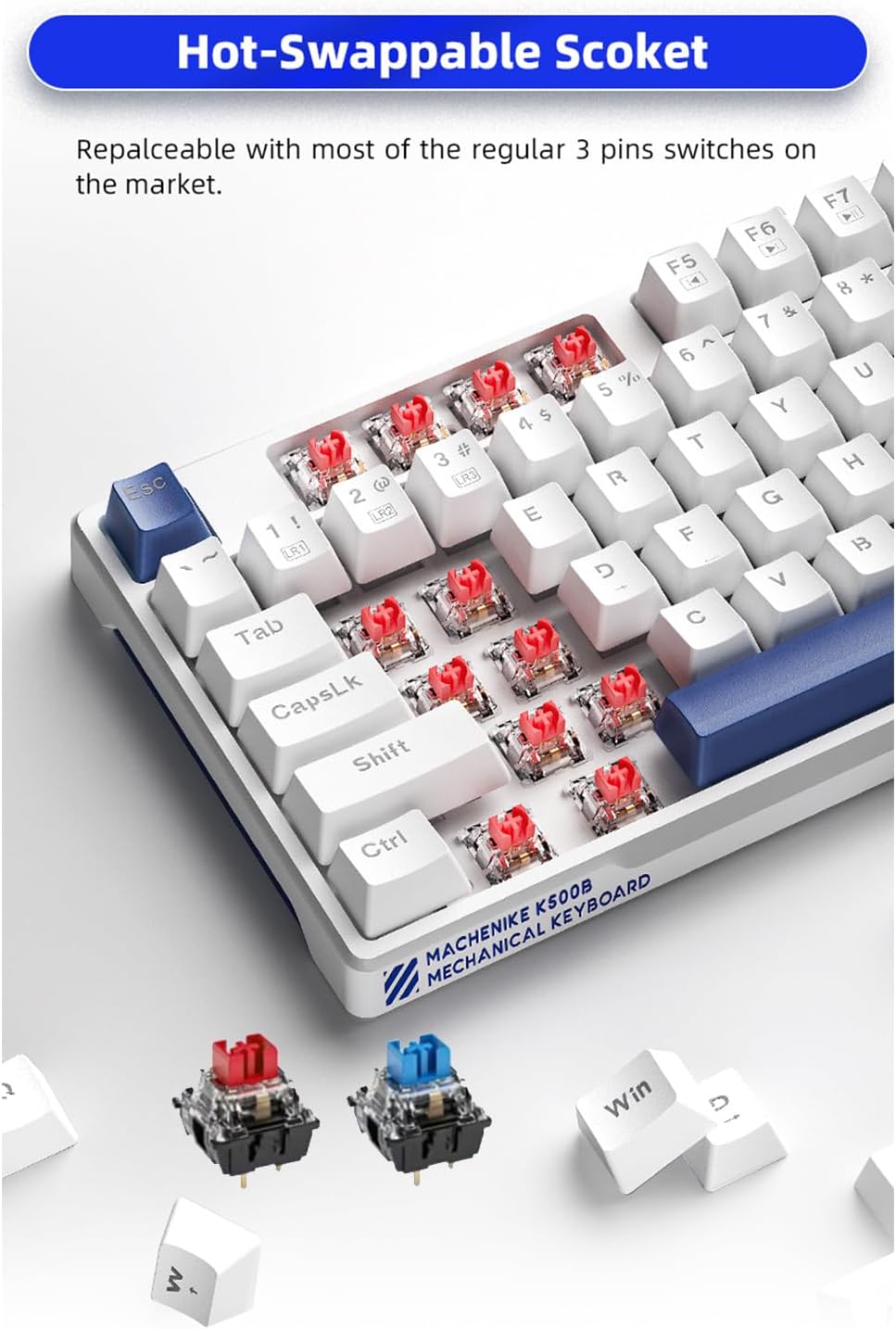
Image 5.1: Close-up view of the hot-swappable sockets, illustrating how switches can be easily removed and replaced.
- Switch Replacement: Use a switch puller tool to carefully remove existing switches. Align the pins of the new 3-pin switch with the socket holes and press firmly until it clicks into place. Ensure pins are straight to avoid bending.
- Keycap Replacement: Use a keycap puller tool to gently remove keycaps. Align the new keycap with the switch stem and press down until it is securely seated.
Caution: Apply gentle force when removing or installing switches and keycaps to prevent damage to the keyboard or components.
6. Troubleshooting
If you encounter issues with your Machenike K500B-B87 keyboard, refer to the following common problems and solutions:
- Keyboard Not Responding:
- Ensure the USB cable is securely connected to both the keyboard and the computer.
- Try connecting the keyboard to a different USB port on your computer.
- Test the keyboard on another computer to determine if the issue is with the keyboard or the computer's USB port/drivers.
- Restart your computer.
- Backlighting Not Working or Flickering:
- Check if the brightness is set to maximum using FN + ↑.
- Cycle through lighting modes using FN + INS to see if other modes function.
- Ensure the keyboard is receiving sufficient power from the USB port. Try a different port or a powered USB hub if available.
- If using the software, ensure no conflicting settings are applied.
- Specific Keys Not Registering:
- This could indicate a faulty switch. If you have spare switches and a switch puller, try replacing the problematic switch.
- Ensure the keycap is properly seated on the switch stem.
- Software Not Recognizing Keyboard:
- Ensure the software is the correct version for your keyboard model.
- Run the software as an administrator.
- Temporarily disable any antivirus or firewall software that might be blocking the connection.
- Reinstall the software.
If the problem persists after trying these steps, please contact Machenike customer support for further assistance.
7. Specifications
| Feature | Detail |
|---|---|
| Model | K500B-B87 |
| Connectivity Technology | USB-C (Wired) |
| Key Layout | 87 Keys (75% TKL) |
| Switch Type | Mechanical (Blue Switch variant, hot-swappable 3-pin) |
| Keycaps | Double-Shot PBT |
| Backlighting | RGB (11 Modes) |
| Anti-Ghosting | N-Key Rollover |
| Compatible Devices | Laptop, Mac, PC |
| Product Dimensions | 14.16 x 5.11 x 1.41 inches (359.7 x 129.7 x 36.0 mm) |
| Item Weight | 1.47 pounds (Approx. 667g) |
| Cable Length | Approx. 1.6 meters |

Image 7.1: Visual representation of key specifications and software support for the Machenike K500B-B87 keyboard.
8. Warranty and Support
8.1. Warranty Information
This product is covered by a manufacturer's warranty. Please refer to the warranty card included with your purchase or visit the official Machenike website for detailed warranty terms and conditions. The warranty typically covers defects in materials and workmanship under normal use.
8.2. Customer Support
For technical assistance, troubleshooting beyond this manual, or warranty claims, please contact Machenike customer support through their official website or the contact information provided with your product packaging.
Visit the official Machenike Store on Amazon for more information: Machenike Store