
1. Introduction
The FAUOSWUK WS043AP is an industrial Human Machine Interface (HMI) touch screen designed for seamless integration with Programmable Logic Controllers (PLCs) and intelligent controllers. It features a 3-inch TFT LCD screen, an ARM9 processor, and high-precision touch technology, ensuring reliable performance in industrial environments.

Figure 1: FAUOSWUK Industrial HMI Touch Screen WS043AP.
Key Features:
- Highly Precise Touch Technology: Equipped with an ARM9 processor for high touch precision and excellent anti-interference capabilities.
- Long-lasting Backlit Display: Features a backlit display with an extended LED lifespan of up to 20,000 hours for enhanced visibility.
- Easy Communication Protocol: Supports data download and automatic display configuration, simplifying setup without complex programming.
- Fast and Stable Performance: Operates with low power consumption, ensuring fast running speed and reliable performance.
- Versatile Applications: Ideal for various PLC or intelligent controllers with communication ports in industrial settings.

Figure 2: HMI Touch Screen highlighting ARM9 processor and stable performance.
2. Specifications
Detailed technical specifications for the WS043AP Industrial HMI Touch Screen are provided below:
| Feature | Specification |
|---|---|
| Model | WS043AP |
| Display | 4.3 inch TFT LCD screen |
| Resolution | 480x272 PX |
| Color | 260,000 colors |
| Brightness | 400 cd/m² |
| Backlight | LED (Lifespan: 20,000 hours) |
| Touch Screen | 4-wire industrial resistive (External hardness 4H) |
| CPU | 32 bit 240MHz ARM9 |
| Memory | 128M NAND FLASH |
| RTC | Integrated real-time clock |
| Ethernet | None |
| USB Port | 1 USB 2.0 Device port, 1 USB 2.0 Host port |
| Program Download | USB download, U disk download and data transfer |
| Serial Communication | COM1 (9-pin D-type male connector) supports RS232, RS485, or RS422 |
| Rated Power | 24V DC (Working range ±15%) |
| Power Protection | Lightning protection |
| Compliance | CE, RoHS (EN61000-6-2:2005, EN61000-6-4:2007) |
| Lightning Resistance | ±4KV |
| Group Pulse | ±4KV |
| Contact Electrostatic | 4KV |
| Air Discharge | 8KV |
| Working Temperature | -20 ℃ to 50 ℃ |
| Storage Temperature | -40 ℃ to 70 ℃ |
| Ambient Humidity | 10-90% RH (non-condensing) |
| Shock Resistance | 10-25 Hz (X, Y, Z 2G for 30 minutes) |
| Protection Class | Front panel: IP65 (with flat panel installation), Rear fuselage: IP20 |
| Overall Dimensions | 140mm (5.5in) x 98mm (3.9in) |
| Panel Cutout Size | Approx. 130mm (5.1in) x 80mm (3.1in) |
| Material | ABS, PU |
| Item Weight | 12.3 ounces |

Figure 3: Rear view of the HMI Touch Screen with dimensions and port details.
3. Package Contents
Verify that all items listed below are included in your package:
- 1 x Industrial HMI Touch Screen (WS043AP)
- 2 x Mounting Brackets
- 2 x Mounting Screws
- 1 x Power Cable Terminal
- 1 x Discharge Cable
- 1 x USB Cable (Type may vary)

Figure 4: HMI Touch Screen with all included accessories.

Figure 5: USB cables (new and old types) that may be included.
4. Setup
Follow these steps to properly install and set up your HMI Touch Screen:
4.1 Panel Mounting
- Prepare a panel cutout according to the specified dimensions (approx. 130mm x 80mm).
- Insert the HMI unit into the cutout from the front.
- Secure the HMI unit using the provided mounting brackets and screws from the rear of the panel. Ensure a snug fit to maintain IP65 front panel protection.
4.2 Wiring Connections
Refer to the rear panel diagram (Figure 3) for port locations.
- Power Connection: Connect the 24V DC power supply to the power cable terminal. Ensure correct polarity (+/-) and that the voltage is within the working range of ±15%.
- Serial Communication: Connect your PLC or intelligent controller to the COM1 port using an appropriate RS232, RS485, or RS422 cable.
- USB Connections: The USB 2.0 Device port is used for program download from a computer. The USB 2.0 Host port supports U disk for data transfer and program updates.
4.3 Initial Power-Up
Once all connections are secure, apply power to the unit. Observe the indicator lights:
- PWR: Indicates power status.
- RUN: Indicates operational status.
- COM: Indicates serial communication activity.
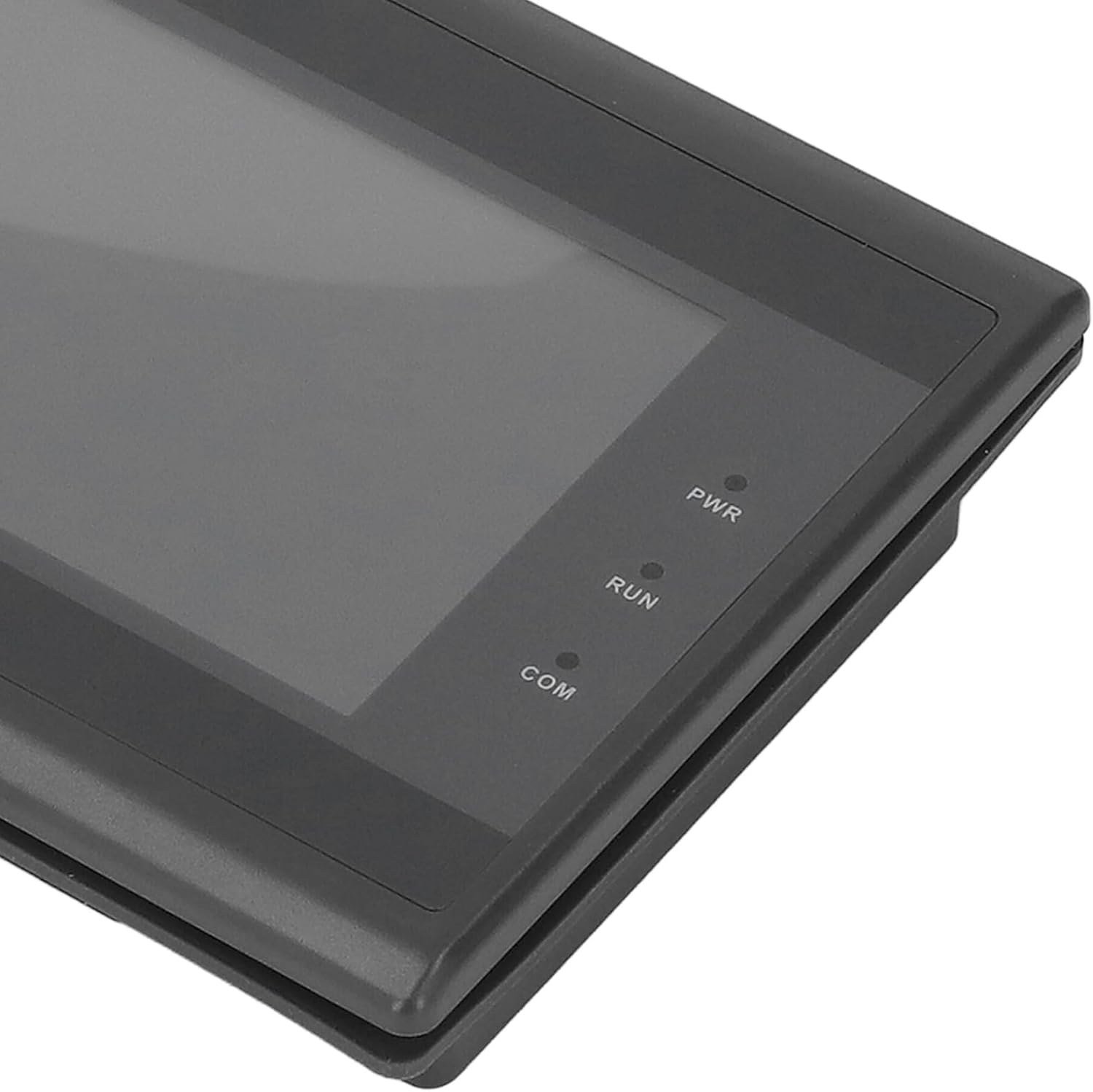
Figure 6: Close-up of PWR, RUN, and COM indicator lights.
5. Operating Instructions
The WS043AP HMI Touch Screen is designed for straightforward operation. Once powered on and connected to your controller, it will display the configured interface.
5.1 Touch Screen Interaction
Interact with the HMI by touching the screen directly. The resistive touch technology ensures precise input. Use a stylus or a gloved finger for optimal performance in industrial environments.
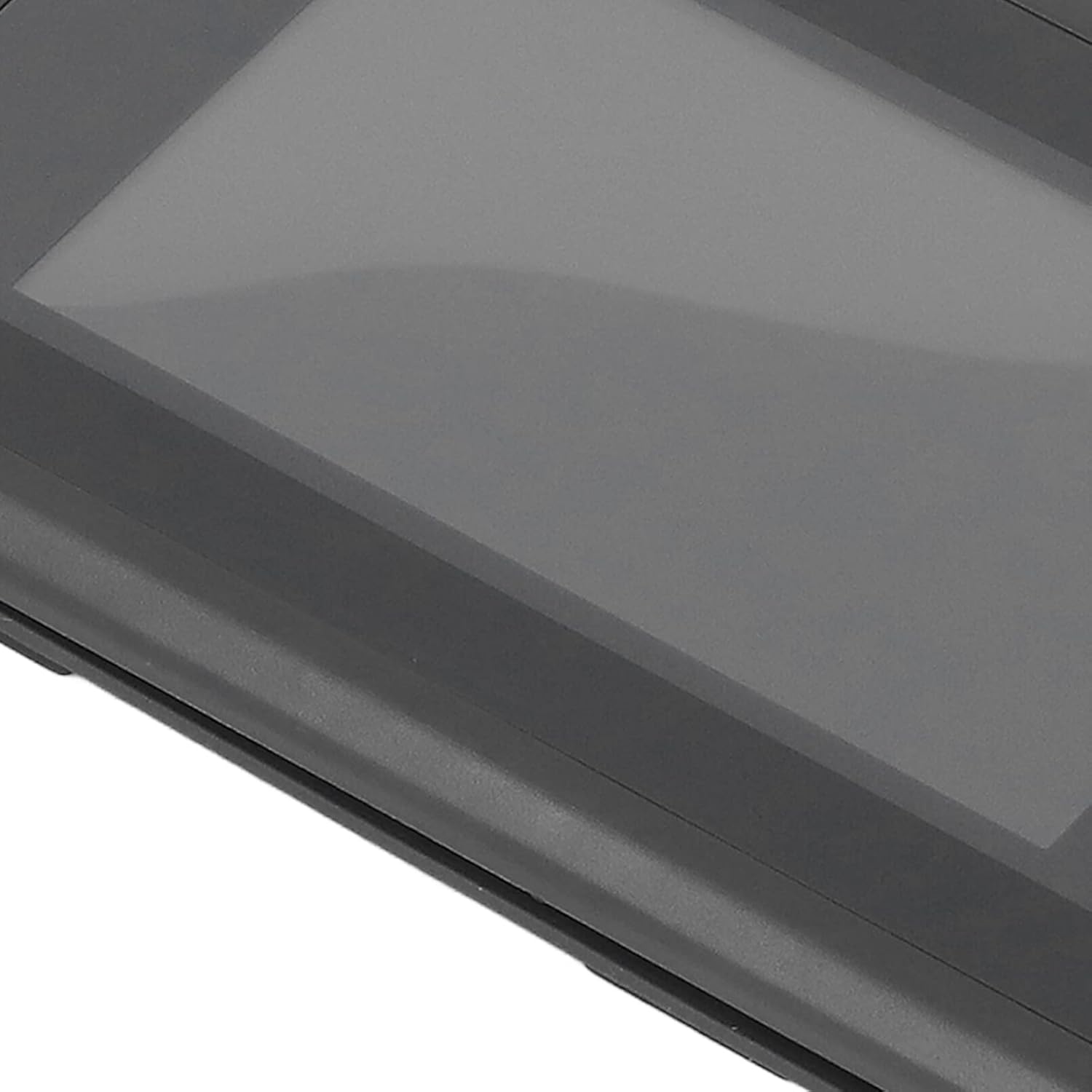
Figure 7: Close-up view of the HMI's 3-inch TFT LCD screen.
5.2 Program Download and Configuration
The HMI supports data download and automatic display configuration. This eliminates the need for complex programming directly on the device. Typically, configuration software on a PC is used to create the HMI interface, which is then downloaded to the device via the USB 2.0 Device port or a U disk connected to the USB 2.0 Host port.
6. Maintenance
Proper maintenance ensures the longevity and optimal performance of your HMI Touch Screen.
- Cleaning: Use a soft, damp cloth to clean the screen and casing. Avoid abrasive cleaners, solvents, or harsh chemicals that could damage the display or housing.
- Environment: Operate and store the device within the specified temperature and humidity ranges to prevent damage. Avoid direct sunlight and excessive dust.
- Connections: Periodically check all cable connections for tightness and signs of wear.
7. Troubleshooting
If you encounter issues with your HMI Touch Screen, refer to the following common problems and solutions:
| Problem | Possible Cause | Solution |
|---|---|---|
| Screen is blank | No power, faulty power cable, or unit not turned on. | Check power connections, ensure 24V DC supply, and verify the PWR indicator light is on. |
| Touch input unresponsive | Screen calibration issue, physical damage, or software error. | Restart the device. If the issue persists, check for physical damage. Re-download the HMI program if necessary. |
| Communication error with PLC | Incorrect wiring, wrong communication protocol settings, or faulty cable. | Verify serial cable connections. Ensure the HMI and PLC communication settings (baud rate, parity, data bits) match. Check the COM indicator light for activity. |
| Display flickering or distorted | Power supply instability, environmental interference, or internal fault. | Ensure stable power supply. Check for strong electromagnetic interference sources. If the problem continues, contact support. |
8. Warranty and Support
FAUOSWUK products are manufactured to high-quality standards. This product comes with a standard manufacturer's warranty against defects in materials and workmanship.
For warranty claims, technical support, or service inquiries, please contact your retailer or the official FAUOSWUK customer support channel. Please have your product model number (WS043AP) and purchase information ready when contacting support.