
TCL 43S551G
TCL 43-Inch Class S5 4K UHD LED Smart TV (43S551G) Instruction Manual
Model: 43S551G
1. Important Safety Information
Read all instructions before operating the TV. Keep these instructions for future reference. Observe all warnings on the appliance and in the operating instructions. Follow all instructions.
- Do not use this apparatus near water.
- Clean only with a dry cloth.
- Do not block any ventilation openings. Install in accordance with the manufacturer's instructions.
- Do not install near any heat sources such as radiators, heat registers, stoves, or other apparatus (including amplifiers) that produce heat.
- Protect the power cord from being walked on or pinched.
- Only use attachments/accessories specified by the manufacturer.
- Unplug this apparatus during lightning storms or when unused for long periods of time.
- Refer all servicing to qualified service personnel.
2. What's in the Box
Verify that all components are present before beginning installation.
- TCL TV with Google TV
- TV Stands (2)
- Power Cable
- TV Remote
- AAA batteries for remote (2)
- Quick Start Guide
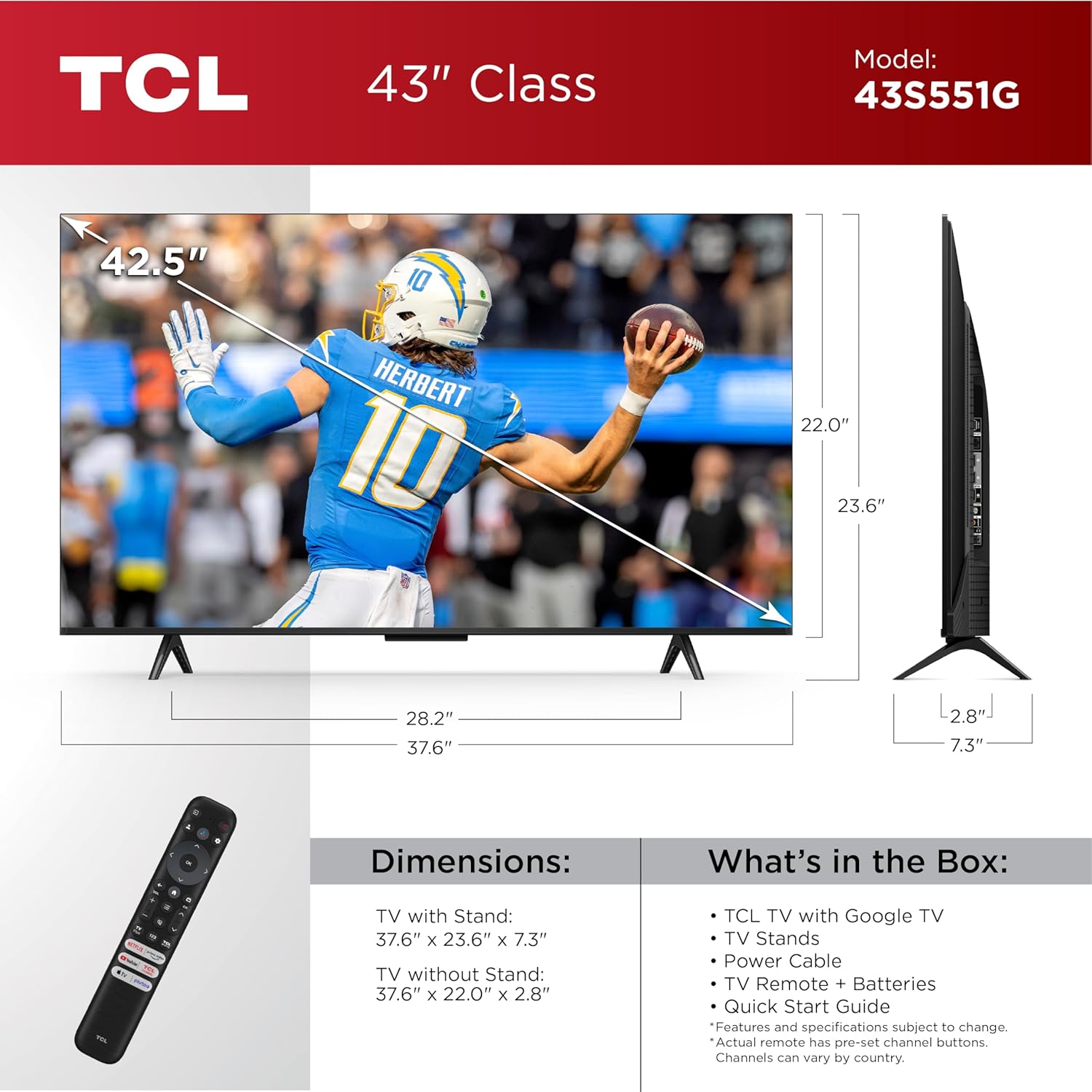
Image: Overview of the TCL 43S551G TV dimensions and the items included in the box, such as the remote control, power cable, and TV stands.
3. Setup
3.1 Stand Installation
To attach the TV stands:
- Place the TV face-down on a soft, flat surface to prevent screen damage.
- Align each stand with the corresponding screw holes on the bottom of the TV.
- Secure each stand with the provided screws. Ensure they are tightened firmly.
3.2 Wall Mounting (Optional)
This TV is compatible with VESA wall mounts. For wall mounting, remove the stands and follow the instructions provided with your wall mount kit. Ensure the wall mount is rated for the TV's weight and size. Consult a professional for wall mounting if you are unsure.
3.3 Connecting Peripherals
Connect your external devices to the TV's ports. Refer to the image below for port locations.

Image: Close-up view of the back panel of the TCL 43S551G TV, showing various input and output ports including HDMI, USB, Ethernet, and antenna/cable connections.
- HDMI: Connect Blu-ray players, game consoles, or other HDMI devices. This TV features multiple HDMI ports.
- USB: For connecting USB storage devices to play media.
- Ethernet: For a wired internet connection.
- Antenna/Cable: Connect an antenna or cable TV feed.
- Power: Connect the power cable to the TV and then to a power outlet.
3.4 Initial Power On and Google TV Setup
After connecting all cables:
- Plug the power cable into an electrical outlet.
- Press the power button on the remote control or on the TV.
- Follow the on-screen instructions to complete the initial setup, including connecting to Wi-Fi, signing in with your Google account, and installing desired apps.
4. Operating the TV
4.1 Remote Control Overview
The remote control allows you to navigate the Google TV interface, adjust settings, and use voice commands.
- Power Button: Turns the TV on or off.
- Google Assistant Button: Activates voice control for searching content, controlling smart home devices, and more.
- Navigation Pad: Use to move through menus and select items.
- Volume Up/Down: Adjusts the audio volume.
- Channel Up/Down: Changes TV channels.
- Input Button: Switches between connected input sources (HDMI, AV, etc.).
- Home Button: Returns to the Google TV home screen.
- Back Button: Returns to the previous screen.
4.2 Google TV Interface Navigation
The Google TV home screen provides access to your favorite streaming apps, live TV, and personalized content recommendations.

Image: A screenshot of the TCL 43S551G TV displaying the Google TV home interface, showing various streaming app icons and content recommendations.
- Use the navigation pad on your remote to browse through content and apps.
- Select an app or content item by pressing the OK/Enter button.
- Access settings, profiles, and other features from the top menu bar.
4.3 Picture and Sound Settings
Optimize your viewing experience through the TV's picture and sound settings.
Picture Settings:
- 4K UltraHD Resolution: The TV supports 4K resolution for enhanced clarity.
- HDR PRO+ (Dolby Vision, HDR10+, HDR10, HLG): Adjust HDR settings for optimal contrast and color.
- High Brightness LED Backlight: Provides a brilliant image in various lighting conditions.
- TCL AIPQ Processor: This processor intelligently optimizes color, contrast, and clarity.

Image: A visual representation of the TCL 43S551G TV displaying a vibrant 4K Ultra HD image, highlighting the high resolution capabilities.

Image: A split-screen comparison demonstrating the effect of High Brightness LED Backlight on the TCL 43S551G TV versus a conventional TV, showing more vibrant colors and brightness.

Image: A stylized diagram illustrating the TCL AIPQ Processor, emphasizing its role in optimizing clarity, contrast, and color for the TV's display.
Sound Settings:
- Dolby Atmos Audio: Provides immersive spatial audio.
- DTS Virtual:X: Enhances audio for a virtualized 3D sound experience from TV speakers.
- Enhanced Dialogue Mode: Improves clarity and intelligibility of speech.
- Bluetooth Personal Audio: Pair Bluetooth headphones for private listening.

Image: A visual demonstrating the integration of Dolby Vision for cinematic picture and Dolby Atmos for immersive sound on the TCL 43S551G TV, with a scene of ocean waves.
4.4 Gaming Features
- Auto Game Mode (ALLM): Automatically reduces input lag for a smoother gaming experience.
- Motion Rate 240 with MEMC Frame Insertion: Enhances motion clarity for fast-paced action.

Image: A split-screen comparison showing the difference in motion clarity on the TCL 43S551G TV with and without MEMC (Motion Estimation, Motion Compensation) frame insertion, illustrated by a galloping horse.
5. Maintenance
5.1 Cleaning the Screen
To clean the TV screen:
- Turn off the TV and unplug the power cord.
- Gently wipe the screen with a soft, lint-free microfiber cloth.
- For stubborn marks, lightly dampen the cloth with water or a specialized screen cleaner (ensure it's safe for LED screens) and wipe carefully. Do not spray liquid directly onto the screen.
5.2 Cleaning the TV Body
Wipe the TV's frame and back panel with a soft, dry cloth. Avoid using abrasive cleaners or solvents.
5.3 Software Updates
The TV may receive automatic software updates. Ensure your TV is connected to the internet to receive these updates, which can improve performance and add new features. You can also manually check for updates in the TV's settings menu.
6. Troubleshooting
If you encounter issues with your TV, refer to the following common troubleshooting steps:
| Problem | Possible Solution |
|---|---|
| No power | Ensure the power cord is securely plugged into both the TV and a working electrical outlet. Try a different outlet. |
| No picture, but sound is present | Check the input source. Ensure external devices are powered on and connected correctly. Try restarting the TV. |
| No sound, but picture is present | Check the volume level and mute status. Ensure external audio devices are connected and configured correctly. |
| Remote control not working | Replace the batteries. Ensure there are no obstructions between the remote and the TV. Re-pair the remote if necessary (refer to TV settings). |
| Network connection issues | Check your Wi-Fi router or Ethernet cable. Restart the TV and your router. Verify Wi-Fi password in TV settings. |
| Picture quality issues (e.g., blurry, distorted) | Check the source content resolution. Adjust picture settings (brightness, contrast, sharpness). Ensure cables are securely connected. |
If the problem persists, consult the full user manual available on the TCL support website or contact TCL customer support.
7. Specifications
| Feature | Detail |
|---|---|
| Brand | TCL |
| Model Number | 43S551G |
| Screen Size | 43 inches |
| Display Technology | LED |
| Resolution | 4K Ultra HD (3840 x 2160) |
| Refresh Rate | 60 Hz (Motion Rate 240 with MEMC) |
| Product Dimensions (with stand) | 37.6"W x 23.6"H x 7.3"D |
| Product Dimensions (without stand) | 37.6"W x 22.0"H x 2.8"D |
| Item Weight | 14.6 pounds |
| Operating System | Google TV |
| Voice Assistant | Google Assistant Built-in, Compatible with Alexa |
| Connectivity | Bluetooth, HDMI, RF, USB, Wi-Fi, Ethernet |
| Special Features | Bezel-Less Design, Chromecast, Game Mode (ALLM), Sleep Timer, Wide Color Enhancer, TCL AIPQ Processor, Dolby Vision, HDR10+, HDR10, HLG, Dolby Atmos, DTS Virtual:X, Enhanced Dialogue Mode |
8. Warranty and Support
For warranty information, please refer to the warranty card included with your product or visit the official TCL support website. For technical assistance or further inquiries, please contact TCL customer support.
TCL Support Website: www.tcl.com/us/en/support
Related documents43S551G


Ask a question about this manual
Ask about setup, troubleshooting, compatibility, parts, safety, or missing instructions. Manuals+ will review the question and use this page’s manual context to help answer it.