
Ajazz AK680
AJAZZ AK680 Mechanical Gaming Keyboard and Mouse Combo User Manual
Model: AK680 | Brand: Ajazz
1. Introduction
Thank you for choosing the AJAZZ AK680 Mechanical Gaming Keyboard and Mouse Combo. This ultra-compact 60% keyboard and lightweight mouse are designed to enhance your gaming and typing experience with features like hot-swappable switches, RGB backlighting, and programmable keys. This manual provides detailed instructions for setup, operation, maintenance, and troubleshooting to ensure optimal performance of your new device.
2. Package Contents
- AJAZZ AK680 Mechanical Gaming Keyboard
- Gaming Mouse
- USB-C to USB-A Cable (for keyboard)
- Keycap Puller
- Switch Puller
- Spare Switches (e.g., Brown Switches)
- User Manual (this document)
3. Product Overview
The AJAZZ AK680 combo features a compact 60% mechanical keyboard and a lightweight, ergonomic gaming mouse. Below are key components and their descriptions.

Figure 3.1: AJAZZ AK680 Mechanical Gaming Keyboard and Mouse Combo. The keyboard features a red and white color scheme with RGB backlighting, and the mouse is white with orange accents and a honeycomb shell.
3.1 Keyboard Features
- 60% Compact Layout: Saves desk space while retaining essential keys.
- Hot-Swappable Switches: Allows for easy replacement of mechanical switches without soldering.
- RGB Backlighting: Customizable lighting effects for an immersive experience.
- PBT Keycaps: Durable keycaps designed for longevity and resistance to shine.
- USB-C Wired Connection: Provides stable and reliable connectivity.

Figure 3.2: Close-up view of the hot-swappable mechanical switches on the AK680 keyboard, showing a switch being removed and a spare switch. This feature allows users to easily change switch types.
3.2 Mouse Features
- Ultra-light Honeycomb Shell: Reduces weight for faster movements and improved comfort.
- 6 Programmable Buttons: Customizable buttons for various functions.
- 6 Adjustable DPI Levels: Allows for precise control over cursor speed.
- Symmetrical Ergonomics: Suitable for both left and right-handed users.

Figure 3.3: Diagram illustrating the six programmable buttons on the gaming mouse, including Left Click, Right Click, Middle Click, Forward, Backward, and DPI Loop.

Figure 3.4: Visual representation of the mouse's adjustable DPI levels, indicating up to 6400 DPI for precise control.
4. Setup
Follow these steps to set up your AJAZZ AK680 keyboard and mouse combo.
- Connect the Keyboard: Locate the USB-C port on the back of the keyboard. Connect the provided USB-C cable to the keyboard and the USB-A end to an available USB port on your computer.
- Connect the Mouse: The mouse is also wired. Connect its USB-A cable to another available USB port on your computer.
- Driver Installation: The keyboard and mouse are plug-and-play. No additional drivers are typically required for basic functionality. Your operating system (Windows, macOS) will automatically detect and install the necessary drivers.
- Software Installation (Optional): For advanced customization, such as macro programming or detailed RGB control, you may need to download the official AJAZZ software from their website. Refer to the product page or included documentation for software download links.
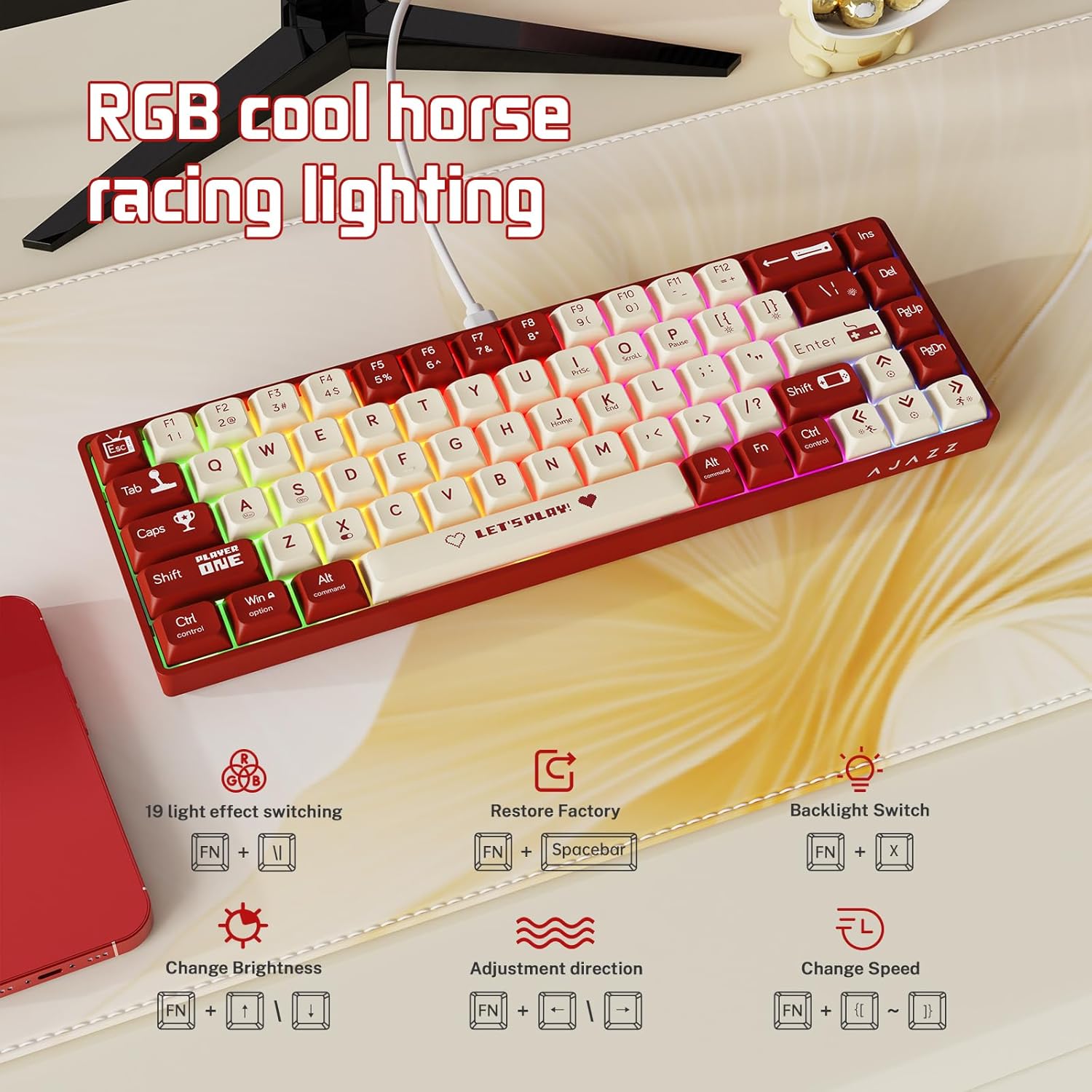
Figure 4.1: Image showing the detachable Type-C cable connected to the keyboard, highlighting its ease of storage and portability.
Video 4.1: A short demonstration of connecting the AK680 keyboard and showcasing its initial functionality and compact design.
5. Operating Instructions
5.1 Keyboard Functions
The AK680 keyboard utilizes a 60% layout, meaning some functions are accessed via the Fn (Function) key in combination with other keys. Refer to the keycap legends for specific combinations.
- Multimedia Controls: Use Fn + F1-F12 (or corresponding keys) for media playback, volume control, etc.
- Arrow Keys: Typically accessed via Fn + W/A/S/D or dedicated arrow keys if present on your specific model variant.
- PrtSc/Scroll Lock/Pause: Accessed via Fn + P/O/I (or corresponding keys).
- Home/End/PgUp/PgDn: Accessed via Fn + L/;/./, (or corresponding keys).
5.2 RGB Backlighting Control
The keyboard features various RGB lighting modes and customization options.
- Change Light Effect: Press Fn + | \ to cycle through 19 different lighting effects.
- Change Brightness: Press Fn + { [ to decrease brightness, and Fn + } ] to increase brightness.
- Change Speed: Press Fn + : ; to decrease effect speed, and Fn + " ' to increase effect speed.
- Change Direction: Press Fn + , < to change the direction of the lighting effect.
- Restore Factory Settings: Press Fn + Spacebar to reset lighting to default.

Figure 5.1: Visual guide to keyboard RGB lighting controls, showing key combinations for changing effects, brightness, speed, direction, and restoring factory settings.
Video 5.1: A demonstration of the AK680 keyboard's RGB lighting effects and typing sound.
5.3 Mouse DPI Adjustment
The mouse features adjustable DPI (Dots Per Inch) settings to control cursor sensitivity. Use the dedicated DPI button (often located near the scroll wheel or on the underside) to cycle through preset DPI levels. The mouse typically has an indicator (e.g., LED color change) to show the current DPI setting.
- Cycle through 6 adjustable DPI levels, up to 6400 DPI.
- The DPI button allows quick switching between sensitivity settings for different tasks or games.
6. Customization
6.1 Hot-Swappable Switches
The AK680 keyboard supports hot-swappable 3-pin mechanical switches, allowing you to change the feel and sound of your typing without soldering.
- Remove Keycap: Use the included keycap puller to gently remove the desired keycap.
- Remove Switch: Use the included switch puller to carefully grip the top and bottom clips of the switch and pull it straight up.
- Insert New Switch: Align the pins of the new switch with the holes on the PCB. Press the switch firmly until it clicks into place. Ensure pins are straight to avoid bending.
- Replace Keycap: Place the keycap back onto the new switch stem.
Note: Ensure the keyboard is unplugged before changing switches to prevent accidental damage.
6.2 Programmable Buttons (Mouse)
The mouse's 6 programmable buttons can be customized using the official AJAZZ software. This software allows you to assign macros, rebind keys, and configure advanced settings to suit your preferences.
- Download and install the AJAZZ customization software from the official website.
- Launch the software and select your connected mouse.
- Follow the on-screen instructions to customize button assignments, create macros, and adjust other performance settings.
7. Maintenance
- Cleaning the Keyboard:
- Unplug the keyboard from your computer.
- Use a keycap puller to remove keycaps for thorough cleaning.
- Use compressed air to remove dust and debris from between the keys.
- Wipe keycaps with a damp cloth and mild soap solution, then dry thoroughly.
- Clean the keyboard surface with a soft, lint-free cloth.
- Cleaning the Mouse:
- Unplug the mouse from your computer.
- Use a soft, slightly damp cloth to wipe the surface of the mouse.
- Use a cotton swab to clean around the scroll wheel and sensor area.
- Avoid using harsh chemicals or abrasive materials.
- Cable Care: Avoid sharp bends or kinks in the cables to prevent damage.
8. Troubleshooting
| Problem | Possible Cause | Solution |
|---|---|---|
| Keyboard/Mouse not responding | Loose connection, faulty USB port, driver issue. |
|
| RGB lighting not working or stuck | Incorrect lighting mode, software conflict, power issue. |
|
| Keys not registering or double-typing | Dust/debris under keycap, faulty switch, software issue. |
|
| Mouse cursor erratic or unresponsive | Dirty sensor, unsuitable surface, software issue. |
|
9. Specifications
| Feature | Detail |
|---|---|
| Model | AK680 |
| Brand | Ajazz |
| Connectivity | Wired USB-C (Keyboard), Wired USB-A (Mouse) |
| Keyboard Layout | 60% Ultra-Compact |
| Keyboard Switches | Mechanical Blue Switch (Hot-Swappable 3-pin) |
| Keycaps | PBT Keycaps |
| Backlighting | RGB (Multiple Modes) |
| Mouse DPI | Up to 6400 DPI (6 adjustable levels) |
| Mouse Buttons | 6 Programmable Buttons |
| Compatibility | Windows 10/8/7/Vista/XP, Mac OS |
| Product Dimensions (Keyboard) | 17.12 x 6.49 x 2.36 inches |
| Item Weight (Combo) | 1.72 pounds |
10. Warranty and Support
AJAZZ products come with a standard manufacturer's warranty. Please refer to the warranty card included in your package or visit the official AJAZZ website for detailed warranty terms and conditions.
For technical support, troubleshooting assistance, or any inquiries regarding your product, please contact AJAZZ customer service through their official website or the contact information provided on the product packaging.
Related documentsAK680


Ask a question about this manual
Ask about setup, troubleshooting, compatibility, parts, safety, or missing instructions. Manuals+ will review the question and use this page’s manual context to help answer it.