1. Introduction and Overview
The ATTACK SHARK AK680 is a compact 60% wired mechanical gaming keyboard designed for both gaming and office use. It features a 68-key layout, hot-swappable switches, RGB rainbow backlighting, and anti-ghosting capabilities. The keyboard is constructed with high-quality ABS injection molding and includes EVA sound control for a quieter typing experience.

Image 1.1: The ATTACK SHARK AK680 60% Wired Mechanical Gaming Keyboard in Red&White, showcasing its compact design and keycap layout.
Key Features:
- Portable 60% Layout: Compact 68-key design for space-saving and portability.
- Hot-Swappable Switches: Supports 3-pin mechanical switches, allowing for easy customization without soldering.
- Red Switches: Features linear red switches for smooth, light, and silent keystrokes, ideal for fast response.
- UV Printing & EVA Sound Control: Durable UV printed keycaps and internal EVA sandwich foam for reduced typing noise.
- Full Anti-Ghosting: Ensures all key presses are registered accurately, even during rapid input.
- RGB Rainbow Backlit: Offers 19 dynamic lighting effects with adjustable brightness and speed.
- Programmable: Customizable macros and keybindings via user-friendly software.
- Detachable Type-C Cable: For easy connectivity and portability.

Image 1.2: Overview of the AK680 keyboard highlighting its compact layout, full-key hotswap, EVA sandwich, sleeve switches, mixed color lighting, and anti-ghosting features.
2. Package Contents
Please verify that all items are present in the package before proceeding with setup.
- ATTACK SHARK AK680 Mechanical Keyboard x1
- Type-C USB Cable x1
- Extra Red Switches x2
- Keycap Puller x1
- Switch Puller x1
- User Manual x1

Image 2.1: Visual representation of the items included in the AK680 keyboard package: keyboard, Type-C cable, two extra red switches, keycap puller, switch puller, and user manual.
3. Setup
The AK680 keyboard is designed for simple plug-and-play operation, compatible with Windows, Mac, and Linux systems.
- Locate the detachable Type-C USB cable provided in the package.
- Connect the Type-C end of the cable to the port on the keyboard.
- Connect the USB-A end of the cable to an available USB port on your computer or gaming console.
- The keyboard will be automatically recognized by your operating system and ready for use. No additional drivers are typically required.

Image 3.1: The keyboard connected via its detachable Type-C USB cable, illustrating the plug-and-play setup.
4. Operating Instructions
4.1 RGB Backlighting Control
The AK680 features 19 dynamic RGB rainbow lighting effects. Use the following key combinations to control the backlighting:
- FN + \ |: Cycle through different lighting effects.
- FN + ↑: Increase brightness.
- FN + ↓: Decrease brightness.
- FN + ←: Decrease lighting speed.
- FN + →: Increase lighting speed.
4.2 Programmable Features
The keyboard supports extensive customization through dedicated software. This allows users to:
- Create and assign macros.
- Redefine key functions.
- Customize lighting effects beyond the default modes.
Please refer to the official ATTACK SHARK website for software download and detailed instructions on programming the keyboard.
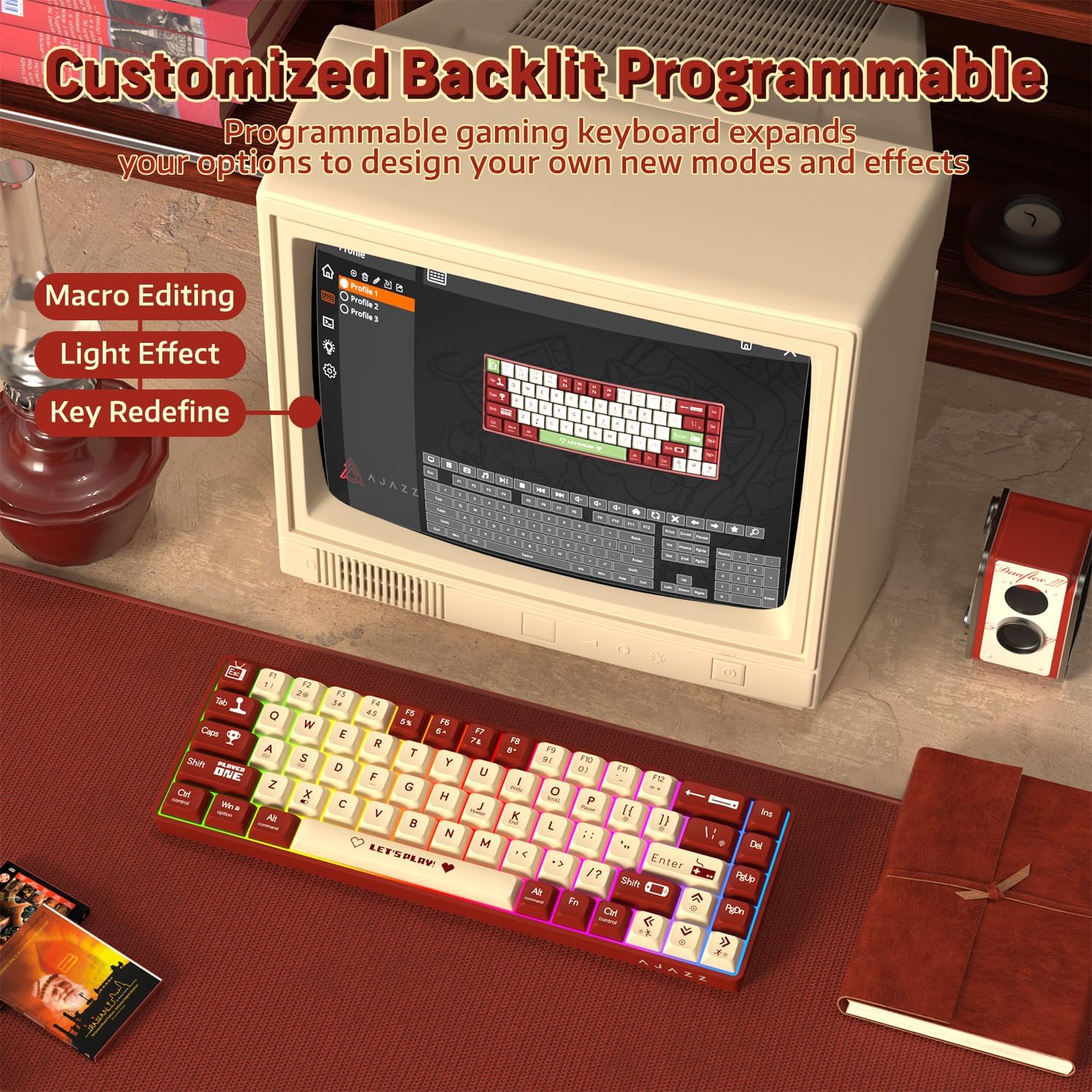
Image 4.1: The AK680 keyboard demonstrating its programmable features, including macro editing, light effect customization, and key redefinition.
4.3 Hot-Swappable Switches
The AK680 allows for easy replacement of 3-pin mechanical switches without soldering. This feature enables users to customize their typing feel.
- Using the provided keycap puller, gently remove the desired keycap.
- Using the provided switch puller, carefully grip the switch from its top and bottom clips.
- Pull the switch straight up to remove it from the PCB.
- Align the pins of the new 3-pin switch with the holes on the PCB.
- Gently press the new switch into place until it clicks securely. Ensure the pins are not bent.
- Reattach the keycap.

Image 4.2: Close-up view of the hot-swappable switches on the AK680 keyboard, showing the ease of installation and removal for customized user experience.
4.4 Anti-Ghosting
The AK680 features full key anti-ghosting, meaning that all simultaneous key presses will be registered accurately. This is particularly beneficial for fast-paced gaming and typing, preventing missed inputs or conflicts.

Image 4.3: Illustration of the full keys anti-ghosting feature, ensuring accurate registration of multiple simultaneous key presses.
4.5 Product Video Overview
Video 4.4: An official product video from ATTACK SHARK US showcasing the AK680 60% Wired Mechanical Gaming Keyboard in use, highlighting its design and typing experience.
5. Maintenance
Proper maintenance ensures the longevity and optimal performance of your AK680 keyboard.
- Cleaning Keycaps: Use a soft, damp cloth to wipe down the keycaps. For deeper cleaning, remove keycaps using the provided keycap puller and clean them with mild soap and water. Ensure they are completely dry before reattaching.
- Cleaning the Keyboard Body: Use a soft, dry cloth to wipe the keyboard body. Avoid using harsh chemicals or abrasive materials.
- Dust Removal: Use compressed air to remove dust and debris from between the keycaps and switches.
- Cable Care: Avoid sharp bends or excessive pulling on the detachable Type-C cable to prevent damage.
6. Troubleshooting
If you encounter issues with your AK680 keyboard, refer to the following common troubleshooting steps:
| Problem | Possible Cause | Solution |
|---|---|---|
| Keyboard not responding / No power | Loose cable connection, faulty USB port, or system issue. |
|
| Backlighting not working or incorrect | Lighting settings are off or set to a very low brightness. |
|
| Difficulty removing/installing switches | Improper use of switch puller or tight fit. |
|
| Keys not registering / Ghosting | Software conflict or rare hardware issue. |
|
7. Specifications
| Feature | Detail |
|---|---|
| Model Number | AK680 |
| Layout | 60% (68-key) |
| Connectivity | Wired (Detachable Type-C USB Cable) |
| Switch Type | Mechanical (Red Switch, Hot-Swappable 3-pin) |
| Backlighting | RGB Rainbow (19 effects) |
| Anti-Ghosting | Full Key Anti-Ghosting |
| Material | ABS (Acrylonitrile Butadiene Styrene) |
| Sound Control | EVA Sandwich Foam |
| Keycap Printing | UV Printing |
| Keycap Profile | XDA Height |
| Compatible OS | Windows, Mac, Linux |
| Package Dimensions | 13 x 5.2 x 1.65 inches |
| Item Weight | 1.29 pounds |
| Manufacturer | ATTACK SHARK |
| Country of Origin | China |
8. Warranty and Support
ATTACK SHARK products are manufactured to high quality standards. For specific warranty information, please refer to the warranty card included with your product or visit the official ATTACK SHARK website.
For further assistance, technical support, or to inquire about replacement parts, please contact ATTACK SHARK customer service through their official channels or visit the ATTACK SHARK Store on Amazon.


