
Introduction
This manual provides comprehensive instructions for the setup, operation, maintenance, and troubleshooting of your ATTACK SHARK AK680 60% Wired Mechanical Gaming Keyboard. Designed for both gaming and office use, this compact 68-key keyboard features hot-swappable mechanical switches, RGB rainbow backlighting, and anti-ghosting capabilities. Please read this manual thoroughly to ensure optimal performance and longevity of your device.

Figure 1: ATTACK SHARK AK680 60% Wired Mechanical Gaming Keyboard (Grey & White, Red Switch variant).
Package Contents
Please verify that all items listed below are included in your package:
- ATTACK SHARK AK680 Wired Mechanical Gaming Keyboard
- USB-C to USB-A Cable
- Keycap Puller
- Switch Puller
- Extra Mechanical Switches (2 pieces)
- User Manual (this document)

Figure 2: Included accessories with the AK680 keyboard, such as the USB-C cable, keycap puller, and switch puller.
Setup
Connecting the Keyboard
- Locate the USB-C port on the back of the AK680 keyboard.
- Insert the USB-C end of the provided cable into the keyboard's port.
- Insert the USB-A end of the cable into an available USB port on your computer (PC, Mac, or Gaming Console).
- The keyboard is plug-and-play and should be recognized automatically by your operating system.

Figure 3: The AK680 keyboard is compact and portable, featuring a detachable Type-C cable for easy connection and transport.
Compatibility
The ATTACK SHARK AK680 keyboard is compatible with a wide range of operating systems, including Windows, macOS, and Linux. No additional drivers are typically required for basic functionality.
Operating Instructions
Keyboard Layout and Keys
The AK680 features a 60% compact layout with 68 keys, optimizing desk space while retaining essential functions. Many functions are accessed via the Fn key combined with other keys.
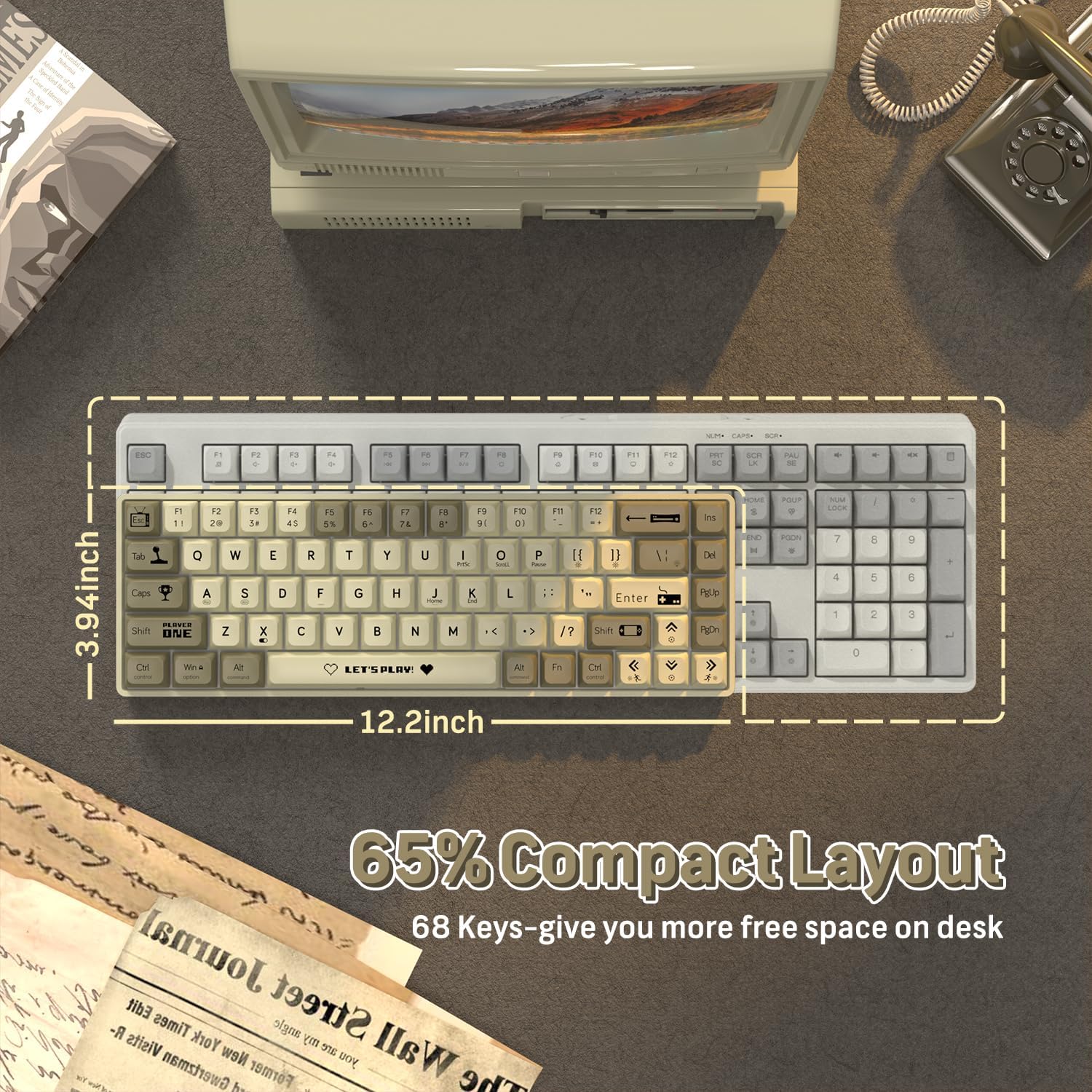
Figure 4: The 65% compact layout of the AK680 keyboard, providing 68 keys for efficient use.
Hot-Swappable Switches
The AK680 supports hot-swappable 3-pin mechanical switches, allowing you to customize your typing experience without soldering. The keyboard comes equipped with Red Switches, known for their smooth linearity and quiet operation.

Figure 5: The hot-swappable design allows for easy removal and installation of 3-pin mechanical switches.
Anti-Ghosting
The keyboard features full key anti-ghosting, ensuring that every keystroke is registered accurately, even during rapid and complex key combinations, which is crucial for gaming and fast typing.
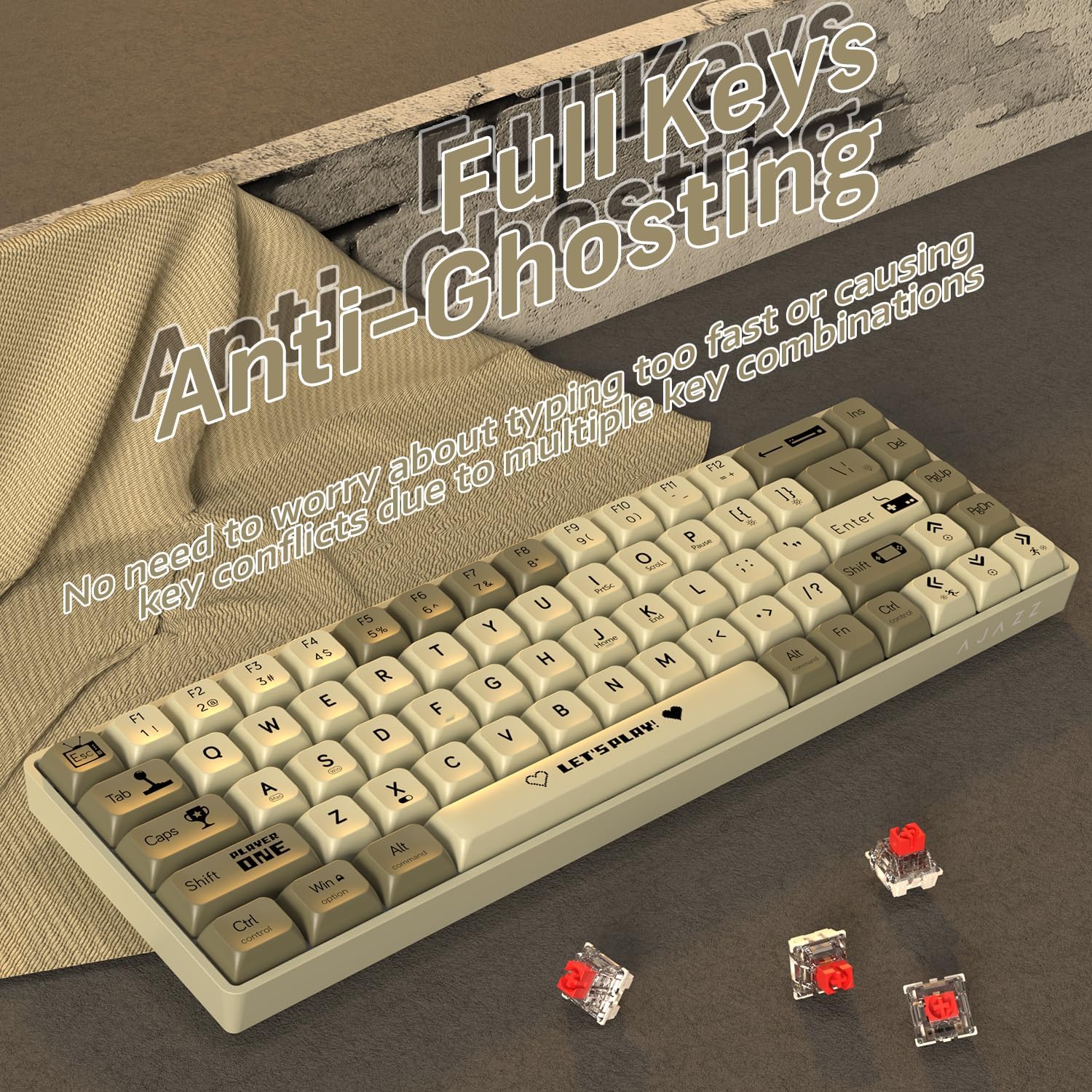
Figure 6: The AK680 keyboard supports full key anti-ghosting, preventing missed inputs during intense use.
RGB Rainbow Backlighting
The AK680 offers 19 dynamic RGB rainbow lighting effects. You can easily switch between effects and adjust brightness and speed using Fn key combinations. Refer to the included quick guide for specific key combinations.

Figure 7: The keyboard features customizable RGB backlighting with various effects.
Programmable Features
Utilize the dedicated user-friendly software (download instructions typically provided on the manufacturer's website) to customize macros and keybindings, tailoring the keyboard to your specific needs for gaming or productivity.
Sound Control and Keycap Design
The keyboard incorporates an EVA sandwich sound control foam to effectively reduce keystroke noise, providing a quieter experience. The keycaps feature UV printing for durability and an XDA height design for comfortable typing over extended periods.

Figure 8: Internal structure of the AK680, highlighting the EVA sandwich process for sound dampening.
Video 1: Demonstration of the ATTACK SHARK AK680 60% Wired Mechanical Gaming Keyboard in use, showcasing its typing experience and sound profile.
Maintenance
Cleaning the Keyboard
- Disconnect the keyboard from your computer before cleaning.
- Use a soft, lint-free cloth slightly dampened with water or a mild cleaning solution to wipe down the keycaps and chassis.
- For dust and debris between keys, use compressed air.
- Avoid using harsh chemicals or abrasive materials, as they may damage the keyboard's finish or keycap legends.
Replacing Switches and Keycaps
Thanks to the hot-swappable design, you can easily replace individual switches or keycaps. Use the provided keycap puller to remove keycaps and the switch puller to carefully remove switches. Ensure the new switches are 3-pin compatible and align correctly before pressing them into place.
Troubleshooting
- Keyboard Not Responding:
- Ensure the USB-C cable is securely connected to both the keyboard and the computer.
- Try connecting the keyboard to a different USB port on your computer.
- Test the keyboard on another computer to rule out system-specific issues.
- Backlighting Not Working or Incorrect:
- Check if the backlighting is turned off using the Fn key combinations (refer to quick guide).
- Adjust brightness levels using the appropriate Fn key combinations.
- If using customization software, ensure settings are correctly applied and saved.
- Keys Not Registering or Double-Typing:
- This could indicate a faulty switch. Use the switch puller to remove the affected switch and replace it with one of the spare switches provided, or a new compatible 3-pin switch.
- Ensure no debris is lodged under the keycap or switch.
Specifications
| Feature | Detail |
|---|---|
| Model | AK680 |
| Layout | 60% (68-key) |
| Switch Type | Mechanical (Red Switch, Hot-Swappable 3-pin) |
| Connectivity | Wired (USB-C detachable cable) |
| Backlighting | RGB Rainbow (19 effects) |
| Anti-Ghosting | Full Key Anti-Ghosting |
| Keycap Material | ABS (UV Printing, XDA Height) |
| Sound Control | EVA Sandwich Foam |
| Dimensions | 13 x 5.2 x 1.65 inches |
| Weight | 1.29 pounds |
| Compatible Devices | Laptop, PC, Gaming Console |
Warranty and Support
Your ATTACK SHARK AK680 keyboard is covered by a manufacturer's warranty. For specific warranty terms and conditions, please refer to the warranty card included in your product packaging or visit the official ATTACK SHARK website.
For technical support, troubleshooting assistance, or inquiries regarding your product, please contact ATTACK SHARK customer service through their official website or the contact information provided with your purchase. When contacting support, please have your product model number and purchase details ready.


