
1. Introduction
Thank you for choosing the ATTACK SHARK X85 Wireless Mechanical Gaming Keyboard. This manual provides detailed instructions for setting up, operating, maintaining, and troubleshooting your new keyboard. Please read this manual thoroughly before use to ensure optimal performance and longevity of your device.

Image: Overview of the ATTACK SHARK X85 Mechanical Keyboard's main features.
2. Product Features
- 75% TKL Layout: Compact 81-key design, saving desk space while retaining essential functionality. Features high-grade Cherry profile PBT keycaps for durability and an ergonomic typing angle with flip-out feet.
- Hot-Swappable & Upgraded Gasket Structure: Supports 3-pin switches with pre-lubed linear switches. Features a 5-layer shock-absorbing and sound-absorbing gasket design with a 1.2mm single-key slotted PCB to reduce cavity noise and provide a smooth, solid typing feel.
- Triple Mode Connectivity: Offers versatile connection options including Wired (USB-C), 2.4GHz Wireless, and Bluetooth. Compatible with Windows 2000/XP/Vista/Win7/Win8/Win10/Win11/MacOS.
- South-Facing RGB Backlighting & CNC Multi-function Knob: Features 19 customizable RGB backlight effects. The knob allows easy adjustment of brightness and speed, and can switch to multimedia mode for volume control.
- High-Capacity Battery: Equipped with a 5000mAh built-in battery for extended use during long work sessions or intense gaming.
- Software Support & Professional Coiled Cable: Customizable RGB light effects, music rhythms, and macro keys via dedicated software. Includes a high-quality copper wire USB-C to USB-A coiled cable for fast charging and data synchronization.

Image: Key features of the ATTACK SHARK X85 Wireless Mechanical Gaming Keyboard.
3. Package Contents
Upon unboxing, please ensure all items listed below are present:
- ATTACK SHARK X85 Wireless Mechanical Gaming Keyboard
- Coiled USB-C to USB-A Cable
- 2.4GHz USB Receiver
- Keycap Puller
- Switch Puller
- User Manual (this document)

Image: The ATTACK SHARK X85 keyboard and its included accessories.
4. Setup and Connectivity
The ATTACK SHARK X85 keyboard offers three primary connection modes: Wired, 2.4GHz Wireless, and Bluetooth. Ensure the keyboard is charged before initial wireless use.
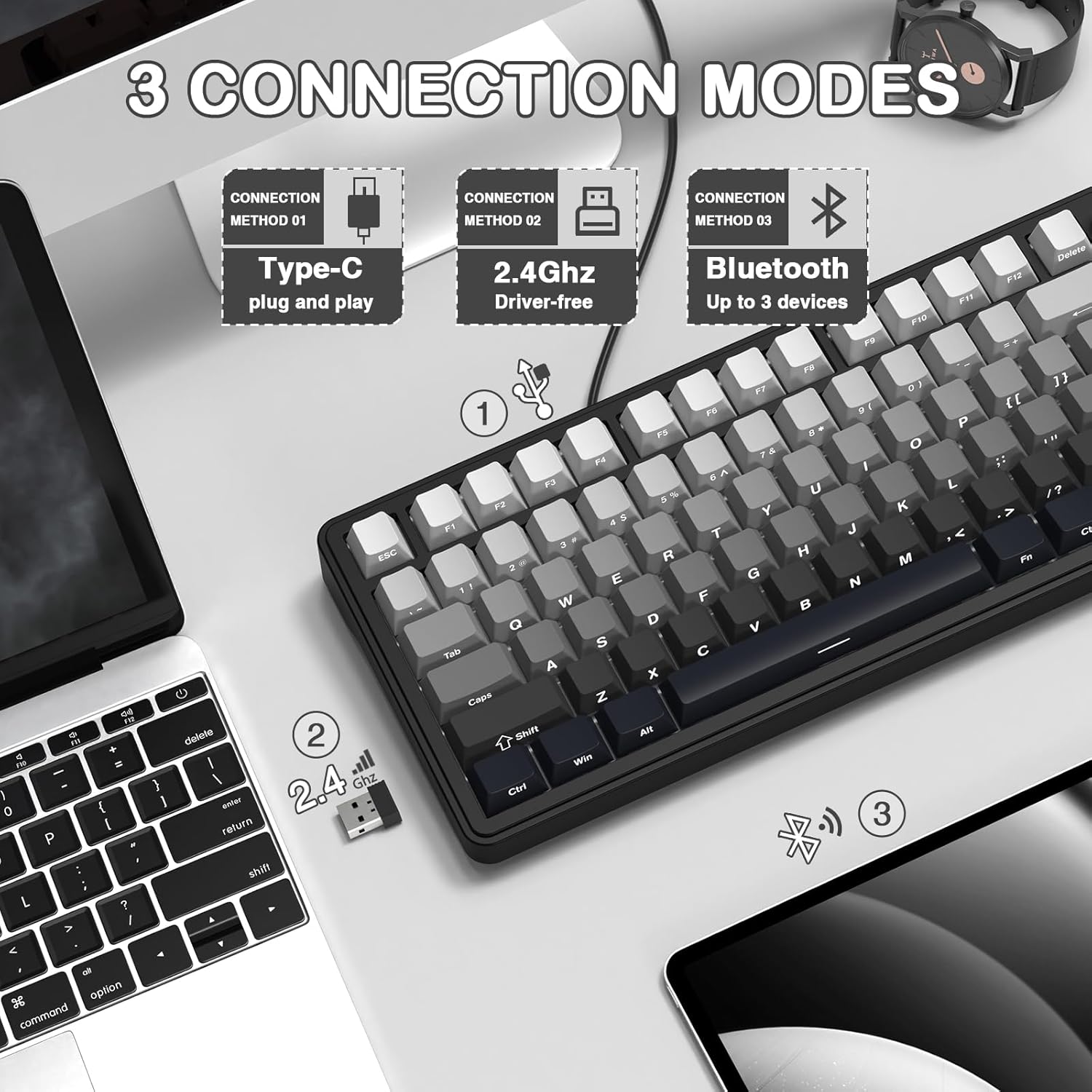
Image: Visual representation of the three connection modes.
4.1. Wired Connection (USB-C)
- Locate the USB-C port on the keyboard.
- Connect the provided USB-C coiled cable to the keyboard and the USB-A end to your computer's USB port.
- The keyboard will automatically be recognized and ready for use. This mode also charges the keyboard.
4.2. 2.4GHz Wireless Connection
- Locate the 2.4GHz USB receiver.
- Plug the 2.4GHz USB receiver into an available USB port on your computer.
- On the keyboard, slide the mode switch to the '2.4G' position.
- The keyboard should connect automatically. If not, press FN + R to initiate pairing.
4.3. Bluetooth Connection
The keyboard supports connecting to up to three Bluetooth devices.
- On the keyboard, slide the mode switch to the 'BT' position.
- Press and hold FN + Q, FN + W, or FN + E for 3-5 seconds until the corresponding key (Q, W, or E) flashes rapidly. This indicates pairing mode.
- On your device (PC, Mac, Tablet), go to Bluetooth settings and search for new devices.
- Select 'ATTACK SHARK X85' from the list of available devices.
- Once connected, the corresponding key (Q, W, or E) will stop flashing and remain steadily lit.
- To switch between paired Bluetooth devices, simply press FN + Q, FN + W, or FN + E (short press).

Image: Multi-device connectivity of the ATTACK SHARK X85 keyboard.
5. Operating Instructions
5.1. Windows/Mac Mode Switching
The keyboard features a physical switch to toggle between Windows and Mac operating system layouts. Locate the switch on the side or back of the keyboard and slide it to the appropriate position for your system. This will correctly map the Win and Alt keys.
5.2. RGB Lighting Control
The X85 keyboard features vibrant RGB backlighting with 19 preset effects. You can control the lighting directly via the multi-function knob or through the dedicated software.
- Changing Light Mode: In default mode, press the knob once to cycle through the 19 different RGB lighting effects.
- Adjusting Brightness/Speed: Rotate the knob to adjust the brightness of the lighting or the speed of the lighting effect, depending on the current mode.

Image: High-capacity battery and RGB backlight features.
5.3. Multi-function Knob Operation
The CNC multi-function knob located in the upper right corner of the keyboard provides quick access to volume and lighting controls.
- Default Mode (Lighting Control):
- Short press: Switch between 19 lighting modes.
- Rotate: Adjust brightness or speed of the current lighting effect.
- Multimedia Mode (Volume Control):
- Long press (3+ seconds): Switch to multimedia mode.
- Short press: Play/Pause media.
- Rotate: Adjust volume (clockwise for volume up, counter-clockwise for volume down).

Image: Functions of the multi-function knob.

Image: Knob functionality for Gaming and Office modes.
6. Hot-Swappable Switches
The ATTACK SHARK X85 features a hot-swappable PCB, allowing you to easily change switches without soldering. This provides flexibility for customizing your typing experience with different switch types (3-pin compatible).
6.1. Replacing Switches
- Using the included keycap puller, gently remove the keycap from the switch you wish to replace.
- Using the included switch puller, carefully grip the top and bottom clips of the switch.
- Pull the switch straight up to remove it from the PCB.
- Align the pins of the new switch with the holes on the PCB. Ensure the pins are straight to avoid bending.
- Gently push the new switch down until it clicks into place. Ensure it is seated firmly and evenly.
- Replace the keycap.

Image: Hot-swappable PCB and pre-lubed switches.

Image: Details of the hot-swappable mechanical keyboard design.
7. Software Support
For advanced customization of RGB lighting effects, music rhythms, and macro keys, the ATTACK SHARK X85 supports a dedicated software driver. This software allows for a personalized user experience.
- Customizing Lighting: Adjust colors, effects, brightness, and speed.
- Macro Programming: Create and edit custom macros for enhanced productivity or gaming.
- Shortcut Keys: Assign custom functions to various keys.
Please refer to the official ATTACK SHARK website or the provided documentation for software download and installation instructions. Ensure the keyboard is connected via 2.4GHz wireless mode when running the driver for optimal functionality.

Image: Programmable software interface for keyboard customization.

Image: Custom software features for the keyboard.
8. Maintenance
Proper maintenance ensures the longevity and performance of your ATTACK SHARK X85 keyboard.
- Cleaning Keycaps: Use a soft, damp cloth to wipe down keycaps. For deeper cleaning, remove keycaps using the provided puller and wash them with mild soap and water. Ensure they are completely dry before reattaching.
- Cleaning the Keyboard Body: Use a soft, dry cloth to wipe the keyboard body. For dust and debris between keys, use compressed air.
- Battery Care: To prolong battery life, avoid fully discharging the keyboard frequently. Charge it regularly, especially if it will be stored for an extended period.
- Storage: Store the keyboard in a cool, dry place away from direct sunlight and extreme temperatures.
9. Troubleshooting
If you encounter issues with your ATTACK SHARK X85 keyboard, please refer to the following common solutions:
| Problem | Possible Cause | Solution |
|---|---|---|
| Keyboard not responding (Wired) | Loose cable connection, faulty USB port. | Ensure USB-C cable is securely connected. Try a different USB port or cable. |
| Keyboard not responding (2.4GHz/BT) | Low battery, incorrect mode, pairing issue, receiver not plugged in. | Charge the keyboard. Ensure mode switch is correct. Re-pair the device (FN+R for 2.4G, FN+Q/W/E for BT). Ensure 2.4GHz receiver is plugged in. |
| RGB lighting not working | Lighting turned off, software conflict. | Press the knob to cycle through modes. Check software settings. |
| Keys not registering | Loose or faulty switch. | Carefully remove the keycap and switch. Re-insert the switch firmly or replace it if faulty. |
| Knob not functioning | Incorrect mode, software issue. | Long press the knob to switch modes. Restart keyboard or computer. Check software settings. |
10. Specifications
| Feature | Detail |
|---|---|
| Product Dimensions | 13.98 x 7.24 x 1.97 inches |
| Item Weight | 2.51 pounds |
| Manufacturer | ATTACK SHARK |
| Model Number | X85 |
| Connectivity Technology | Bluetooth, 2.4G Wireless, USB-C |
| Keyboard Description | Gaming, Mechanical, Wireless |
| Number of Keys | 82 |
| Keyboard Backlighting | RGB (19 effects) |
| Battery Capacity | 5000mAh |
| Compatible Devices | Laptop, PC, Tablet (Windows, MacOS) |
| Special Features | Ergonomic, Volume Roller, Backlit, Hot-Swappable |
11. Warranty and Support
ATTACK SHARK products are manufactured to high-quality standards. For warranty information and technical support, please refer to the warranty card included with your product or visit the official ATTACK SHARK website. Keep your purchase receipt as proof of purchase for warranty claims.
12. Product Video Overview
Watch this official product video for a visual guide to the ATTACK SHARK X85 Mechanical Gaming Keyboard's features and functionality.
Video: An overview of the ATTACK SHARK X85 Mechanical Gaming Keyboard, showcasing its design, features, and sound profile. This video highlights the keyboard's compact size, hot-swappable switches, multi-mode connectivity, RGB lighting, and the tactile feel of its keys.


