
Simyke U2SE
Simyke Smart Video Baby Monitor User Manual
Model: U2SE
Introduction
Thank you for choosing the Simyke Smart Video Baby Monitor. This device is designed to provide peace of mind by allowing you to monitor your baby from anywhere using the Simyke app on your smartphone or tablet. Featuring 1080P HD video, AI detection, two-way audio, and night vision, this monitor ensures you stay connected with your little one.
What's in the Box
- 1 x Simyke Baby Camera
- 1 x Power Adapter
- 1 x User Manual
Key Features

Figure 1: Overview of Simyke Baby Monitor Key Features
- 1080P HD Video: Crystal-clear live streaming and recording.
- 2.4 GHz Wi-Fi Connectivity: Connects to your home Wi-Fi for remote monitoring (does not support 5G Wi-Fi).
- Cry Detection & Real-time Alerts: Receive instant notifications on your phone when your baby cries.
- Two-Way Audio: Speak to your baby or communicate with anyone in the room.
- Lullabies: Built-in lullabies to soothe your baby.
- HD Night Vision: Clear visibility in low-light conditions up to 3 meters.
- AI Detection: Includes features like Face Detection, Sound Detection, Human Detection, Safe Zone, and Danger Zone monitoring.
- Multi-Device Connectivity: Compatible with Simyke 2.8" LCD display, iPad, and smartphones.
- Storage & Playback: Supports up to 128GB SD card storage and cloud storage for video replay.
- Sleep Report: Tracks and reports your baby's sleep patterns.
Product Overview

Figure 2: Simyke Smart Video Baby Monitor and its ecosystem.
The Simyke U2SE Baby Monitor features a compact design with a flexible base for optimal positioning. It includes a high-definition camera lens, a microphone for two-way audio, and an indicator light. The base allows for tabletop placement or wall mounting.
On the back of the camera, you will find the power input, a 'Pair' button for Wi-Fi connection, and a Wi-Fi On/Off switch. The camera's adjustable stand allows you to manually angle the view to cover the desired area of your baby's room.
Setup Instructions
- Powering On: Connect the provided power adapter to the camera's power input port and plug it into a wall outlet. The indicator light will illuminate.
- Download the Simyke App: Search for "Simyke" in your smartphone's app store (iOS or Android) and download the official application.
- Create an Account: Open the Simyke app and follow the on-screen instructions to create a new user account or log in if you already have one.
- Add Device: In the app, select the option to add a new device. Choose the Simyke U2SE Baby Monitor from the list.
- Connect to Wi-Fi: Ensure your smartphone is connected to a 2.4 GHz Wi-Fi network. The app will guide you through connecting the monitor to your Wi-Fi. You may need to press the 'Pair' button on the back of the camera as instructed by the app.
- Positioning the Monitor: Place the monitor on a stable surface like a shelf or dresser, or mount it on the wall above the crib using appropriate hardware (not included). Adjust the camera's angle manually to get the best view of your baby.
Operating Instructions
Live View and Monitoring
Once connected, open the Simyke app to access the live video feed from your baby monitor. You can view your baby in 1080P HD resolution.
Two-Way Audio and Lullabies

Figure 3: Two-way communication and lullaby feature.
Use the microphone icon in the app to speak to your baby. The monitor also features 8 built-in lullabies. You can activate these from the app to help soothe your baby to sleep.
Cry Detection and Alerts

Figure 4: Cry detection alerts on your smartphone.
Enable cry detection in the app settings to receive real-time alerts on your phone when your baby cries. The video playback function allows you to review the exact circumstances of the crying.
HD Night Vision

Figure 5: Day and Night Vision capabilities.
The monitor automatically switches to HD night vision in low-light conditions, providing clear black and white video of your baby without disturbing their sleep.
AI Detection Features
The Simyke app offers advanced AI detection capabilities:
- Face Detection: Identifies and tracks faces within the camera's view.

Figure 6: Face Detection in action.
- Safe Zone: Define specific areas in the room to monitor for activity. Alerts are triggered if movement is detected outside this zone.

Figure 7: Safe Zone monitoring.
- Sleep Report: Access detailed reports on your baby's sleep duration and patterns.

Figure 8: Sleep Report interface.
- Danger Zone: Set up alerts for specific areas that should be avoided.

Figure 9: Danger Zone alerts.
- Sound Detection: Beyond cry detection, this feature alerts you to other significant sounds.

Figure 10: Sound Detection notification.
- Human Detection: Alerts you when a human is detected in the camera's view.
Multi-Device Connectivity & Family Sharing
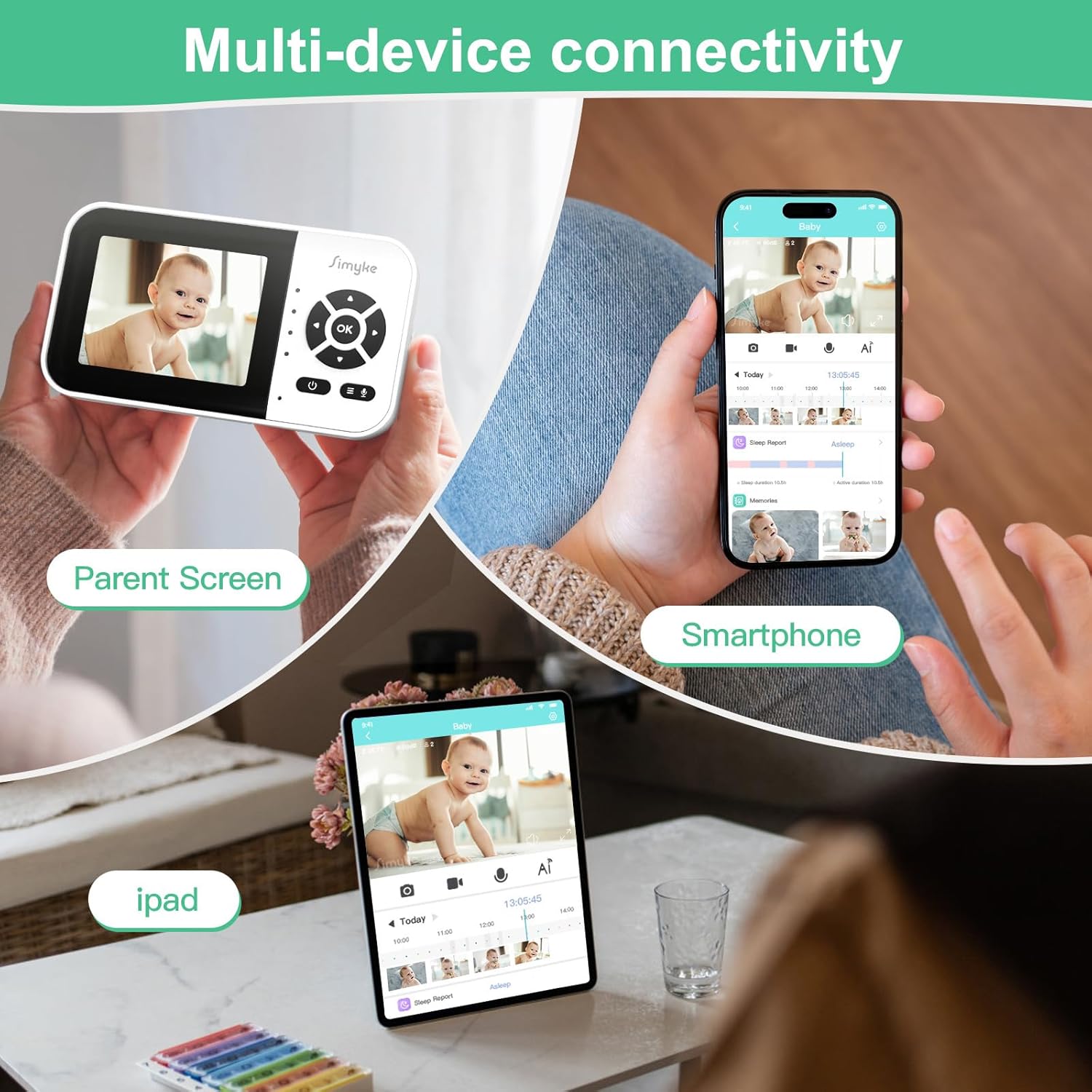
Figure 11: Multi-device connectivity options.
The Simyke monitor supports connectivity across various devices, including the Simyke 2.8" LCD display, iPads, and smartphones. You can also share access to the monitor's feed with family members through the app, allowing multiple users to monitor the baby simultaneously.

Figure 12: Family sharing feature.
Storage and Playback
The monitor supports local storage via a 128GB SD card (not included) and cloud storage options. You can review recorded footage directly from the Simyke app.
Maintenance
- Cleaning: Gently wipe the camera lens and body with a soft, dry cloth. Do not use liquid cleaners or aerosols.
- Placement: Ensure the monitor is placed in a well-ventilated area, away from direct sunlight, heat sources, and moisture.
- Cable Management: Keep the power cable out of reach of children to prevent strangulation hazards.
Troubleshooting
| Problem | Possible Cause | Solution |
|---|---|---|
| Monitor not connecting to Wi-Fi | Incorrect Wi-Fi band (5G not supported), weak signal, incorrect password. | Ensure you are on a 2.4 GHz Wi-Fi network. Check Wi-Fi signal strength. Re-enter Wi-Fi password carefully. Try re-pairing the device via the app. |
| No video feed / Black screen | Power issue, app glitch, poor internet connection. | Check if the monitor is powered on. Restart the Simyke app. Verify your internet connection. Restart the monitor by unplugging and re-plugging it. |
| Two-way audio not working | Microphone/speaker muted in app, app permissions. | Check audio settings in the Simyke app. Ensure app has microphone permissions on your device. |
| AI detection alerts are too frequent/infrequent | Sensitivity settings, zone configuration. | Adjust sensitivity levels for cry, sound, and human detection in the app settings. Reconfigure Safe Zone/Danger Zone areas as needed. |
Specifications
| Feature | Detail |
|---|---|
| Model Name | U2SE Baby Camera |
| Video Capture Resolution | 1080p |
| Connectivity Technology | Wireless (Wi-Fi) |
| Wi-Fi Frequency | 2.4 GHz only |
| Power Source | Corded Electric |
| Compatible Devices | Tablet, Smartphone, Simyke Parent Unit |
| Mounting Type | Tabletop Mount |
| Night Vision Range | 3 Meters |
| Material | Polycarbonate (PC), Acrylonitrile Butadiene Styrene (ABS) |
| Item Dimensions (L x W x H) | 2.48 x 2.48 x 4.47 inches |
| Item Weight | 6.7 ounces |
| Max SD Card Storage | 128GB |
Warranty and Support
For warranty information and technical support, please refer to the official Simyke website or contact Simyke customer service directly. Keep your purchase receipt for warranty claims.
Related documentsU2SE

Ask a question about this manual
Ask about setup, troubleshooting, compatibility, parts, safety, or missing instructions. Manuals+ will review the question and use this page’s manual context to help answer it.