
Introduction
Thank you for choosing the Vormooi 64GB Professional Voice Recorder, Model NO6. This device is designed for high-quality audio recording with ease of use and portability. Please read this manual carefully to understand the features and proper operation of your new voice recorder.
Package Contents
Please verify that all items are present in your package:
- 1 x Vormooi Voice Recorder
- 1 x Normal Earphones
- 1 x USB-C Cable
- 1 x User Manual
- 1 x Wired Remote Control (for playback)
- 1 x Spiral Ring (keychain attachment)
Product Overview
The Vormooi NO6 voice recorder features a compact design with a durable metal casing. It is equipped with essential controls for easy operation.

Image: Front and back view of the Vormooi NO6 Voice Recorder, showing its compact design and keychain loop.

Image: Overview of the Vormooi NO6 Voice Recorder highlighting its key features: 900 hours recording capacity, 17 hours continuous recording, and 1 hour charging time.

Image: Diagram illustrating the dimensions (7.6 cm length, 2.6 cm width, 0.8 cm thickness) and key components of the Vormooi NO6 Voice Recorder, including the indicator light, reset button, charging/connection port, and carabiner clip.
Key Components:
- ON/OFF/Save Switch: Slide to ON to start recording, slide to OFF to save and stop recording.
- USB-C Port: For charging and connecting to a computer or Android phone.
- Indicator Light: Provides status feedback (e.g., recording, charging).
- Reset Button: Used to reset the device if it becomes unresponsive.
- Microphone: Integrated for audio capture.
- Headphone Jack (on remote control): For audio playback.
Setup
1. Charging the Device
Before first use, fully charge the voice recorder. Connect the supplied USB-C cable to the device and a power source (e.g., computer USB port, USB wall adapter). The indicator light will show charging status. A full charge takes approximately 1 hour and provides up to 17 hours of continuous recording.
2. Connecting to a Computer/Phone
To access recorded files or configure settings, connect the recorder to a computer (Windows/Mac OS) or an Android phone using the provided USB-C cable. Ensure the recorder is in the OFF position before connecting. If connection issues occur:
- Ensure the recorder is OFF and placed flat after connecting to avoid unstable connections.
- Use the supplied data cable. Some cables only support charging.
- Try different USB ports or another computer to rule out driver issues.
- If your computer does not recognize the device, search online for "download computer drivers" for common solutions.
3. Setting Date and Time
When connected to a computer, locate the "Settime" folder on the device's storage. Run the settime.exe program to automatically synchronize the recorder's date and time with your computer's system time. This ensures accurate timestamps for your recordings.
Operating Instructions
1. One-Touch Recording and Saving
The Vormooi NO6 features simple one-touch operation:
- To start recording, slide the ON/OFF switch to the ON position. The indicator light will turn off, signifying that recording has begun.
- To save the recording and stop, slide the ON/OFF switch to the OFF position. The recording will be saved automatically.

Image: Illustration showing the ON/OFF switch for one-touch recording and saving. Sliding to ON starts recording, sliding to OFF saves the recording.
Important: Do not connect headphones, data cables, or other accessories to the voice recorder during recording, as this will interrupt the recording process.
2. Voice Activated Recording (VOR)
The Voice Activated Recording (VOR) function helps conserve battery life and storage space by only recording when sound is detected. This feature is disabled by default.
- To enable VOR, connect the device to a computer.
- Locate the configuration file (e.g., 2159-RECSET.txt) on the device's storage.
- Open the file and modify the "Vor" parameter. Set "Vor:0" to "Vor:1" (or a value from 1-7 for sensitivity) to activate VOR.
- Save the changes to the configuration file and safely eject the device.
When VOR is active, the recorder will pause recording during silences and resume when sound is detected.
3. Playback
The Vormooi NO6 does not have an internal speaker. To listen to recordings:
- Using the Wired Remote Control and Earphones: Connect the wired remote control to the USB-C port of the recorder, then plug the supplied earphones into the remote control's 3.5mm jack. Use the remote control buttons for playback functions (play/pause, next/previous track, volume, menu).
- Connecting to a Computer/Phone: Connect the recorder to a computer or Android phone. Navigate to the "RECORD" folder to access and play your audio files.
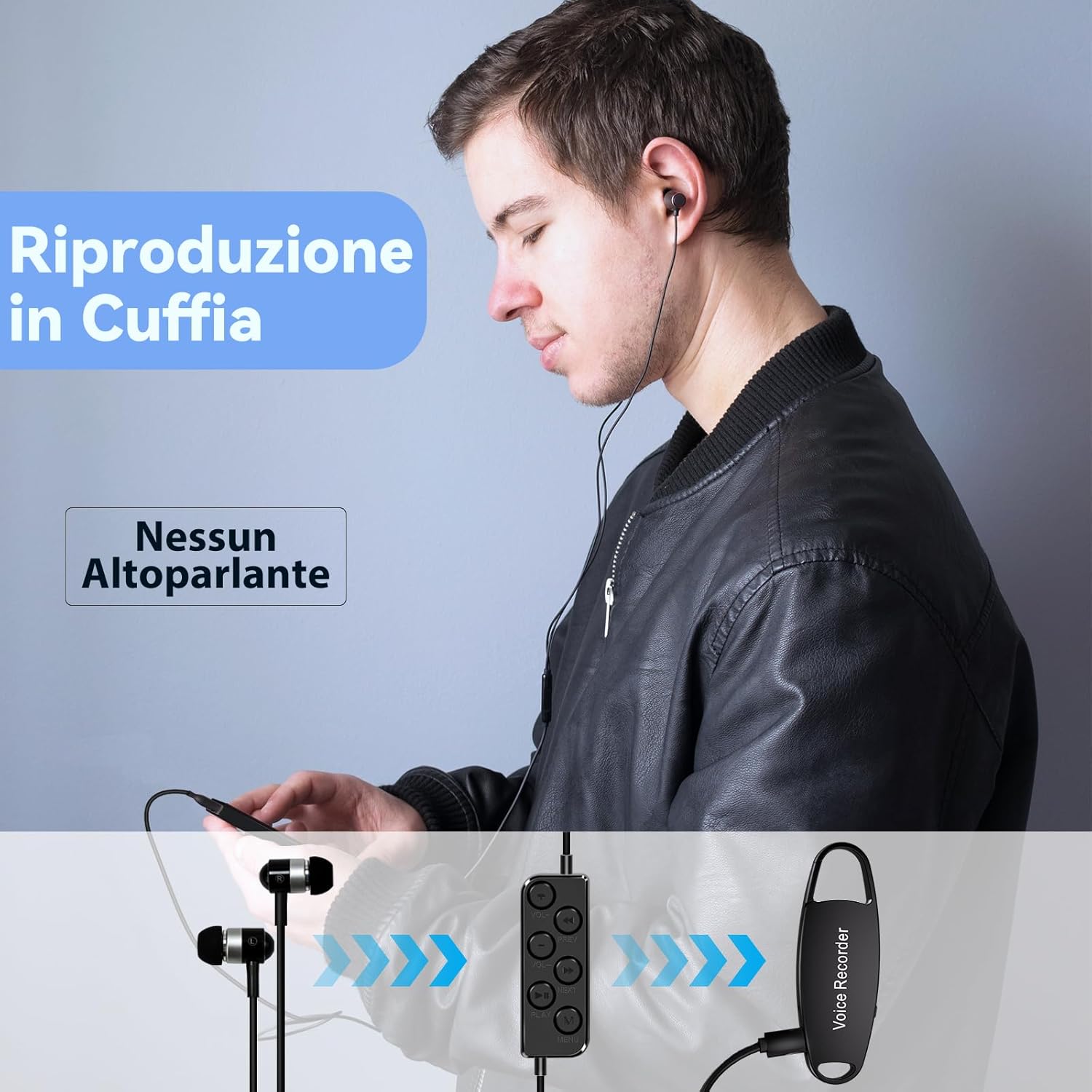
Image: A user listening to recordings using the wired remote control and earphones connected to the Vormooi NO6 Voice Recorder.
4. Managing Files and Advanced Settings
When connected to a computer, the recorder appears as a removable drive. You can drag and drop files to transfer them. The "RECORD" folder contains all your audio recordings.
Advanced settings like recording sensitivity (Gain), bit rate (Bit), and noise reduction (Noise reduction) can be adjusted by editing the configuration file (e.g., 2159-RECSET.txt) found on the device's storage. Refer to the comments within the text file for specific parameter ranges and advice.
- Gain: Recording Sensitivity (1-7).
- Bit: Bit Rate Setting (0-9), corresponding to various kbps values (e.g., 0-32K, 3-160K, 9-1536K).
- Noise reduction: Noise reduction setting (0-7), 0 is off.
- PART: Recording File Segmented Time (0-120 minutes), 0 means 2 hours by default.
Caution: Do not format the drive on a computer, as this may lead to incorrect memory formatting and prevent recording.
Maintenance
- Cleaning: Use a soft, dry cloth to clean the device. Avoid using liquid cleaners or solvents.
- Storage: Store the recorder in a cool, dry place away from direct sunlight, extreme temperatures, and humidity.
- Battery Care: To prolong battery life, avoid fully discharging the battery frequently. Charge the device regularly, even if not in use for extended periods.
- Handling: The device features a robust zinc alloy casing. However, avoid dropping or subjecting it to strong impacts.
Troubleshooting
Device Not Connecting to Computer:
- Ensure the voice recorder is in the OFF position before connecting.
- Use the original USB-C cable. Some cables are charge-only.
- Try connecting to a different USB port or another computer.
- If computer drivers are an issue, search online for solutions specific to your operating system.
Excessive Noise in Recordings:
- Place the recorder on a stable, flat surface. Avoid rubbing it against hands, clothes, or other objects during recording.
- If placing on a desk, use a soft, non-conductive material underneath to minimize noise from the desk or computer.
- Avoid placing the recorder too close to your mouth, which can cause popping sounds.
- Adjust the "Noise reduction" setting in the configuration file (0-7). Note that high noise reduction settings might introduce artifacts. Setting it to 0 (off) might be preferable in some situations.
- Understand that very loud ambient noise cannot be entirely eliminated.
Pre-existing Recordings on New Device:
Occasionally, a worker during preparation might accidentally activate the recording function, saving a file. This does not indicate a used product; only new products are sold. You can safely delete any such files.
Recording Interrupted:
Ensure no headphones, data cables, or other accessories are connected to the recorder while it is actively recording.
Specifications
| Brand | Vormooi |
| Model | NO6 |
| Memory Capacity | 64 GB (approx. 59 GB usable) |
| Recording Capacity | Up to 900 hours (at 160 kbps) |
| Continuous Recording Time | Approx. 17 hours (after 1 hour charge) |
| Charging Time | Approx. 1 hour |
| Dimensions | 7.6 x 2.6 x 0.8 cm (2.99 x 1.02 x 0.31 inches) |
| Weight | 30 grams (0.9 oz) |
| Casing Material | Zinc Alloy |
| Interface | USB-C |
| Compatible Devices | Windows/Mac OS Computers, Android Mobile Phones |
| Microphone Form Factor | Integrated |
| Supported Audio Formats | MP3, WAV |
| Battery Type | Lithium-ion Polymer |
Warranty and Support
For warranty information, technical support, or any questions not covered in this manual, please contact Vormooi customer service through the retailer where you purchased the product. Please retain your proof of purchase for warranty claims.


