
1. Introduction
Thank you for choosing the ANYOYO TBU405 40Gbps M.2 NVMe SSD Enclosure. This device is designed to provide high-speed external storage for your M.2 NVMe SSDs, offering robust performance and broad compatibility. Please read this manual carefully to ensure proper installation and operation.
2. Package Contents
Verify that all items are present in your package:
- ANYOYO TBU405 40Gbps M.2 NVMe SSD Enclosure
- Thunderbolt 4 cable
- User Manual
3. Specifications
| Feature | Detail |
|---|---|
| Model Number | TBU405 |
| Data Transfer Rate | Up to 40Gbps (40960 MB/s) |
| Compatible SSDs | M-Key, B+M-Key NVMe PCIe SSDs (2230, 2242, 2260, 2280) |
| Max Storage Capacity | 8 TB |
| Connectivity | Thunderbolt 5/4/3, USB 4/3.2/3.1/3.0/2.0 (USB-C interface) |
| Chipset | JHL7440 + RTL9210 Dual Chip |
| Material | Aluminum |
| Product Dimensions | 4.09 x 2.13 x 0.63 inches |
| Item Weight | 96 Grams (3.39 ounces) |
| Compatible Operating Systems | Windows 7/8/9/10/11, Linux, Mac OS 10.3 and above, iOS, Android |
4. Compatibility
The ANYOYO TBU405 enclosure offers wide compatibility with various devices and operating systems:
4.1 Supported SSD Types
- M-Key NVMe PCIe SSDs
- B+M-Key NVMe PCIe SSDs
Note: SATA-based M.2 SSDs (B-Key or B+M-Key SATA) are not supported.
Supported SSD sizes: 2230, 2242, 2260, 2280.

This image illustrates the compatible M.2 NVMe SSD types (M Key, B+M Key NVMe) and incompatible SATA M.2 SSD types (M&B Key SATA, B Key SATA) with the enclosure. It also shows supported SSD lengths: 2280, 2260, 2242, 2230.
4.2 Device and System Compatibility
The enclosure is compatible with a wide range of devices and operating systems:
- Devices: MacBook Pro/Air, Mac mini, iPad Pro, Dell XPS, various phones (e.g., iPhone, Samsung)
- Operating Systems: Windows (7/8/9/10/11), Mac OS, Linux, iOS, Android

This image highlights the broad compatibility of the ANYOYO TBU405 enclosure with various devices and operating systems.
5. Setup: Tool-Free Installation
The ANYOYO TBU405 features a tool-free design for easy SSD installation.
- Open the bottom plate: Gently slide or open the bottom cover of the enclosure.
- Insert SSD: Align your M.2 NVMe SSD with the slot and insert it. Secure the SSD with the fixed rubber stopper to prevent it from falling off.
- Close the cover: Close the lower cover securely.
- Connect to computer: Use the provided Thunderbolt 4 cable to connect the enclosure to your computer.

This image provides a visual guide for the tool-free installation of an M.2 NVMe SSD into the enclosure.
6. Operating Instructions
6.1 Initial Use and Formatting
Upon connecting the enclosure with an installed SSD to your computer for the first time, the SSD may need to be initialized and formatted before use. Follow your operating system's instructions for disk management to prepare the drive.
6.2 Data Transfer
The ANYOYO TBU405 supports data transfer speeds up to 40Gbps, enabling rapid file transfers. Actual speeds may vary depending on your SSD, computer's port capabilities, and the type of data being transferred.

This image illustrates the high-speed data transfer capabilities of the enclosure, showing a file copy operation from a laptop to the external SSD.
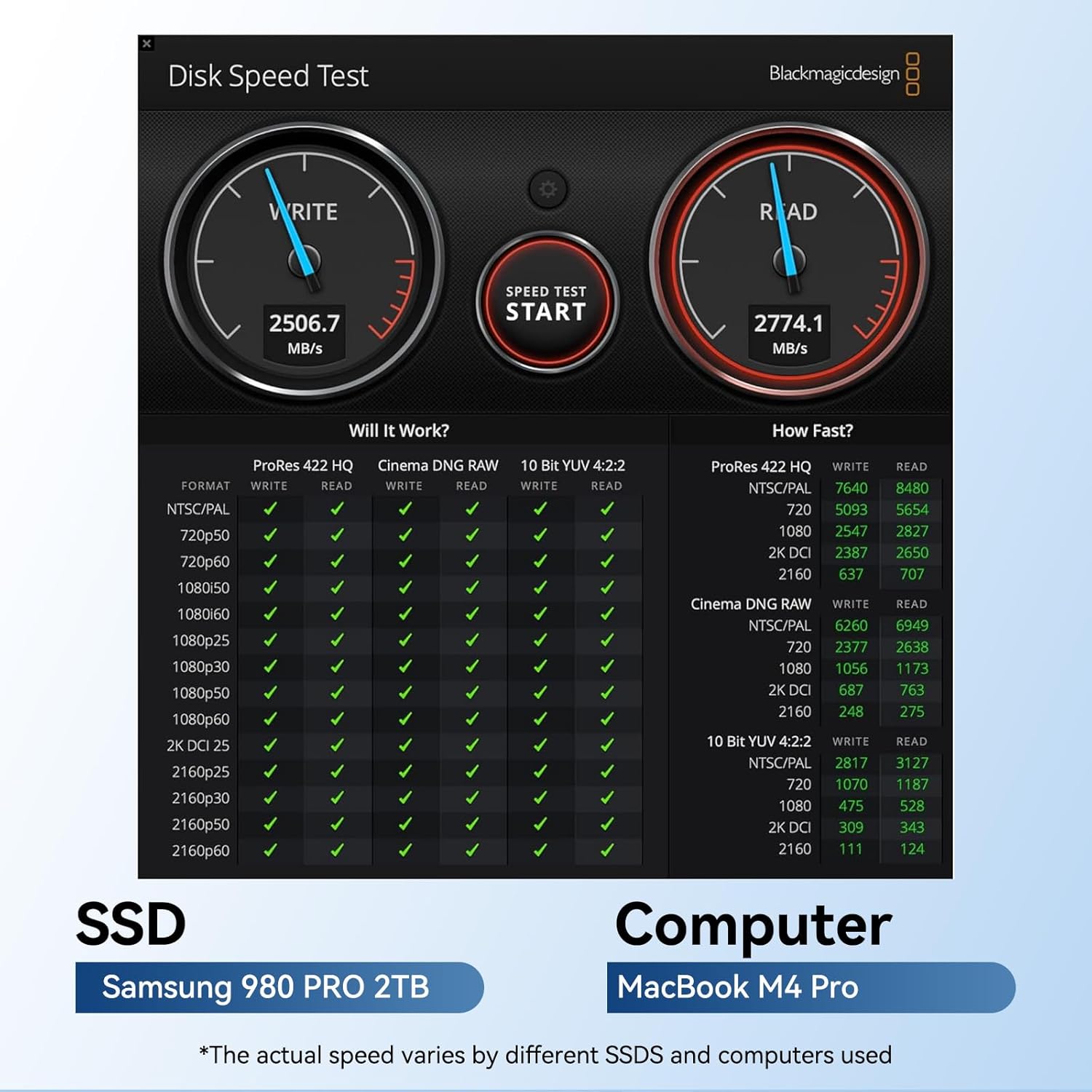
This image displays a disk speed test result, indicating high read and write performance with a Samsung 980 Pro 2TB SSD on a MacBook M4 Pro.

This table presents a test report detailing read and write speeds for various NVMe SSDs used with the ANYOYO TBU405 enclosure on a MacBook M4 Pro.
6.3 Video Overview
This video provides a general overview of the ANYOYO 40Gbps M.2 NVMe SSD Enclosure (TBU405), showcasing its features and high-speed capabilities.
This video demonstrates the 40Gbps M.2 NVMe SSD Enclosure in action, highlighting its fast data transfer for various file types.
7. Maintenance
7.1 Heat Dissipation
The ANYOYO TBU405 enclosure features an all-aluminum body and includes a metal heat sink and silicone thermal pad for efficient heat dissipation. This design helps protect the SSD and ensures stable file transfer performance.
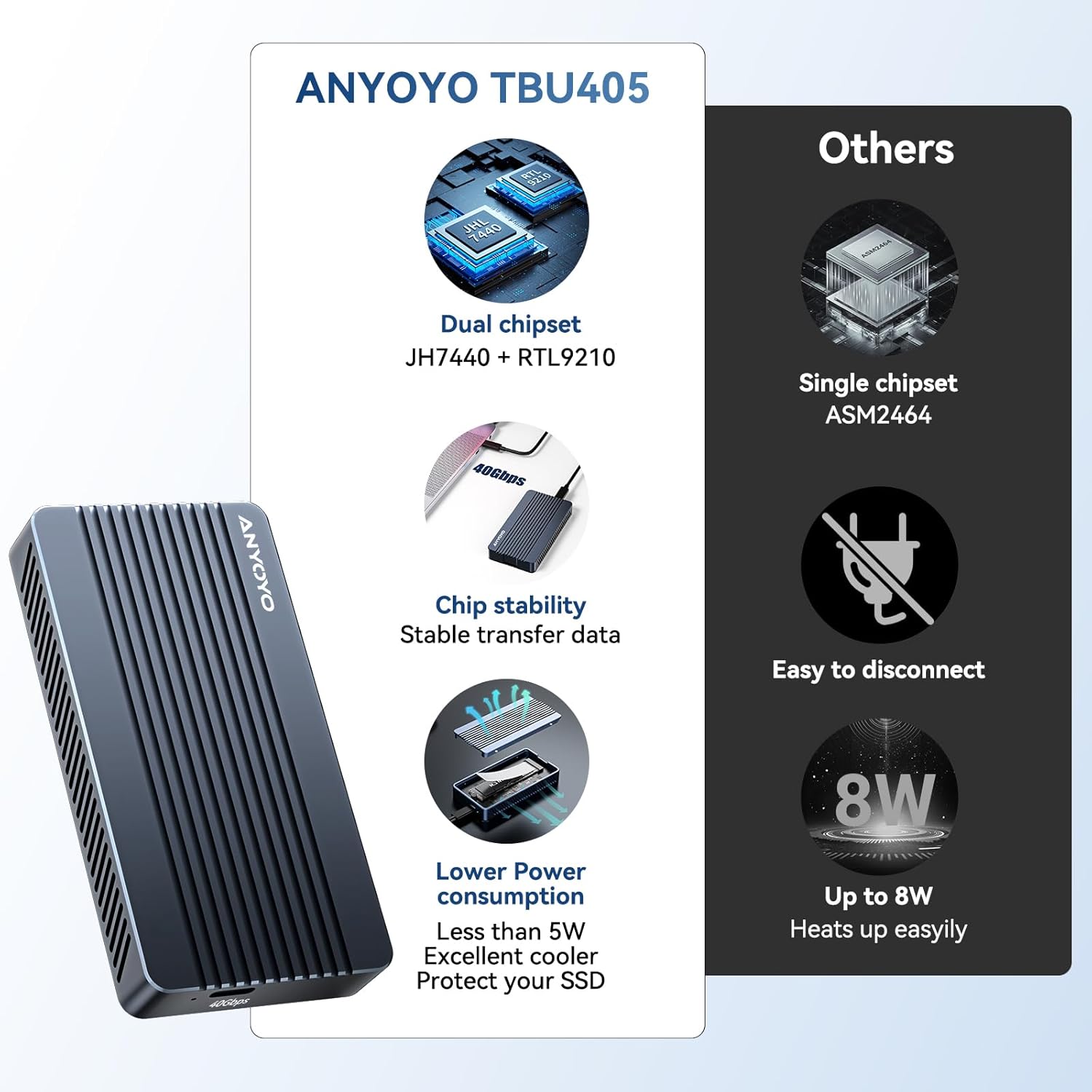
This image highlights the advanced heat dissipation design of the TBU405, featuring an aluminum body, metal heat sink, and silicone thermal pad.
7.2 Protection
A silicone cover is included to provide additional protection for the enclosure, safeguarding it against minor impacts and scratches.
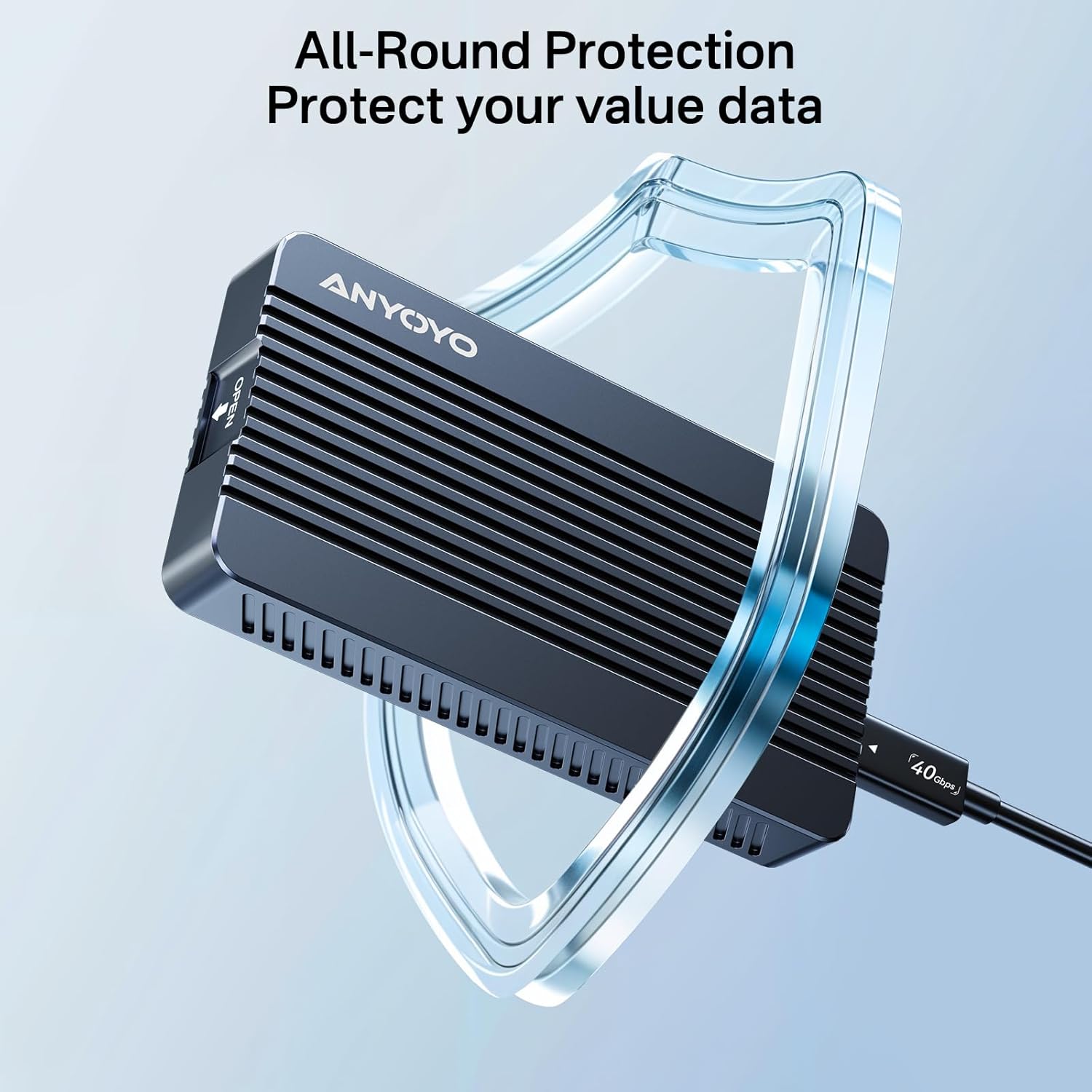
This image visually represents the protective features of the enclosure, designed to safeguard your valuable data.
7.3 Cleaning
To clean the enclosure, wipe it gently with a soft, dry cloth. Avoid using harsh chemicals or abrasive materials.
8. Troubleshooting
8.1 SSD Not Detected
- Ensure the SSD is correctly installed and seated firmly in the enclosure.
- Verify the connection cable is securely plugged into both the enclosure and your computer.
- Check if the SSD requires initialization and formatting in your computer's Disk Management (Windows) or Disk Utility (Mac OS).
- Confirm that your SSD is an NVMe PCIe M.2 SSD and not a SATA M.2 SSD.
8.2 Slower Than Expected Speeds
While the enclosure supports 40Gbps, actual transfer speeds can be influenced by several factors:
- SSD Performance: The speed of your installed NVMe SSD directly impacts performance.
- Computer Port: Ensure your computer's USB-C port supports Thunderbolt 3/4/5 or USB4 for maximum speeds. Older USB standards will result in lower speeds.
- Operating System and Drivers: Ensure your operating system is up-to-date and necessary drivers are installed.
- File Type: Transferring many small files is generally slower than transferring a few large files.
Note on 40Gbps vs. 4000MB/s: The 40Gbps bandwidth includes overhead for DisplayPort signals. The expected real-world read/write speed for data transfer is typically between 2500-3000MB/s, depending on the specific SSD and system configuration.

This image clarifies the difference between theoretical 40Gbps bandwidth and practical data transfer speeds, explaining the impact of DisplayPort signals and offering a solution path for speed-related issues.
8.3 Enclosure Gets Warm
It is normal for the aluminum enclosure to become warm during high-speed data transfers or prolonged use. This indicates that the heat dissipation system is effectively transferring heat away from the SSD. If the enclosure becomes excessively hot, ensure it has adequate airflow and is not covered.
9. Warranty and Support
ANYOYO products come with a standard manufacturer's warranty. For detailed warranty information, technical support, or customer service, please refer to the contact information provided with your product packaging or visit the official ANYOYO website.
For technical assistance, you may also contact the seller directly through the platform where the product was purchased.