
Product Overview
The Populife Smart Key Lock Box K2 is a robust and intelligent solution for secure key management. Designed for both indoor and outdoor use, it offers multiple access methods and remote management capabilities via the Populife App. Its durable alloy steel construction and IP66 waterproof rating ensure reliable performance in various environments.
- Smart Bluetooth Key Lock Box: Unlock via Bluetooth or password. Remote access granting is available without Wi-Fi.
- Two Installation Methods: Can be wall-mounted with screws or hung by its shackle. All necessary accessories are included (batteries not included).
- Solid Alloy Steel & IP66 Waterproof: Constructed from alloy steel and waterproof materials to protect keys from theft and environmental elements.
- Remote Access Management: Generate PIN codes and Bluetooth keys remotely using the Populife App, even when away from the lock box.
- Upgraded Features: Includes gateway compatibility for enhanced online functions (gateway sold separately), reduced power consumption for longer battery life, and an upgraded Type-C emergency power port.

This image provides a comprehensive view of the Populife Smart Key Lock Box K2, highlighting its digital keypad, the Populife logo, and various features such as app control, PIN code access, and battery backup. An additional view shows the interior of the lock box, capable of holding multiple keys.

This infographic visually summarizes the main advantages of the Populife Smart Key Lock Box K2, emphasizing its remote access capabilities, emergency power option, robust IP66 waterproof and dustproof design, and strong alloy steel build.
Setup Guide
Follow these steps to set up your Populife Smart Key Lock Box K2.
1. Unboxing and Initial Check
Carefully remove all components from the packaging. Ensure all accessories are present as listed in the product manual.
The image displays the Populife Smart Key Lock Box K2 along with its various components, including the main lock box unit, a rubber mat, self-tapping screws, expansion screws, waterproof rubber rings, nylon rubber stoppers, a screwdriver, battery cover screws, and a user guide. This visual confirms all parts are available for installation.
2. Battery Installation
Open the battery compartment and insert four AAA batteries, ensuring correct polarity. Batteries are not included and must be purchased separately.
This image illustrates the open battery compartment of the lock box, with four AAA batteries inserted. It is crucial to ensure the batteries are placed with the correct positive and negative orientation for proper device function.
3. Initial Password Check
Before closing the battery cover, test the default password (usually 1234) to ensure the lock box is operational. Do not close the lockbox while checking the password.
Video: This video demonstrates the assembly process of the Populife Smart Key Lock Box K2, including how to install batteries and perform an initial password check. It highlights the importance of correct battery orientation and testing the default password before final assembly.
4. Mounting the Lock Box
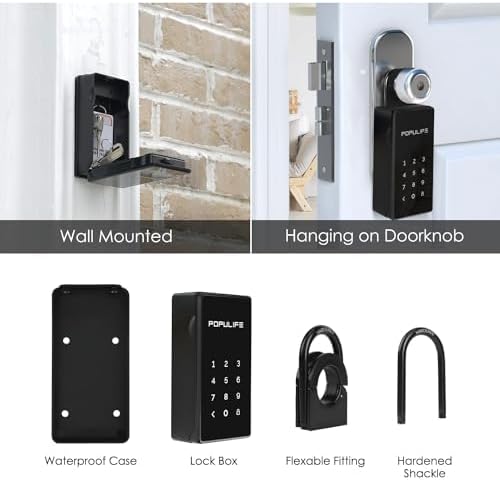
Choose between wall-mounting or hanging the lock box on a doorknob. Use the provided accessories for secure installation. If wall-mounting outdoors, use the waterproof cover.

The image shows the lock box installed in two ways: wall-mounted with screws and hanging on a doorknob using the shackle. This demonstrates the flexibility of installation options to suit different needs.
Operating Instructions
The Populife Smart Key Lock Box K2 offers multiple ways to access your keys.
1. Unlocking with PIN Code
Enter your pre-set PIN code on the keypad. The keypad lights up for easy night-time entry. The lock box will open upon correct entry.

The image demonstrates both Bluetooth and password unlock methods. The keypad is shown illuminated, indicating its night mode feature for enhanced visibility in low-light conditions.
2. Unlocking with Populife App (Bluetooth)
Ensure Bluetooth is enabled on your smartphone and within the Populife App permissions. Open the app, select your device, and tap to unlock. The app also allows for remote PIN code generation and digital key sharing.
Video: This video showcases the various functions of the Populife Smart Lock Box K2, including unlocking via the app, generating different types of PIN codes (one-time, time-limited, permanent), and sharing digital keys. It highlights the remote access capabilities and user-friendly interface.
The Populife App allows you to generate PIN codes and digital keys remotely. You can set permanent, time-limited, or one-time access for family, guests, or service providers. This feature is particularly useful for Airbnb hosts or real estate agents.

3. Auto-Relock Feature
If the lock box is unlocked but remains unopened for 60 seconds, it will automatically re-lock to maintain security.
Maintenance
To ensure optimal performance and longevity of your Populife Smart Key Lock Box K2, regular maintenance is recommended.
- Battery Replacement: The lock box will emit a beeping alert when the battery level drops below 20%. Replace all four AAA batteries promptly to avoid interruption of service.
- Cleaning: Wipe the keypad and exterior with a soft, damp cloth. Avoid using abrasive cleaners or solvents that could damage the finish or electronic components.
- Inspection: Periodically check the shackle and mounting points for any signs of wear or damage. Ensure all screws are tight if wall-mounted.
Troubleshooting
If you encounter issues with your Populife Smart Key Lock Box K2, refer to the following common solutions.
- Lock Box Not Responding: Check battery levels and replace if necessary. If batteries are completely drained, use the Type-C emergency power port at the bottom of the lock box to temporarily power it.
- Incorrect Password Entry: If an incorrect PIN code is entered five times, the lock box will enter a security lockout mode for 5 minutes. Wait for the lockout period to end before attempting to enter the correct code again.
- Bluetooth Connection Issues: Ensure Bluetooth is enabled on your phone and that the Populife App has Bluetooth permissions. Make sure the lock box is within 5 meters of your phone during pairing or unlocking.
- Password Reset: If the password is incorrect and you need to reset it, long-press the reset button inside the battery compartment until you hear two short beeps.
Video: This video provides guidance on troubleshooting Bluetooth connection issues with the Populife Smart Key Lock Box K2, specifically addressing scenarios where Bluetooth is unable to connect or the device cannot be found. It offers practical steps to resolve connectivity problems.
Specifications
| Brand | Populife |
| Model Name | K2 |
| Material | Alloy Steel |
| Lock Type | Electronic Combination Lock |
| Special Features | Alarm System, Anti-Theft, Portable, Sensor Light, Waterproof (IP66) |
| Item Dimensions (L x W x H) | 1.65 x 2.6 x 7.68 inches |
| Item Weight | 2.31 pounds |
| Connectivity Protocol | Bluetooth |
| Control Method | App |
| Batteries Required | Yes (4x AAA, not included) |
| Emergency Power | Type-C Port |
Warranty and Support
For warranty information, technical support, or further assistance, please refer to the official Populife website or contact their customer service directly. Keep your purchase receipt for warranty claims.
Official Website: www.populife.co


