
Introduction
This manual provides detailed instructions for the installation, configuration, and operation of your EasyByMall WiFi Smart Curtain Switch Module. This device enables smart control of roller blinds, shutters, and awnings via a 433 MHz RF remote control and the Tuya Smart Life mobile application. Please read this manual carefully before installation and use to ensure proper functionality and safety.
Product Overview and Components
The EasyByMall WiFi Smart Curtain Switch Module is designed to integrate seamlessly with your existing curtain motor system, offering both RF remote and smartphone app control. The package includes the following items:
- 1 x WiFi Smart Curtain Switch Module (Receiver)
- 1 x 433 MHz RF Remote Control
- 1 x Wall Mount for Remote Control
- 1 x English Instruction Manual
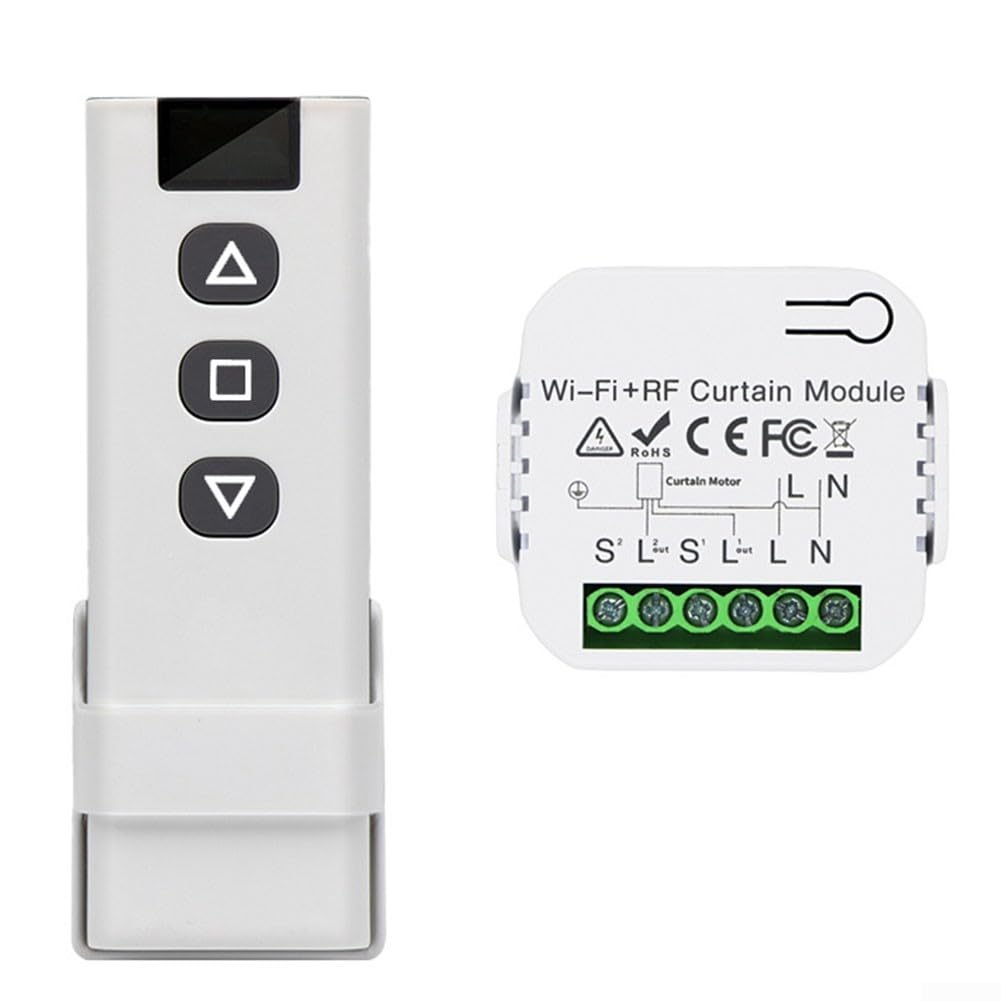
Image showing the white RF remote control with up, stop, and down buttons, and the white RF Curtain Module with wiring terminals for 'Curtain Motor' and 'L N' connections.
Technical Specifications
| Product Name | WiFi Tuya Curtain Switch Retrofit Kit |
| Brand | EasyByMall |
| Model | 50JP0IISV56VV3T51X6LNT34QUJF |
| Receiver Dimensions | 5.2 x 4.5 x 2.5 cm |
| Remote Control Dimensions | 11 x 3.5 x 1.5 cm |
| Rated Voltage | 110 V-240 V AC |
| Standby Power Consumption | 0.2 W |
| Load Power | 16 A |
| RF Frequency | 433 MHz |
| Working Temperature | -20 to 55°C |
| Wireless Range | Up to 100m in open spaces |
Installation Instructions
Safety Precautions
- Ensure power is disconnected at the main circuit breaker before attempting any installation.
- Installation should be performed by a qualified electrician if you are unsure about electrical wiring.
- Do not exceed the maximum load capacity of 16A for the module.
- Avoid installing in damp or excessively hot environments.
Wiring Diagram
The module is designed to fit into standard flush-mounted electrical boxes. Connect the receiver to the power supply, the existing wall switch (if applicable), and the curtain motor according to the diagram below. Refer to your curtain motor's manual for specific motor wiring details.
Close-up of the RF Curtain Module showing terminals: L (Live), N (Neutral) for power input, and S' L' S' L' for curtain motor connections. The diagram indicates connections for a curtain motor.
- L: Connect to the Live (Phase) wire from your main power supply.
- N: Connect to the Neutral wire from your main power supply.
- S': Connect to the 'Up' and 'Down' control wires of your curtain motor.
- L': Connect to the Live output wire that powers the curtain motor.
Ensure all connections are secure and insulated. After wiring, carefully place the module into the electrical box and secure it.
Configuration and Pairing
RF Remote Control Pairing
The remote control functionality is typically pre-paired with the receiver module. If re-pairing is necessary or if you are adding a new remote control, follow these steps:
- Ensure the curtain switch module is powered on.
- Locate the pairing button on the module (often a small button or a specific terminal for pairing). Press and hold this button for approximately 3-5 seconds until an indicator light on the module blinks or a beep is heard.
- While the module is in pairing mode, press the 'Up' button (▲) on the RF remote control.
- Release both buttons. The module should respond with a confirmation (e.g., indicator light stops blinking, a different beep, or the curtain motor briefly jogs). This confirms successful pairing for the 'Up' function.
- Repeat steps 2-4 for the 'Down' button (▼) and 'Stop' button (■) if they are not automatically paired after the first step.
Tuya Smart Life APP Connection
To control your curtain module via smartphone, you need to connect it to the Tuya Smart or Smart Life app:
- Download the 'Tuya Smart' or 'Smart Life' app from your smartphone's app store (available for iOS and Android).
- Register or log in to your account within the app.
- Ensure your smartphone is connected to a 2.4 GHz Wi-Fi network. The module does not support 5 GHz Wi-Fi.
- Power on the curtain switch module.
- Open the app and tap the '+' icon in the top right corner to add a device.
- Select 'Curtain Switch' or 'Curtain Module' from the device category list.
- Follow the in-app instructions to put the module into pairing mode. This usually involves pressing a button on the module for several seconds until an indicator light blinks rapidly.
- Confirm the indicator light is blinking rapidly in the app.
- Enter your Wi-Fi network password.
- Wait for the app to discover and connect to the device. Once connected, you can rename the device and assign it to a specific room.
Operating Instructions
Using the RF Remote Control
The RF remote control provides convenient wireless operation of your curtains:
- Up (▲) Button: Press this button to open the curtain or raise the blind.
- Stop (■) Button: Press this button to stop the curtain or blind at its current position.
- Down (▼) Button: Press this button to close the curtain or lower the blind.
The remote has an effective range of up to 100 meters in open spaces and its signals can pass through walls and doors without interference.
Using the Tuya Smart Life APP
Once your module is connected to the Tuya Smart Life app, you can access a range of smart features:
- Remote Control: Open, close, or stop the curtain/blind from anywhere with an internet connection.
- Scheduling: Set custom schedules for automatic opening and closing at specific times of the day or week.
- Scenes and Automation: Create smart scenes to integrate your curtain control with other smart home devices (e.g., close curtains when you leave home, open with morning alarm).
- Voice Control: Link your Tuya/Smart Life account with compatible smart assistants (e.g., Amazon Alexa, Google Assistant) for convenient voice commands.
Manual Control
If the module is wired to a traditional wall switch, you can still operate the curtain/blind manually using the physical switch, providing an alternative control method.
Maintenance
To ensure the longevity and optimal performance of your EasyByMall WiFi Smart Curtain Switch Module:
- Keep the module and remote control clean and dry. Use a soft, dry cloth for cleaning.
- Avoid exposing the devices to extreme temperatures, direct sunlight, or high humidity.
- Do not attempt to disassemble or repair the module or remote control yourself. This may void your warranty and pose a safety risk.
- Replace the remote control battery when its performance degrades.
Troubleshooting
Module Not Responding
- No Power: Check the main power supply to the module and ensure the circuit breaker is on.
- Incorrect Wiring: Verify all wiring connections (Live, Neutral, Motor) are secure and correctly installed according to the diagram.
- Remote Battery: Check if the RF remote control battery is depleted and replace it if necessary.
- Pairing Issue: Re-pair the remote control with the module as described in the 'RF Remote Control Pairing' section.
App Connection Issues
- Wi-Fi Band: Ensure your Wi-Fi network is 2.4 GHz. The module does not support 5 GHz networks.
- Pairing Mode: Verify that the module is in app pairing mode (indicator light blinking rapidly).
- Incorrect Password: Double-check that you have entered the correct Wi-Fi network password in the app.
- Signal Strength: Move the module closer to your Wi-Fi router during the setup process to ensure a strong signal.
- Router Restart: Try restarting your Wi-Fi router and then attempt the connection process again.
Curtain Not Moving Correctly
- Motor Connections: Check the motor connections to the module for correct polarity and secure fit.
- Motor Functionality: Ensure the curtain motor itself is functioning properly when connected directly to power (if possible).
- Obstruction: Verify that the curtain mechanism is not physically obstructed or jammed.
Warranty and Support
This EasyByMall product comes with a standard manufacturer's warranty. For specific warranty terms, conditions, and duration, please refer to the documentation provided with your purchase or visit the EasyByMall official website. For technical assistance, troubleshooting not covered in this manual, or customer service inquiries, please reach out to EasyByMall customer support through their official channels.