
1. Introduction
Thank you for choosing the Loddery 9.7-inch Android 13 Vertical Car Stereo. This manual provides detailed instructions for the installation, operation, and maintenance of your new car stereo system. Please read this manual thoroughly before use to ensure proper functionality and to maximize your user experience. Keep this manual for future reference.
2. Product Overview
2.1 Key Features
- Operating System: Android 13 for broad application compatibility.
- Display: 9.7-inch vertical touchscreen with 1024x600 resolution.
- Connectivity: Built-in Wi-Fi, Bluetooth 4.0, dual USB interfaces.
- Navigation: Integrated GPS with support for offline maps and real-time updates via Wi-Fi.
- Smartphone Integration: Mirror Link (iOS/Android), wired/wireless Carplay, and Android Auto support.
- Audio: Hi-Fi audio with EQ sound effects, FM radio, support for APE/FLAC/WAV/MP3/WMA formats.
- Video: Supports MKV/RMVB/AVI/MP4/MDV video formats.
- Camera Support: AHD signal input for high-definition backup camera (optional 12LED HD backup camera included in some packages).
- Control: Steering wheel control function support.
- Multilingual: Supports switching between up to 40 national languages.
2.2 Package Contents
Verify that all items are present in the package:
- 1 x Loddery 9.7-inch Car MP5 Player
- 1 x Power Cable
- 1 x GPS Antenna
- 1 x Camera Input Cable
- 1 x RCA Input and Output Cable Set
- 2 x USB Cables
- 2 x Metal Mounting Frames
- 4 x Mounting Screws
- 1 x Instruction Manual (this document)
- 1 x 12LED HD Backup Camera (if included in your specific package)

Image: Front view of the Loddery 9.7-inch vertical car stereo, showing the main unit, a backup camera, and icons for CarPlay and Android Auto.
3. Setup and Installation
Professional installation is recommended for optimal performance and safety. Ensure the vehicle's battery is disconnected before beginning installation.
3.1 Pre-Installation Check
- Confirm compatibility with your vehicle's double DIN slot.
- Gather necessary tools (screwdrivers, wire strippers, electrical tape, etc.).
3.2 Wiring Connections
Refer to the wiring diagram provided with your unit for specific connections. General connections include:
- Power Cable: Connect to vehicle's power, ground, and accessory wires.
- GPS Antenna: Mount in a location with a clear view of the sky.
- Camera Input: Connect the backup camera cable to the designated input.
- RCA Input/Output: For external amplifiers, subwoofers, or video output.
- USB Cables: Route to an accessible location for USB devices.
- Steering Wheel Control Wires: Connect to your vehicle's steering wheel control interface (if applicable).

Image: Rear view of the car stereo unit, displaying the multiple wiring harnesses for power, audio, video, USB, and GPS antenna connections.
3.3 Mounting the Unit
The unit is designed for a double DIN vertical mount. Use the provided metal frames and screws to secure the unit into your vehicle's dashboard.

Image: An illustration demonstrating the installation process, highlighting how the outer frame is used for both 10-inch and 9-inch car machine installations to ensure compatibility.

Image: A side-by-side comparison showing a vehicle's dashboard before and after the installation of the Loddery 9.7-inch vertical car stereo, demonstrating its integrated appearance.
4. Operating Instructions
4.1 Basic Operation
- Power On/Off: Press and hold the power button (usually marked with a power symbol) to turn the unit on or off. A short press may mute or put the unit into standby.
- Volume Control: Use the physical volume knob or on-screen controls to adjust audio levels.
- Home Screen: Tap the home icon to return to the main application interface.
4.2 System Navigation (Android 13)
The unit runs on Android 13, providing a familiar smartphone-like interface.
- App Drawer: Swipe up or tap the apps icon to access all installed applications.
- Settings: Access system settings (Wi-Fi, Bluetooth, display, sound, etc.) through the 'Settings' app.
- Multitasking: Use the recent apps button to switch between open applications.

Image: The main user interface of the Loddery car stereo, displaying a grid of application icons including navigation, radio, Bluetooth, music, settings, and other apps, along with system status indicators.
4.3 Connectivity
- Wi-Fi: Go to Settings > Network & Internet > Wi-Fi to connect to available networks for internet access, map updates, and app downloads.
- Bluetooth: Go to Settings > Connected devices > Bluetooth to pair your smartphone for hands-free calling, contact synchronization, and audio streaming.
- Mirror Link: Supports both iOS (unidirectional) and Android (two-way) mirror link. Follow on-screen instructions in the 'Mirror Link' app to connect your phone.
- Carplay/Android Auto: Connect your smartphone via USB for wired Carplay/Android Auto, or follow the instructions in the respective app for wireless connection. This allows access to phone contacts, navigation, and music directly from the stereo interface.

Image: The car stereo screen showing the Wi-Fi connection interface, with an on-screen keyboard for entering network passwords, indicating strong signal and faster transmission speed.
4.4 GPS Navigation
The unit comes with built-in offline maps. For real-time traffic and map updates, ensure the unit is connected to Wi-Fi.
- Open the 'Maps' application to access navigation features.
- Download additional offline map data for areas you frequently travel without internet access.
4.5 Audio Functions
- FM Radio: Access the 'Radio' app to scan for and save FM stations.
- Music Player: Use the 'Music' app to play audio files from USB drives or internal storage. Supports APE, FLAC, WAV, MP3, WMA formats.
- Hi-Fi Audio: The unit features Hi-Fi audio with EQ sound effects. Adjust equalizer settings in the audio settings menu for a personalized listening experience.
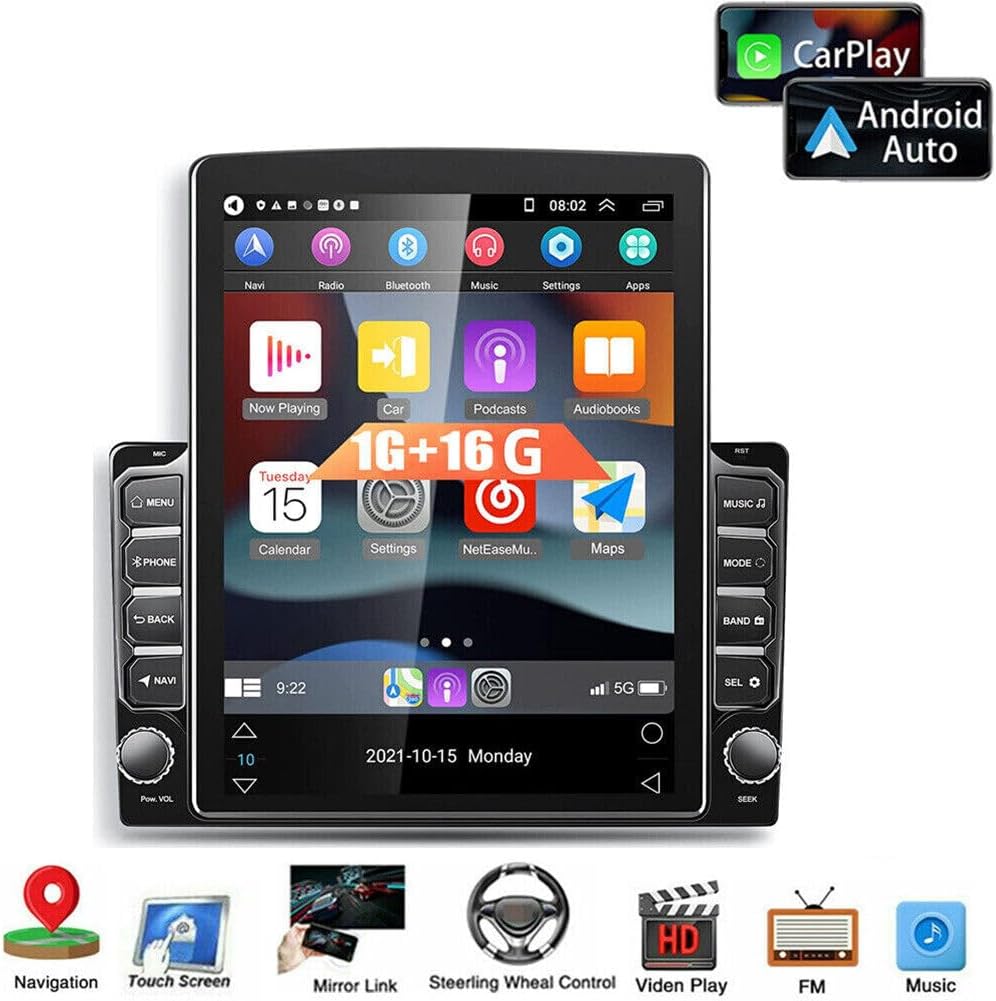
Image: The car stereo screen showing a graphic equalizer display, illustrating the Hi-Fi audio and EQ sound effect capabilities, designed to create a live concert-like sound experience.
4.6 Steering Wheel Controls
If your vehicle supports steering wheel controls, you can configure them to operate the stereo.
- Go to 'Car Settings' > 'Steering Learn' to program your steering wheel buttons.
- Follow the on-screen instructions to assign functions to each button.

Image: The car stereo screen displaying the 'Steering Learn' interface within the car settings, with an arrow pointing to a steering wheel, indicating the functionality to configure steering wheel controls.
4.7 Backup Camera
The unit supports AHD signal input for a high-definition rear view camera. When properly connected, the display will automatically switch to the camera view when the vehicle is in reverse.
- Ensure the backup camera is correctly wired to the 'Camera Input' and the reverse trigger wire.
- Adjust camera settings (if available) in the system settings for optimal view.

Image: The car stereo screen showing a clear, high-definition rear view from a backup camera, complete with parking guidelines, emphasizing the AHD signal input for enhanced safety.
5. Maintenance
Regular maintenance helps ensure the longevity and optimal performance of your car stereo.
- Cleaning: Use a soft, dry cloth to clean the screen and exterior. For stubborn smudges, a slightly damp cloth with a mild, non-abrasive cleaner can be used, then wipe dry immediately. Avoid harsh chemicals.
- Software Updates: Periodically check for system updates via Wi-Fi in the 'Settings' menu to ensure you have the latest features and security patches.
- Temperature: Avoid exposing the unit to extreme temperatures for extended periods. The operating temperature range is -40℃ to 80℃.
6. Troubleshooting
If you encounter issues, refer to the following common problems and solutions:
- No Power:
- Check all power connections (ACC, B+, Ground) and ensure they are secure.
- Verify the vehicle's fuse for the stereo is not blown.
- Ensure the vehicle's battery has sufficient charge.
- No Sound:
- Check speaker wiring connections.
- Ensure the volume is not muted or set to zero.
- Verify audio output settings in the system menu.
- If using external amplifiers, check their power and connections.
- GPS Not Working/Inaccurate:
- Ensure the GPS antenna is properly connected and mounted in a location with a clear view of the sky.
- Check GPS settings in the system menu.
- Verify that map data is installed and up to date.
- Bluetooth Connectivity Issues:
- Ensure Bluetooth is enabled on both the stereo and your smartphone.
- Delete previous pairings and attempt to re-pair the devices.
- Move the phone closer to the stereo to rule out interference.
- Touchscreen Unresponsive:
- Perform a soft reset of the unit (refer to the power button instructions or a small reset button if available).
- Ensure the screen is clean and free of debris.
If problems persist after attempting these solutions, please contact customer support.
7. Technical Specifications
| Product Name | Loddery Car Navigation Player |
| Model Number | QA1181X-5974-1602189781 |
| Operating System | Android 13 |
| Screen Size | 9.7 Inches |
| Screen Resolution | 1024x600 |
| Memory (RAM+ROM) | 2GB RAM + 32GB ROM (as per title, description states 1GB+16GB, refer to product listing for exact configuration) |
| Bluetooth Version | 4.0 |
| Wi-Fi Support | Yes |
| GPS Navigation | Built-in offline maps |
| Mirror Link | Android/IOS (Two-way for Android, Unidirectional for iOS) |
| USB Interface | Double USB |
| Audio Formats | APE/FLAC/WAV/MP3/WMA |
| Video Formats | MKV/RMVB/AVI/MP4/MDV |
| Picture Formats | PNG/JPEG/JPG/GIF/WBMP/BNP |
| Operating Temperature | -40℃ to 80℃ |
| Item Weight | 3.53 pounds |
| Product Dimensions | 12.99 x 11.42 x 3.94 inches |
8. Warranty and Support
This product is covered by a standard manufacturer's warranty. For specific details regarding warranty duration and terms, please refer to the purchase documentation or contact the seller directly.
For technical support, troubleshooting assistance beyond what is provided in this manual, or warranty claims, please contact the Loddery customer service team or the retailer from whom you purchased the product. Please have your model number (QA1181X-5974-1602189781) and proof of purchase available when contacting support.