
1. Introduction
The trifuns Automatic Pet Feeder P01W is a Wi-Fi enabled smart pet feeder designed to provide scheduled meals for your cat or dog. It features app control, dual power supply options, a voice recorder, and anti-clogging mechanisms to ensure reliable operation. This manual provides instructions for setting up, operating, maintaining, and troubleshooting your feeder.
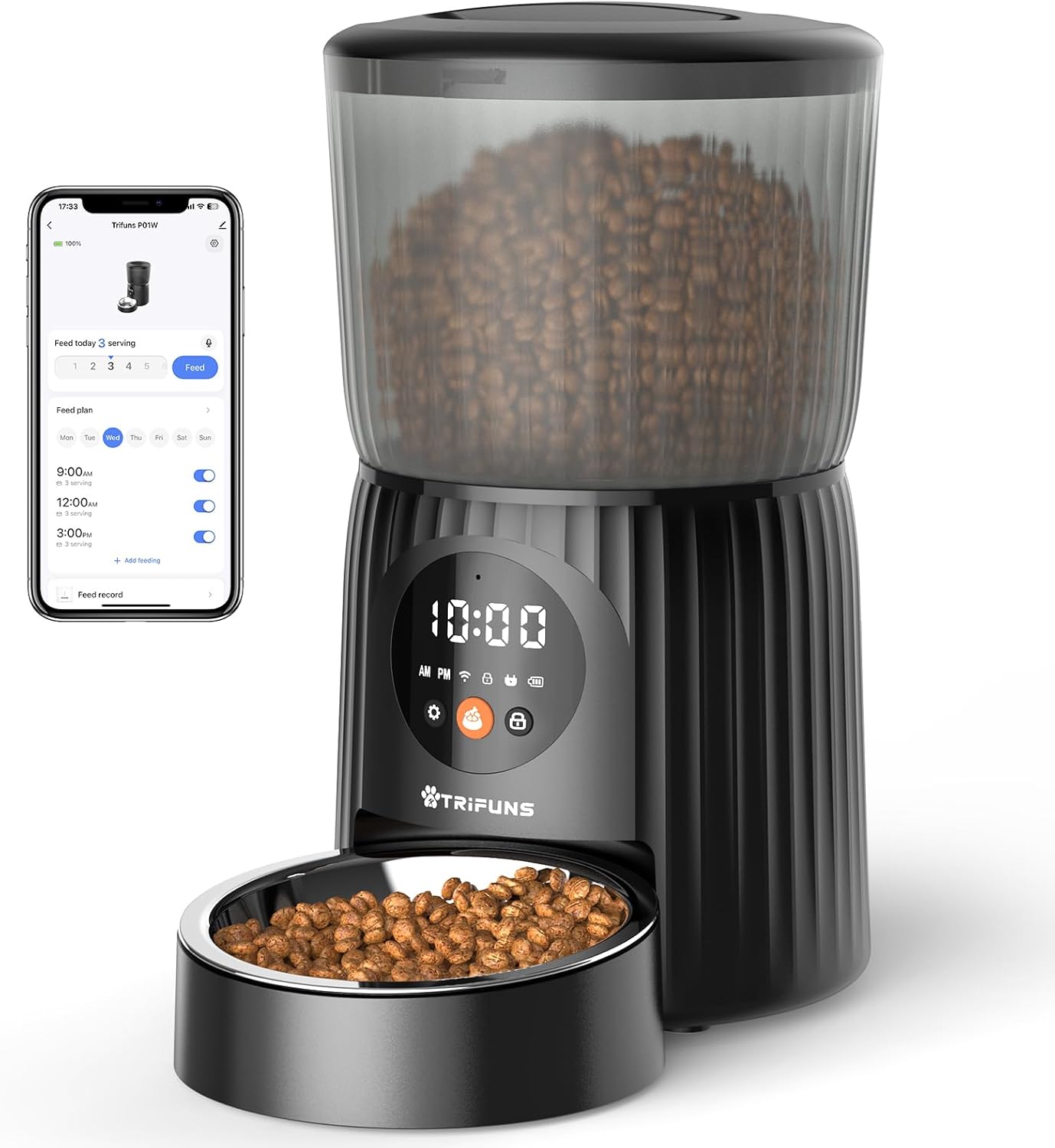
Image 1.1: The trifuns Automatic Pet Feeder P01W, illustrating its design and the accompanying mobile application interface for scheduling meals.
2. Setup
2.1 Unpacking and Components
Carefully remove all components from the packaging. Ensure the following items are present:
- Feeder Base
- Transparent Food Tank
- Lid
- Stainless Steel Bowl
- Bowl Tray
- USB-C Power Cord
- Power Adapter
- Desiccant Bag (pre-installed or separate)
2.2 Power Supply
The feeder supports dual power supply for continuous operation.
- AC Power: Connect the USB-C power cord to the feeder and the power adapter to a wall outlet.
- Battery Backup: For uninterrupted feeding during power outages, install three (3) D-size batteries (not included) into the battery compartment located at the bottom of the feeder. It is recommended to use both AC power and battery backup.

Image 2.1: Illustration of the dual power supply options, including AC adapter connection and D-size battery installation for backup.
2.3 Assembly
- Place the feeder base on a flat, stable surface.
- Insert the transparent food tank onto the feeder base, ensuring it is securely seated.
- Place the bowl tray onto the designated slot at the front of the feeder base.
- Place the stainless steel bowl into the bowl tray.
- Fill the food tank with dry pet food. The feeder has a 4-liter capacity.
- Secure the lid onto the food tank. Ensure it is twisted to lock for airtight storage.

Image 2.2: The feeder's 4-liter capacity, capable of holding sufficient dry food for extended periods.
2.4 App Installation and Wi-Fi Connection
The feeder requires a 2.4GHz Wi-Fi network for app control.
- Download the companion app from your smartphone's app store (search for "trifuns" or refer to the QR code in the quick start guide).
- Register or log in to your account.
- Follow the in-app instructions to add your device. This typically involves putting the feeder into pairing mode and connecting it to your 2.4GHz Wi-Fi network.
3. Operation
3.1 Setting Feeding Schedule
Use the mobile app to customize your pet's feeding schedule.
- You can set up to 10 meals per day.
- Each meal can be configured with 1 to 30 portions.
- Each portion dispenses approximately 8-10 grams of dry food.
- The feeder is compatible with dry kibble sizes between 2mm and 15mm.

Image 3.1: The mobile application interface for setting daily feeding schedules, including meal times and portion sizes.
3.2 Voice Recording
Record a personalized voice message (up to 10 seconds) through the app. This message will play during meal times to call your pet to eat.

Image 3.2: Recording a custom voice message via the app to alert pets at mealtime.
3.3 Slow Feed Mode
Activate the Slow Feed Mode in the app to dispense food gradually. This mode allows you to set an interval time per portion from 1 to 10 minutes, helping to prevent pets from eating too quickly and promoting better digestion.

Image 3.3: The Slow Feed Mode setting within the app, designed to regulate feeding speed.
3.4 Manual Feeding
You can manually dispense food at any time using the app. Look for the 'Feed Now' or similar option within the app interface.
4. Maintenance
4.1 Cleaning
Regular cleaning ensures hygiene and proper functioning of the feeder.
- The food tank, lid, bowl tray, and stainless steel bowl are removable and can be hand washed with mild soap and water. Rinse thoroughly and dry completely before reassembly.
- Important: Do not wash the feeder base. The base contains electronic components. Wipe the exterior of the base with a clean, damp cloth.

Image 4.1: Removable components of the feeder, such as the lid, food tank, and bowl, are designed for easy hand washing.
4.2 Desiccant Bag Replacement
The feeder includes a desiccant bag to keep the dry food fresh. Replace the desiccant bag periodically (e.g., every 1-2 months) to maintain optimal food freshness. The desiccant bag is typically located in the lid or a dedicated compartment.
5. Troubleshooting
- Food Not Dispensing:
- Check if the feeder is powered on and connected to AC power or has charged batteries.
- Verify the food tank is not empty.
- Check for food jams in the dispenser mechanism. The feeder has an infrared anti-blocking detector and a reversible rotor to prevent clogging. If a jam occurs, the app may send an alert.
- Wi-Fi Connection Issues:
- Ensure your Wi-Fi network is 2.4GHz. The feeder does not support 5GHz networks.
- Check your Wi-Fi signal strength. Move the feeder closer to your router if necessary.
- Restart your router and the feeder, then attempt to reconnect via the app.
- App Not Responding:
- Ensure your smartphone has a stable internet connection.
- Close and reopen the app.
- Check for app updates in your app store.
- Voice Recording Not Playing:
- Ensure the voice recording feature is enabled in the app settings.
- Verify the volume setting on the feeder (if adjustable) or within the app.

Image 5.1: The feeder's anti-clogging features, including an infrared detector and app alerts for food jams.
6. Specifications
| Feature | Specification |
|---|---|
| Model Number | P01W |
| Brand | trifuns |
| Capacity | 4 Liters |
| Product Dimensions | 18.29 x 18.29 x 33.02 cm |
| Item Weight | 1.9 Kilograms |
| Material | Stainless Steel, Acrylonitrile Butadiene Styrene |
| Color | Black |
| Connectivity Technology | Wi-Fi (2.4GHz only) |
| Power Supply | 5V DC Adapter, 3 x D-size Batteries (not included) |
| Feeding Schedule | 1-10 Meals/Day, 1-30 Portions/Meal |
| Portion Size | Approx. 8-10g per portion |
| Kibble Size Compatibility | 2-15mm |
| Special Features | Smart App Control, Voice Recorder, Slow Feed Mode, Anti-Clogging Mechanism |
| Care Instructions | Hand Wash removable parts only; Do not wash base. |
| Target Species | Cats, Dogs, Small Animals |
7. Warranty and Support
Specific warranty information for the trifuns Automatic Pet Feeder P01W is not provided in this manual. Please refer to the product packaging, the manufacturer's official website, or your point of purchase for detailed warranty terms and conditions.
For technical support, troubleshooting assistance beyond what is covered in this manual, or to inquire about replacement parts, please contact trifuns customer service through their official website or the contact information provided with your product.
