
Introduction
The HUAWEI Mesh 7 Router provides extremely fast speeds and stable connections for all connected devices throughout your home. Featuring Wi-Fi 6 Plus, tri-band mesh networking, 8 power amplifiers, and HarmonyOS Mesh+, this router is designed for easy setup and comprehensive whole-home coverage. It supports over 250 device connections, allowing for seamless 8K streaming and online gaming without buffering. The system also incorporates HUAWEI HomeSec for robust network security, including brute-force defense, anti-ARP spoofing, one-click stranger removal, and WPA3 encryption.

Image: Two HUAWEI Mesh 7 routers, illustrating whole home coverage capabilities.
Product Overview
The HUAWEI Mesh 7 is a high-performance tri-band Wi-Fi 6 router designed for extensive home coverage. Its sleek, minimalist design integrates internal antennas for optimal signal distribution.
Key Features:
- Wi-Fi 6 Plus: Enhanced speeds and efficiency for multiple devices.
- Tri-Band AX6600: Combines 2.4 GHz (574 Mbps), 5 GHz Low-Band (1201 Mbps), and 5 GHz High-Band (4804 Mbps) for a theoretical maximum of 6600 Mbps.
- HarmonyOS Mesh+: Creates a unified, seamless Wi-Fi network throughout your home.
- One-Touch Connect: NFC-enabled for quick and secure device connection.
- Extensive Coverage: A single unit can cover a significant area, with multiple units extending coverage further.
- High Device Capacity: Supports over 250 connected devices simultaneously.
- Advanced Security: WPA3 encryption and HUAWEI HomeSec protection.
Components and Ports:
The router features a clean design with essential ports located at the rear.
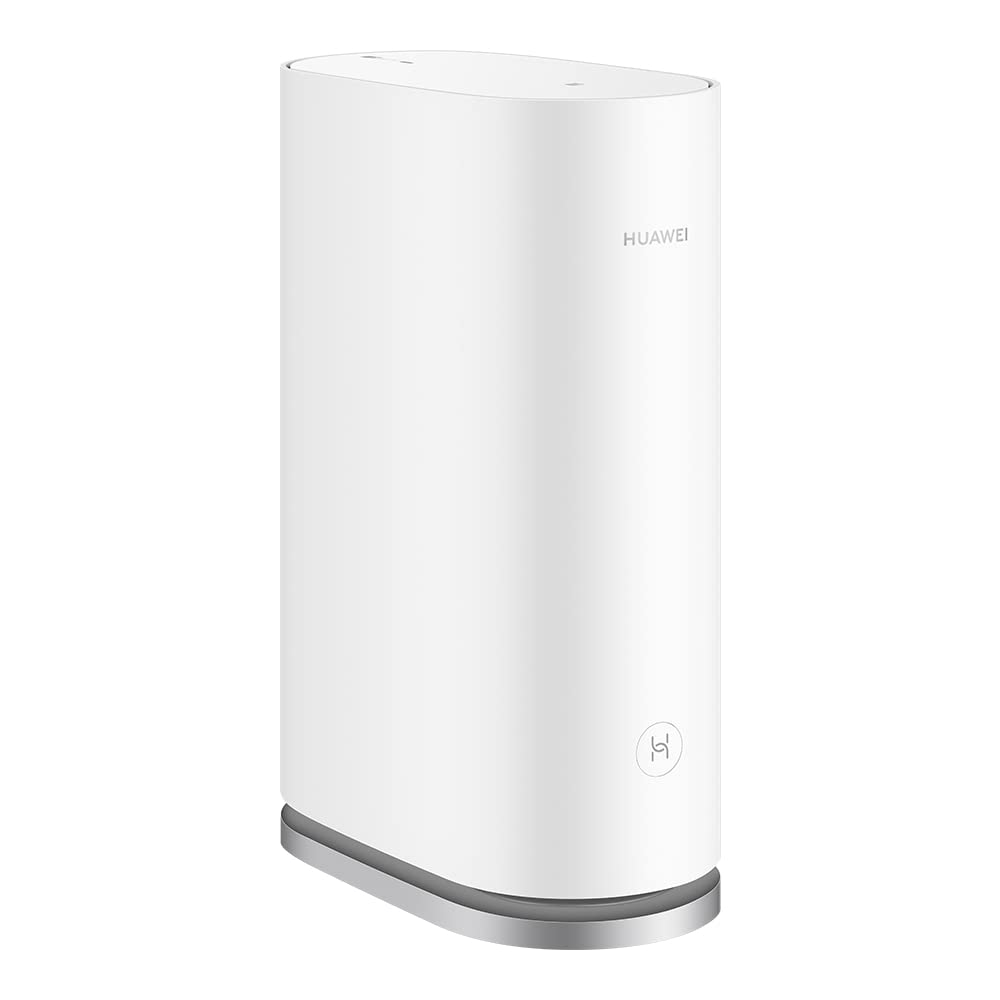
Image: Front view of the HUAWEI Mesh 7 Router, showcasing its minimalist design.

Image: Rear view of the HUAWEI Mesh 7 Router, showing the four Ethernet ports, power input, and reset button.
The rear panel includes:
- 4 x Gigabit Ethernet Ports: Auto-adaptive WAN/LAN ports (10/100/1000 Mbps).
- Power Input: For connecting the power adapter.
- Reset Button: Used to restore factory settings.
Setup Instructions
Setting up your HUAWEI Mesh 7 router is designed to be straightforward, often referred to as a 3-step process.
Initial Connection:
- Connect the power adapter to your HUAWEI Mesh 7 router and plug it into a power outlet.
- Connect the WAN port (any of the four Ethernet ports can function as WAN) of your HUAWEI Mesh 7 to your internet service provider's modem or existing router using an Ethernet cable.
- Wait for the indicator light on the router to turn steady blue, indicating a successful connection.

Image: A smartphone screen displaying the HUAWEI AI Life app's 3-step setup guide for the router.
Configuration via HUAWEI AI Life App:
For optimal setup and management, use the HUAWEI AI Life app.
- Download the HUAWEI AI Life app from your device's app store or by scanning the QR code provided in the quick start guide.
- Open the app and follow the on-screen instructions to detect and configure your new router. You will be prompted to set up your Wi-Fi name (SSID) and password.
- For Android phones with NFC, simply tap your phone on the router's NFC area to connect to the Wi-Fi network instantly without entering a password.

Image: A smartphone being tapped against the top of a HUAWEI Mesh 7 router, demonstrating the One-Touch Connect feature via NFC.
Mesh Network Expansion:
If you have multiple HUAWEI Mesh 7 units, they can be easily paired to create a seamless mesh network.
- Place additional Mesh 7 units in areas requiring extended coverage.
- Power on the additional units. They will automatically detect and connect to the primary router, forming a unified mesh network.
- The AI Life app can provide a visual representation of your Wi-Fi coverage, helping you optimize placement.
Operating Instructions
Once set up, your HUAWEI Mesh 7 router provides a stable and fast Wi-Fi network. The HUAWEI AI Life app is your primary tool for managing the network.
Managing Your Network with HUAWEI AI Life App:
The AI Life app offers comprehensive control over your network:
- View Connected Devices: See all devices connected to your network.
- Set Speed Limits: Allocate bandwidth to specific devices.
- Guest Wi-Fi: Create a separate network for guests.
- Parental Controls: Manage internet access times and content for children's devices.
- Wi-Fi Timer: Schedule when your Wi-Fi network is active.
- Smart Diagnostics: Troubleshoot network issues with one click.
- Visualized Wi-Fi Coverage: See a map of your home's Wi-Fi signal strength to identify dead zones.

Image: A smartphone screen showing the HUAWEI AI Life app interface, illustrating various Wi-Fi management options.
Seamless Roaming:
With HarmonyOS Mesh+, devices automatically switch to the strongest Wi-Fi signal as you move around your home, ensuring continuous and stable connectivity without interruptions.

Image: A diagram showing a person moving through a house with multiple Wi-Fi access points, illustrating seamless roaming.
Maintenance
Proper maintenance ensures the longevity and optimal performance of your HUAWEI Mesh 7 router.
- Placement: Place the router in an open area, away from obstructions, large metal objects, and other electronic devices that may cause interference.
- Ventilation: Ensure adequate airflow around the router to prevent overheating. Do not cover the ventilation holes.
- Cleaning: Regularly clean the router with a soft, dry cloth. Avoid using liquid cleaners or abrasive materials.
- Firmware Updates: Periodically check for and install firmware updates through the HUAWEI AI Life app. Updates often include performance improvements, new features, and security patches.
- Power Cycle: If you experience minor network issues, try power cycling the router by unplugging it from the power outlet for 10-15 seconds, then plugging it back in.
Troubleshooting
If you encounter issues with your HUAWEI Mesh 7 router, refer to the following common solutions:
No Internet Connection:
- Check Cables: Ensure all Ethernet cables are securely connected to the router and modem.
- Modem Status: Verify that your internet service provider's modem is working correctly.
- Router Indicator: Check the router's indicator light. If it's not steady blue, refer to the quick start guide for light status meanings.
- Power Cycle: Restart both your modem and router.
Slow Wi-Fi Speed or Weak Signal:
- Router Placement: Relocate the router to a more central location, away from obstacles and interference sources.
- AI Life App: Use the HUAWEI AI Life app's "Visualized Wi-Fi Coverage" feature to identify weak signal areas and optimize router placement.
- Interference: Minimize interference from other electronic devices (e.g., microwaves, cordless phones).
- Device Capacity: If many devices are connected, consider disconnecting inactive ones or adding another mesh unit for better load distribution.
Cannot Connect to Wi-Fi:
- Password: Double-check your Wi-Fi password.
- NFC: If using NFC, ensure NFC is enabled on your device and you are tapping it correctly.
- Reset Network Settings: On your device, forget the Wi-Fi network and try reconnecting.
Factory Reset:
If issues persist, you may need to perform a factory reset. Locate the reset button on the rear of the router. With the router powered on, use a pin or paperclip to press and hold the reset button for approximately 10 seconds until the indicator light changes. The router will restart with factory default settings, requiring re-configuration.
Specifications
| Feature | Detail |
|---|---|
| Brand | HUAWEI |
| Model Name | Mesh 7 |
| Model Number | WS8800-20 |
| Wireless Communication Standard | 802.11ax (Wi-Fi 6) |
| Frequency Band Class | Tri-Band (2.4 GHz, 5 GHz Low-Band, 5 GHz High-Band) |
| Data Transfer Rate | Up to 6600 Megabits Per Second (Theoretical Max) |
| LAN Port Bandwidth | 10/100/1000Mbps |
| Number of Ports | 4 (Auto-adaptive WAN/LAN) |
| Antenna Type | Internal |
| Operating System | HarmonyOS Mesh+ |
| Security Protocol | WPA3 |
| Control Method | Application (HUAWEI AI Life App) |
| Compatible Devices | Personal Computer, Security Camera, Smartphone, Smart Television |
| Recommended Use | Home |
| Voltage | 110 Volts, 220 Volts |
| Firewall Security Level | Advanced |
| Color | White |
| Dimensions (L x W x H) | 12 cm x 8 cm x 18 cm |
Warranty and Support
Warranty Information:
The HUAWEI Mesh 7 Router comes with a 12-month manufacturer's warranty. Please retain your proof of purchase for warranty claims. The warranty covers defects in materials and workmanship under normal use.
Customer Support:
For further assistance, technical support, or to access the full product manual, please refer to the following resources:
- HUAWEI AI Life App: The app provides smart diagnostics and access to support features.
- HUAWEI Official Website: Visit the official HUAWEI support website for detailed manuals, FAQs, and contact information.
- Retailer Support: Contact the retailer where you purchased the product for return or exchange policies.


