
1. Introduction
Thank you for choosing the CLABEL CT321D Desktop Bluetooth Thermal Label Printer. This device is designed for efficient and clear label printing without the need for ink or toner. It supports various label types and offers flexible connectivity options for both mobile and computer use. This manual provides detailed instructions for setup, operation, maintenance, and troubleshooting to ensure optimal performance.

Image 1.1: CLABEL CT321D printer in operation, connected via Bluetooth to a smartphone.
2. Safety Information
Please read and follow these safety guidelines carefully before using the printer:
- Use only the provided power adapter.
- Do not expose the printer to water or excessive humidity.
- Keep the printer away from direct sunlight and heat sources.
- Do not attempt to disassemble or repair the printer yourself. Contact customer support for assistance.
- Ensure proper ventilation around the printer during operation.
3. Package Contents
Verify that all items are present in the package:
- CLABEL CT321D Thermal Label Printer
- Power Adapter
- USB-C Cable
- 1 Roll of Thermal Labels
- User Manual (this document)
4. Product Overview
The CLABEL CT321D is a high-speed, direct thermal label printer designed for various labeling needs. It features 203 DPI printing for clear output and supports labels from 20mm to 80mm in width. Key features include:
- High-Speed Printing: Efficiently prints labels without ink or toner.
- Cost-Saving: Compatible with various brands of thermal labels, avoiding proprietary consumables.
- Versatile App: The 'clabel trade' app offers powerful templates and customization for QR codes, barcodes, text, and graphics.
- Multiple Connection Options: Supports USB and Bluetooth connectivity for printing from PCs and smartphones.
- Customizable Labels: Edit labels with different fonts, graphics, and layouts using the app.

Image 4.1: The CLABEL CT321D printer connected to a laptop, demonstrating its use in an office setting.
5. Setup
5.1. Unpacking and Placement
Carefully remove the printer and all accessories from the packaging. Place the printer on a stable, flat surface with adequate space for operation and ventilation.
5.2. Loading Labels
- Open the printer cover.
- Insert the label roll into the label compartment, ensuring the labels feed smoothly from the bottom of the roll.
- Pull a few labels out past the print head.
- Close the printer cover firmly.

Image 5.1: Visual guide for loading labels into the printer for both computer and mobile printing setups.
5.3. Power Connection
Connect the power adapter to the printer's power port and then plug it into a wall outlet. Turn on the printer using the power switch, usually located on the side or back of the device.
5.4. Software and App Installation
For Mobile Devices (Bluetooth Connection):
- Download the 'clabel trade' app from the Google Play Store (for Android) or the Apple App Store (for iOS).
- Ensure Bluetooth is enabled on your mobile device.
- Open the 'clabel trade' app and follow the on-screen instructions to connect to your printer. The printer will typically appear as 'CT321D' or a similar identifier.

Image 5.2: Instructions for downloading the 'clabel trade' app and establishing a Bluetooth connection.
For Computers (USB Connection):
- Connect the printer to your computer using the provided USB-C cable.
- Visit the official CLABEL website to download the appropriate printer driver for your operating system (Windows).
- Install the driver by following the on-screen instructions.
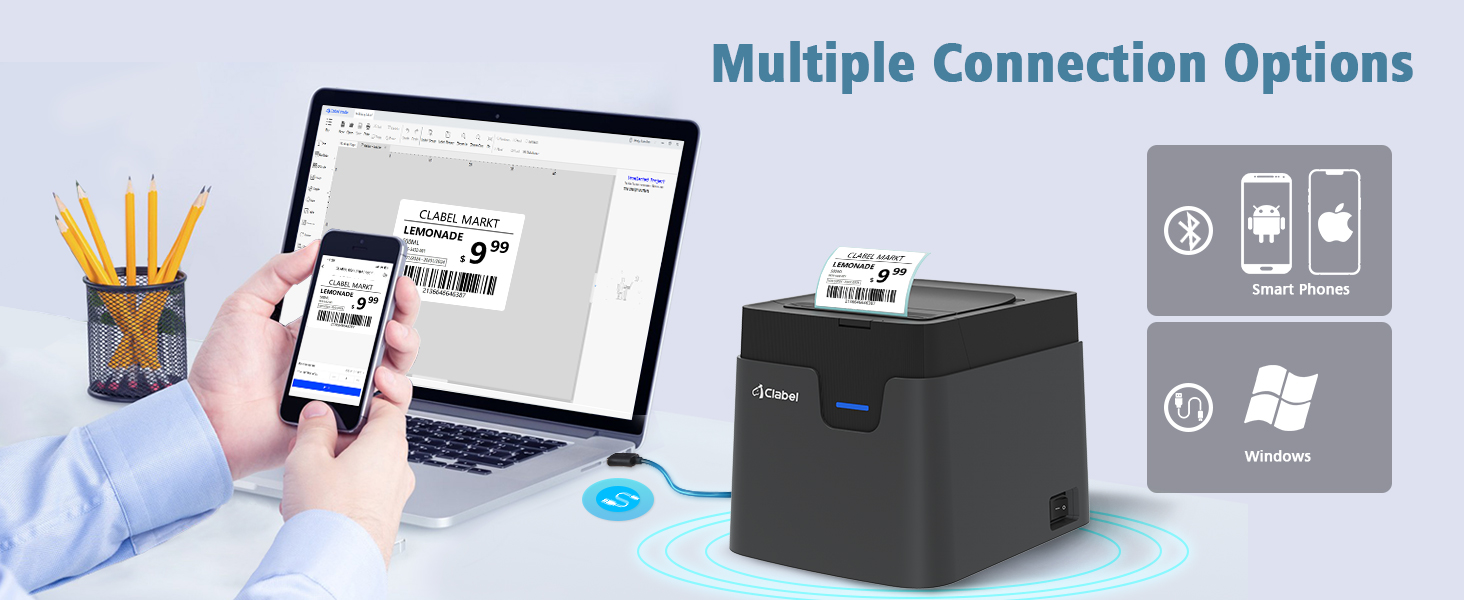
Image 5.3: The printer supports both USB connection to computers and Bluetooth connection to smartphones.
6. Operating Instructions
6.1. Printing via Mobile App ('clabel trade')
- Ensure the printer is powered on and connected to your mobile device via Bluetooth.
- Open the 'clabel trade' app.
- Select or create a new label template. The app allows customization of text, barcodes, QR codes, images, and more.
- Adjust label size and content as needed.
- Tap the print icon to send the label to the printer.
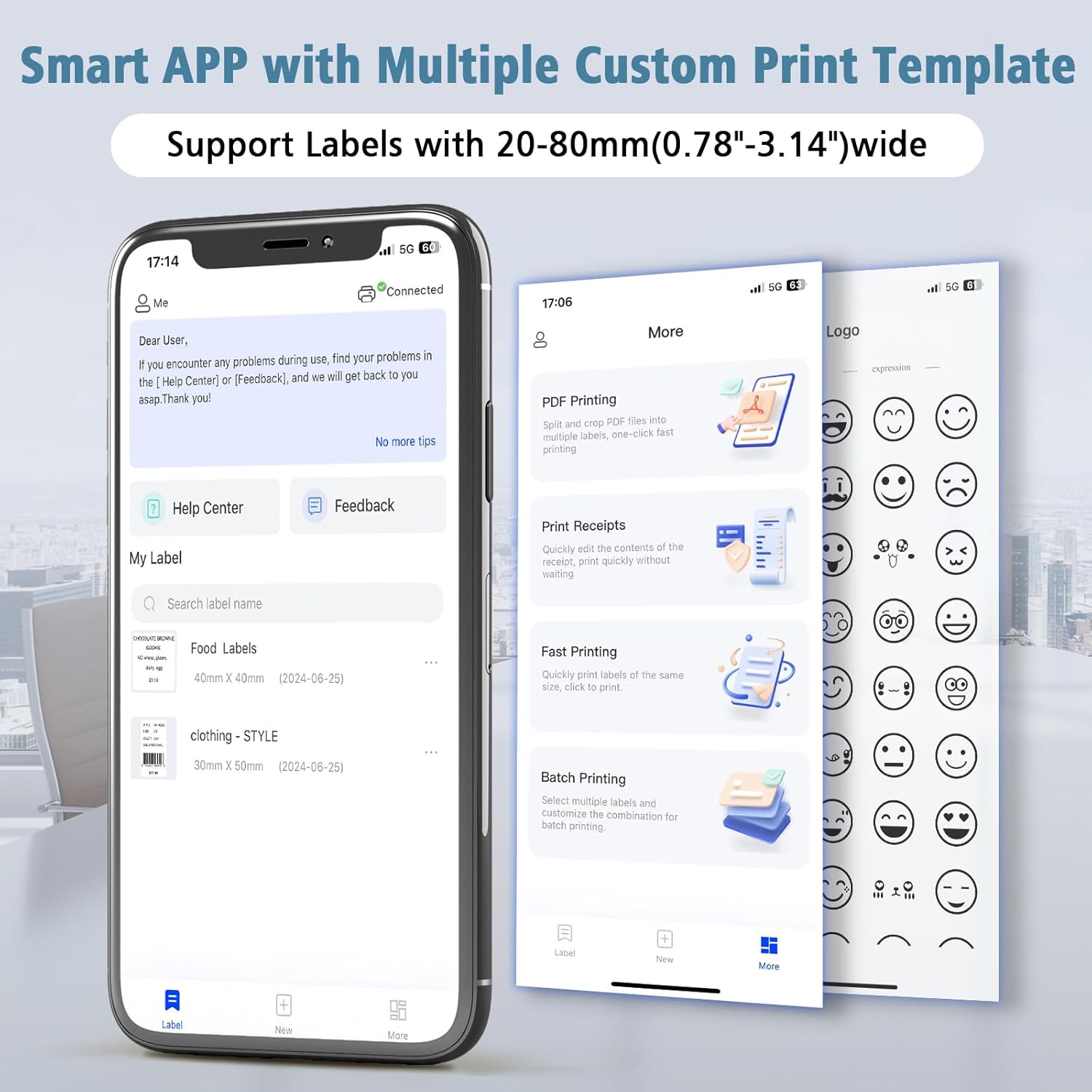
Image 6.1: The 'clabel trade' app offers various printing functionalities including PDF, receipt, fast, and batch printing.
6.2. Printing via Computer
- Ensure the printer is powered on and connected to your computer via USB.
- Open your preferred label design software or application.
- Design your label.
- Select the CLABEL CT321D printer from your printer options.
- Initiate the print command.
6.3. Supported Label Sizes
The CLABEL CT321D printer supports thermal labels with widths ranging from 20mm to 80mm (0.78" to 3.14"). Ensure you use thermal labels of suitable size for optimal performance.

Image 6.2: The printer supports multiple label styles and widths, from 20mm to 72mm.
7. Maintenance
Regular maintenance helps ensure the longevity and optimal performance of your CLABEL CT321D printer.
7.1. Cleaning the Print Head
The print head is a critical component. If print quality degrades, clean the print head using a cotton swab lightly dampened with isopropyl alcohol. Gently wipe across the print head surface. Allow it to dry completely before use.
7.2. Cleaning the Exterior
Wipe the exterior of the printer with a soft, dry cloth. Do not use abrasive cleaners or solvents.
7.3. Label Storage
Store thermal labels in a cool, dry place away from direct sunlight and heat to prevent premature discoloration or damage.
8. Troubleshooting
If you encounter issues with your CLABEL CT321D printer, refer to the following common problems and solutions:
- Printer Not Turning On:
Ensure the power adapter is securely connected to both the printer and a working power outlet. Check if the power switch is in the 'On' position. - No Print Output:
Verify that labels are loaded correctly and that the printer cover is closed. Check the connection (USB or Bluetooth) to your device. Ensure the correct printer is selected in your software/app. - Poor Print Quality (Faded/Unclear):
The print head may be dirty; clean it as described in Section 7.1. Ensure you are using high-quality thermal labels. Adjust print density settings in the app or driver if available. - Bluetooth Disconnection:
Some users report intermittent disconnections with the mobile app. Try restarting the app and the printer. Ensure your mobile device's Bluetooth and location permissions are enabled for the 'clabel trade' app. Keep the printer within range of your device. - Labels Not Feeding Correctly:
Check for any obstructions in the label path. Ensure the label roll is inserted properly and not jammed. - App Issues (e.g., Freezing, Errors):
Ensure your 'clabel trade' app is updated to the latest version. Try clearing the app's cache or reinstalling it.
9. Specifications
Below are the technical specifications for the CLABEL CT321D Desktop Bluetooth Thermal Label Printer:
| Feature | Specification |
|---|---|
| Brand | CLABEL |
| Model Name | CT321D |
| Printing Technology | Thermal |
| Connectivity Technology | Bluetooth, USB |
| Maximum Black and White Print Resolution | 203 DPI |
| Maximum Print Speed (Monochrome) | 70.0 mm/s |
| Maximum Media Size | 20-80mm (0.78-3.14 inches) |
| Product Dimensions | 8"D x 2.5"W x 2"H |
| Item Weight | 3.03 pounds (1.38 Kilograms) |
| Control Method | App (Android, iOS), PC Software |
| Ink Color | GrayBlack (Monochrome Output) |
| Date First Available | February 26, 2023 |
10. Warranty and Support
CLABEL provides customer support for its products. For warranty information, technical assistance, or service inquiries, please contact CLABEL customer support through their official website or the contact information provided with your purchase. Please have your model number (CT321D) and purchase date available when contacting support.


