
symcode 2D Barcode Scanner with Wireless Charging Stand
Symcode QR Industrial Bluetooth Barcode Scanner User Manual
Model: 2D Barcode Scanner with Wireless Charging Stand (B0CZ87JLXC)
Product Overview
The Symcode QR Industrial Bluetooth Barcode Scanner is a versatile and robust device designed for efficient 1D and 2D barcode scanning. It features a wireless charging stand, multiple connectivity options including 2.4G wireless and Bluetooth, and an auto-sensing mode for hands-free operation. Its durable design offers drop protection, shock resistance, and dust proofing, making it suitable for industrial environments. The scanner boasts a high-capacity battery for extended use and superior decoding ability for various barcode formats, even on damaged or poorly printed labels.

Figure 1: Symcode QR Industrial Bluetooth Barcode Scanner with its wireless charging stand.
Package Contents
Please verify that all items are present in your package:
- 1 x Barcode Scanning Gun
- 1 x Base with Wireless Receiver (also serves as wireless charging stand)
- 1 x USB Cable (integrated with the base)
- 1 x User Manual (this document)

Figure 2: Included components: (1) Base with wireless receiver, (2) Barcode scanning gun, (3) Instructions.
Setup Guide
1. Charging the Scanner
The scanner features wireless charging. Simply place the scanner onto the charging stand. The stand will automatically begin charging the scanner. The scanner has a battery indicator light to show the remaining battery level.

Figure 3: The scanner on its wireless charging stand, illustrating 30 hours scanning time, 4 hours charging time, 720 hours standby time, and an 1800mAh rechargeable battery.
2. Connection Modes
The Symcode barcode scanner supports three primary connection modes:
- 2.4G Wireless Connection: The cradle has a built-in 2.4G receiver. Connect the cradle to your computer via the integrated USB cable. The scanner will automatically connect to the cradle, providing a plug-and-play experience.
- Bluetooth Connection: The scanner can connect directly to your device (laptop, PC, smartphone, tablet, iPhone, iPad, POS system) via Bluetooth. It supports HID, SPP, and BLE modes. Refer to your device's Bluetooth settings to pair with the scanner.
- USB Connection: While the primary connection for the stand is USB, the scanner itself can also function as a wired scanner when directly connected to a device via a USB cable (not included for direct scanner connection, only for the stand).

Figure 4: Illustration of USB connection to a laptop, Bluetooth connection to a smartphone, and 2.4GHz wireless connection via a dongle to a laptop.

Figure 5: The scanner offers a transmission distance of 100m in open air and 30m indoors.
Operating Instructions
1. Scanning Modes
The scanner supports both manual and auto-sensing scanning modes:
- Manual Key Mode: When the scanner is removed from the stand, it automatically switches to manual scanning mode, requiring a trigger press to scan.
- Auto-Sensing Mode: When the scanner is placed on the stand, it automatically activates the auto-sensing mode, allowing for hands-free scanning as barcodes are presented to the scanner. No setup code is required to switch between these modes.

Figure 6: Top image shows Self-Sensing-off (manual mode when off stand). Bottom image shows Self-Sensing-on (auto-sensing mode when on stand).
2. Data Upload Modes
The scanner offers two methods for uploading scanned data:
- Instant Upload Mode: Data is synchronously uploaded to your connected computer or device immediately after scanning a barcode.
- Offline Storage Mode: Barcodes are stored internally within the scanner's memory. The scanner has a built-in storage capacity for up to 100,000 barcodes. You can upload the stored data to your computer at a later time when needed.

Figure 7: Visual representation of Instant Upload Mode (data flows directly to computer) and Offline Storage Mode (data stored internally, then uploaded).
3. Decoding Capability
Equipped with a 32-bit CPU and a high-resolution scan engine, the Symcode scanner provides superior decoding ability, scanning up to 300 times per second. It can easily scan a wide range of 1D and 2D barcodes from labels, paper, and digital displays (mobile phones, computer screens), even if they are on shrinkwrap, partly damaged, dirty, or poorly printed.
Supported 1D Codes: UPC-A, UPC-E, EAN-8, EAN-13, Code128, Code39, Code 39Full ASCII, Codabar, Industrial/Interleaved 2 of 5, Code93, MSI, Code11, ISBN, ISSN, China Post, GS1 Databar, Code32.
Supported 2D Codes: QR Code, Data Matrix, PDF417, Aztec code, Maxicode, Hanxin.

Figure 8: The scanner is shown actively scanning a barcode on a package, highlighting its strong decoding capability.
4. Configuration Options
The scanner offers various customization options, including automatic sensing, hiding barcode characters, adding prefixes or suffixes, and volume adjustment. Refer to the detailed programming guide (usually a separate document or a section within the full manual) for specific setup codes to configure these options.
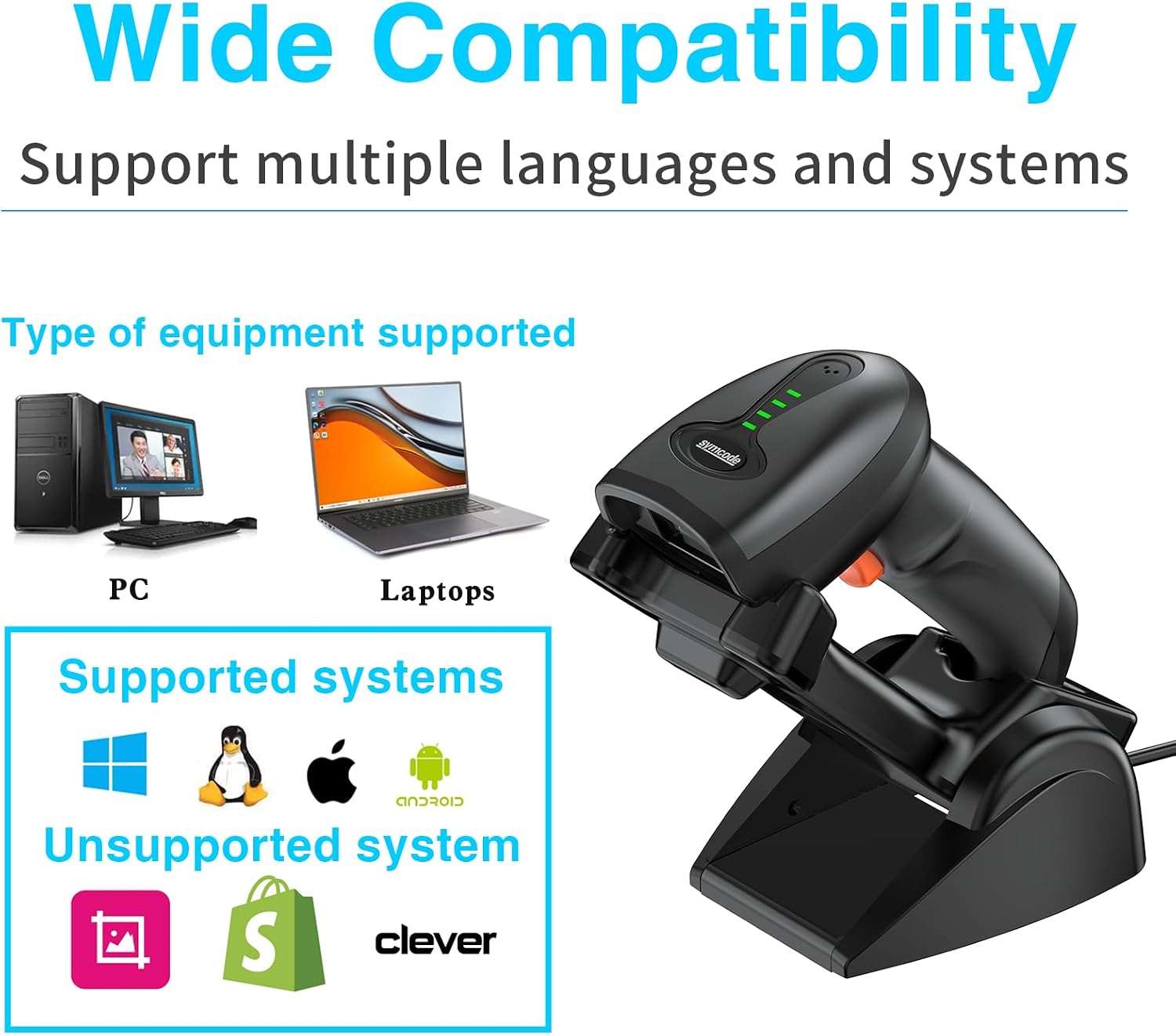
Figure 9: The scanner supports multiple languages and systems, including PC, Laptops, Windows, Linux, macOS, and Android. It is not applicable to Square, Shopify, or Clever systems.
Maintenance
- Cleaning: Use a soft, dry cloth to clean the scanner's exterior. For the scanning window, use a lens cleaning cloth or a soft cloth lightly dampened with a non-abrasive cleaner. Avoid harsh chemicals or abrasive materials.
- Battery Care: To prolong battery life, avoid fully discharging the battery frequently. Store the scanner in a cool, dry place when not in use for extended periods.
- Storage: Store the scanner and its stand in a clean, dry environment, away from extreme temperatures, direct sunlight, and corrosive substances.
Troubleshooting
| Problem | Possible Cause | Solution |
|---|---|---|
| Scanner not connecting via 2.4G wireless. | Cradle not properly connected or scanner not paired. | Ensure the cradle's USB cable is securely plugged into the computer. Place the scanner on the cradle to ensure automatic pairing. |
| Scanner not connecting via Bluetooth. | Bluetooth not enabled on device, scanner not in pairing mode, or already connected to another device. | Enable Bluetooth on your device. Ensure the scanner is in Bluetooth pairing mode (refer to programming guide if needed). Disconnect from other devices if necessary. |
| Scanner not charging. | Scanner not properly seated on stand, stand not powered, or charging contacts are dirty. | Ensure the scanner is correctly placed on the stand. Check if the stand's USB cable is connected to a power source. Clean the charging contacts on both the scanner and the stand. |
| Cannot scan certain barcodes. | Barcode type not enabled, barcode damaged, or poor lighting. | Ensure the barcode type is supported and enabled in the scanner's settings (if configurable). Try scanning in different lighting conditions. |
| No data output to computer. | Incorrect upload mode, software issue, or incompatible system. | Verify the scanner is in Instant Upload Mode if immediate data transfer is desired. Ensure your system is compatible (Note: Not applicable to Square, Shopify, Clever systems). |
Technical Specifications
| Feature | Description |
|---|---|
| Brand | symcode |
| Model | 2D Barcode Scanner with Wireless Charging Stand (B0CZ87JLXC) |
| Connectivity Technology | Bluetooth, 2.4G Wireless, USB (via stand) |
| Compatible Devices | Desktop, Laptop, Smartphone, Tablet, POS |
| Power Source | Battery Powered (1 Lithium Polymer battery included) |
| Battery Capacity | 1800mAh (approx. 30 hours scanning time, 720 hours standby time) |
| Decoding Capability | 1D (UPC-A, EAN-13, Code128, etc.), 2D (QR, Data Matrix, PDF417, etc.) |
| Transmission Distance | 100m (open air), 30m (indoor) |
| Storage Capacity | Up to 100,000 barcodes (Offline Storage Mode) |
Warranty and Support Information
This product typically comes with a standard return policy, allowing for refund or replacement within 30 days of purchase. For extended protection, various protection plans may be available for purchase, such as 3-Year or 4-Year Protection Plans, or a Complete Protect plan.
For further assistance, technical support, or warranty claims, please contact Symcode customer service through the official Symcode store or the platform where the product was purchased. You can visit the Symcode Store on Amazon for more information and contact options.
Related documents2D Barcode Scanner with Wireless Charging Stand


Ask a question about this manual
Ask about setup, troubleshooting, compatibility, parts, safety, or missing instructions. Manuals+ will review the question and use this page’s manual context to help answer it.