
Introduction
This manual provides detailed instructions for the installation, operation, and maintenance of your SIXWIN Android 13 Car Radio. Please read this manual thoroughly before using the product to ensure proper function and safety.
The SIXWIN Android 13 Car Stereo is designed for Hyundai Elantra models from 2011 to 2013. It features a 9-inch 1080P HD touchscreen, Android 13 operating system, 26 UI desktop themes, 2GB RAM, and 32GB ROM. Key functionalities include wireless and wired Apple CarPlay, Android Auto, Mirror Link, GPS navigation, WiFi connectivity, Bluetooth hands-free calling and music, FM radio, EQ sound adjustment, and support for a backup camera.
Packing List and Dimensions
Before installation, please verify that all components are present in the package.

Image: The image displays the car radio unit with its dimensions (370mm width, 300mm height, 180mm depth, 145mm side depth). Below it, the included accessories are shown: AHD Rear Camera, Installation Tool, Microphone, Power Cable, RCA Cable, Mounting Accessories, 2 USB Cables, Camera Input Cable, User Manual, and GPS Antenna.
The package typically includes:
- SIXWIN Android 13 Car Radio Unit (9-inch touchscreen)
- AHD Rear Camera
- Installation Tool
- External Microphone
- Power Cable
- RCA Cable
- Mounting Accessories
- 2 USB Cables
- Camera Input Cable
- User Manual (this document)
- GPS Antenna
Setup and Installation
This section outlines the general installation process. Professional installation is recommended. Ensure the vehicle's power is disconnected before starting installation.
1. Pre-Installation Check
Before installing the new head unit, compare the back of your OEM car radio CD player with the provided image. If they match, additional wiring harnesses and CANBUS may be required, especially if your car has an original amplifier. Contact customer support if you encounter this situation to avoid sound issues.

Image: Top part shows the SIXWIN car radio installed in a Hyundai Elantra dashboard. The bottom part shows close-ups of car wiring harnesses, the back of an OEM car radio, and the original car dashboard layout before installation.
2. Wiring Connections
Connect the provided power cable, RCA cables, USB cables, camera input cable, and GPS antenna to the corresponding ports on the car radio unit. Ensure all connections are secure.
3. Mounting the Unit
Carefully mount the car radio into the dashboard using the provided accessories. Ensure it is securely fastened and does not obstruct any vehicle controls.
4. Backup Camera Installation
Install the AHD backup camera at the rear of your vehicle. Connect the camera's video output to the "Camera Input" on the car radio and its power to the vehicle's reverse light circuit for automatic activation.
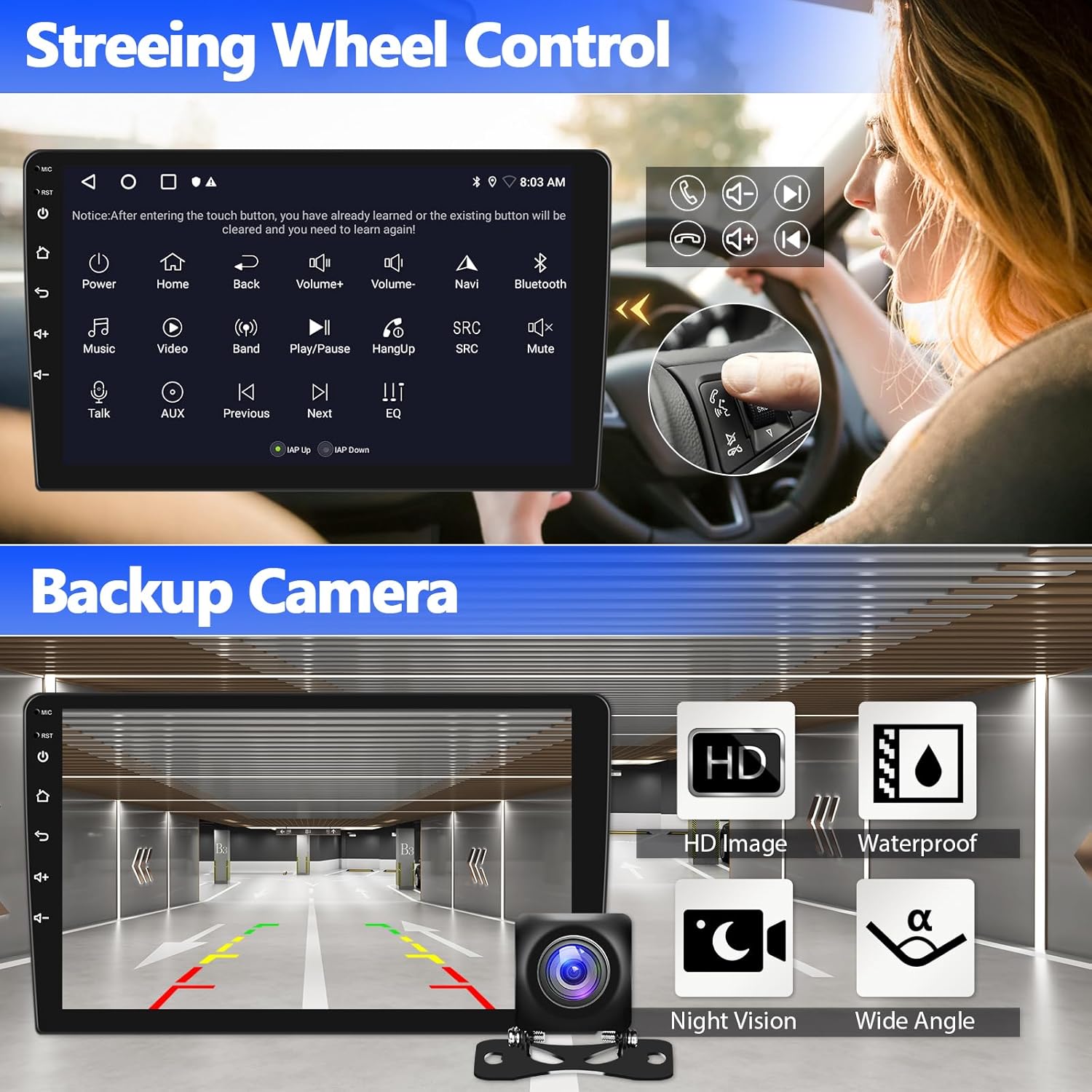
Image: Top part illustrates steering wheel control buttons and their functions on the car radio display. Bottom part shows a backup camera view on the car radio screen, highlighting features like HD image, waterproof design, night vision, and wide-angle view.
Operating Instructions
1. Initial Power On and System Setup
After installation, turn on your vehicle's ignition. The car radio will boot up. Follow any on-screen prompts for initial setup, such as language selection and time zone.
2. Wireless CarPlay & Android Auto
This unit supports both wireless and wired CarPlay and Android Auto. (Note: Samsung phones may not be supported for Android Auto.)
- For CarPlay:
- Establish a Bluetooth connection between the car stereo and your iPhone.
- Open the "Zlink5" application on the car stereo.
- Enjoy wireless Apple CarPlay.
- For Android Auto:
- Download the Android Auto app on your Android phone.
- Establish a Bluetooth connection between the car stereo and your Android phone.
- Open the "Zlink5" application on the car stereo.
- Enjoy wireless Android Auto.
Once connected, you can access navigation, phone contacts, messages, music, and use voice control (Siri or Google Assistant).

Image: This image illustrates the steps for connecting to Wireless CarPlay and Android Auto, showing the car radio display with respective interfaces and connection instructions.
3. Mirror Link Function
Mirror Link allows you to display your smartphone's screen on the car radio. It supports both iOS (via WiFi) and Android (via WiFi/USB) devices.

Image: Top part shows the Mirror Link function, displaying a smartphone screen mirrored onto the car radio. Bottom part demonstrates the Split Screen function, showing two applications running simultaneously on the car radio display.
4. GPS Navigation
The unit has built-in GPS navigation and supports both online and offline maps. Download offline maps for navigation without an internet connection. Real-time road conditions can be accessed when connected to WiFi.

Image: Top part displays the GPS navigation interface with a map view. Bottom part shows the WiFi function, with various app icons indicating internet connectivity.
5. WiFi Connectivity
Connect the car radio to a WiFi hotspot (e.g., from your smartphone) to access online content, browse the internet, and use online applications.
6. Bluetooth Hands-free & Music
Pair your smartphone via Bluetooth for hands-free calling and streaming music. The external microphone ensures clear call quality. You can also download phonebooks to the unit.

Image: Top part shows the FM radio interface with frequency display and preset stations. Bottom part illustrates Bluetooth connectivity for calls and music, with a phone dialer and music player interface.
7. FM Radio
Access FM radio with 18 preset stations (FM 87.50-108.0 MHz). Scan and save your favorite stations for easy access to news and music.
8. EQ Function
Adjust audio settings using the built-in Equalizer (EQ) to customize the sound output to your preference, enhancing your driving audio experience.
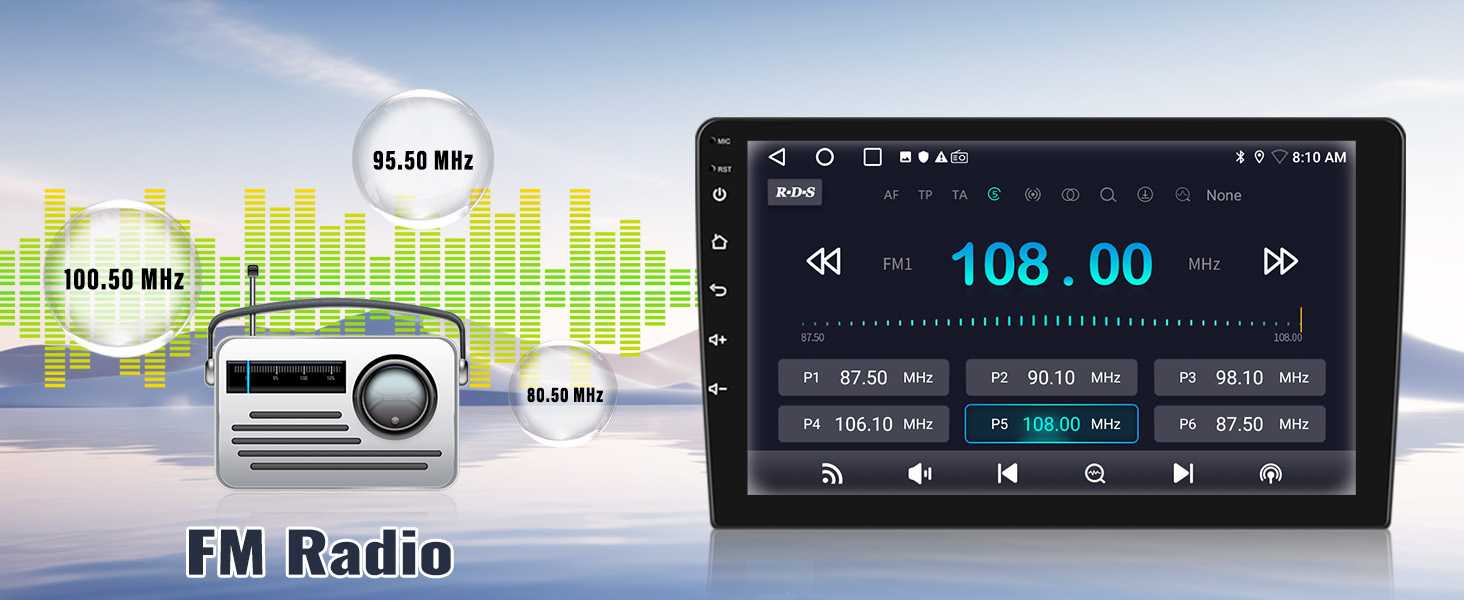
Image: This image shows the EQ function interface on the car radio, allowing users to adjust sound frequencies and select preset audio modes like Pop, Jazz, Rock, etc.
9. Steering Wheel Control (SWC)
Configure the steering wheel controls to manage functions like switching songs, adjusting volume, and answering calls directly from your steering wheel. To set up SWC, navigate to the settings menu and enter password "000000" to learn the controls.
10. Split Screen Function
Utilize the split-screen feature to run two applications simultaneously, such as navigation and music playback, for enhanced multitasking.

Image: Top part highlights the 1080P Full HD touchscreen display. Bottom part showcases various 26 UI desktop themes available for customization on the car radio.
11. UI Desktop Themes
The car radio comes with 26 built-in UI Desktop Themes. You can select your preferred theme to personalize the interface.
Maintenance
To ensure the longevity and optimal performance of your SIXWIN car radio, follow these maintenance guidelines:
- Cleaning the Screen: Use a soft, lint-free cloth to gently wipe the touchscreen. Avoid abrasive cleaners or solvents that could damage the display.
- Software Updates: Periodically check for software updates to ensure you have the latest features and bug fixes. Updates can usually be found through the system settings or the manufacturer's website.
- Environmental Conditions: Avoid exposing the unit to extreme temperatures, direct sunlight for prolonged periods, or excessive moisture.
Troubleshooting
If you encounter issues with your car radio, refer to the following common problems and solutions:
| Problem | Possible Cause / Solution |
|---|---|
| No Sound Output |
|
| CarPlay/Android Auto Connection Issues |
|
| GPS Signal Loss / Inaccuracy |
|
| Steering Wheel Controls Not Working |
|
| Screen Freezes or Becomes Unresponsive |
|
Specifications
| Feature | Detail |
|---|---|
| Model Name | Car Radio (B0CZ83ZXPX) |
| Operating System | Android 13 |
| RAM | 2GB |
| ROM | 32GB |
| Display Size | 9 Inches |
| Display Resolution | 1080P HD Touchscreen |
| Connectivity | Wi-Fi, Bluetooth |
| Navigation | Built-in GPS, Supports online/offline maps (Worldwide) |
| Special Features | Apple CarPlay (Wireless/Wired), Android Auto (Wireless/Wired), Mirror Link, 26 UI Desktop Themes, Split Screen Function, EQ Function, Steering Wheel Control (SWC), Backup Camera Support (AHD included) |
| Audio Output Mode | Stereo |
| Item Weight | 3.61 pounds |
| Product Dimensions | 1 x 1 x 1 inches (Note: This seems to be a generic placeholder, refer to "Packing List & Size" image for actual unit dimensions) |
| Vehicle Service Type | Car (Specifically for Hyundai Elantra 2011-2013) |
Warranty Information
The SIXWIN Android 13 Car Radio comes with a 1-year warranty from the date of purchase. This warranty covers manufacturing defects and malfunctions under normal use. It does not cover damage caused by improper installation, misuse, accidents, or unauthorized modifications.
Please retain your proof of purchase for warranty claims.
Customer Support
For any questions, technical assistance, or warranty claims, please contact SIXWIN customer support. We offer online help and user manual support.
Email: sixwin_vip@163.com

Image: A customer service representative speaking on a corded phone, symbolizing available support.