
1. Introduction
This manual provides detailed instructions for the installation, operation, and maintenance of your ZSUS X99 P4 Motherboard Kit. This kit includes the ZSUS X99 P4 motherboard, an Intel Xeon E5-2650 V4 CPU, and 16GB of DDR4 RAM. Please read this manual thoroughly before beginning the installation process to ensure proper setup and optimal performance.
2. Package Contents
Carefully unpack the contents of your ZSUS X99 P4 Motherboard Kit. Verify that all items listed below are present and undamaged. If any items are missing or damaged, please contact your retailer.
- ZSUS X99 P4 Motherboard
- Intel Xeon E5-2650 V4 CPU (pre-installed or separate)
- 1 x 16GB DDR4 RAM Module
- I/O Shield
- SATA Cable(s)

Image: Contents of the ZSUS X99 P4 Motherboard Kit, including the motherboard, CPU, RAM, and accessories.

Image: The ZSUS X99 P4 Motherboard and its I/O shield, securely packaged in anti-static bags.
3. Product Overview
The ZSUS X99 P4 motherboard is designed to support Intel LGA2011-3 processors, offering robust performance for various computing needs. Below is an overview of the key components and ports on the motherboard.

Image: Detailed view of the ZSUS X99 P4 Motherboard with labels indicating various ports and connectors, including PS/2, USB 2.0, USB 3.0, Gigabit Ethernet, Audio, PCIe x16, PCIe x1, SATA, 4-pin CPU fan, 8-pin DC, 24-pin DC, DDR4 slots, and M.2 port.
Key Components:
- CPU Socket: LGA2011-3, compatible with Intel Xeon E5 V3/V4 series processors.
- Chipset: X99 or B85 (versions may vary).
- Memory Slots: 4 x DDR4 DIMM slots, supporting dual-channel memory up to 128GB at 2133MHz/2400MHz.
- PCIe Slots: Two PCIe x16 slots for graphics cards and one PCIe x1 slot for expansion cards.
- Storage: One M.2 port (supports PCIe M.2 or SATA M.2) and multiple SATA ports (one SATA 3.0, two SATA 2.0).
- USB Ports: Four USB 2.0 interfaces and two USB 3.0 interfaces on the rear I/O, plus internal headers for additional USB 2.0 ports.
- Networking: Integrated Realtek Gigabit Ethernet.
- Audio: Integrated audio interface with LINE OUT and LINE IN.

Image: The ZSUS X99 P4 Motherboard with the Intel Xeon E5 2650 V4 CPU installed in the LGA2011-3 socket and DDR4 RAM modules in the memory slots.
4. Specifications
Detailed technical specifications for the ZSUS X99 P4 Motherboard Kit:
| Component | Specification |
|---|---|
| Motherboard Model | ZSUS X99 P4 |
| CPU Socket | Intel LGA2011-3 |
| Compatible CPUs | Intel Xeon E5 V3/V4 Series |
| Chipset | X99 or B85 (randomly shipped) |
| Memory Type | DDR4 (Dual Channel) |
| Memory Slots | 4 x DDR4 DIMM |
| Max Memory Capacity | 128GB |
| Memory Clock Speed | 2133 MHz (up to 2400 MHz) |
| PCIe Slots | 2 x PCIe x16, 1 x PCIe x1 |
| M.2 Port | 1 (supports PCIe M.2 or SATA M.2) |
| SATA Ports | 1 x SATA 3.0, 2 x SATA 2.0 |
| USB Ports (Rear I/O) | 4 x USB 2.0, 2 x USB 3.0 |
| Ethernet | Realtek Gigabit Ethernet |
| Audio | Integrated Audio (LINE OUT, LINE IN) |
| Power Connectors | 1 x 8-pin ATX, 1 x 24-pin ATX |
| Dimensions | 216 x 190 mm |
| Included CPU | Intel Xeon E5-2650 V4 (12 Cores/24 Threads) |
| CPU Base Frequency | 2.2 GHz (up to 2.9 GHz Turbo) |
| CPU Cache | 30 MB L3 Cache |
| CPU Lithography | 14 nm |
| Included RAM | 1 x 16GB DDR4 2133 MHz |

Image: The ZSUS X99 P4 Motherboard displaying its physical dimensions: 215mm width and 190mm length.
5. Setup Guide
Follow these steps to properly install the components and set up your motherboard kit.
5.1. CPU Installation
- Ensure the CPU socket lever is open.
- Carefully align the CPU (Intel Xeon E5-2650 V4) with the socket, matching the golden triangle on the CPU to the triangle on the socket. Do not force the CPU into place.
- Gently lower the CPU into the socket.
- Close the socket lever to secure the CPU.
- Apply a thin, even layer of thermal paste to the top of the CPU.
- Install the CPU cooler according to its manufacturer's instructions.

Image: The Intel Xeon E5-2650 V4 CPU, which is part of the kit.

Image: A close-up top view of the Intel Xeon E5-2650 V4 CPU, showing its integrated heat spreader.
5.2. RAM Installation
- Locate the DDR4 memory slots on the motherboard.
- Open the clips at both ends of the memory slot.
- Align the notch on the DDR4 RAM module with the key in the memory slot.
- Press down firmly on both ends of the RAM module until the clips snap into place, securing the module.
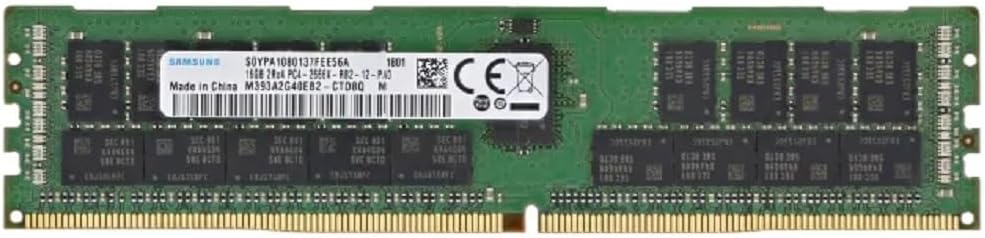
Image: A 16GB DDR4 RAM module, included in the kit, ready for installation.
5.3. Storage Device Installation (M.2 / SATA)
- For M.2 SSD: Locate the M.2 slot. Insert the M.2 SSD at an angle into the slot, then gently push it down and secure it with the provided screw.
- For SATA Drives: Connect one end of the SATA data cable to a SATA port on the motherboard and the other end to your SATA hard drive or SSD. Connect a SATA power cable from your power supply to the drive.
5.4. Power Connections
- Connect the 24-pin ATX power connector from your power supply to the 24-pin power socket on the motherboard.
- Connect the 8-pin ATX 12V power connector from your power supply to the 8-pin power socket near the CPU.
5.5. Peripheral Connections
- Graphics Card: Insert your graphics card into one of the PCIe x16 slots and secure it. Connect any necessary PCIe power cables from your power supply to the graphics card.
- Front Panel Connectors: Connect the power button, reset button, HDD LED, power LED, and front panel USB/audio headers to their respective pins on the motherboard. Refer to the motherboard diagram for correct pin assignments.
- USB Devices: Connect your keyboard, mouse, and other USB devices to the USB ports on the rear I/O panel.
- Ethernet: Connect an Ethernet cable to the Gigabit Ethernet port for network access.
- Audio: Connect your speakers or headphones to the audio output port.
6. Operating Instructions
6.1. Initial Boot
- After all components are installed and connected, ensure your power supply is switched on.
- Press the power button on your PC case.
- The system should power on and display the BIOS/UEFI splash screen.
6.2. BIOS/UEFI Setup
Upon initial boot, you may need to enter the BIOS/UEFI setup to configure settings such as boot order, date/time, and enable specific features (e.g., NVMe support). Typically, you can enter the BIOS by pressing the DEL or F2 key during the boot process.
- Navigate through the menus using arrow keys.
- Make necessary adjustments.
- Save changes and exit the BIOS. The system will then restart.
6.3. Operating System Installation
Once the BIOS is configured, you can proceed with installing your preferred operating system (e.g., Windows, Linux) from a bootable USB drive or DVD.
7. Maintenance
Regular maintenance helps ensure the longevity and stable operation of your motherboard kit.
- Dust Removal: Periodically clean dust from the motherboard and components using compressed air. Ensure the system is powered off and unplugged before cleaning.
- Cable Management: Ensure all cables are neatly routed and not obstructing airflow.
- BIOS Updates: Check the manufacturer's website for BIOS updates. Only update the BIOS if necessary and follow the instructions carefully.
- Driver Updates: Keep your operating system and component drivers (chipset, graphics, audio, network) updated for optimal performance and stability.
8. Troubleshooting
If you encounter issues with your ZSUS X99 P4 Motherboard Kit, refer to the following common troubleshooting steps:
- No Power:
- Check all power connections (24-pin ATX, 8-pin CPU, GPU power).
- Ensure the power supply switch is on.
- Test the power supply with another system or a power supply tester.
- No Display:
- Ensure the monitor is connected to the graphics card (not the motherboard, as this CPU/motherboard combo does not have integrated graphics).
- Reseat the graphics card and RAM modules.
- Try booting with only one RAM stick.
- System Instability/Crashes:
- Check CPU and GPU temperatures. Ensure adequate cooling.
- Run memory diagnostic tools to check for RAM errors.
- Ensure all drivers are up to date.
- Boot Device Not Found:
- Check SATA/M.2 cable connections.
- Verify boot order in BIOS/UEFI.
- Ensure the operating system is properly installed on the drive.
For more complex issues, consider consulting online forums or professional technical support.
9. Warranty and Support
Information regarding specific warranty terms and conditions for the ZSUS X99 P4 Motherboard Kit is not available in this manual. Please refer to the product packaging or contact your retailer for warranty details.
For technical support, please contact the vendor or retailer from whom you purchased this product. Keep your proof of purchase for any warranty claims or support inquiries.
