
DYONDER DYONDER 2.4 GHz Wireless Game Controller
DYONDER 2.4 GHz Wireless Game Controller User Manual
Model: DYONDER 2.4 GHz Wireless Game Controller
1. Introduction
Thank you for choosing the DYONDER 2.4 GHz Wireless Game Controller. This manual provides detailed instructions on how to set up, operate, and maintain your new controller. Please read this manual thoroughly before use to ensure optimal performance and longevity of your device.

Image: The DYONDER 2.4 GHz Wireless Game Controller in blue, shown alongside its compact USB wireless dongle.
2. Package Contents
Please verify that all items are present in your package:
- 1 x DYONDER 2.4 GHz Wireless Game Controller (Blue)
- 1 x 2.4 GHz USB Wireless Receiver
- 1 x USB Data Cable
- 1 x Instruction Manual
3. Product Overview
Familiarize yourself with the various components and buttons of your DYONDER wireless controller:

Image: A detailed diagram illustrating the various buttons and ports on the DYONDER wireless controller, including the Left Joystick, Home Button, View Button, Menu Button, X/Y/A/B Buttons, Right Joystick, Share Button, Arrow Button (D-pad), RT Button, RB Button, USB Charging Port, Signal Search Button, and LT Button.
- Left Joystick: For directional control.
- Home Button: Access console/PC dashboard.
- View Button: Contextual menu or map.
- Menu Button: Game menu or options.
- X/Y/A/B Buttons: Action buttons.
- Right Joystick: For camera control or aiming.
- Share Button: Capture screenshots or video clips.
- Arrow Button (D-pad): Directional input.
- RT (Right Trigger) & LT (Left Trigger): Analog triggers for precise input.
- RB (Right Bumper) & LB (Left Bumper): Digital buttons.
- USB Charging Port: For connecting the data cable.
- Signal Search Button: For pairing.
4. Setup
4.1 Battery Installation
The controller requires AA batteries (not included). It also supports rechargeable batteries (not included). To install:
- Open the battery compartment cover on the back of the controller.
- Insert two AA batteries, ensuring correct polarity (+/-).
- Close the battery compartment cover securely.
4.2 Connecting to Your Device
The DYONDER controller uses 2.4 GHz wireless technology for a stable connection.
- Insert the included 2.4 GHz USB wireless receiver into an available USB port on your Xbox console (Xbox One, Xbox Series X/S, Xbox One S/X) or PC (Windows 7/8/10/11).
- Turn on the controller by pressing the Home button. The controller will automatically search for the receiver.
- Once connected, the indicator light on the controller will become solid, indicating a successful pairing.
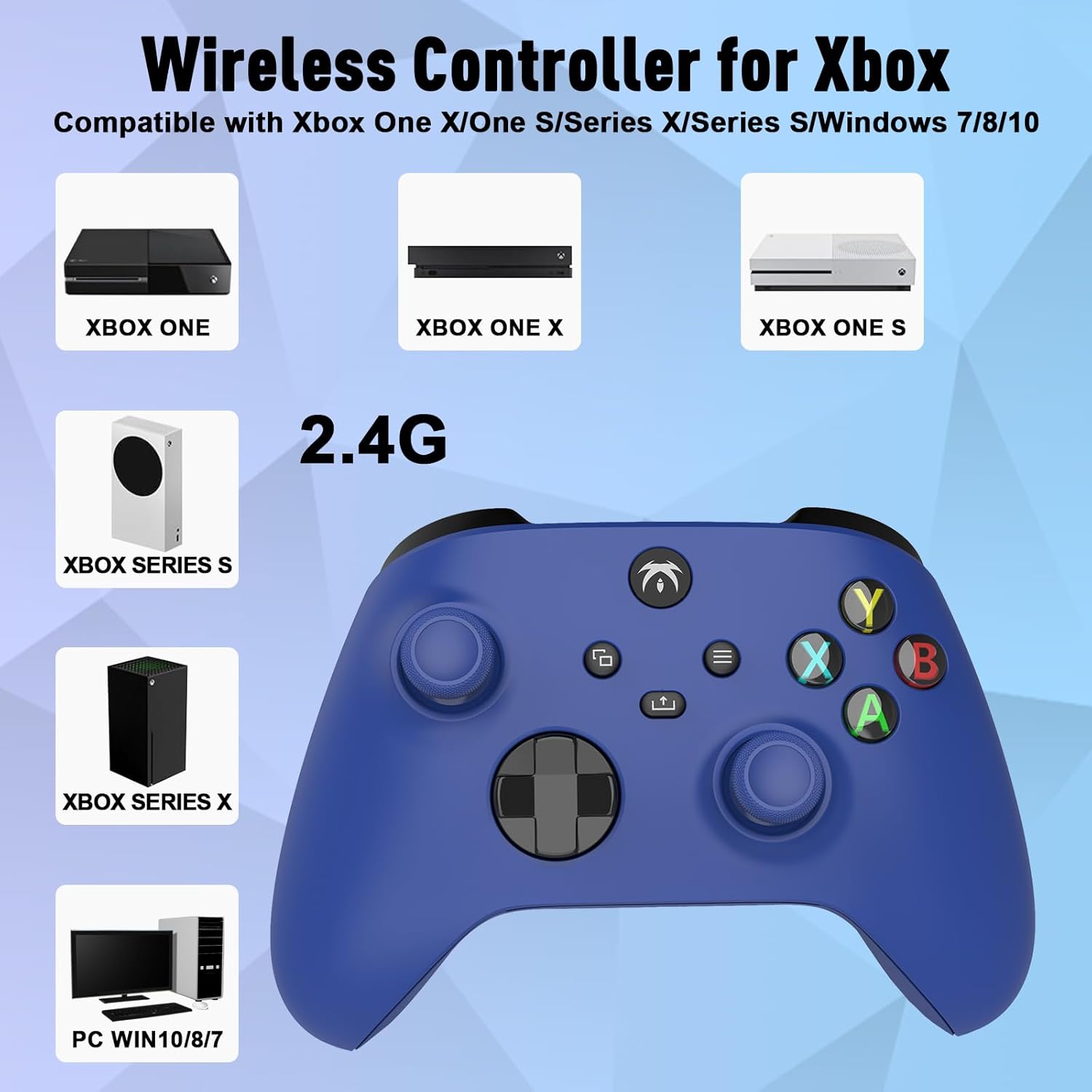
Image: An illustration demonstrating the broad compatibility of the DYONDER wireless controller with Xbox One, Xbox One X, Xbox One S, Xbox Series S, Xbox Series X, and PC (Windows 7/8/10/11) via its 2.4G wireless connection.
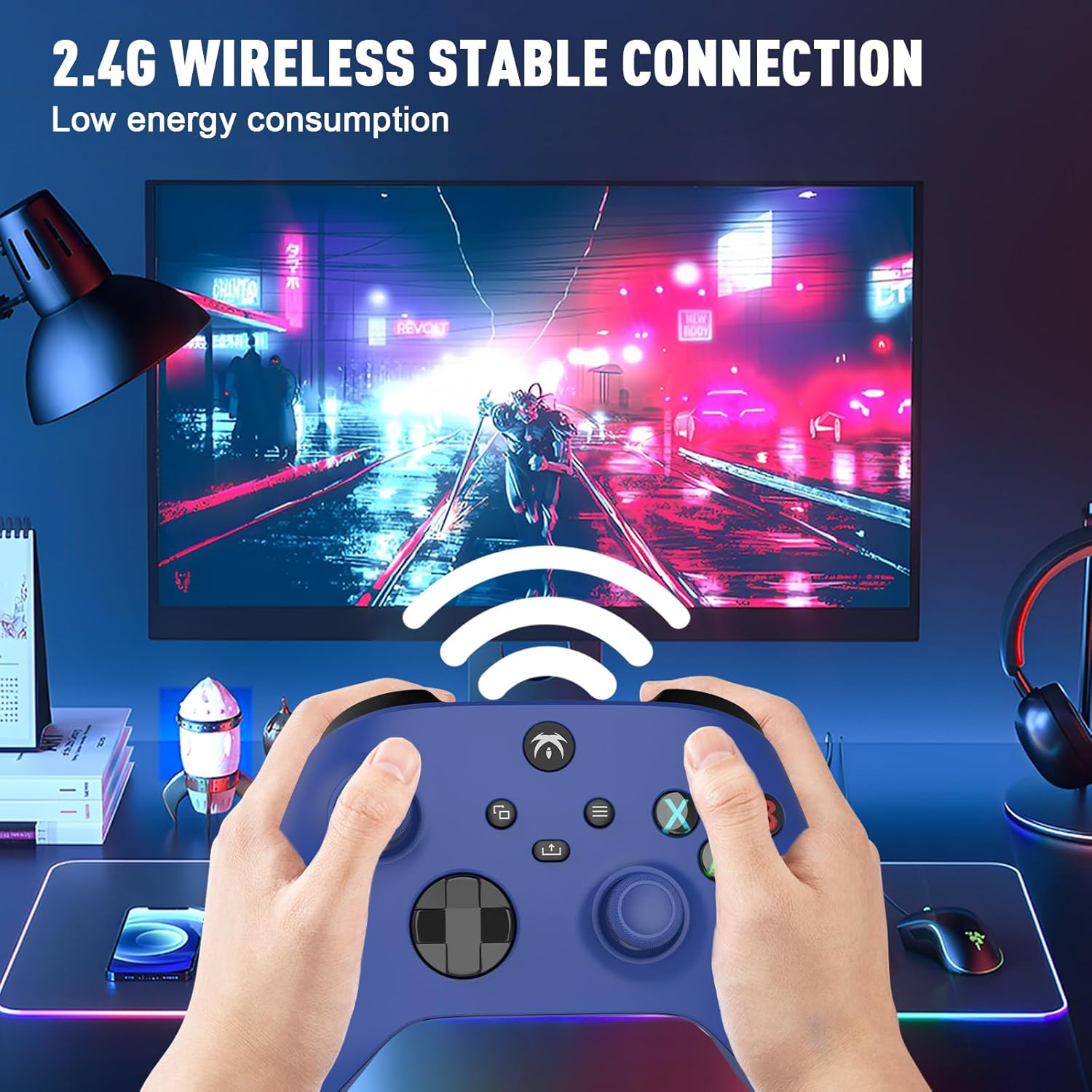
Image: A user holding the DYONDER wireless controller, demonstrating its 2.4G wireless stable connection while playing a game on a monitor, highlighting low energy consumption.
5. Operating Instructions
5.1 Compatibility
The DYONDER wireless controller is designed for powerful compatibility with a range of gaming platforms, including:
- Xbox ONE
- Xbox Series X|S
- Xbox One S/X
- Xbox Elite Controller Series
- Xbox Core
- PS3
- PC (Windows 11/10/8/7)
5.2 Hall Linear Triggers
Experience enhanced precision and control with the Hall linear triggers. These triggers provide increased sensitivity and speed control, particularly beneficial for racing games where precise acceleration and braking are crucial.
5.3 Dual Vibration Motors
The controller is equipped with dual motor vibration feedback, offering an immersive gaming experience. The motors provide varied vibration intensities and directions, enhancing realism in gameplay, such as impacts, explosions, or terrain changes.

Image: A visual representation highlighting the Dual Vibration feature for an immersive gaming experience and the Hall Trigger for precise linear control, especially in racing games.
5.4 3.5mm Audio Jack
The integrated 3.5mm headphone jack allows you to connect your compatible audio device directly to the controller. This feature provides convenience for in-game audio and communication with other players without needing to connect to the console.

Image: The DYONDER controller featuring its 3.5mm audio jack, with a headphone cable plugged in, emphasizing direct audio connectivity.
5.5 Share Button Functionality
The dedicated Share button allows you to easily capture and share your gaming moments. Press the Share button to take screenshots or record game clips, preserving your best plays.

Image: A close-up view of the controller's central buttons, highlighting the Share button and a pop-up indicating "Game clip recorded," demonstrating its functionality.
6. Maintenance
To ensure the longevity and optimal performance of your DYONDER wireless controller, follow these maintenance guidelines:
- Cleaning: Use a soft, dry cloth to wipe the controller. For stubborn dirt, slightly dampen the cloth with water. Avoid using harsh chemicals or abrasive cleaners.
- Storage: Store the controller in a cool, dry place away from direct sunlight and extreme temperatures.
- Battery Care: If the controller will not be used for an extended period, remove the batteries to prevent leakage and damage.
- Avoid Drops: Protect the controller from drops and impacts, which can damage internal components.
7. Troubleshooting
If you encounter issues with your DYONDER wireless controller, refer to the following common problems and solutions:
| Problem | Possible Cause | Solution |
|---|---|---|
| Controller does not turn on. | Low or dead batteries; incorrect battery installation. | Replace batteries with fresh ones, ensuring correct polarity. |
| Controller does not connect to console/PC. | USB receiver not properly inserted; interference; out of range. | Ensure receiver is fully inserted. Move closer to the receiver. Try a different USB port. Re-pair the controller by pressing the Signal Search button on the controller and receiver (if applicable). |
| Input lag or dropped connection. | Interference from other wireless devices; low battery. | Move controller closer to receiver. Ensure no strong wireless interference sources nearby. Replace batteries. |
| Vibration not working. | Vibration feature disabled in game settings; software issue. | Check in-game settings to ensure vibration is enabled. Restart the console/PC and controller. |
| Buttons or joysticks unresponsive. | Dirt/debris under buttons; internal hardware issue. | Clean around buttons. If issue persists, contact customer support. |
8. Specifications
| Feature | Detail |
|---|---|
| Brand | DYONDER |
| Model Name | DYONDER 2.4 GHz Wireless Game Controller |
| Color | Blue |
| Connectivity Technology | 2.4 GHz Wireless |
| Compatible Devices | PC (Windows 7/8/10/11), Xbox One, Xbox Series X, Xbox Series S, PS3 |
| Controller Type | Gamepad |
| Number of Buttons | 17 |
| Special Features | Wireless, Dual Vibration, Hall Linear Triggers, 3.5mm Audio Jack |
| Power Source | 2 x AA Batteries (not included) or Rechargeable Batteries (not included) |
9. Warranty and Support
For warranty information and customer support, please refer to the documentation provided with your purchase or contact DYONDER customer service through the retailer where the product was purchased. Please retain your proof of purchase for any warranty claims.
Related documentsDYONDER 2.4 GHz Wireless Game Controller

Ask a question about this manual
Ask about setup, troubleshooting, compatibility, parts, safety, or missing instructions. Manuals+ will review the question and use this page’s manual context to help answer it.