
Introduction
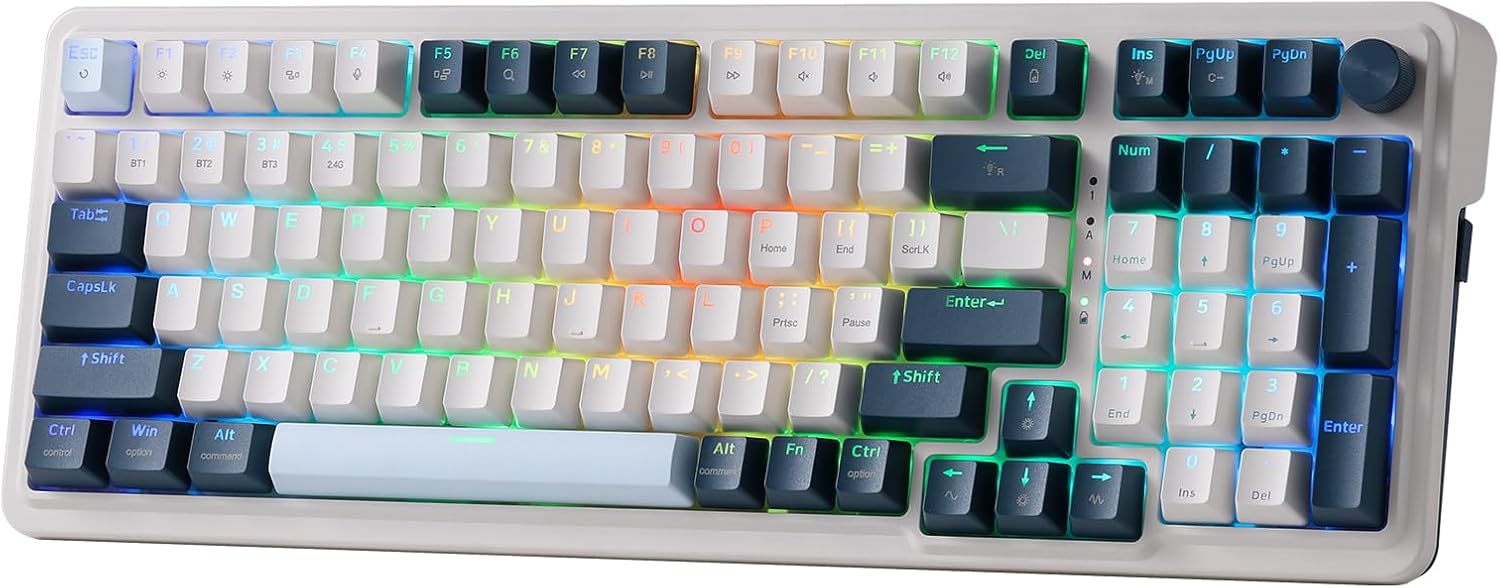
This manual provides detailed instructions for the Redragon K686 PRO 98 Keys Wireless Gasket RGB Gaming Keyboard. It covers setup, operation, maintenance, and troubleshooting to ensure optimal performance and longevity of your device. The K686 PRO features a gasket design, tri-mode connectivity (USB-C wired, BT 3.0/5.0 & 2.4Ghz wireless), upgraded hot-swap sockets, 5-layer noise dampening, and a tactical 98-key layout with a dedicated knob control.
What's in the Box
- Redragon K686 PRO Keyboard
- USB Cable
- Keycap/Switch Puller
- Spare Switches
Key Features
- GASKET Design: The keyboard's body structure utilizes precision-locked covers with gaskets to reduce noise and enhance flexibility, providing a softer typing feel.
- 3-Mode Connection: Supports USB-C wired, Bluetooth 3.0/5.0, and 2.4Ghz wireless modes for versatile connectivity.
- UPGRADED HOT-SWAP: Features hot-swappable sockets compatible with nearly all 3/5-pin switches, allowing for easy customization.
- Noise Dampening x 5: Equipped with multiple layers of noise-dampening materials (3.5mm PO foam, IXPE switch foam, PET sound pad, bottom socket foam, silicone bottom pad, silicone gasket) for quiet and clean typing acoustics.
- Tactical 98 Keys: An innovative layout that retains full 100% layout functionality in a 20% smaller, more compact form factor.
- ONE-Knob Control: A convenient knob for easy adjustment of keyboard backlight brightness and media controls (volume, play/pause, switch).
- Pro Software Supported: Allows for custom mode and effect design, keybinding macros, and shortcuts for enhanced efficiency.


Setup and Connectivity
Tri-Mode Connection
The Redragon K686 PRO supports three connection modes: wired USB-C, Bluetooth (BT 3.0/5.0), and 2.4Ghz wireless. A switch on the left side of the keyboard allows you to select your preferred mode.

Bluetooth Connection
- Slide the connection switch on the left side of the keyboard to 'BT'.
- Press and hold FN + Q/W/E to pair with up to three different devices. The indicator light will flash, indicating pairing mode.
- On your device (PC, laptop, tablet), search for Bluetooth devices and select "BT5.0 Keyboard" to connect. The light will stop flashing once connected.
2.4Ghz Wireless Connection
- Slide the connection switch on the left side of the keyboard to '2.4G'.
- Insert the 2.4Ghz USB receiver into an available USB port on your computer.
- The keyboard will automatically connect. The receiver can be stored in a dedicated compartment on the right side of the keyboard when not in use.
Wired USB-C Connection
- Slide the connection switch on the left side of the keyboard to 'OFF'.
- Connect the provided USB-C cable to the keyboard's USB-C port and the other end to your computer.
- The keyboard will function in wired mode and charge simultaneously.
Operating System Compatibility
The keyboard features a dedicated switch to toggle between Mac and Windows layouts, ensuring full compatibility and optimized key functions for both operating systems.

Operating Instructions
Knob Control
The multi-function knob located on the top right of the keyboard provides quick access to media and lighting controls:
- Turn the knob left or right to adjust the system volume.
- Press the knob to mute or unmute audio.
- The knob can also control backlight brightness and switch media tracks, depending on software configuration.
RGB Backlighting
The K686 PRO features vibrant RGB backlighting with multiple effects and customization options via the Redragon software.
- Press FN + INS to cycle through various RGB lighting effects.
- Press FN + PGUP to cycle through single color modes.
- Press FN + ↓ to decrease backlight brightness.
- Press FN + ↑ to increase backlight brightness.
- Press FN + ← to decrease lighting effect speed.
- Press FN + → to increase lighting effect speed.
Battery Status Check
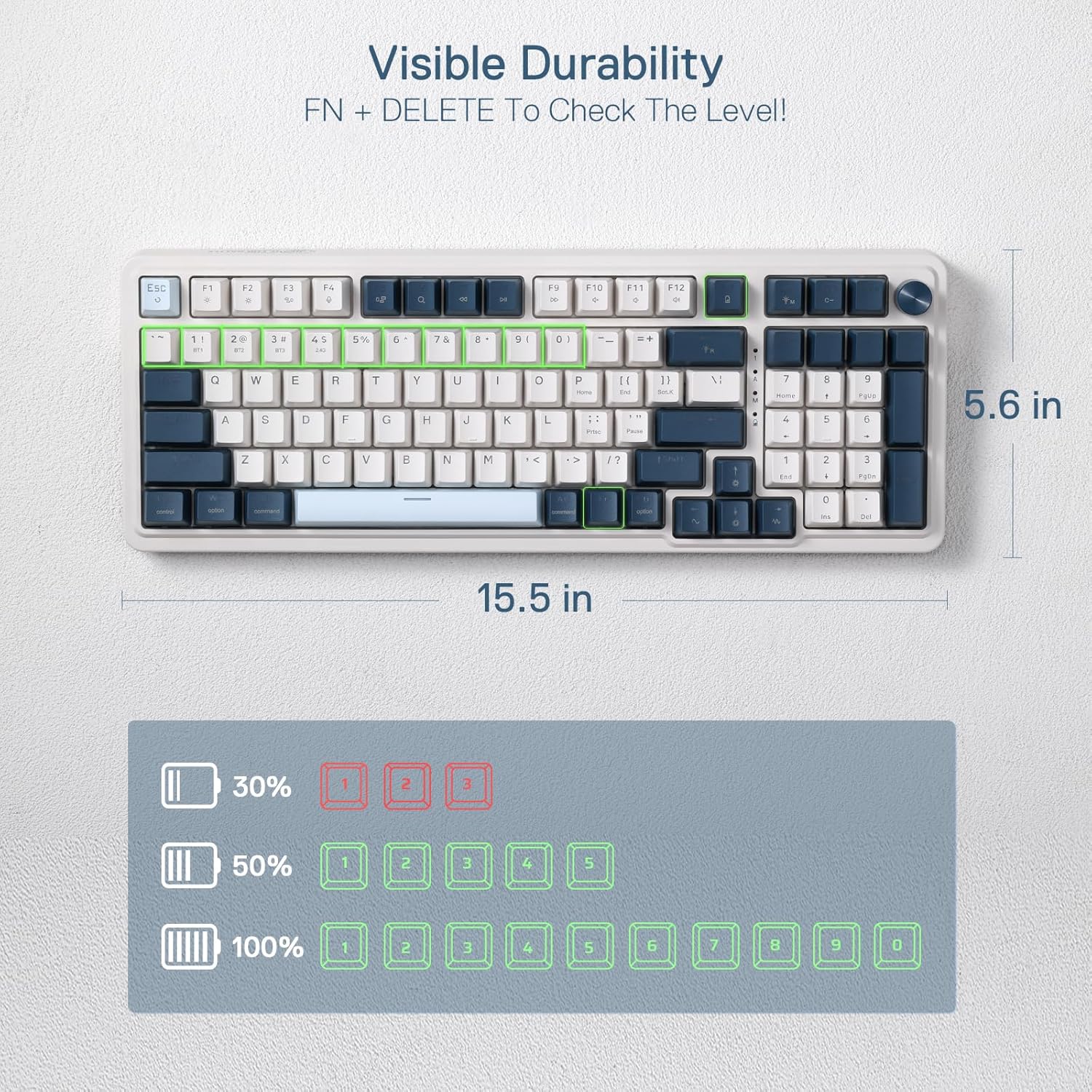
You can check the approximate battery level by pressing FN + DELETE. The indicator lights above the number pad will illuminate to show the charge level:
- 30% charge: 1-3 lights illuminated.
- 50% charge: 1-5 lights illuminated.
- 100% charge: 1-9 lights illuminated.
Maintenance
Cleaning the Keyboard
To clean your keyboard, use a soft, lint-free cloth. For deeper cleaning, you may use the provided keycap puller to remove keycaps and clean underneath. Avoid using harsh chemicals or abrasive materials.
Hot-Swappable Switches
The K686 PRO features hot-swappable sockets, allowing you to easily change switches without soldering. Use the provided switch puller to carefully remove existing switches and insert new 3-pin or 5-pin compatible switches.

Troubleshooting
- Keyboard not responding: Ensure the keyboard is charged. Check the connection mode switch (wired, BT, 2.4Ghz) is set correctly. For wired mode, try a different USB port or cable. For wireless modes, ensure the receiver is properly inserted or Bluetooth is paired.
- Connectivity issues: If using 2.4Ghz, ensure the receiver is close to the keyboard and there are no major obstructions. For Bluetooth, try re-pairing the device. Avoid interference from other wireless devices.
- RGB lights not working: Check the brightness settings using FN + ↑. Ensure the keyboard is not in a power-saving mode.
- Keys not registering: If specific keys are not working, try removing and re-inserting the switch for that key. If the issue persists, replace the switch with a spare one.
- Software not detecting keyboard: Ensure the keyboard is connected via wired mode when attempting to use the software. Download the latest software version from the official Redragon website.
Specifications
| Attribute | Detail |
|---|---|
| Brand | Redragon |
| Model | K686 PRO |
| Connectivity Technology | 2.4Ghz, BT (Bluetooth 3.0/5.0), USB-C (Wired) |
| Keyboard Description | 98 Keys Wireless Gasket Gaming Keyboard |
| Number of Keys | 98 |
| Keyboard Backlighting | RGB |
| Special Features | Gasket Design, Knob Control, 5-Layer Noise Dampening, Hot-Swappable |
| Operating System | Windows, Mac OS |
| Item Weight | 2.38 pounds |
| Power Source | USB-C (Rechargeable Lithium Polymer battery included) |
Warranty and Support
For warranty information and technical support, please refer to the official Redragon website or contact their customer service. Keep your purchase receipt for warranty claims.
You can also find additional resources and software downloads on the Redragon Store on Amazon.


