
LETSHAHA Kids Instant Print Camera H2 User Manual
Model: H2 | Brand: LETSHAHA
1. Introduction
This manual provides essential information for the safe and effective use of your LETSHAHA Kids Instant Print Camera H2. This digital camera is designed for children, featuring a 3.0-inch HD screen, 32MP photo resolution, 1080FHD video recording, and instant black & white printing capabilities. It includes various fun features such as timed photos, burst shooting, and creative photo frames.
2. What's in the Box
Please check the package contents to ensure all items are present:
- Camera Body (Purple)
- 32GB SD Card
- 3 Rolls of Thermal Print Paper
- Lanyard
- Type-C USB Charging Cable
- DIY Color Pens (Set of 5)

Image: The LETSHAHA Kids Instant Print Camera H2 shown with all included accessories: the camera, a 32GB SD card, five DIY color pens, three rolls of thermal print paper, a USB charging cable, and a lanyard.
3. Product Overview
Familiarize yourself with the camera's components and features.

Image: A detailed diagram illustrating the various parts of the LETSHAHA Kids Instant Print Camera H2, including the lens, flashlight, speaker, selfie mirror, print button, OK button, power button, navigation buttons, 3.0-inch screen, paper slot, lanyard hole, reset slot, TF card slot, USB port, and charging indicator.
Key Features:
- 3.0-inch IPS HD Screen: For clear viewing of photos and videos.
- 32MP Photo Resolution: Captures detailed images.
- 1080FHD Video Recording: Records high-definition videos.
- Instant Printing: Ink-free thermal printing for black & white photos.
- Built-in Flash: For improved lighting in low-light conditions.
- Creative Modes: Timed photos, burst shooting, funny photo frames, and various filters.
- MP3 Player Functionality: Allows for audio playback.
- 1000mAh Rechargeable Battery: Provides extended usage time.
- Type-C USB Charging: Convenient and modern charging interface.
4. Setup
4.1 Charging the Camera
Before first use, fully charge the camera. Connect the provided Type-C USB cable to the camera's USB port and the other end to a compatible USB power adapter (not included) or computer. The charging indicator light will show the charging status and turn off when fully charged.
4.2 Inserting the SD Card
Locate the TF Card slot on the side of the camera. Insert the provided 32GB SD card into the slot with the metal contacts facing down until it clicks into place. Ensure the camera is powered off before inserting or removing the SD card.
4.3 Installing Thermal Print Paper
Follow these steps to install the thermal print paper:
- Open the paper slot: Gently push the latch and open the paper compartment cover.
- Insert the paper roll: Place a roll of thermal print paper into the compartment, ensuring the paper feeds out from the top and is aligned correctly.
- Close the cover: Close the paper compartment cover firmly until it clicks. A small portion of paper should be visible from the printing slot.

Image: A three-step visual guide demonstrating how to open the paper slot, insert the thermal paper roll in the correct direction, and close the cover to prepare for printing.
5. Operating Instructions
5.1 Power On/Off
Press and hold the Power Button to turn the camera on or off.
5.2 Taking Photos
In photo mode, frame your shot using the 3.0-inch screen or the selfie mirror. Press the Print Button to capture a 32MP photo. The camera will instantly print a black & white version of the photo.

Image: Two children are shown using the purple instant print camera, one taking a selfie and the other capturing a moment, illustrating the camera's 1080FHD video and 32MP photo capabilities.
5.3 Recording Videos
Switch to video mode using the navigation buttons. Press the OK Button to start recording 1080FHD video. Press OK Button again to stop recording.
5.4 Using Creative Features
Navigate through the camera's menu to access various creative options:
- Funny Photo Frames & Filters: Apply different frames and filters to your photos before or after capturing them.
- Timed Photos: Set a timer for delayed photo capture.
- Burst Shooting: Capture multiple photos in quick succession.

Image: Three panels illustrating the camera's features: a child enjoying burst shooting, two children using the time-lapse function with a 5-second countdown, and a group of children listening to music via the MP3 player function.

Image: A collage showcasing various fun frames and stickers that can be applied to photos taken with the instant print camera, with a child holding the camera in the foreground.
5.5 MP3 Player
The camera supports MP3 playback. Transfer MP3 files to the SD card, then select the MP3 player option from the camera's menu to listen to music.
5.6 DIY Coloring
After printing a black & white photo, use the included DIY color pens to add personalized color and doodles to your prints.
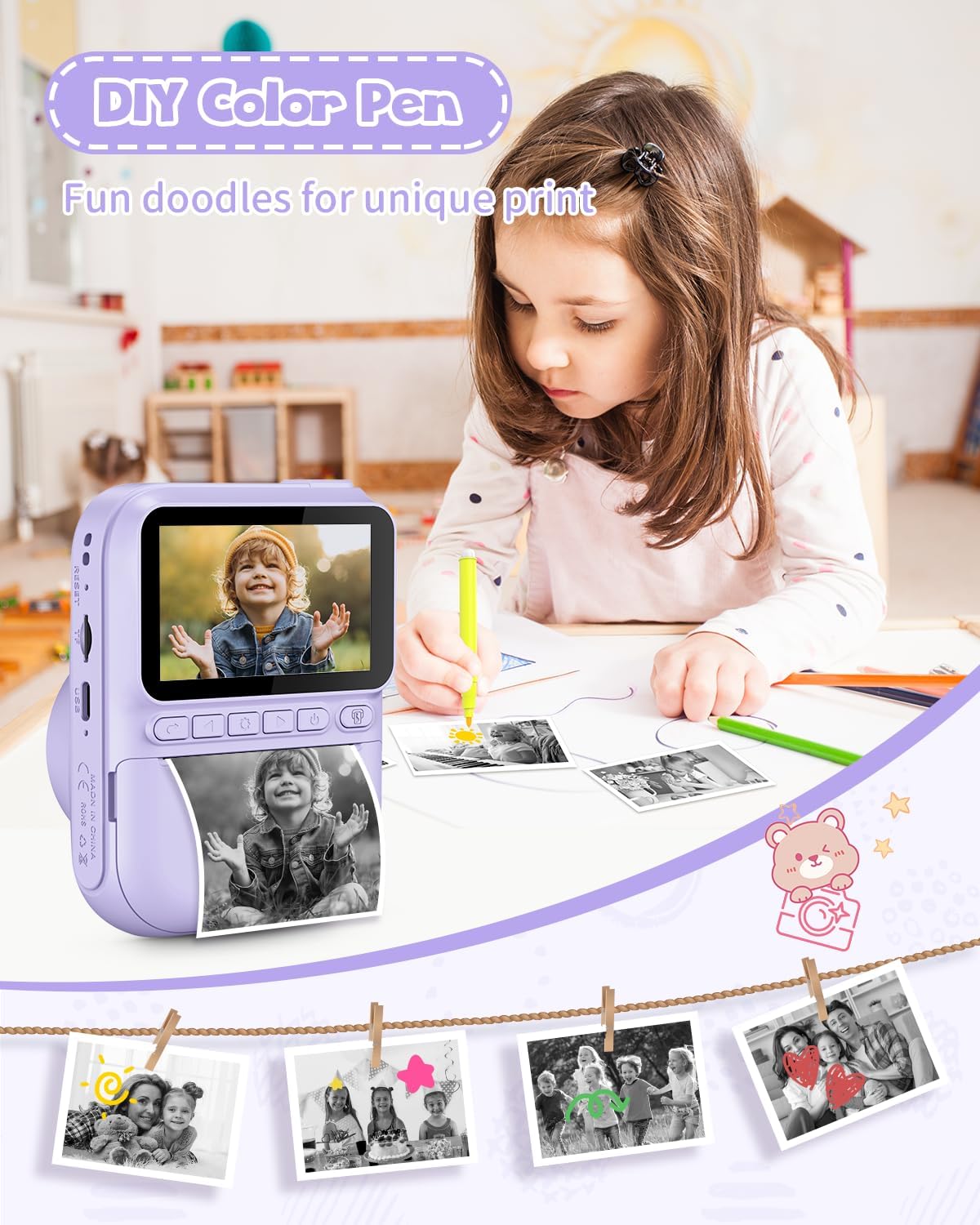
Image: A child is shown at a table, carefully coloring an instant print photo with a yellow DIY color pen, demonstrating the creative activity of personalizing prints.
6. Maintenance
- Overheating Protection: Continuous printing of 7-10 photos may activate overheating protection. Please allow the camera to cool before proceeding with further printing.
- Cleaning: Use a soft, dry cloth to clean the camera body and screen. Do not use liquid cleaners or abrasive materials.
- Storage: Store the camera in a cool, dry place away from direct sunlight and moisture when not in use.
- Battery Care: To prolong battery life, avoid fully discharging the battery frequently. Charge the camera regularly, even if not in use for extended periods.
7. Troubleshooting
- Camera does not turn on: Ensure the battery is charged. Connect the camera to a power source using the USB cable.
- Cannot take photos/record videos: Check if the SD card is properly inserted and has sufficient storage space.
- Printing issues (blank prints, faded prints): Verify that the thermal paper is installed correctly and that the roll is not empty. Ensure the camera has not overheated from continuous printing.
- Camera freezes: Use a thin object (like a paperclip) to press the Reset Slot to restart the camera.
- SD card not recognized: Reinsert the SD card. If the issue persists, try formatting the SD card (this will erase all data) or try a different compatible SD card.
8. Specifications
| Feature | Detail |
|---|---|
| Model Name | children’s camera (H2) |
| Screen Size | 3.0-inch HD IPS |
| Photo Resolution | 32MP |
| Video Resolution | 1080FHD |
| Battery | 1000mAh Lithium Polymer (included) |
| Charging Interface | Type-C USB |
| Storage | Supports TF Card (32GB SD card included) |
| Film Format Type | Instant Thermal Print |
| Film Color | Black and White |
| Special Feature | Built-in Flash |
| Shutter Type | Electronic |
| Item Weight | 12.3 ounces (350 Grams) |
| Package Dimensions | 7.83 x 5.31 x 2.32 inches |
9. Support
If you have any questions or require assistance with your LETSHAHA Kids Instant Print Camera H2, please feel free to contact us. We are committed to providing support and ensuring your satisfaction.