
1. Product Overview
The Cooler Master MasterLiquid 240 Atmos White is a high-performance All-in-One (AIO) liquid cooling solution designed for efficient heat dissipation from your CPU. It features a patented dual-chamber pump, SickleFlow Edge PWM fans, and customizable aRGB lighting, providing both superior cooling performance and aesthetic flexibility for your desktop system.

Image: The Cooler Master MasterLiquid 240 Atmos White AIO Liquid Cooler, showcasing its white radiator, two RGB fans, and the hexagonal pump block with customizable lighting.
Key features include:
- Patented Next-Gen Dual Chamber Pump: Enhances water pressure and optimizes flow directly to the CPU hotspot for improved cooling efficiency, especially for high-performance AMD R9 and Intel i7 processors.
- Personalizable Top Cover: The pump top cover can be customized with 3D-printed designs, offering creative freedom over the aRGB Gen 2 lighting.
- Fine-Tuned Performance: Precision-engineered ultra-thin spade fins optimize microchannels for targeted heat dissipation from the cold plate.
- SickleFlow 120 Edge Fans: Pre-installed fans deliver premium airflow with optimized PWM blades, simplifying installation and ensuring quiet operation.
- Simplified Brackets: Redesigned mounting brackets facilitate easier installation on AMD AM5/AM4 and Intel LGA 1851/1700/1200 platforms.
- Frosted Blade Design: Fan blades feature a frosted design to enhance the dispersion of aRGB lighting, creating a vibrant and customizable luminous effect.
- Eco-Friendly Construction: Adheres to a "Going Green" initiative with 35% recyclable metal in the cooler, a pump top cover made from recycled plastic, and 30% reduced packaging.
2. Safety Information
Please read and understand all safety instructions before installing or operating this product. Failure to follow these instructions may result in damage to the product, other components, or personal injury.
- Ensure your computer system is completely powered off and unplugged from the wall outlet before beginning installation.
- Avoid touching the pump cold plate surface directly, as thermal paste may be pre-applied.
- Handle components with care to prevent damage to delicate pins or connectors.
- Do not open the liquid cooler's sealed loop. Tampering with the unit may cause leaks and voids the warranty.
- Keep the product away from water or excessive moisture.
- Ensure proper ventilation around your PC case to allow for efficient heat dissipation.
- If you are unsure about any step of the installation process, consult a qualified technician or refer to the official Cooler Master support resources.
3. Package Contents
Verify that all items listed below are present in your package:
- MasterLiquid 240 Atmos White AIO Unit (Radiator, Pump, Tubing, Pre-installed Fans)
- Installation Kit (Mounting brackets for Intel and AMD sockets, screws, backplates, thermal paste if not pre-applied)
- User Manual (This document)
4. Setup and Installation
This section provides general guidelines for installing your Cooler Master MasterLiquid 240 Atmos White. For detailed, step-by-step instructions specific to your CPU socket (Intel LGA 1851/1700/1200 or AMD AM5/AM4), please refer to the included quick start guide or the official Cooler Master installation video tutorials available on their website.
4.1 Prepare Your System
- Power off your computer and unplug it from the power outlet.
- Open your computer case to access the motherboard and CPU area.
- If replacing an existing cooler, carefully remove it and clean any old thermal paste from the CPU IHS (Integrated Heat Spreader) using isopropyl alcohol and a lint-free cloth.
4.2 Radiator and Fan Installation
The MasterLiquid 240 Atmos White comes with SickleFlow 120 Edge fans pre-installed on the radiator. Ensure the fans are oriented correctly for optimal airflow (typically pushing air through the radiator and out of the case, or pulling air into the case, depending on your case's airflow design).
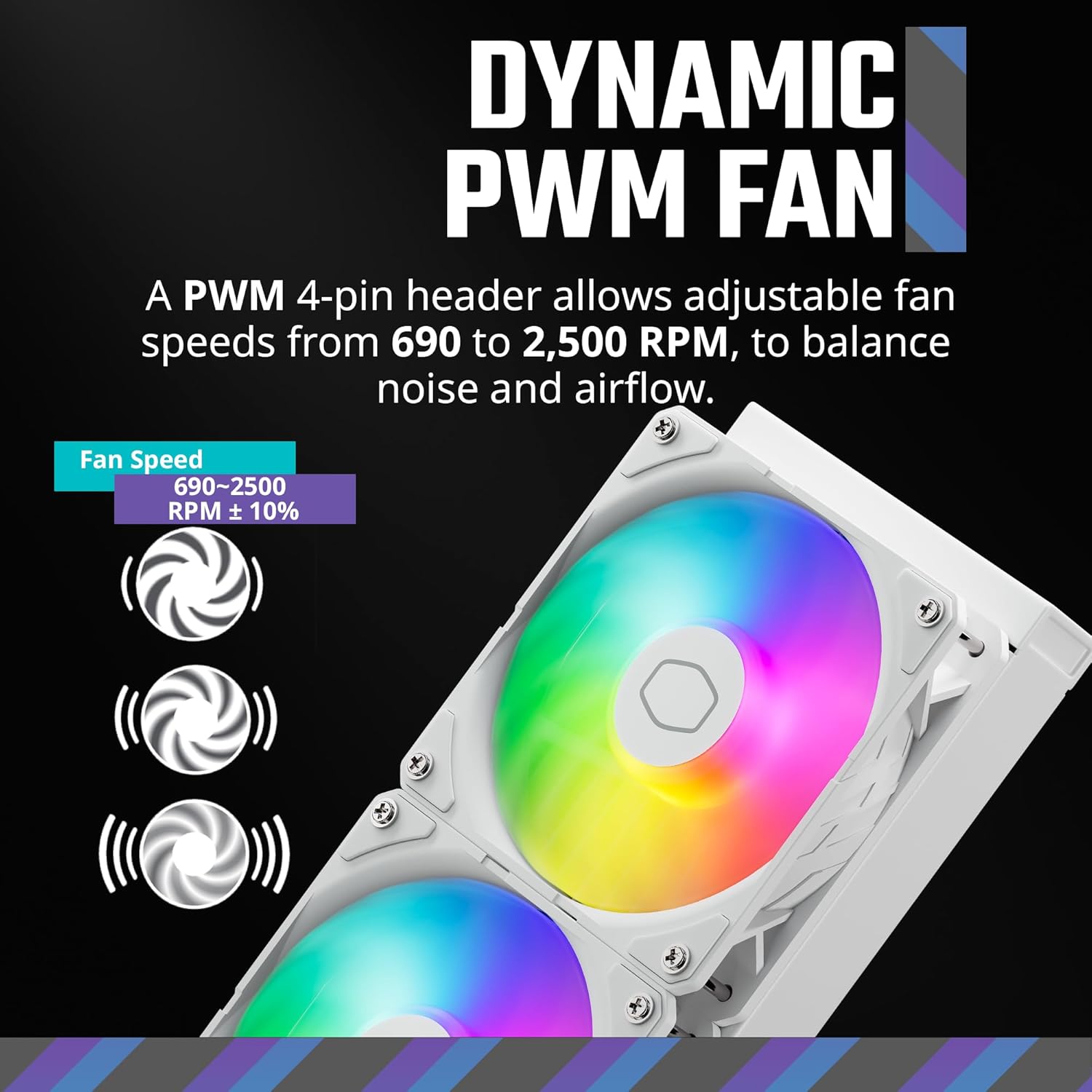
Image: A close-up of the Cooler Master SickleFlow 120 Edge fan, highlighting its design and specifications like speed, airflow, noise level, and air pressure.

Image: Illustration showing the dynamic PWM fan control, allowing adjustable fan speeds from 690 to 2,500 RPM for balancing noise and airflow.
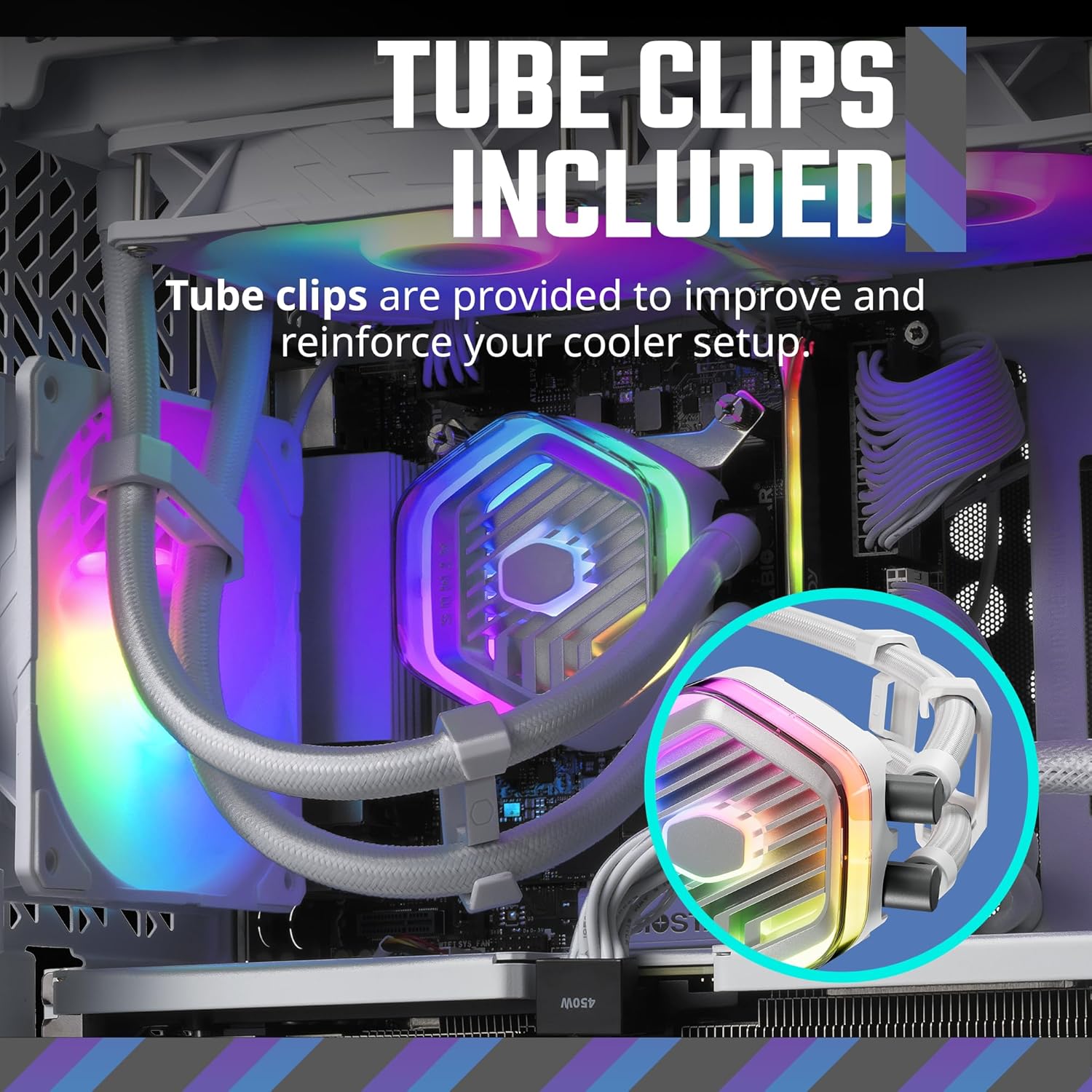
Image: Diagram illustrating the slim and sleek radiator design with its dimensions (277 x 119.6 x 27.2 mm), emphasizing its low-profile and high fin density for efficient heat dissipation.
- Mount the radiator and fans assembly to an available 240mm radiator mount in your PC case (e.g., top, front, or rear). Use the provided screws to secure it firmly.
4.3 Pump/Cold Plate Installation
The MasterLiquid 240 Atmos features a patented dual-chamber pump design for optimized flow.

Image: An internal view of the patented next-gen dual chamber pump, showing how it enhances water pressure and optimizes flow directly to the CPU hotspot for AMD R9 and Intel i7 processors.
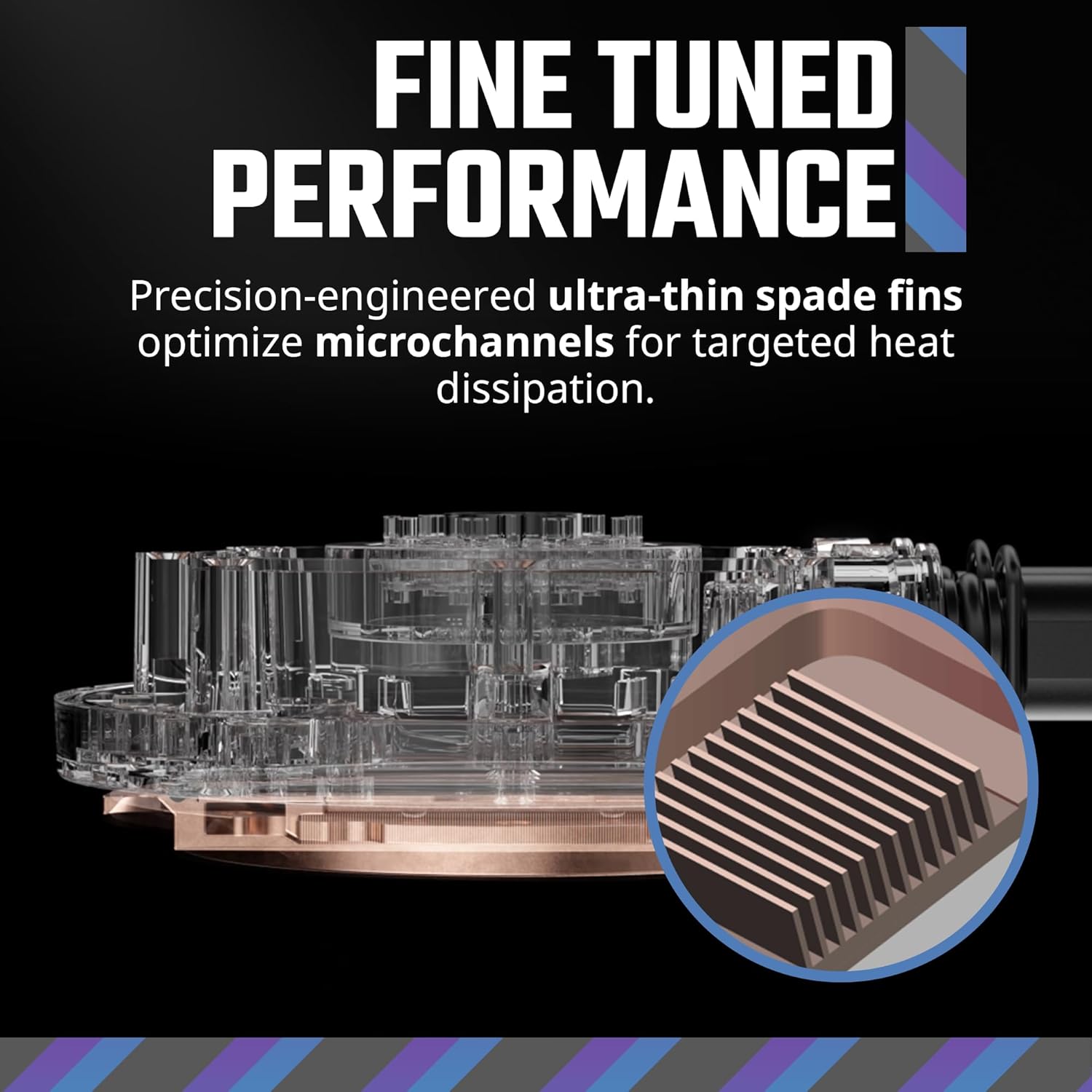
Image: A detailed view of the precision-engineered ultra-thin spade fins on the cold plate, designed to optimize microchannels for targeted heat dissipation.

Image: Visual representation of the redesigned mounting brackets for simplified installation on AMD Ryzen AM5/AM4 and Intel LGA 1851/1700/1200 platforms, showing the different bracket types.
- Select the appropriate mounting hardware for your CPU socket (Intel or AMD).
- Follow the instructions in the quick start guide to install the backplate (if required for your socket) and the standoffs onto your motherboard.
- Carefully place the pump/cold plate assembly onto the CPU, aligning the mounting holes with the standoffs.
- Secure the pump to the standoffs using the provided thumb screws or nuts, tightening them in a cross pattern until snug. Do not overtighten.
4.4 Cable Connections
- Connect the pump's 3-pin power connector to a dedicated AIO_PUMP or CPU_OPT header on your motherboard. If neither is available, use a SYS_FAN header and ensure it is set to run at full speed in your motherboard's BIOS.
- Connect the fan PWM cables to the CPU_FAN header or other available fan headers on your motherboard. If using a fan splitter (not included), connect all fans to the splitter and then the splitter to a single motherboard header.
- Connect the aRGB lighting cable from the pump and fans to a compatible 3-pin 5V aRGB header on your motherboard. Ensure the voltage is correct (5V) to prevent damage.

Image: A close-up of the fan blade with its frosted design, enhancing aRGB light dispersion. Also shows compatibility logos for popular aRGB software like ASUS Aura Sync, GIGABYTE RGB Fusion, MSI Mystic Light Sync, and ASRock Polychrome RGB, indicating the need for an aRGB supporting motherboard or controller.

Image: An installed Cooler Master AIO cooler inside a PC case, showing the included tube clips used to improve and reinforce the cooler setup by keeping the tubing neat and secure.
- Organize cables using the included tube clips or other cable management solutions to ensure they do not interfere with fan blades or airflow.
- Close your PC case and reconnect all peripherals and power.
5. Operating Instructions
Once installed, the Cooler Master MasterLiquid 240 Atmos White operates automatically based on your motherboard's fan control settings and the CPU temperature. For advanced control and customization, utilize the MasterCTRL software and your motherboard's aRGB software.
5.1 Fan Control (PWM)
The SickleFlow Edge fans are PWM (Pulse Width Modulation) controlled, allowing your motherboard to dynamically adjust their speed based on CPU temperature. This ensures optimal cooling performance when needed and quiet operation during lighter loads. You can configure fan curves in your motherboard's BIOS/UEFI settings or through motherboard-specific software.
5.2 aRGB Lighting Customization
The pump and fans feature addressable RGB (aRGB) lighting. To customize the lighting effects and colors:
- Motherboard Software: If your motherboard has a compatible 3-pin 5V aRGB header, you can control the lighting using your motherboard's RGB software (e.g., ASUS Aura Sync, GIGABYTE RGB Fusion, MSI Mystic Light Sync, ASRock Polychrome RGB).
- MasterCTRL Software: Cooler Master's MasterCTRL software provides a user-friendly interface for managing your cooler's settings, including aRGB lighting and potentially pump/fan profiles. Download the latest version from the official Cooler Master website.

Image: The customizable pump top cover, surrounded by various hexagonal design patterns, illustrating the creative freedom to personalize the aRGB Gen 2 lighting with 3D-printed designs. A link to Cooler Master's Printables page is also shown.
The pump top cover is designed to be personalizable. You can create and 3D-print your own designs to replace the default cover, further enhancing the aesthetic integration with your system. Visit the Cooler Master Printables page for design resources and inspiration.
6. Maintenance
The Cooler Master MasterLiquid 240 Atmos White is a closed-loop AIO system, requiring minimal maintenance. However, periodic cleaning can help maintain optimal performance and longevity.
- Dust Removal: Every 3-6 months, or as needed, use compressed air to gently blow dust out of the radiator fins and fan blades. Hold the fan blades stationary while blowing to prevent over-spinning the fan motor.
- Tubing and Connections: Periodically inspect the tubing and connections for any signs of leaks or damage. While highly unlikely in a sealed AIO, early detection is key.
- Pump Block: Ensure the pump block remains securely mounted to the CPU. Re-tighten screws if necessary, but do not overtighten.
- Environmental Factors: Operate the cooler in a clean, dust-free environment to minimize dust buildup.
7. Troubleshooting
If you encounter issues with your MasterLiquid 240 Atmos White, refer to the common problems and solutions below. If the issue persists, contact Cooler Master support.
- Issue: High CPU Temperatures
-
- Check Pump Connection: Ensure the pump's power cable is securely connected to the correct motherboard header (AIO_PUMP, CPU_OPT, or a constant 12V SYS_FAN header) and is receiving power.
- Verify Pump Operation: Listen for a faint hum from the pump. If silent, it may not be operating.
- Check Fan Operation: Ensure all fans are spinning. If not, check their connections to the motherboard or fan hub.
- Mounting Pressure: Confirm the pump block is making good contact with the CPU IHS. Re-seat the cooler if necessary, ensuring even pressure.
- Thermal Paste: Verify that thermal paste was applied correctly and evenly. If in doubt, clean and re-apply.
- Airflow: Ensure your PC case has adequate airflow and that the radiator fans are oriented correctly.
- Issue: Fans Not Spinning or Spinning Too Slowly
-
- Power Connection: Check fan power cables are securely connected to motherboard headers.
- BIOS Settings: Access your motherboard's BIOS/UEFI and check fan control settings. Ensure the fan headers connected to the AIO fans are set to PWM mode and have an appropriate fan curve.
- Software Conflict: If using third-party fan control software, temporarily disable it to rule out conflicts.
- Issue: aRGB Lighting Not Working or Incorrect Colors
-
- aRGB Header: Ensure the aRGB cable is connected to a 3-pin 5V aRGB header on your motherboard, not a 4-pin 12V RGB header. Connecting to a 12V header can damage the LEDs.
- Software Control: Use your motherboard's aRGB software or Cooler Master's MasterCTRL software to control the lighting. Ensure the software detects the cooler's lighting.
- Cable Integrity: Check for any kinks or damage to the aRGB cable.
- Issue: Unusual Noise from Pump or Fans
-
- Pump Noise: A slight hum is normal. Gurgling sounds might indicate air bubbles in the loop; try gently tilting your PC case to help move air to the radiator. Persistent grinding or loud noises may indicate a pump issue.
- Fan Noise: Check for cable interference with fan blades. Ensure fans are securely mounted and not vibrating against the radiator or case. High-pitched whining at high RPMs can be normal for some fans; adjust fan curves if desired.
8. Specifications
| Feature | Specification |
|---|---|
| Product Dimensions | 1.07 x 10.91 x 4.71 inches (27.2 x 277 x 119.6 mm) |
| Item Model Number | MLX-D24M-A25PZ-RW |
| Weight | 3.19 Pounds (1.45 kg) |
| Manufacturer | Cooler Master |
| Brand | Cooler Master |
| Power Connector Type | 3-Pin (Pump) |
| Voltage | 12 Volts |
| Wattage | 4 watts (Pump) |
| Cooling Method | Fan, Water |
| Compatible Devices | Desktop CPUs |
| Noise Level | 25 dB (Pump, typical) / 32.8 dBA Max (Fans) |
| Material | Aluminum, Copper, Plastic |
| Maximum Rotational Speed | 2500 RPM (Fans) |
| UPC | 884102112287 |
| Socket Compatibility | Intel LGA 1851, 1700, 1200; AMD AM5, AM4 |
Note: Specifications are subject to change without notice. Please refer to the official Cooler Master website for the most up-to-date information.
9. Warranty Information
Cooler Master products are backed by a limited manufacturer's warranty. The specific warranty period for the MasterLiquid 240 Atmos White AIO Liquid Cooler may vary by region and retailer. Please retain your proof of purchase for warranty claims.
For detailed warranty terms and conditions, including coverage, duration, and the claims process, please visit the official Cooler Master website's support section or contact their customer service directly.
The warranty typically covers defects in materials and workmanship under normal use. It does not cover damage resulting from improper installation, accident, abuse, misuse, natural disaster, or unauthorized modification or repair.
10. Support
For further assistance, technical support, or to download the latest drivers and software (such as MasterCTRL), please visit the official Cooler Master support channels:
- Cooler Master Official Website: www.coolermaster.com
- Support Portal: Look for a "Support" or "Downloads" section on their website for FAQs, troubleshooting guides, and contact information.
- Community Forums: Cooler Master often hosts community forums where users can share experiences and find solutions.
When contacting support, please have your product model number (MLX-D24M-A25PZ-RW) and proof of purchase ready.


