
iRobot Y011260
iRobot Roomba Combo Essential Robot Vacuum and Mop User Manual
Model: Y011260
1. Introduction
Welcome to the iRobot Roomba Combo Essential user manual. This document provides detailed instructions for setting up, operating, and maintaining your robot vacuum and mop. The Roomba Combo Essential is designed to simplify your cleaning routine by offering both vacuuming and mopping functionalities in one device, controlled easily via a single button or the iRobot Home app.
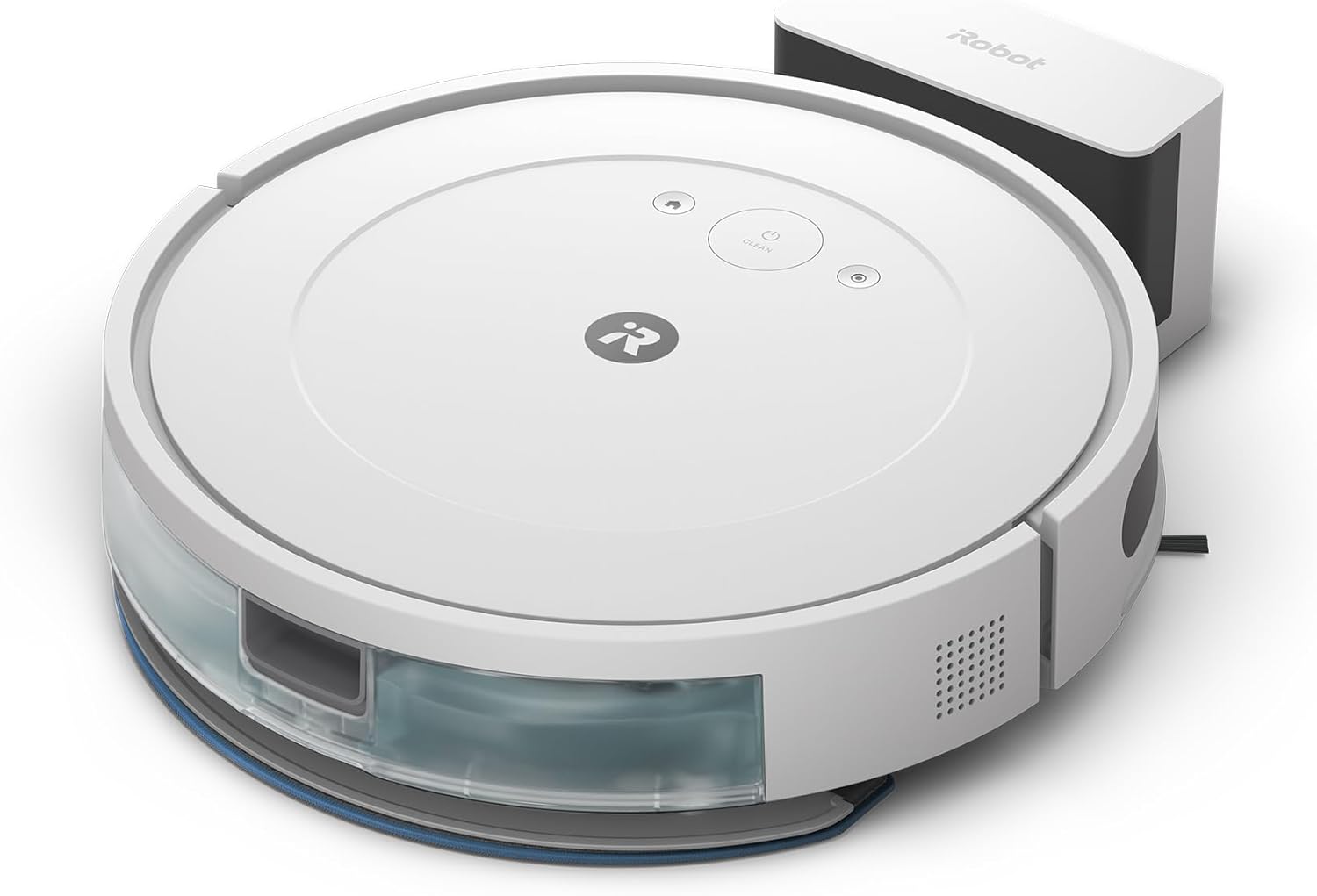
Image: The iRobot Roomba Combo Essential robot vacuum and mop, white model.
2. Setup
2.1 Unpacking and Initial Preparation
Before using your Roomba Combo Essential, ensure all packaging materials are removed to allow for proper operation.
- Carefully remove the robot and its accessories from the packaging.
- Locate and remove any protective cushioning materials and films from the robot and the Home Base charging station. The robot will not operate correctly if these are left attached.

Image: Illustration showing the removal of two cushioning materials and two protective films from the robot and its charging station during initial setup.
2.2 Placing the Home Base
Choose a suitable location for the Home Base charging station:
- Place the Home Base on a hard, level surface against a wall.
- Ensure there is at least 0.5 meters (1.5 feet) of clear space on either side of the Home Base and 1.2 meters (4 feet) in front of it.
- Keep the Home Base away from stairs or drop-offs.
- Plug the power cord into a wall outlet.
2.3 Charging the Robot
Place your Roomba Combo Essential onto the Home Base. The robot will emit a tone to confirm it is properly docked and charging. Allow the robot to charge for at least 3 hours before its first use, or until the battery indicator light turns solid green.
2.4 Connecting to the iRobot Home App
For full functionality and control, download the iRobot Home app on your smartphone or tablet.
- Download the iRobot Home app from the App Store (iOS) or Google Play Store (Android).
- Follow the in-app instructions to connect your Roomba Combo Essential to your home Wi-Fi network.
- The app allows you to schedule cleanings, customize cleaning preferences, and monitor your robot's status.
3. Operation
3.1 Starting a Cleaning Cycle
You can start a cleaning cycle in two ways:
- Using the Robot Button: Press the CLEAN button on the robot once to start a cleaning cycle. Press it again to pause, and a third time to send the robot back to its Home Base.
- Using the iRobot Home App: Open the app and select the 'CLEAN' button. The app provides more control options, including specific room cleaning (if mapped) and cleaning modes.

Image: The iRobot Roomba Combo Essential robot cleaning a wooden floor, demonstrating how selected functions make cleaning easier.
3.2 Vacuuming and Mopping Functions
The Roomba Combo Essential performs both vacuuming and mopping simultaneously. Ensure the water tank is filled and the mop pad is attached for mopping functionality.

Image: The iRobot Roomba Combo Essential robot with its water tank and mop pad attached, illustrating that vacuuming and mopping are completed in one run.
3.3 Cleaning Patterns and Efficiency
The robot navigates efficiently to clean your entire room with systematic movements.

Image: An overhead view illustrating the efficient, systematic cleaning path of the iRobot Roomba Combo Essential robot across a room.
3.4 Adjusting Suction Power and Water Volume
You can customize the cleaning performance through the iRobot Home app by selecting from three levels of suction power and water volume to suit different floor types and cleaning needs.

Image: The iRobot Roomba Combo Essential robot cleaning debris on a wooden floor, with a dog observing. This image highlights the selectable three levels of suction power and water volume.
3.5 Battery Life and Coverage
The Roomba Combo Essential is equipped with a long-lasting battery, allowing it to clean wide areas on a single charge.

Image: An overhead view of a large living space, showing the iRobot Roomba Combo Essential robot cleaning, emphasizing its long-lasting battery and ability to cover wide areas.
4. Maintenance
Regular maintenance ensures your Roomba Combo Essential continues to operate effectively. The robot features a 4-stage cleaning system that requires periodic cleaning.

Image: An exploded view illustrating iRobot's 4-stage cleaning system, highlighting components such as the V-shaped single action brush, edge cleaning brush, microfiber mop pad, and powerful suction.
4.1 Cleaning the Dust Bin
- Press the bin release button and pull out the dust bin.
- Open the bin door and empty all debris into a trash can.
- Tap the bin against the trash can to dislodge any remaining debris.
- Rinse the bin with water if necessary, ensuring it is completely dry before reinserting.
4.2 Cleaning the Water Tank and Mop Pad
- Remove the water tank from the robot.
- Empty any remaining water from the tank.
- Detach the microfiber mop pad. The mop pad can be machine washed or hand washed.
- Clean the water tank with water and allow it to air dry completely before refilling and reattaching.
4.3 Cleaning Brushes and Sensors
- Main Brushes: Periodically remove hair and debris from the main brushes. Use the cleaning tool provided to cut and remove tangled hair.
- Edge-Sweeping Brush: Remove the screw holding the edge-sweeping brush and clean any hair or debris wrapped around it.
- Sensors: Wipe the cliff sensors, charging contacts, and other sensors with a clean, dry cloth.
5. Troubleshooting
If your Roomba Combo Essential encounters an issue, the robot will typically play an audible alert and/or display a message in the iRobot Home app. Refer to the app for specific troubleshooting steps.
- Robot not charging: Ensure the Home Base is plugged in and the robot is properly docked with charging contacts aligned. Clean the charging contacts on both the robot and the Home Base.
- Robot not starting: Check if the battery is charged. If the robot is unresponsive, try restarting it by holding down the CLEAN button for 10 seconds.
- Poor cleaning performance: Empty the dust bin, clean the brushes, and ensure the filters are not clogged. For mopping, ensure the water tank is filled and the mop pad is clean.
- Robot getting stuck: Clear obstacles from the cleaning area. Ensure the robot's sensors are clean.
- Connectivity issues: Ensure your Wi-Fi network is active and the robot is within range. Restart your router and try reconnecting via the iRobot Home app.
For more detailed troubleshooting or persistent issues, consult the iRobot Home app or contact customer support.
6. Specifications
| Feature | Detail |
|---|---|
| Brand | iRobot |
| Model Number | Y011260 |
| Color | White |
| Robot Dimensions (L x W x H) | 33 x 33 x 8 cm (13 x 13 x 3.15 inches) |
| Battery Type | Lithium-ion (Built-in) |
| Battery Life | Up to 120 minutes |
| Control Method | App, Voice |
| Cleaning Functions | Vacuuming, Mopping |
7. Warranty and Support
7.1 Manufacturer's Warranty
The manufacturer's support and warranty on the Amazon site are only applicable to products sold and shipped directly by Amazon.co.jp. Products sold by other businesses are outside the scope of the manufacturer's warranty. Please verify the seller information at the time of purchase.

Image: Information graphic advising customers to purchase from an iRobot Authorized Dealer, clarifying that manufacturer support on Amazon is only for products sold and shipped by Amazon.co.jp.
7.2 Customer Service
iRobot is committed to providing reliable customer service. Our specially trained customer care representatives are available to support you whenever needed. Both our call center and repair center are located domestically, ensuring peace of mind for our customers.
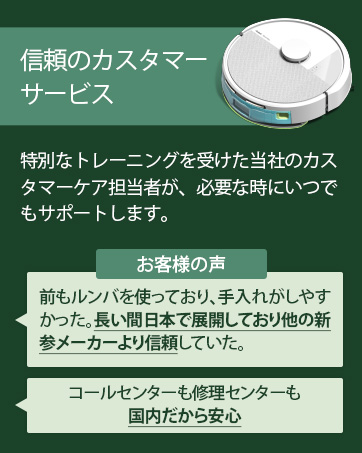
Image: Graphic detailing iRobot's reliable customer service, highlighting specially trained staff and domestic call/repair centers.
7.3 Data Privacy
iRobot prioritizes customer privacy and employs the highest standards of data encryption technology to ensure the privacy and security of your data.
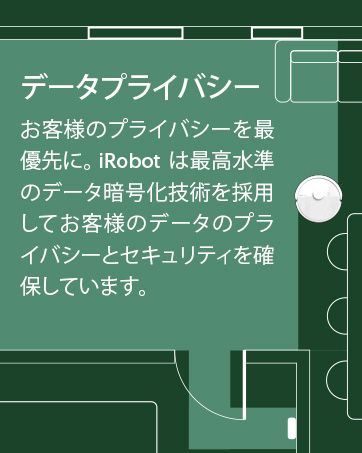
Image: Graphic explaining iRobot's commitment to data privacy, emphasizing the use of high-standard data encryption technology.
Related documentsY011260


Ask a question about this manual
Ask about setup, troubleshooting, compatibility, parts, safety, or missing instructions. Manuals+ will review the question and use this page’s manual context to help answer it.