
1. Introduction
Thank you for choosing the ZEBRONICS Mercury Premium Gaming Chassis. This manual provides detailed instructions for the proper installation, operation, and maintenance of your new computer case. Please read this manual thoroughly before beginning assembly to ensure optimal performance and longevity of your system components.
2. Product Features
- Wraparound Tempered Glass: Front and side panels feature tempered glass for a clear view of internal components.
- Dual Chamber Design: Separates components for improved thermal management and cleaner cable routing.
- AIO Cooler Support: Accommodates AIO liquid coolers up to 240mm.
- Pre-installed ARGB Fans: Includes three 120mm ARGB LED fans (top and rear) for effective cooling and customizable lighting.
- Optimized Airflow: Designed for efficient air circulation to keep components cool.
- Bottom PSU Mount: Power supply unit mounts at the bottom for better weight distribution and thermal separation.
- Front I/O Ports: Features 1x USB 3.0, 2x USB 2.0, and audio ports for convenient connectivity.
- Motherboard ARGB Sync: Supports synchronization with compatible motherboard ARGB headers for unified lighting control.
- Compact Design: Supports mATX and Mini ITX motherboards.
3. Package Contents
Please verify that all items are present in the package:
- ZEBRONICS Mercury Gaming Chassis
- 3 x 120mm ARGB LED Fans (pre-installed)
- Accessory Kit (screws, standoffs, cable ties)
- User Manual (this document)
4. Setup Instructions
4.1 Preparing the Chassis
- Carefully unpack the chassis from its packaging.
- Remove the tempered glass side panels by unscrewing the thumb screws at the rear of the chassis. Place them on a soft, flat surface to prevent scratches.
- Identify the accessory kit containing screws, standoffs, and cable ties.
4.2 Motherboard Installation
- Install the I/O shield into the rear opening of the chassis.
- Align your mATX or Mini ITX motherboard with the pre-installed standoffs. Ensure all screw holes align.
- Secure the motherboard using the appropriate screws from the accessory kit.
4.3 Power Supply Unit (PSU) Installation
The chassis supports bottom-mounted PSUs.
- Position the PSU into the dedicated compartment at the bottom rear of the chassis.
- Secure the PSU to the chassis using screws from the accessory kit.
- Route the necessary power cables through the cable management cutouts to the main chamber.

Figure 4.3.1: Illustration of the bottom PSU mounting area and expansion slots.
4.4 Storage Drive Installation
The chassis supports 1x 3.5" HDD and 2x 2.5" SSDs.
- Locate the drive bays/mounts within the chassis.
- Secure your 3.5" HDD and 2.5" SSDs using the provided screws.
- Connect data and power cables to the installed drives.
4.5 Graphics Card and Expansion Card Installation
The chassis provides 4 expansion slots and supports graphics cards up to 330mm in length.
- Remove the necessary expansion slot covers from the rear of the chassis.
- Insert your graphics card or other expansion cards into the appropriate PCIe slots on your motherboard.
- Secure the cards with screws.
4.6 Cooling System Installation (Optional AIO)
The chassis supports AIO liquid coolers up to 240mm.
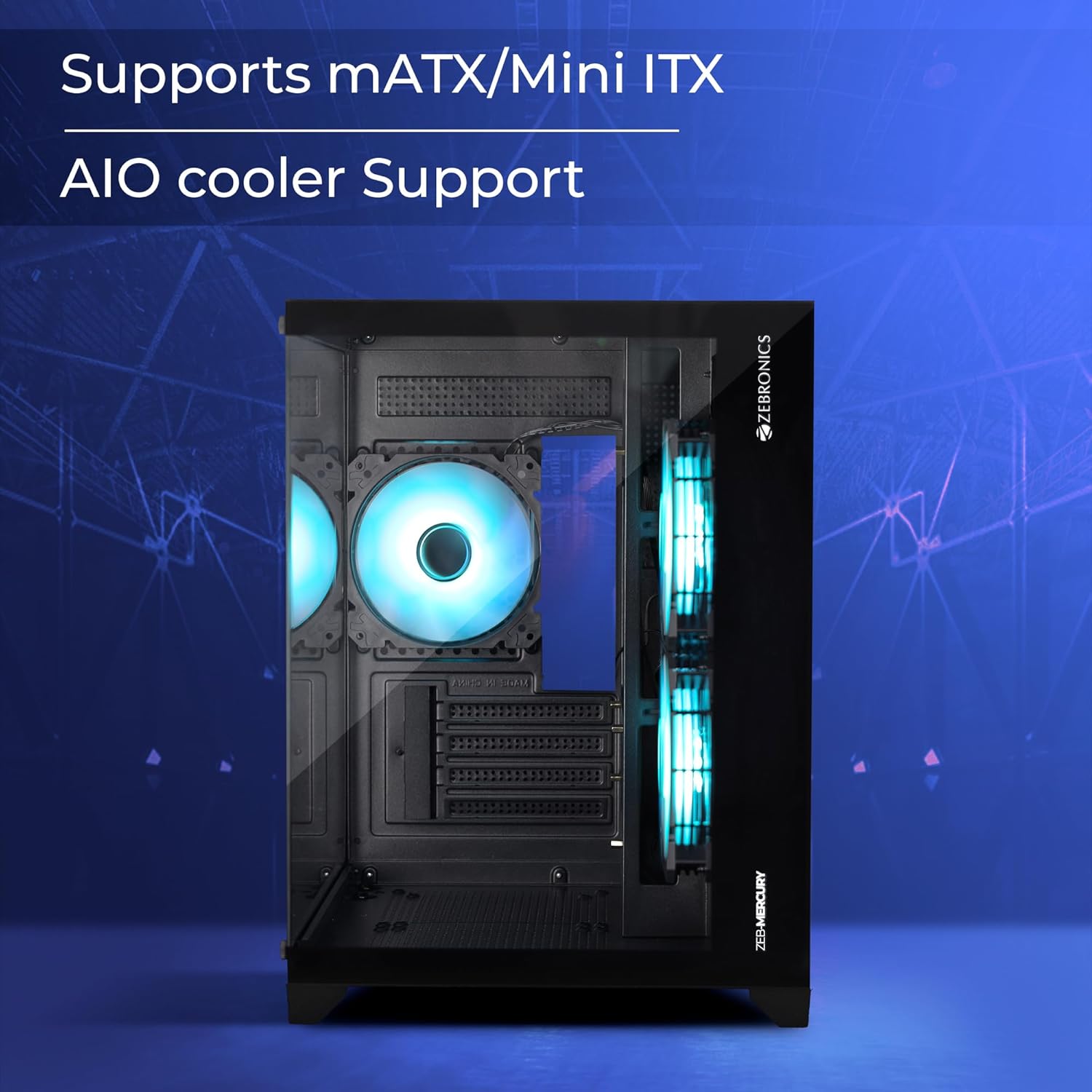
Figure 4.6.1: Interior view highlighting AIO cooler mounting locations.
For optimal airflow, consider the direction of your fans. The pre-installed fans are typically set as exhaust. For improved cooling, especially with an AIO, you may need to adjust fan orientation.

Figure 4.6.2: Optimized airflow design for efficient cooling.
4.7 Cable Management
Utilize the cable management cutouts and tie-down points behind the motherboard tray to route cables neatly. This improves airflow and aesthetics.
4.8 Connecting Front I/O and ARGB Cables
Connect the front panel cables (Power, Reset, USB 3.0, USB 2.0, Audio, LED) to the corresponding headers on your motherboard. Refer to your motherboard manual for exact pin layouts.
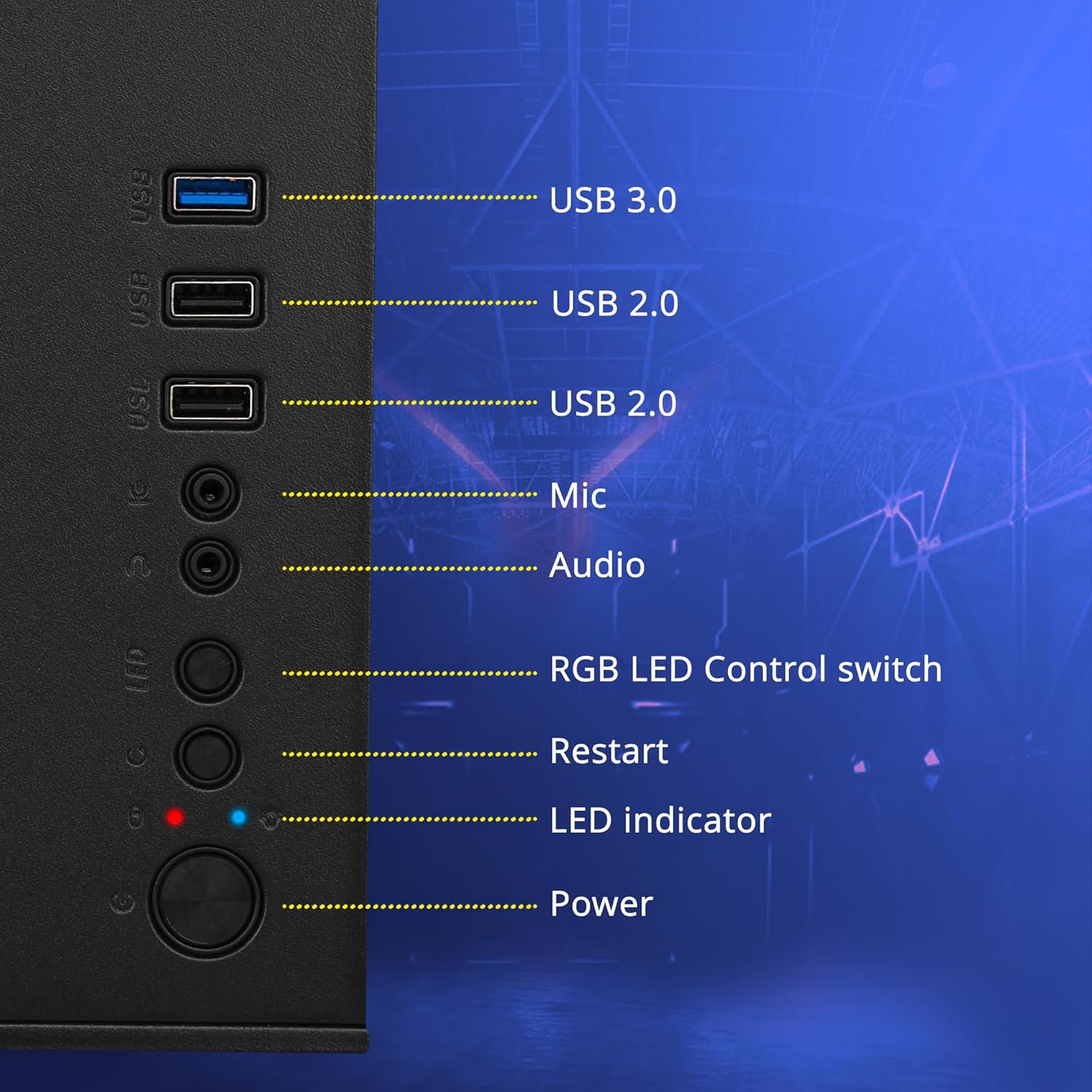
Figure 4.8.1: Front I/O panel connections.
The pre-installed ARGB fans can be controlled via the dedicated LED switch on the front panel or synchronized with your motherboard's ARGB header (if available). Connect the ARGB cables to the appropriate 3-pin 5V ARGB header on your motherboard for software control.

Figure 4.8.2: Pre-installed ARGB fans.
5. Operating Instructions
5.1 Powering On Your System
Once all components are installed and cables are connected, close the tempered glass panels. Connect your monitor, keyboard, mouse, and power cable to the PSU. Press the power button on the front panel to start your system.
5.2 ARGB Lighting Control
The ARGB fans offer customizable lighting effects. You can control them in two ways:
- Front Panel LED Switch: Press the dedicated LED switch on the front I/O panel to cycle through various pre-set ARGB lighting modes and colors.
- Motherboard ARGB Sync: If your motherboard has a compatible 3-pin 5V ARGB header and you have connected the fan ARGB cables to it, you can control the lighting effects using your motherboard's RGB software (e.g., ASUS Aura Sync, MSI Mystic Light Sync, Gigabyte RGB Fusion).

Figure 5.2.1: Examples of ARGB lighting effects.
6. Maintenance
- Dust Filters: Regularly clean the dust filters located on the top and bottom of the chassis to maintain optimal airflow and prevent dust buildup inside your system.
- Exterior Cleaning: Use a soft, damp cloth to clean the exterior surfaces and tempered glass panels. Avoid abrasive cleaners.
- Internal Cleaning: Periodically open the chassis and use compressed air to remove dust from internal components and fans. Ensure the system is powered off and unplugged before cleaning.
7. Troubleshooting
- System Not Powering On:
- Ensure the PSU is switched on and properly connected to the wall outlet.
- Verify that the 24-pin ATX and 8-pin CPU power cables are securely connected to the motherboard.
- Check that the front panel power switch cable is correctly connected to the motherboard header.
- ARGB Fans Not Lighting Up:
- Ensure the ARGB fan cables are properly connected to the fan controller or motherboard's 3-pin 5V ARGB header.
- If using motherboard sync, confirm your motherboard has a 3-pin 5V ARGB header (not 4-pin 12V RGB).
- Try cycling through modes using the front panel LED switch.
- Poor Airflow/Overheating:
- Check fan orientation; ensure a balance of intake and exhaust.
- Clean dust filters and internal components.
- Verify that all case fans are spinning correctly.
8. Specifications
| Brand | ZEBRONICS |
| Model Name | ZEB-MERCURY |
| Case Type | Mid Tower |
| Motherboard Compatibility | mATX, Mini ITX |
| Dimensions (D x W x H) | 34D x 27W x 37H Centimeters |
| Item Weight | 5200 Grams |
| Enclosure Material | Tempered Glass |
| Pre-installed Fans | 3 x 120mm ARGB LED Fans |
| AIO Cooler Support | Up to 240mm |
| CPU Cooler Height Limit | Up to 160mm |
| Graphics Card Length Limit | Up to 330mm |
| Expansion Slots | 4 |
| Drive Bays | 1 x 3.5" HDD, 2 x 2.5" SSD |
| Front I/O Ports | 1 x USB 3.0, 2 x USB 2.0, Audio (Mic/Headphone) |
| Power Supply Mounting | Bottom Mount |
9. Warranty and Support
For warranty information and technical support, please contact ZEBRONICS customer service. Details can typically be found on the official ZEBRONICS website or through your retailer.
Manufacturer: ZEBRONICS INDIA PRIVATE LIMITED
Address: 13/7, Smith Road, Royapettah, CHENNAI-600002
Please retain your proof of purchase for warranty claims.