
Azeyou X52
Azeyou 15.6" Laptop X52 User Manual
Model: X52
1. Introduction
This manual provides essential information for setting up, operating, maintaining, and troubleshooting your Azeyou 15.6" Laptop X52. Please read this guide thoroughly to ensure optimal performance and longevity of your device. Keep this manual for future reference.
2. Package Contents
Verify that all items are present in your product packaging:
- Azeyou 15.6" Laptop X52
- Power Adapter
- User Manual (this document)
3. Product Overview
The Azeyou 15.6" Laptop X52 is designed for efficient computing, featuring an Alder Lake-N95 Quad-Core CPU, 12GB RAM, and a 256GB SSD for responsive performance. It comes pre-installed with Windows 11 Pro and offers a Full HD display for clear visuals.
3.1 Key Features
- Processor: Alder Lake-N95 Quad-Core CPU (up to 3.4GHz)
- Memory: 12GB DDR4 RAM
- Storage: 256GB Solid State Drive (SSD)
- Display: 15.6-inch Full HD (1920 x 1080) IPS display
- Operating System: Windows 11 Pro
- Connectivity: Full Function Type-C, USB 3.0, HDMI, 2.4G/5G WiFi, Bluetooth 5.0
- Battery: 5000 mAh Lithium-ion battery for extended use
- Design: Lightweight (3.59 lbs) and ultra-thin (0.6 inches)
- Input: Full-size keyboard and large touchpad
- Webcam: Integrated 2MP front webcam
3.2 External Components


3.3 Processor and Performance
The laptop is powered by the Alder Lake-N95 processor, designed for efficient multitasking and responsive computing. This CPU offers a balance of performance and power efficiency for daily tasks.

3.4 Memory and Storage
With 12GB of DDR4 RAM and a 256GB SSD, the laptop provides ample memory for running multiple applications simultaneously and fast storage access for your files and programs.

3.5 Display
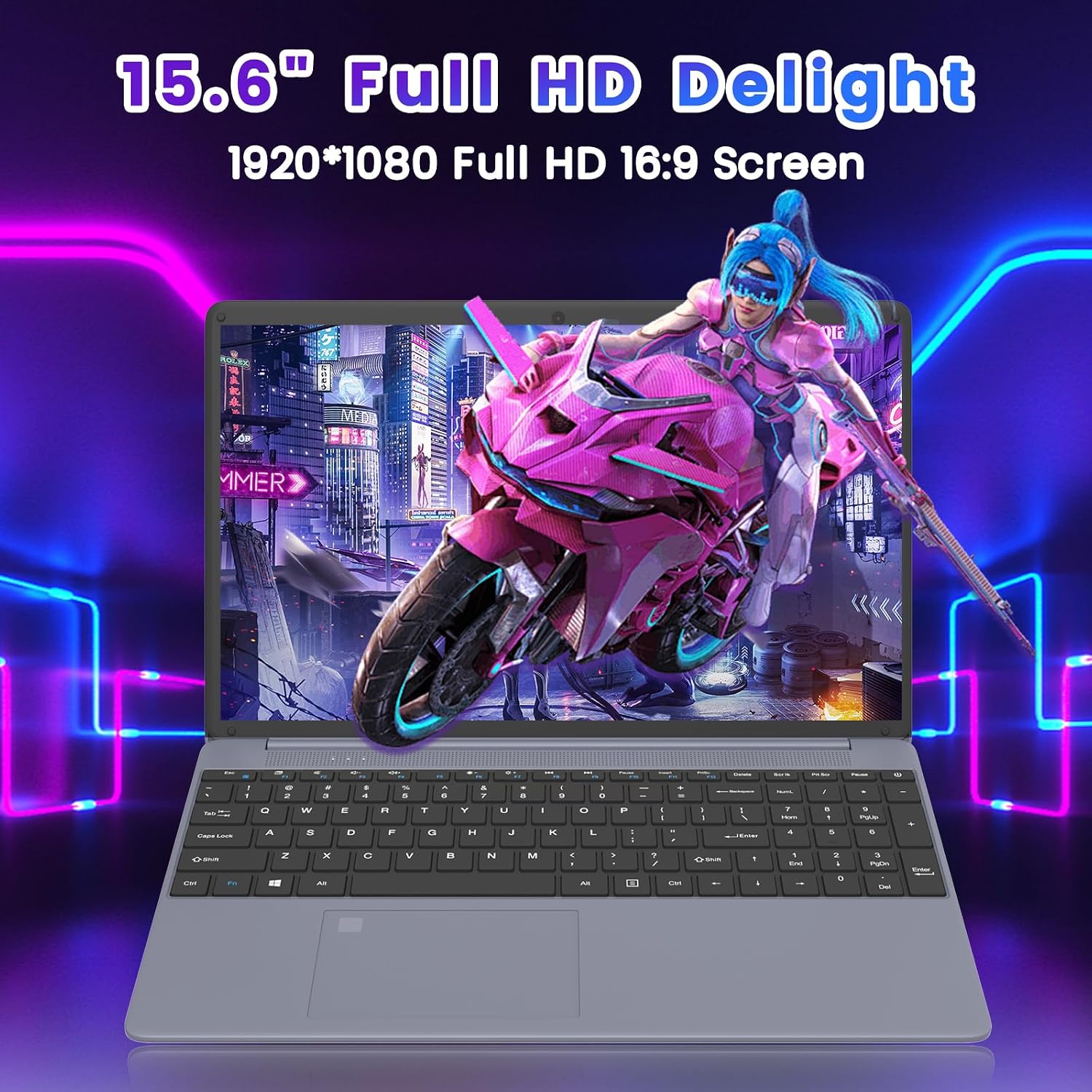
Experience clear and vibrant visuals on the 15.6-inch Full HD (1920x1080) IPS display. The 16:9 aspect ratio is suitable for both productivity and entertainment.
3.6 Battery Life
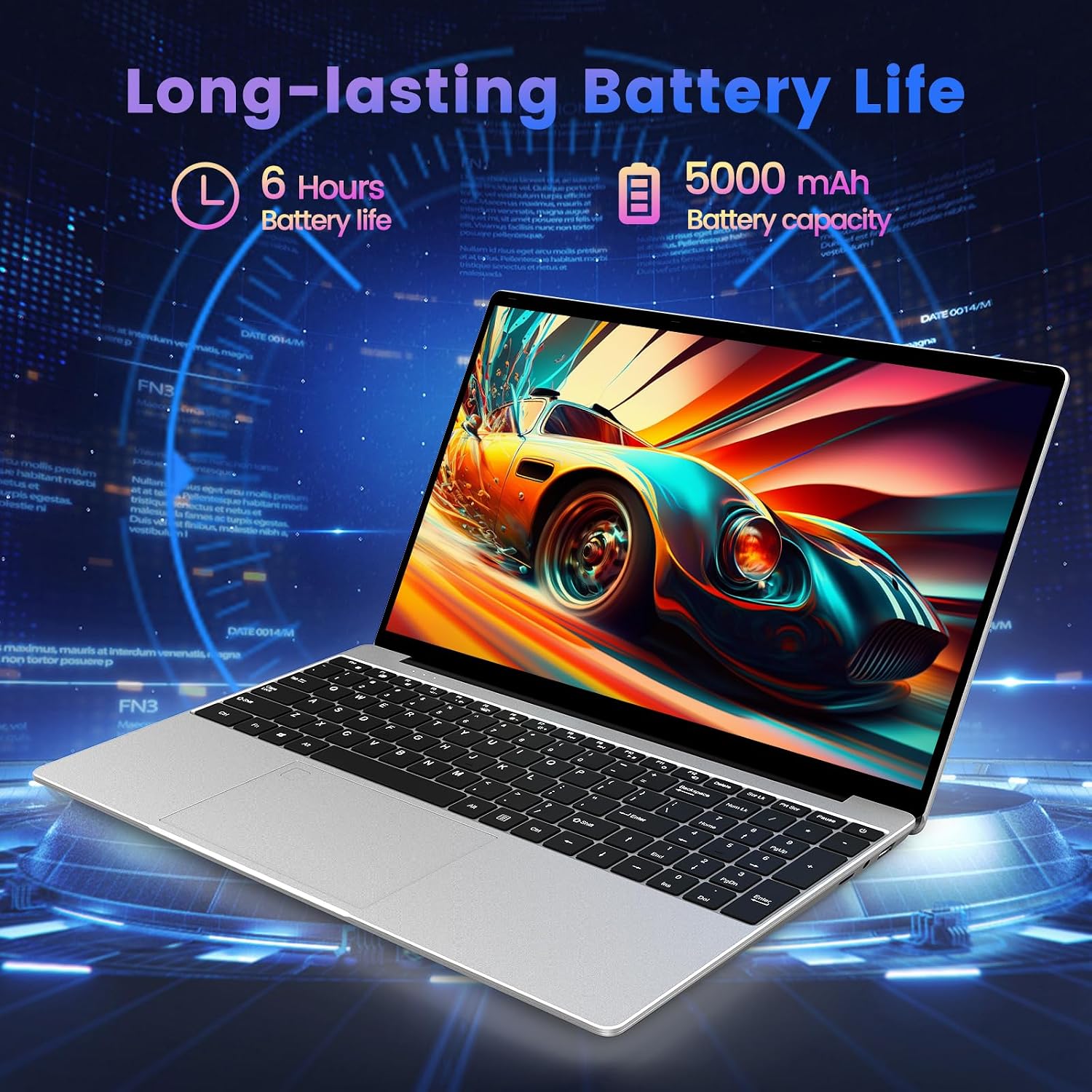
The integrated 5000 mAh lithium-ion battery provides up to 5-6 hours of usage, allowing for portability and use without constant access to a power outlet.
3.7 Input Devices
The laptop features a full-size keyboard and a large touchpad for comfortable and efficient input.

3.8 Product Video Overview
Video 3.1: An official overview of the Azeyou 15.6'' Laptop, showcasing its design, features, and key specifications like the Intel N95 processor, full-function Type-C port, full-size keyboard, and ultra-thin design.
4. Setup
4.1 Initial Charging
- Connect the power adapter to the DC IN port on the laptop.
- Plug the power adapter into a wall outlet.
- Allow the laptop to charge for at least 30 minutes before initial use, or until the battery indicator shows sufficient charge.
4.2 Powering On
- Open the laptop lid.
- Press and hold the power button (usually located on the top right of the keyboard or side) until the screen illuminates.
4.3 Windows 11 Pro Initial Setup
Follow the on-screen prompts to complete the Windows 11 Pro setup process. This typically includes:
- Selecting your region and keyboard layout.
- Connecting to a Wi-Fi network.
- Signing in with a Microsoft account or creating a local account.
- Setting up privacy settings.
4.4 Connecting to Wi-Fi
- During Windows setup, select your desired Wi-Fi network from the list.
- Enter the network password if prompted.
- If already set up, click the Wi-Fi icon in the taskbar, select your network, and connect.
5. Operating Your Laptop
5.1 Power Management
- Shut Down: Click the Start button, then Power > Shut down.
- Restart: Click the Start button, then Power > Restart.
- Sleep: Click the Start button, then Power > Sleep, or close the laptop lid.
5.2 Using the Keyboard and Touchpad
- The full-size keyboard allows for comfortable typing.
- The large touchpad supports multi-touch gestures for navigation (e.g., two-finger scroll, pinch-to-zoom).
5.3 Connecting Peripherals
- USB Devices: Insert USB drives, mice, or other peripherals into the available USB 3.0 ports.
- HDMI Display: Connect an external monitor or TV using an HDMI cable to the HDMI port.
- Type-C Devices: Use the Full Function Type-C port for data transfer, video output, or charging compatible devices.
- Headphones/Speakers: Plug 3.5mm audio devices into the headphone jack.
- TF Card: Insert a TF (microSD) card into the dedicated slot for expanded storage or data transfer.
5.4 Wireless Connectivity
- Wi-Fi: The laptop supports 2.4G and 5G Wi-Fi for high-speed internet access. Manage connections via the network icon in the taskbar.
- Bluetooth: Bluetooth 5.0 allows connection to wireless headphones, speakers, and other Bluetooth-enabled devices. Access Bluetooth settings via Windows Settings > Bluetooth & devices.
6. Maintenance
6.1 Cleaning the Laptop
- Use a soft, lint-free cloth slightly dampened with water or a screen cleaner to clean the display.
- For the keyboard and chassis, use a soft, dry cloth. Avoid harsh chemicals or abrasive materials.
- Use compressed air to clear dust from keyboard keys and ventilation openings.
6.2 Battery Care
- Avoid fully discharging the battery frequently.
- Store the laptop in a cool, dry place if not used for extended periods, with the battery charged to about 50%.
- Use only the original power adapter provided with the laptop.
6.3 Software Updates
- Regularly check for and install Windows updates to ensure system stability and security. Go to Settings > Windows Update.
- Keep your device drivers updated. Windows Update often handles this, but you may occasionally need to check the Azeyou support website for specific driver updates.
6.4 Storage Management
- Periodically delete unnecessary files and uninstall unused programs to free up storage space.
- Use Windows' built-in Disk Cleanup tool to remove temporary files.
7. Troubleshooting
This section addresses common issues you might encounter with your Azeyou Laptop X52.
| Problem | Possible Cause | Solution |
|---|---|---|
| Laptop does not power on. | Low battery, faulty power adapter, hardware issue. | Ensure the power adapter is securely connected and plugged into a working outlet. Allow the laptop to charge for a while. Try a different outlet. If the issue persists, contact support. |
| Cannot connect to Wi-Fi. | Wi-Fi adapter disabled, incorrect password, router issue, driver problem. | Check if Wi-Fi is enabled in Windows settings. Verify the Wi-Fi password. Restart your router and the laptop. Update Wi-Fi drivers via Device Manager or Azeyou support website. |
| Laptop reboots unexpectedly or shows 'Aptio Setup Utility' error. | System instability, corrupted OS files, BIOS settings, hardware fault. | Ensure Windows is fully updated. Run a system file check (sfc /scannow in Command Prompt). If 'Aptio Setup Utility' appears, exit without saving changes unless instructed by support. If frequent, consider reinstalling Windows or contacting support for hardware diagnosis. |
| Slow performance. | Too many applications open, low storage space, outdated drivers, malware. | Close unnecessary programs. Free up disk space. Update drivers. Run a full system scan for viruses/malware. |
| External display not working. | Incorrect display settings, faulty cable, driver issue. | Ensure the HDMI cable is securely connected. Press Windows key + P to cycle through display modes. Update graphics drivers. |
8. Specifications
Detailed technical specifications for the Azeyou 15.6" Laptop X52:
| Feature | Specification |
|---|---|
| Brand | Azeyou |
| Model Name | X52 |
| Screen Size | 15.6 Inches |
| Screen Resolution | 1920 x 1080 Pixels (Full HD) |
| Processor | Intel Alder Lake-N95 Quad Core (up to 3.4 GHz) |
| RAM | 12 GB DDR4 |
| Hard Drive | 256 GB SSD (eSATA Interface) |
| Graphics Coprocessor | Intel UHD Graphics (Integrated) |
| Operating System | Windows 11 Pro |
| Wireless Type | 802.11a/b/g/n/ac (2.4G/5G WiFi) |
| Bluetooth | Bluetooth 5.0 |
| Average Battery Life | 5-6 Hours (5000 mAh Lithium Polymer) |
| Item Weight | 2.64 pounds |
| Product Dimensions | 14.13 x 0.78 x 9.45 inches |
| Color | Gray |
| Hardware Platform | PC |
9. Warranty and Support
9.1 Product Warranty
Azeyou products typically come with a limited manufacturer's warranty. Please refer to the warranty card included in your product packaging or visit the official Azeyou website for specific warranty terms and conditions applicable to your region and model.
9.2 Customer Support
For technical assistance, troubleshooting not covered in this manual, or warranty claims, please contact Azeyou customer support through their official website. You may need your product model number (X52) and purchase information when contacting support.
Official Azeyou Store: Visit Azeyou Store on Amazon
Ask a question about this manual
Ask about setup, troubleshooting, compatibility, parts, safety, or missing instructions. Manuals+ will review the question and use this page’s manual context to help answer it.