
NUASI RBX-S60
NUASI RBX-S60 4G LTE Solar Security Camera (2-Pack) Instruction Manual
1. Introduction
This manual provides detailed instructions for the installation, operation, and maintenance of your NUASI RBX-S60 4G LTE Solar Security Camera 2-Pack. Please read this manual thoroughly before using the product to ensure proper function and safety.
Product Overview
The NUASI RBX-S60 is a 2K 360° wireless outdoor security camera system powered by solar energy and 4G LTE connectivity. Designed for remote surveillance, it features color night vision, PIR motion detection, two-way audio, and an IP66 waterproof rating, making it suitable for various outdoor environments.

Image: Two NUASI RBX-S60 4G LTE Solar Security Cameras with solar panels.
Key Features
- 4G LTE Connectivity: Operates without Wi-Fi, requiring only a 4G LTE SIM card for remote access.
- Solar Powered: Equipped with a 6W solar panel and a 10400 mAh internal battery for continuous operation.
- 2K Ultra HD Resolution: Provides clear video and images day and night.
- 360° Panoramic View: Features 355° horizontal rotation and 100° vertical rotation for comprehensive coverage.
- Color Night Vision: Offers full-color night vision for enhanced clarity in low-light conditions.
- PIR Motion Detection: Intelligent human/animal detection reduces false alarms and sends real-time notifications.
- Two-Way Audio: Allows for real-time communication through the camera.
- IP66 Waterproof: Durable design for outdoor use in various weather conditions.
- Easy Installation: Simple setup with the UBox app and flexible mounting options.
2. Package Contents
Please verify that all items are present in your package:
- 2 x NUASI 4G Security Camera
- 2 x EIOTCLUB SIM Card (with 300 MB free data)
- 2 x 6W Solar Panel
- 1 x User Manual
- Mounting Screws and other accessories
3. Setup Guide
3.1. SIM Card and SD Card Installation
The camera requires a 4G LTE SIM card for network connectivity and an SD card for local storage. A SIM card with 300 MB of trial data and a 32GB SD card are included.
- Locate the SIM card and SD card slots on the camera. These are typically protected by a rubber cover.
- Carefully insert the provided 4G LTE SIM card into the SIM slot. Ensure it is inserted in the correct orientation until it clicks into place.
- Insert the provided 32GB SD card into the SD card slot. The camera supports up to 128GB SD cards.
- Close the rubber cover securely to maintain the IP66 waterproof rating.

Image: Inserting SIM and SD cards into the camera.
3.2. App Installation and Pairing
The camera operates via the UBox mobile application.
- Download the UBox app from the App Store (iOS) or Google Play Store (Android).
- Register for a new account or log in if you already have one.
- Power on the camera.
- In the UBox app, tap 'Add Device' and follow the on-screen instructions to scan the QR code located on the camera.
- Once paired, you can access the camera's live feed and settings.

Image: UBox app download icons.
3.3. Mounting the Camera
The camera offers flexible mounting options to suit your outdoor surveillance needs.

Image: Two optional mounting methods for the camera.
- Integrated Mounting: Attach the camera and solar panel directly to a sturdy surface like a tree or wall using the provided strap or screws. Ensure the solar panel receives adequate direct sunlight.
- Separate Mounting: Mount the camera and solar panel separately. Connect them using the power cable. This allows for optimal positioning of the solar panel for sunlight exposure, even if the camera needs to be in a shaded area.
Important: When mounting, ensure the camera has a clear line of sight to the area you wish to monitor and that the solar panel is positioned to receive maximum sunlight throughout the day. Secure all connections to prevent dislodgement.
4. Operating Instructions
4.1. Live View and Pan/Tilt/Zoom Control
Access the live video feed and control the camera's movement through the UBox app.
- Open the UBox app and select your camera.
- The live feed will appear. Use the on-screen controls to pan (355° horizontal) and tilt (100° vertical) the camera to adjust your viewing angle.
- The camera also supports digital zoom for closer inspection of details.

Image: Live video streaming on the UBox app.
4.2. Motion Detection and Alerts
The camera uses a PIR sensor for intelligent motion detection, minimizing false alarms.
- In the UBox app settings, enable and configure motion detection sensitivity.
- When motion is detected, the camera will record an event and send a real-time notification to your smartphone.
- You can review recorded events in the app's playback section.

Image: PIR motion detection alert on a smartphone.
4.3. Two-Way Audio
Communicate with visitors or deter intruders using the camera's built-in microphone and speaker.
- While viewing the live feed in the UBox app, tap the microphone icon to speak.
- Tap the speaker icon to listen to audio from the camera's location.
4.4. Night Vision Modes
The camera provides clear surveillance even in complete darkness.
- Infrared Night Vision: Automatically activates in low light, providing clear black and white images.
- Color Night Vision: The camera can utilize its built-in spotlights to provide full-color video at night when motion is detected or manually activated.
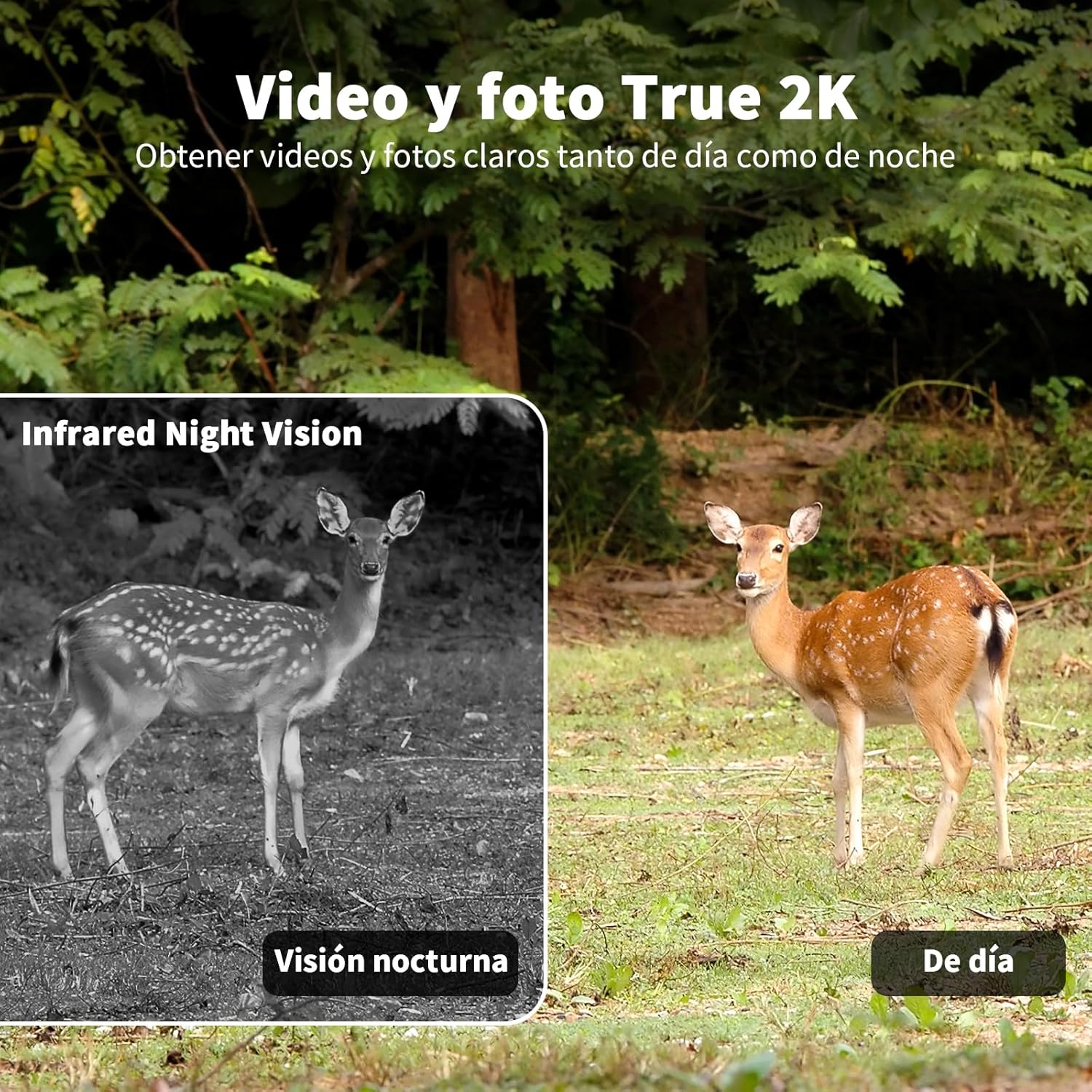
Image: Comparison of night vision and daytime video quality.
4.5. Recording and Storage
Video recordings can be stored locally or in the cloud.
- SD Card Storage: Recordings are saved to the inserted SD card (up to 128GB). You can access and download these recordings via the UBox app.
- Cloud Storage: A 30-day free trial of cloud storage is available. After the trial, subscription plans can be purchased through the UBox app.
4.6. Data Plan Management
The camera operates on a 4G LTE network. The included SIM card comes with 300 MB of trial data.
- When 80% of your data is used, you will receive a notification.
- You can purchase additional data plans through the UBox app. Various plans are available (e.g., 30 days, 180 days, 360 days, 720 days).
- The camera is compatible with most major 4G LTE providers (e.g., Vodafone, Orange, Telekom, O2).

Image: 4G LTE connectivity and compatible network providers.
5. Maintenance
5.1. Solar Panel Care
To ensure optimal charging efficiency, regularly clean the solar panel surface to remove dust, dirt, leaves, or snow. A clean, damp cloth is usually sufficient. Avoid abrasive cleaners.
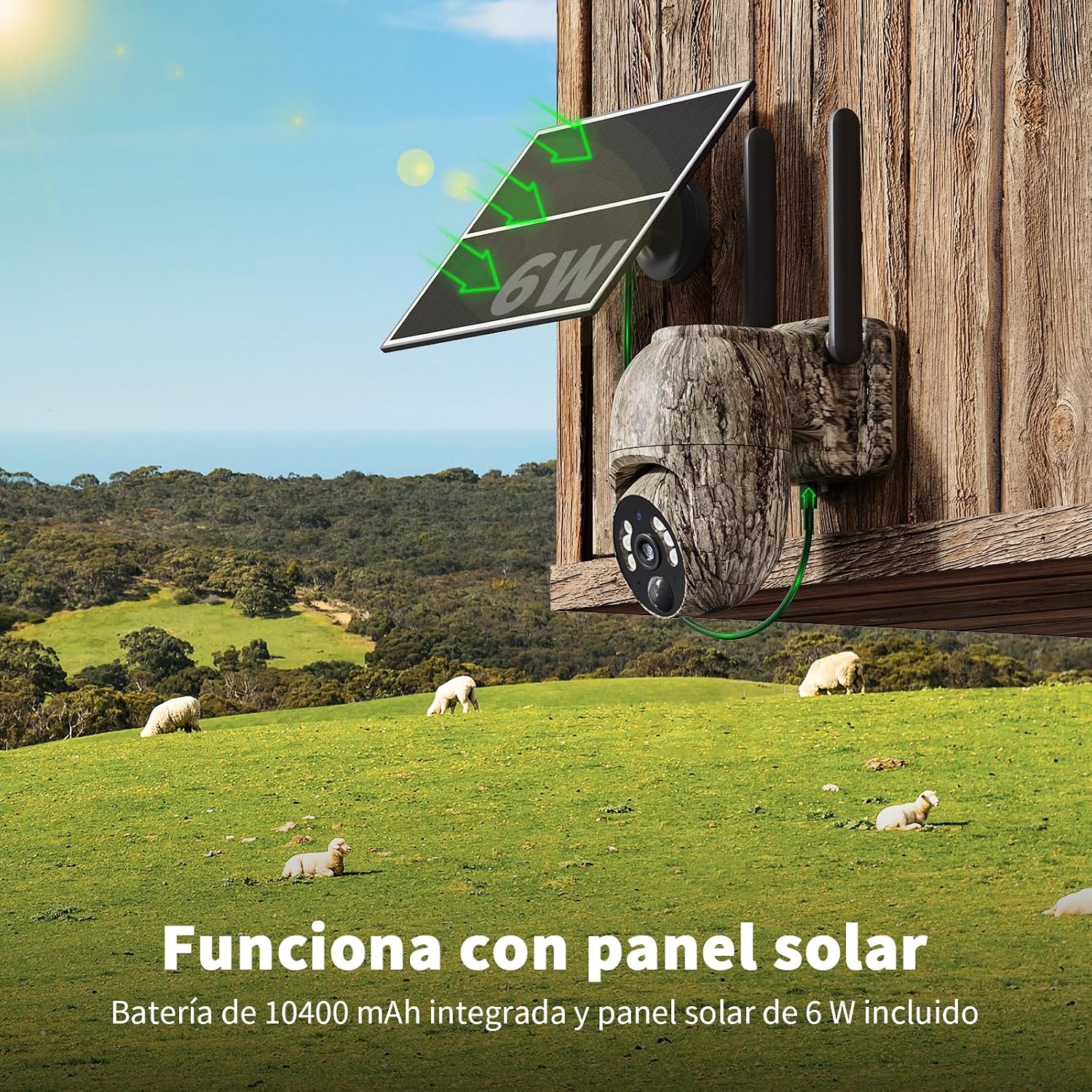
Image: Camera powered by solar panel.
5.2. Battery Management
The camera features a built-in 10400 mAh rechargeable battery. While the solar panel provides continuous charging, direct sunlight is crucial. In winter or prolonged cloudy periods, solar charging efficiency may decrease. Monitor battery levels via the UBox app.
5.3. Cleaning
Wipe the camera lens and body with a soft, dry cloth. For stubborn dirt, a slightly damp cloth can be used. Do not use harsh chemicals or abrasive materials that could damage the camera's finish or lens.

Image: IP66 waterproof camera in rainy conditions.
6. Troubleshooting
- Camera Offline:
- Check 4G LTE signal strength in the camera's location.
- Ensure the SIM card has an active data plan and sufficient data balance.
- Verify the camera battery is charged.
- Restart the camera by powering it off and on.
- No Motion Detection Alerts:
- Check motion detection settings in the UBox app (sensitivity, schedule).
- Ensure app notifications are enabled on your smartphone.
- Verify the camera's field of view is clear.
- Poor Video Quality:
- Clean the camera lens.
- Ensure adequate lighting for optimal image quality, especially at night.
- Check 4G signal strength, as poor signal can affect streaming quality.
- Solar Panel Not Charging:
- Ensure the solar panel is clean and free from obstructions.
- Verify the solar panel is positioned to receive direct sunlight for several hours daily.
- Check the connection cable between the solar panel and the camera.
7. Technical Specifications
| Feature | Specification |
|---|---|
| Model Number | RBX-S60 |
| Video Capture Resolution | 2K |
| Connectivity Technology | Wireless (4G LTE Cellular) |
| Power Source | Battery, Solar Power |
| Battery Type | Lithium Polymer (10400 mAh) |
| Solar Panel Wattage | 6 Watts |
| Night Vision Range | 30 Meters |
| Viewing Angle | 360 Degrees (355° Pan, 100° Tilt) |
| Special Features | Two-Way Audio, Built-in Light, HD Resolution, Motion Sensor, Night Vision |
| Indoor/Outdoor Use | Outdoor |
| Waterproof Rating | IP66 |
| Storage | SD Card (up to 128GB, 32GB included), Cloud Storage |
| Controller Type | UBox App |
| Product Dimensions | 31 x 19 x 16 cm; 2.4 kg |
8. Warranty and Support
8.1. Warranty Information
NUASI is committed to providing high-quality smart security products. Specific warranty details may vary by region and retailer. Please refer to your purchase documentation or contact customer support for precise warranty terms.
8.2. Customer Support
For technical assistance, troubleshooting, or any inquiries regarding your NUASI RBX-S60 camera, please contact NUASI customer support. Contact information can typically be found on the product packaging, the NUASI official website, or within the UBox application.
NUASI's R&D department for smart security products was established in 2015, focusing on integrating R&D, production, and sales to create intelligent, harmonious, and beautiful living experiences. Your personal security expert is dedicated to addressing every detail of your life.

Image: Data Protection Shield.
Our cameras utilize the AES algorithm for data encryption and the ECDHE algorithm for high-security key exchange, ensuring secure transmission and storage.

Image: Transparency QR code for product verification.
Our products can be verified at any time using a unique QR code, allowing us to proactively prevent counterfeits.
Ask a question about this manual
Ask about setup, troubleshooting, compatibility, parts, safety, or missing instructions. Manuals+ will review the question and use this page’s manual context to help answer it.