
1. Introduction
The BINIZE CarPlay AI Box Android System is designed to upgrade your vehicle's existing OEM wired CarPlay or wired Android Auto functionality to a full Android 13 system, enabling wireless CarPlay, wireless Android Auto, and access to various streaming applications. This device integrates seamlessly with your car's infotainment system, providing enhanced multimedia and navigation capabilities.
2. Product Contents
Verify that all items are present in the package:
- BINIZE CarPlay AI Box (x1)
- Data Cable (x2)
- Product Manual (x1)

Image: The BINIZE CarPlay AI Box, two data cables, and the product manual as packaged.
3. Compatibility
This device is primarily designed for vehicles equipped with factory OEM wired CarPlay. It also supports vehicles with OEM wired Android Auto, but may require a software conversion using a TF card.
- For Cars with Factory Wired CarPlay: Direct plug-and-play functionality.
- For Cars with Factory Wired Android Auto: Requires conversion using a TF card with a specific "REVERSE" file from Binize.
- Important Note for Toyota Series: An additional split power supply line is necessary due to the USB port's power output limitations in some Toyota models. This line provides additional power and data from the cigarette lighter.
- Incompatible Models: Not compatible with BMW/Nissan Leaf Murano car models.
- Touch Screen Requirement: If your car stereo lacks a touch screen, a remote control will be required to operate this multimedia video box.
- Phone Compatibility: Not compatible with Samsung phones.

Image: Illustration of converting between wired CarPlay and wired Android Auto functionality using a Micro SD card containing a "REVERSE" file.

Image: A table listing compatible car brands and models, including specific notes for Toyota models requiring power lines.

Image: A second compatibility table, highlighting specific car models that are not supported by the BINIZE CarPlay AI Box.
4. Setup Instructions
- Connect the AI Box: Plug the BINIZE CarPlay AI Box into the USB port of your car that supports OEM wired CarPlay or Android Auto.
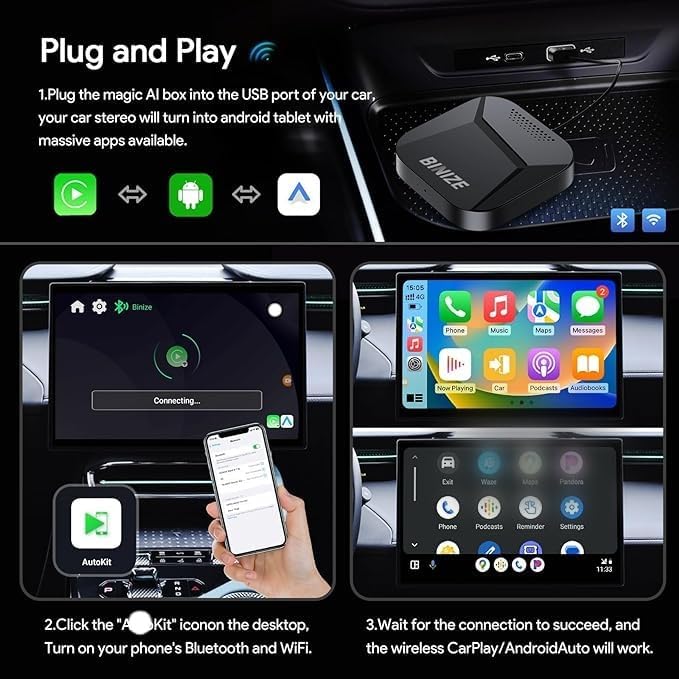
Image: The BINIZE AI Box connected to the car's USB port, initiating the connection process.
- Initial Connection: On your car's display, locate and click the "AutoKit" icon on the desktop.
- Enable Bluetooth and Wi-Fi: Turn on Bluetooth and Wi-Fi on your smartphone.
- Pair Device: Follow the on-screen prompts to pair your phone with the AI Box via Bluetooth.
- Confirm Connection: Wait for the connection to succeed. Wireless CarPlay or Android Auto will then become active.
- Android Auto Conversion (if applicable): If your car only has wired Android Auto, you will need to insert a TF card containing the "REVERSE" file (obtained from Binize) into the AI Box to enable proper functionality.
- Toyota Power Line (if applicable): For certain Toyota models, connect the additional split power supply line to ensure stable power and data flow.

Image: Visual guide demonstrating the simple plug-and-play setup to convert wired CarPlay/Android Auto to wireless.
5. Operating Instructions
5.1 Wireless CarPlay and Android Auto
Once connected, the AI Box provides wireless access to Apple CarPlay and Android Auto, mirroring your phone's interface on your car's display.
- Access navigation, music, calls, and messages directly from your car's screen.
- Utilize voice commands (Siri for CarPlay, Google Assistant for Android Auto) for hands-free operation.

Image: The car's display showcasing the three main functionalities: Wireless CarPlay, the integrated Android System, and Wireless Android Auto.
5.2 Android System Features
The AI Box runs on an Android 13 system, allowing you to install and use various applications directly on your car's screen.
- Video Streaming: Connect the adapter to Wi-Fi or insert a SIM card to access video streaming services. Install APK files for your preferred video apps (e.g., Netflix, Hulu, Amazon Prime Video, YouTube, TikTok).
- Navigation: Utilize built-in GPS and install navigation apps like Google Maps, Waze, etc.
- Connectivity: Supports NANO SIM card and TF card (up to 128GB) for expanded storage and cellular data.

Image: The BINIZE AI Box highlighting its SIM and TF card slots, alongside a car screen displaying various video streaming applications.

Image: A car's infotainment system displaying a navigation application, emphasizing the built-in GPS capabilities of the BINIZE AI Box.
5.3 Control Methods
The BINIZE CarPlay AI Box maintains compatibility with your vehicle's original control methods:
- Touch screen
- Voice control (e.g., Siri, Google Assistant)
- Steering wheel buttons
- Control knobs

Image: A collage illustrating how the BINIZE AI Box can be controlled using the car's existing touch screen, voice commands, steering wheel buttons, and rotary knobs.
6. Maintenance
- Keep the device clean and free from dust. Use a soft, dry cloth for cleaning.
- Avoid exposing the device to extreme temperatures or direct sunlight for prolonged periods.
- Ensure proper ventilation around the device to prevent overheating.
- Periodically check for software updates to ensure optimal performance and compatibility.
7. Troubleshooting
| Problem | Possible Cause | Solution |
|---|---|---|
| Device does not power on. |
|
|
| Wireless CarPlay/Android Auto not connecting. |
|
|
| Video streaming apps not working. |
|
|
| Not compatible with Samsung phones. | Known limitation. | This device is not compatible with Samsung phones. No workaround is available. |
8. Specifications
| Feature | Detail |
|---|---|
| Model Name | carplay ai box |
| Item Model Number | FOR OEM Wired Carplay |
| Operating System | Android 13 (implied from description) |
| RAM | 3GB (from image) |
| ROM | 32GB (from image) |
| Connectivity Technology | Bluetooth, Wi-Fi, Cellular (via SIM) |
| Connector Type | USB (for car connection), HDMI (not explicitly mentioned for output, but listed as connector type in specs, likely internal or for specific use cases not detailed), NANO SIM, TF Card |
| Supported Internet Services | Netflix, Hulu, Amazon Prime Video (via app installation) |
| Resolution | 480p (Scanner Resolution, likely refers to video output capability or internal processing) |
| Form Factor | Square Device |
| Color | Black |
| Item Weight | 0.317 ounces |
| Package Dimensions | 5.98 x 5.71 x 1.89 inches |
| Manufacturer | BINIZE |
Image: Visual representation of the BINIZE AI Box's physical design and key internal specifications.
9. Warranty and Support
BINIZE offers comprehensive support and a warranty for the Multifunctional AI Box to ensure customer satisfaction.
- Warranty: A comprehensive warranty is provided with the product. Specific terms and duration should be referenced in the included product manual or by contacting customer support.
- Customer Support: For any issues or inquiries regarding your BINIZE CarPlay AI Box, please contact the dedicated support team. Contact information can typically be found in the product packaging or on the official BINIZE website.


