
Mimitakara UP-6EN
Mimitakara Bluetooth Hearing Aids UP-6EN Instruction Manual
Model: UP-6EN | Brand: Mimitakara
Introduction
Thank you for choosing the Mimitakara Bluetooth Hearing Aids UP-6EN. This device is designed to enhance your hearing experience with advanced features such as Bluetooth connectivity, noise cancellation, and a remote microphone. This manual provides detailed instructions for setup, operation, maintenance, and troubleshooting to ensure optimal performance and longevity of your hearing aids.
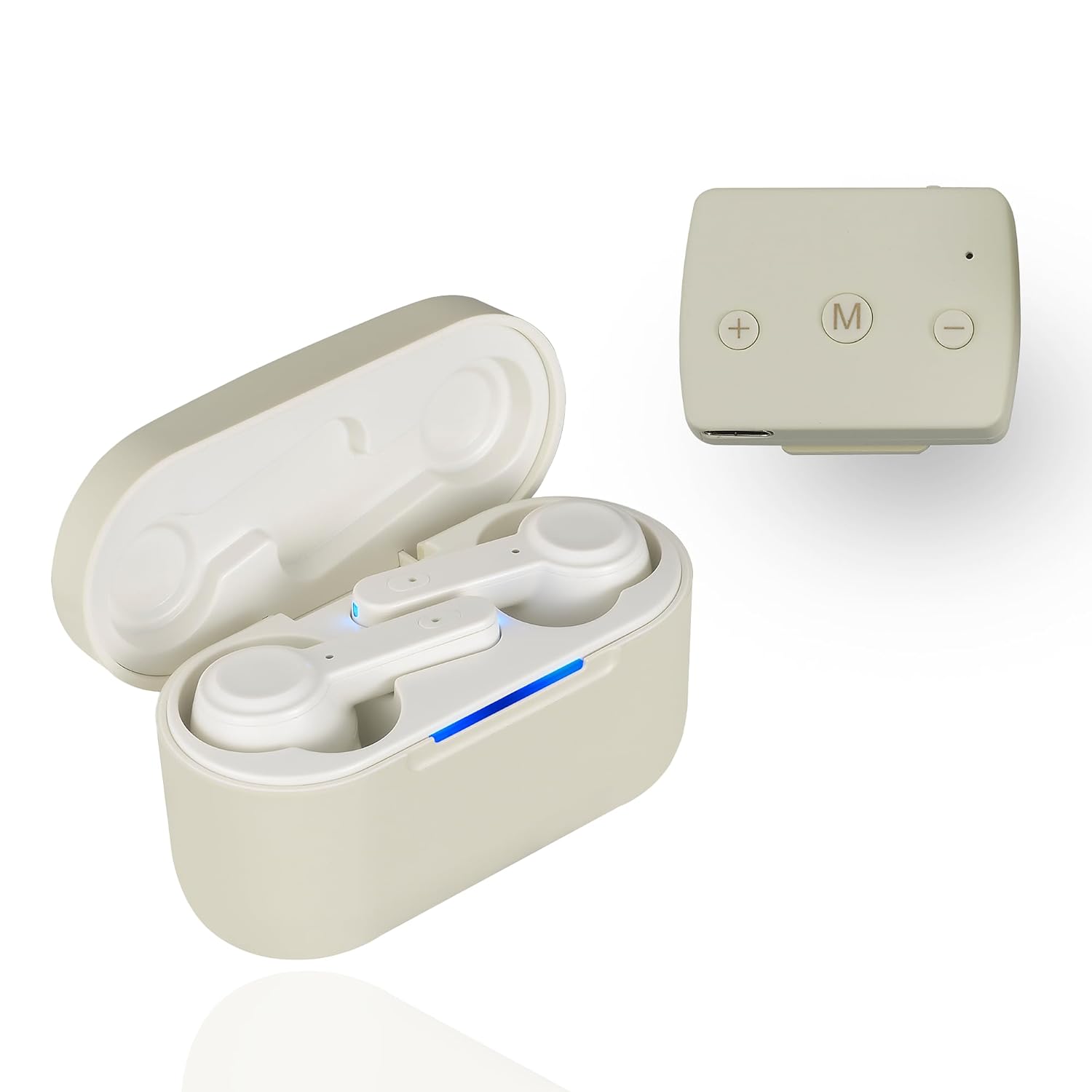
Image: The Mimitakara Bluetooth Hearing Aids in their charging case.
What's in the Box
Your Mimitakara Bluetooth Hearing Aids package includes the following components:
- Mimitakara Bluetooth Hearing Aids (Left and Right)
- Portable Charging Case
- Remote Microphone Transmitter
- USB Charging Cable
- Cleaning Brush
- Multiple Sizes of Ear Tips (for comfortable fit and to prevent feedback)
- User Manual (Quick Start Guide)

Image: All components included in the Mimitakara hearing aid package.
Video: An unboxing demonstration of the Mimitakara Bluetooth Hearing Aid with Microphone Transmitter, showing all included items.
Product Overview
The Mimitakara UP-6EN hearing aids are designed for ease of use and enhanced sound clarity. Key features include:
- Bluetooth Connectivity: Seamlessly connect to smartphones and other devices for audio streaming.
- Noise Cancellation: Advanced technology to reduce background noise in various environments.
- Remote Microphone: Transmit sound directly from a source (e.g., TV, speaker) to your hearing aids.
- Rechargeable: Long-lasting battery life with a portable charging case.
- Easy-to-Use Controls: Simple one-hand operation for volume and mode adjustments.
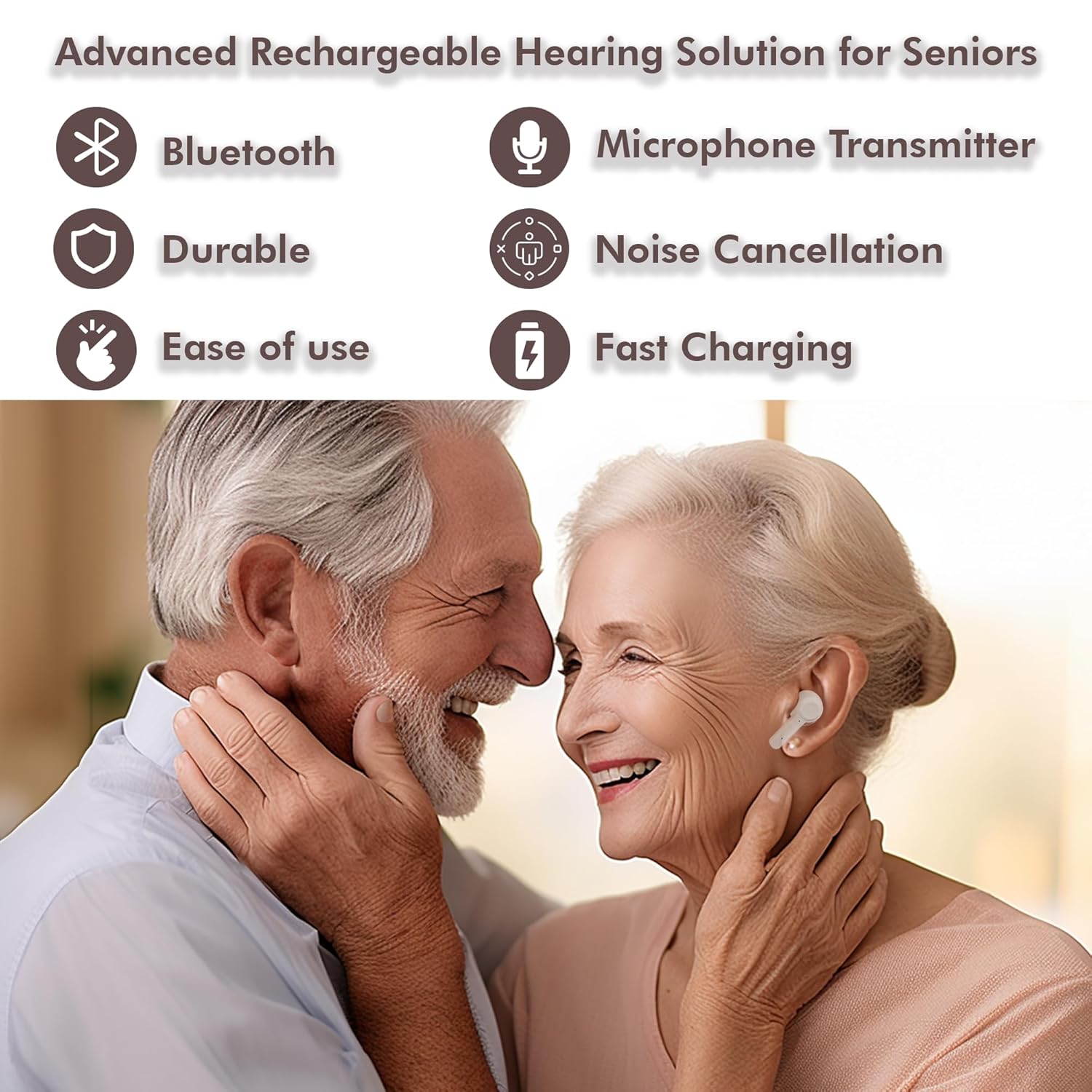
Image: Overview of key features for the Mimitakara hearing aids.

Image: Detailed diagram of the hearing aid components and controls.
Setup
- Unpack: Carefully remove all items from the packaging.
- Initial Charge: Before first use, fully charge the hearing aids and the charging case. Refer to the "Charging" section for details.
- Select Ear Tips: Choose the ear tips that provide the most comfortable and secure fit in your ear canal. A proper fit is crucial for sound quality and to prevent feedback.
- Insert Hearing Aids: Gently insert the hearing aids into your ears, ensuring a snug fit. The left hearing aid is marked 'L' and the right 'R'.
Charging
The Mimitakara hearing aids and their charging case are rechargeable. It is recommended to fully charge the device before its first use.
- Place the hearing aids into the charging case. Ensure they are correctly seated, and the charging contacts align.
- Close the lid of the charging case.
- Connect the USB charging cable to the charging port on the case and to a power source (e.g., USB wall adapter, computer USB port).
- The indicator lights on the charging case will show the charging status.
- A full charge takes approximately 2 hours and provides up to 6 hours of continuous listening for the hearing aids. The portable charging case extends usage time significantly.
- For a quick boost, 30 minutes of charging can provide approximately 4 hours of use.

Image: Illustration of the fast charging capability of the hearing aids.
Operating Instructions
The Mimitakara hearing aids offer both Hearing Mode and Microphone Mode, with adjustable volume levels.
Hearing Aid Controls:
- Power On/Off: The hearing aids automatically power on when removed from the charging case and power off when placed back in.
- Volume Adjustment: Use the touch controls on the hearing aids or the remote microphone to adjust volume. There are 3 volume levels for the hearing aids (Min, 50%, Max) and 15 volume levels for the remote microphone mode.
- Mode Selection: The hearing aids feature a 2-in-1 functionality:
- Automatic Hearing Mode: Provides general sound amplification with 3 volume levels for everyday hearing.
- Microphone Mode: Used with the remote microphone for conversations or specific sound sources, offering 15 adjustable volume levels for clear sound.

Image: Explanation of the two primary operating modes.

Image: Visual guide to volume levels for both hearing aid and remote microphone modes.
Using the Remote Microphone Transmitter:
The remote microphone enhances sound from a specific source, such as a television or a speaker in a meeting.
- Power On: Turn on the remote microphone transmitter. It will automatically connect to your hearing aids within an 8-meter (26-foot) range.
- Placement: Place the remote microphone near the sound source you wish to hear more clearly (e.g., in front of the TV, on a table during a conversation).
- Volume Control: Use the volume buttons on the remote microphone to adjust the sound level transmitted to your hearing aids.
- This feature allows you to hear clearly without increasing the main volume of the sound source, preventing disturbance to others.

Image: Demonstrates using the remote microphone for TV listening.
Bluetooth Connectivity
Your Mimitakara hearing aids support Bluetooth streaming, allowing you to connect to compatible devices like smartphones for music, calls, and other audio.
- Ensure your hearing aids are powered on and in pairing mode (refer to your Quick Start Guide for specific pairing instructions if needed).
- On your smartphone or other Bluetooth device, go to the Bluetooth settings.
- Select "Mimitakara UP-6EN" (or similar name) from the list of available devices to pair.
- Once paired, audio from your device will stream directly to your hearing aids.

Image: Illustrates Bluetooth streaming functionality with various devices.
Maintenance and Care
Proper maintenance ensures the longevity and optimal performance of your Mimitakara hearing aids.
- Cleaning: Regularly clean the hearing aids and ear tips using the provided cleaning brush. Gently remove any earwax or debris from the sound outlet and microphone ports.
- Storage: When not in use, store the hearing aids in their charging case to protect them from dust, moisture, and physical damage.
- Avoid Moisture: Keep the hearing aids and charging case dry. Avoid exposure to water or excessive humidity.
- Handle with Care: Avoid dropping the devices or exposing them to extreme temperatures.
Troubleshooting
| Problem | Possible Cause | Solution |
|---|---|---|
| No Sound or Low Volume | Low battery, earwax blockage, incorrect volume setting. | Charge the hearing aids. Clean ear tips and sound outlet. Adjust volume. |
| Screeching/Feedback Noise | Improper fit, earwax buildup, hearing aid too close to an object. | Ensure ear tips are correctly sized and seated. Clean ear tips. Move away from objects that might cause feedback. Ensure hearing aids are fully charged. |
| Difficulty Pairing Bluetooth | Hearing aids not in pairing mode, device Bluetooth off, interference. | Ensure hearing aids are in pairing mode. Turn Bluetooth off and on on your device. Move closer to the device. |
| Remote Microphone Not Working | Microphone not powered on, out of range, low battery. | Ensure microphone is powered on. Move microphone closer to hearing aids (within 8 meters). Charge the microphone. |
Specifications
| Brand: | Mimitakara |
| Model Number: | UP-6EN |
| Color: | White |
| Material: | Plastic, Resin |
| Style: | Both Ear (In-Ear Fit) |
| Power Source: | Battery Powered (Rechargeable) |
| Special Features: | Bluetooth, Echo Cancellation, Noise Cancellation, Remote Microphone, Rechargeable |
| Compatible Devices: | Television, Smartphones |
| Control Type: | Touchpad Control |
| Recommended Use: | Watching TV, attending conferences, focusing during lectures |
Warranty and Support
Mimitakara provides a one-year manufacturer quality guarantee for your hearing aids. Additionally, lifetime repair service is available to ensure lasting durability and reliability.
For support or warranty claims, please contact EcoMart LLC, the manufacturer, or refer to the contact information provided in your Quick Start Guide.
Video: An informational video titled "Get to Know Mimitakara Hearing Aids | Best OTC Hearing Aids", providing an overview of the product and its benefits.
Important Safety Information
- Consult a healthcare professional if you experience sudden hearing loss, ear pain, or discharge before using this device.
- Do not attempt to modify or repair the hearing aids yourself. Contact support for assistance.
- Keep out of reach of children and pets. Small parts may pose a choking hazard.
- Avoid using the hearing aids in extremely loud environments that could cause further hearing damage.
- If you experience discomfort or irritation, discontinue use and consult a medical professional.
Related documentsUP-6EN

Ask a question about this manual
Ask about setup, troubleshooting, compatibility, parts, safety, or missing instructions. Manuals+ will review the question and use this page’s manual context to help answer it.