
Introduction
The CENMATE 3 Bay Hard Drive Docking Station provides a convenient solution for accessing and managing multiple 2.5-inch and 3.5-inch SATA I/II/III Hard Disk Drives (HDDs) and Solid State Drives (SSDs). This device features USB 3.0 connectivity for high-speed data transfer and includes an offline clone function, allowing direct drive duplication without requiring a computer connection. This manual provides detailed instructions for setup, operation, maintenance, and troubleshooting to ensure optimal performance and longevity of your device.
Product Features
- 3-Bay Design: Supports up to three 2.5-inch or 3.5-inch SATA I/II/III HDDs/SSDs simultaneously.
- High Capacity Support: Each bay supports drives up to 18TB, for a total capacity of 54TB.
- USB 3.0 Connectivity: Offers data transfer speeds up to 5Gbps, with UASP support for enhanced performance up to 6Gbps.
- Offline Clone Function: Allows direct disk-to-disk cloning without a host computer.
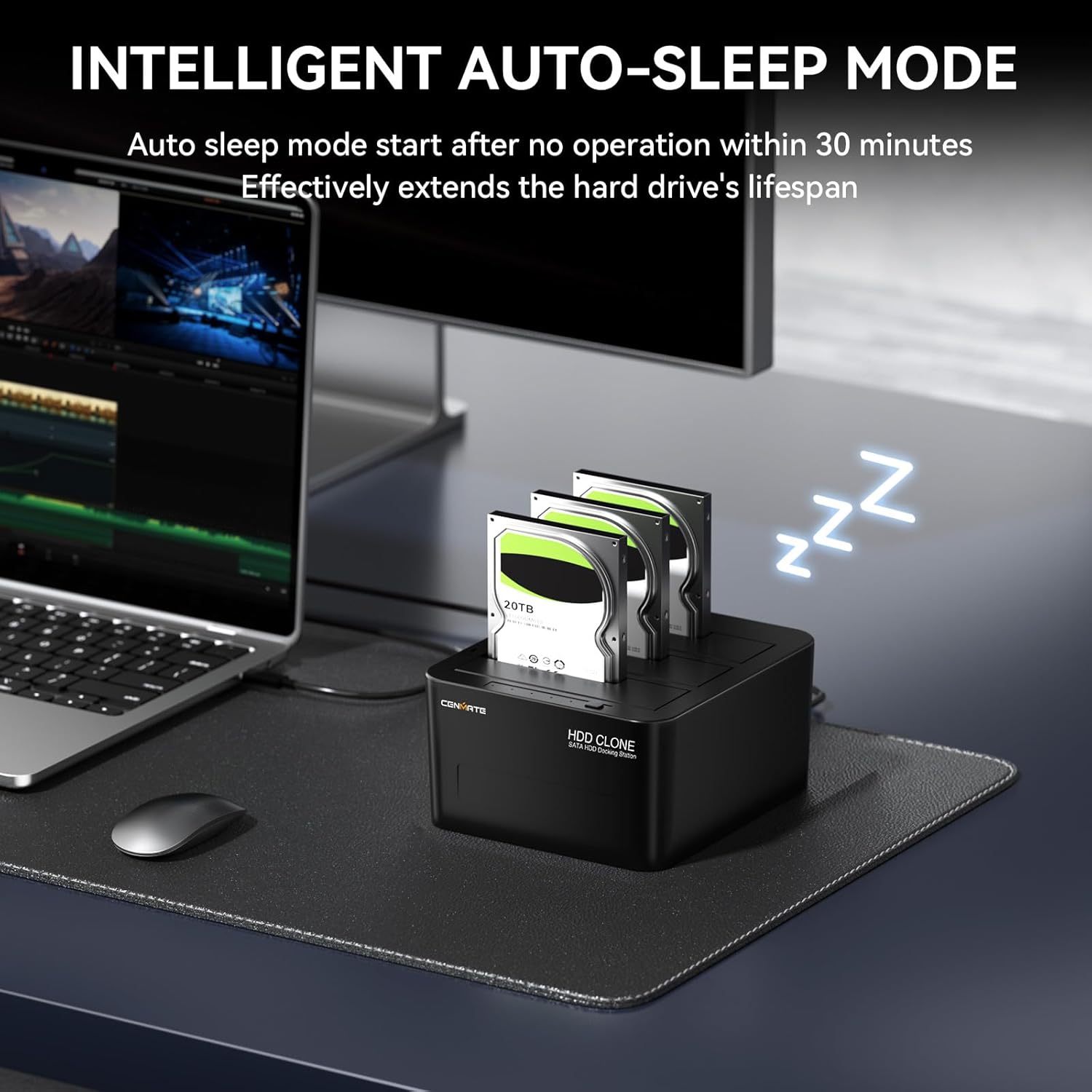
- Intelligent Auto-Sleep Mode: Automatically enters sleep mode after 30 minutes of inactivity to reduce power consumption and extend drive lifespan.
- Universal Compatibility: Compatible with Windows, Mac OS, and Linux operating systems. Can connect to various devices including laptops, PCs, TVs, PS5 consoles, and routers.
- LED Indicators: Provides clear status updates for power, data activity, and cloning progress.
- Durable Construction: Features anti-slip silicone foot pads for stability and dust-proof dual port slots.


Setup Instructions
- Connect Power: Plug the provided DC12V power adapter into the docking station's power input port, then connect it to a power outlet.
- Connect USB (Optional for Online Mode): If you intend to use the docking station with a computer for data transfer, connect the USB 3.0 cable from the docking station to an available USB 3.0 port on your computer.
- Insert Drives: Gently insert your 2.5-inch or 3.5-inch SATA HDDs/SSDs into the available bays (HDD1, HDD2, HDD3) until they are securely seated. Ensure the drive's SATA connector aligns with the docking station's connector.
- Power On: Press the power button on the docking station. The power indicator LED should illuminate.

Operating Instructions
Online Mode (Data Transfer)
When connected to a computer via USB, the docking station functions as an external drive enclosure, allowing you to access and manage data on the inserted drives.
- Ensure the docking station is powered on and connected to your computer via the USB 3.0 cable.
- Insert your SATA HDDs/SSDs into the bays.
- Your operating system (Windows, Mac OS, Linux) will detect the drives as external storage. You can then browse, copy, move, or delete files as you would with any other external drive.
- For optimal transfer speeds, ensure you are connected to a USB 3.0 port on your computer.

Offline Clone Function
The offline clone function allows you to duplicate a source drive to one or two target drives without connecting to a computer. This is useful for data backup or drive upgrades.
- Disconnect USB: Ensure the USB cable is disconnected from your computer. The docking station must operate in standalone mode for cloning.
- Insert Source Drive: Insert the source HDD/SSD (the drive you want to copy from) into the HDD 1 slot.
- Insert Target Drive(s): Insert the target HDD/SSD(s) (the drive(s) you want to copy to) into the HDD 2 and/or HDD 3 slot(s).
- Capacity Requirement: The capacity of the target drive(s) must be equal to or greater than the capacity of the source drive.
- Connect Power: Ensure the power adapter is connected and the docking station is powered on.
- Initiate Clone: Press and hold the 'Clone' button for approximately 3-5 seconds until the blue indicator lights (25%, 50%, 75%, 100%) begin to flash. Release the button.
- Confirm Clone: Press the 'Clone' button again briefly to start the cloning process. The 25% blue indicator will blink, signifying the start of the clone.
- Monitor Progress: The blue indicator lights will progressively illuminate (25%, 50%, 75%, 100%) as the cloning process advances. When all lights are solid and no longer blinking, the clone is complete.
- Power Off and Remove: Once cloning is complete, power off the docking station and carefully remove the drives.
Important: All data on the target drive(s) will be overwritten during the cloning process. Ensure you have backed up any important data from the target drive(s) before proceeding.

Maintenance
- Cleaning: Use a soft, dry cloth to clean the exterior of the docking station. Avoid using liquid cleaners or solvents.
- Dust Prevention: The dust-proof design helps, but regularly inspect the drive slots for any accumulated dust or debris. Use compressed air if necessary to clear the slots.
- Environmental Conditions: Operate the docking station in a well-ventilated area, away from direct sunlight, excessive heat, and moisture.
- Proper Ejection: When using the docking station with a computer, always safely eject the drives through your operating system before powering off or disconnecting the USB cable to prevent data corruption.
- Auto-Sleep Mode: The intelligent auto-sleep mode helps reduce wear and tear on your hard drives and conserves energy. Ensure the device is allowed to enter this mode when not in use.
Troubleshooting
| Problem | Possible Cause | Solution |
|---|---|---|
| Drives not recognized by computer | Loose USB connection, drive not properly seated, drive not initialized/formatted, faulty USB port/cable. | Ensure USB cable is securely connected to both the docking station and computer. Re-insert drives firmly. Try a different USB port or cable. For new drives, initialize and format them via Disk Management (Windows) or Disk Utility (Mac). |
| Slow data transfer speeds | Connected to a USB 2.0 port, faulty USB 3.0 cable, drive performance limitations. | Ensure the docking station is connected to a USB 3.0 port (usually blue). Use the provided USB 3.0 cable. Drive performance can vary; older HDDs will be slower than SSDs. |
| Offline clone fails or does not start | USB cable connected, target drive capacity insufficient, incorrect cloning procedure, source drive errors. | Disconnect the USB cable from the computer. Ensure the target drive's capacity is equal to or larger than the source drive. Review the 'Offline Clone Function' steps carefully. Check the source drive for errors before cloning. |
| Docking station not powering on | Power adapter not connected, faulty power outlet, power button not pressed. | Ensure the power adapter is securely connected to the docking station and a working power outlet. Press the power button firmly. |
| Drives feel warm during operation | Normal operation, prolonged use. | It is normal for drives to generate heat during operation, especially during intensive tasks like cloning or large data transfers. The open design of the docking station aids in heat dissipation. Ensure adequate ventilation around the device. |
Specifications
- Model: 3 Bay Clone
- Compatible Drive Types: 2.5-inch / 3.5-inch SATA I/II/III HDD/SSD
- Number of Bays: 3
- Max Capacity Per Bay: 18 TB
- Total Max Capacity: 54 TB
- Interface: USB 3.0 (backward compatible with USB 2.0)
- Data Transfer Rate: Up to 5Gbps (USB 3.0), up to 6Gbps (with UASP)
- Compatible Operating Systems: Windows, Mac OS, Linux
- Compatible Devices: Laptop, PC, TV, PS5, Router
- Material: Acrylonitrile Butadiene Styrene (ABS)
- Power Input: DC12V
- Product Dimensions: 5.12 x 4.75 x 2.75 inches (13 x 12.07 x 6.99 cm)
- Item Weight: 1.28 pounds (0.58 kg)
Warranty and Support
CENMATE products are designed for reliability and performance. For specific warranty information regarding your 3 Bay Hard Drive Docking Station, please refer to the warranty card included in your product packaging or visit the official CENMATE website. For technical assistance, troubleshooting beyond this manual, or customer service inquiries, please contact CENMATE support through their official channels. Please have your product model number (3 Bay Clone) and purchase details ready when contacting support.


