
1. Introduction
This manual provides detailed instructions for the setup, operation, and maintenance of your Dpofirs Mini Keyboard with Touchpad. Please read this manual thoroughly before using the product to ensure proper functionality and longevity.
The Dpofirs Mini Keyboard is a compact, portable 2.4GHz wireless keyboard featuring an integrated touchpad, designed for various compatible devices.
2. Product Overview
2.1 Key Features
- Integrated touchpad for mouse functionality, eliminating the need for a separate mouse.
- Plug-and-play functionality for immediate use with compatible devices.
- Robust 2.4GHz wireless connection for stable operation.
- 69 backlit keys for enhanced visibility and ease of use in low-light environments.
- Infrared light indicator, suitable for presentation or training applications.
- Rechargeable internal battery via USB.
- Compact and lightweight design for portability.
- Embedded receiver storage slot for convenience.
2.2 Package Contents
- 1 x Dpofirs Mini Keyboard with Touchpad
- 1 x USB Receiver
- 1 x USB Data Line (Charging Cable)
- 1 x Instruction Manual (this document)
2.3 Product Views

Figure 1: Top-down view of the Dpofirs Mini Keyboard with Touchpad, showing the full QWERTY layout and integrated touchpad.

Figure 2: Hands holding the Dpofirs Mini Keyboard, demonstrating its compact and ergonomic size for handheld use.

Figure 3: Close-up top view of the Dpofirs Mini Keyboard, emphasizing its slim profile and key layout.

Figure 4: The Dpofirs Mini Keyboard with its USB receiver partially removed from its dedicated storage slot, illustrating the wireless connection component.

Figure 5: The Dpofirs Mini Keyboard positioned in front of various electronic devices, including laptops, tablets, and smartphones, to illustrate its broad compatibility.
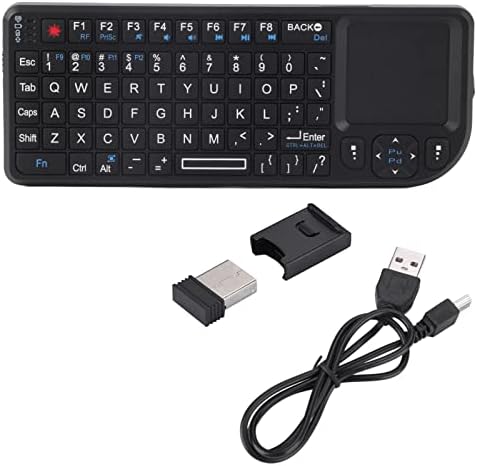
Figure 6: All components included in the package: the Dpofirs Mini Keyboard, the USB receiver, and the USB charging cable.

Figure 7: Top and bottom views of the Dpofirs Mini Keyboard, showing the key layout and the product label on the underside.

Figure 8: The Dpofirs Mini Keyboard with its backlit keys activated, illustrating improved visibility in dark environments.
3. Setup Instructions
3.1 Charging the Keyboard
- Locate the USB Data Line (charging cable) included in the package.
- Connect the smaller end of the USB Data Line to the charging port on the keyboard.
- Connect the larger end of the USB Data Line to a standard USB power source (e.g., computer USB port, USB wall adapter).
- Allow the keyboard to charge fully before initial use. The charging indicator light will typically change color or turn off when charging is complete.
3.2 Connecting the USB Receiver
- Remove the USB receiver from its storage slot, usually located on the side or back of the keyboard.
- Insert the USB receiver into an available USB 2.0 port on your compatible device (e.g., HTPC, PS3/PS4, Xbox 360, Xbox ONE, Android device, Linux system, Windows PC).
- The device should automatically detect and install the necessary drivers. This is a plug-and-play process and typically requires no manual driver installation.
3.3 Powering On/Off
- Locate the power switch on the keyboard.
- Slide the switch to the 'ON' position to power on the keyboard.
- Slide the switch to the 'OFF' position when not in use to conserve battery life.
4. Operating Instructions
4.1 Basic Keyboard and Touchpad Use
- Typing: Use the QWERTY key layout for text input, similar to a standard keyboard.
- Touchpad: The integrated touchpad functions as a mouse. Move your finger across the surface to control the cursor.
- Left Click: Tap once on the touchpad or use the dedicated left-click button.
- Right Click: Tap with two fingers on the touchpad or use the dedicated right-click button.
- Scrolling: Use two fingers to scroll vertically on the touchpad.
4.2 Backlight Function
- The keyboard features 69 backlit keys.
- To activate or deactivate the backlight, locate the dedicated backlight key or a function key combination (e.g., Fn + F2). Refer to the key labels for specific instructions.
4.3 Infrared Light Indicator
- The keyboard includes an infrared light indicator, which can be used as a pointer.
- To activate the infrared pointer, locate the corresponding button or function key combination on the keyboard.
- This feature is particularly useful for presentations or educational settings.
4.4 System Compatibility
The Dpofirs Mini Keyboard is compatible with a range of operating systems, including:
- Android
- Linux
- Windows 2000
- Windows XP
- Windows Vista
- Windows 7
5. Maintenance
5.1 Cleaning
- Ensure the keyboard is powered off before cleaning.
- Use a soft, dry cloth to wipe the surface of the keyboard and touchpad.
- For stubborn dirt, lightly dampen the cloth with water or a mild, non-abrasive cleaner. Avoid excessive moisture.
- Do not use harsh chemicals, solvents, or abrasive materials, as these can damage the product.
5.2 Battery Care
- Recharge the keyboard when the battery indicator shows low power.
- Avoid fully depleting the battery frequently to prolong its lifespan.
- If storing the keyboard for an extended period, charge it to approximately 50% and store it in a cool, dry place. Recharge every few months to prevent deep discharge.
5.3 Storage
- Store the keyboard in a dry environment, away from extreme temperatures and direct sunlight.
- Always store the USB receiver in its dedicated slot within the keyboard to prevent loss.
6. Troubleshooting
6.1 Keyboard Not Responding
- Check Power: Ensure the keyboard is powered on and fully charged. Recharge if necessary.
- Check Connection: Verify that the USB receiver is securely plugged into a working USB port on your device. Try a different USB port.
- Re-pair: In some cases, you may need to re-establish the connection. Power off the keyboard, remove and reinsert the USB receiver, then power on the keyboard.
- Interference: Move the keyboard closer to the USB receiver and away from other wireless devices that might cause interference.
6.2 Touchpad Not Working Correctly
- Clean Touchpad: Ensure the touchpad surface is clean and free of dirt or moisture.
- Restart: Power off and then power on the keyboard.
- Driver Issues: For PC users, ensure your operating system's drivers are up to date. While plug-and-play, occasional system updates can affect peripheral performance.
6.3 Backlight Not Activating
- Battery Level: Ensure the keyboard has sufficient battery charge. Backlight functionality may be limited on low battery.
- Function Key: Confirm you are using the correct key or key combination to activate the backlight (e.g., Fn + F2).
7. Specifications
| Feature | Specification |
|---|---|
| Model | A8 / Dpofirs195skvxuo8 |
| Connection Type | 2.4GHz Wireless (via USB Receiver) |
| USB Interface | USB 2.0 |
| Working Voltage | 3.3V |
| Working Current | 80mA |
| Sleep Current | 1mA |
| Wireless Distance | Approximately 10 meters (33 feet) |
| Weight | Approximately 89g (3.1 oz) |
| Dimensions (L x W x H) | 15 x 5.9 x 1.3 cm (5.9 x 2.3 x 0.5 inches) |
| Battery Type | Rechargeable Built-in Battery |
| Keyboard Layout | US Layout |
| Special Features | Touchpad, Backlit Keys, Infrared Light Indicator |
8. Warranty and Support
Specific warranty information for the Dpofirs Mini Keyboard with Touchpad is not provided in this manual. For details regarding warranty coverage, returns, or technical support, please refer to the product packaging, the retailer's policy where the product was purchased, or contact Dpofirs customer service directly through their official website or contact channels.