
1. Introduction
Thank you for choosing the UYIKOO Hidden Camera Photo Frame. This device is designed to provide discreet video surveillance, seamlessly integrated into a standard 7-inch photo frame. It records high-definition video at 1920 x 1080 pixels and features motion detection capabilities. This manual provides detailed instructions for the proper setup, operation, and maintenance of your device.
The camera operates without Wi-Fi, simplifying its use. Recordings are stored on a Micro SD card (not included) and can be accessed by connecting the device to a computer or using a card reader.
2. Package Contents
Please check the box for the following items:
- UYIKOO Hidden Camera Photo Frame (Model TM-D001)
- USB Charging Cable
- User Manual (this document)
Note: A Micro SD card is not included and must be purchased separately. The device supports Micro SD cards up to 128GB.
3. Product Overview
The UYIKOO Hidden Camera Photo Frame is designed to blend into any home or office environment. The camera lens is discreetly integrated into the frame, making it virtually undetectable. The device features control buttons and a Micro SD card slot, typically located on the side or back of the frame, ensuring they are not visible during normal use.
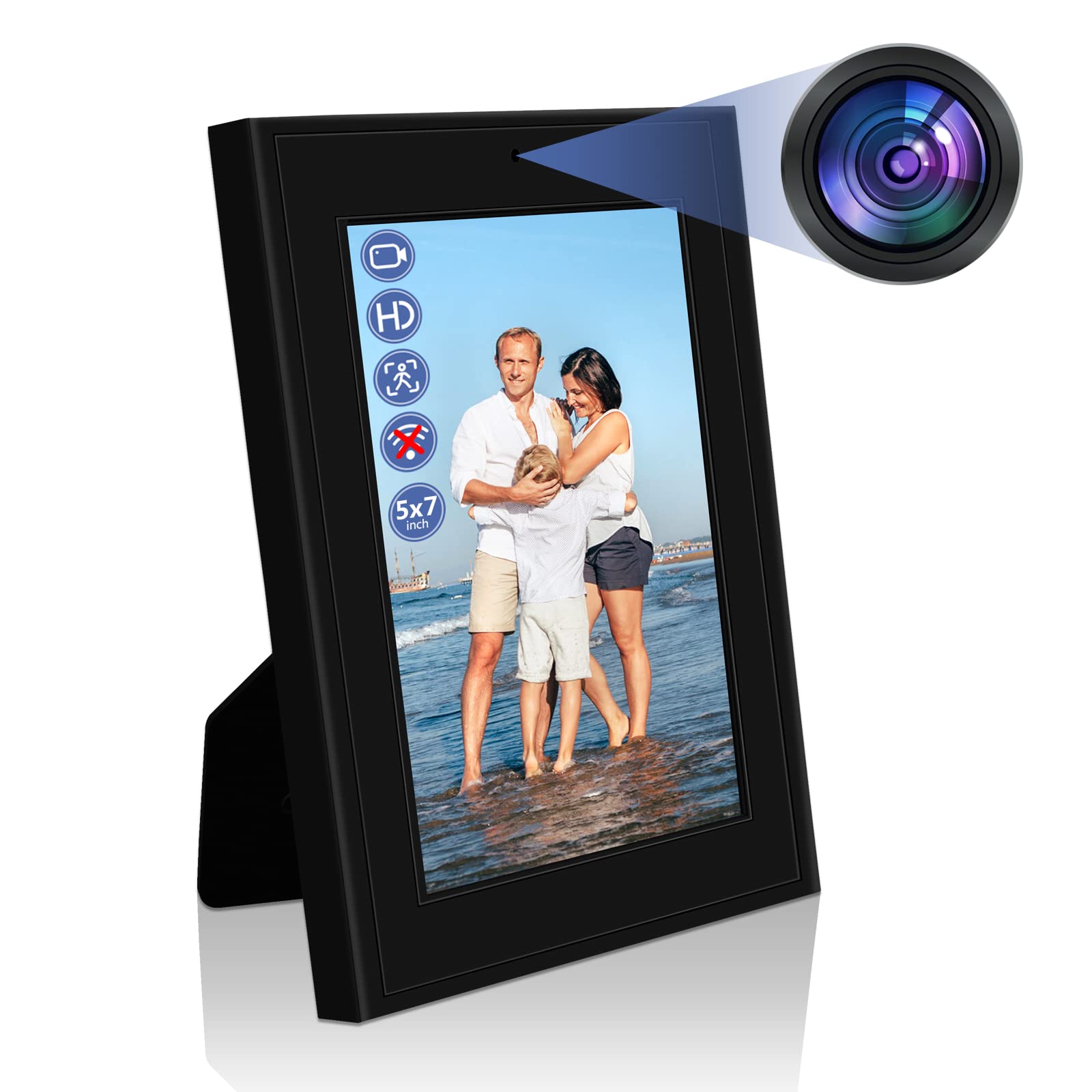
Image: UYIKOO Hidden Camera Photo Frame. This image shows the front view of the photo frame, highlighting its discreet design. The frame is black, with a visible photo area, and the hidden camera lens is not apparent, emphasizing its covert nature.
4. Setup
4.1. Inserting the Micro SD Card
- Locate the Micro SD card slot on the device (usually on the side or back).
- Gently insert a formatted Micro SD card (Class 10 or higher recommended, up to 128GB) into the slot until it clicks into place. Ensure the card is inserted in the correct orientation.
- To remove, gently push the card inward until it clicks, then release, and it will spring out.
4.2. Charging the Device
- Connect the small end of the USB charging cable to the charging port on the device.
- Connect the larger end of the USB cable to a USB power adapter (5V/1A recommended) or a computer's USB port.
- The charging indicator light will illuminate (color may vary by model) during charging and turn off or change color when fully charged.
- A full charge typically provides up to 4 hours of continuous recording or 1-2 days in standby mode.
5. Operating Instructions
5.1. Powering On/Off
- To Power On: Press and hold the power button for a few seconds until the indicator light illuminates.
- To Power Off: Press and hold the power button for a few seconds until the indicator light turns off.
5.2. Recording Modes
The device supports two primary recording modes: continuous recording and motion detection recording.
- Continuous Recording: Once powered on, the device may automatically begin continuous recording, or you may need to press a specific function button (refer to device-specific button layout if available) to start. Video files are typically saved in segments (e.g., 5-minute files). When the Micro SD card is full, the oldest files will be overwritten (loop recording).
- Motion Detection Recording: In this mode, the camera will only record when movement is detected within its field of view. This conserves battery life and storage space. To activate motion detection, press the designated motion detection button (if available) after powering on. The indicator light may change to signify this mode.
5.3. Viewing Recordings
To view recorded videos:
- Via Computer: Power off the device. Connect the device to your computer using the USB cable. It should appear as a removable disk. Navigate to the appropriate folder (e.g., 'DCIM' or 'VIDEO') to find your AVI video files.
- Via Micro SD Card Reader: Power off the device and safely remove the Micro SD card. Insert the card into a Micro SD card reader, then connect the reader to your computer. Access the video files directly from the card.
6. Maintenance
- Cleaning: Use a soft, dry cloth to clean the photo frame and lens. Avoid using liquid cleaners or abrasive materials.
- Storage: Store the device in a cool, dry place away from direct sunlight, extreme temperatures, and high humidity.
- Battery Care: For optimal battery life, avoid fully discharging the battery frequently. If storing for extended periods, charge the device to about 50% every few months.
- Firmware: Keep the device's firmware updated if updates are provided by the manufacturer.
7. Troubleshooting
- Device not turning on: Ensure the battery is charged. Connect to a power source and try again.
- Not recording: Check if a Micro SD card is inserted correctly and has sufficient free space. Ensure the card is formatted.
- Poor video quality: Ensure the lens is clean and free from obstructions. Check lighting conditions.
- Computer not recognizing device: Try a different USB port or cable. Ensure the device is powered off before connecting to a computer.
- Short battery life: Ensure the device is fully charged. Motion detection mode consumes less power than continuous recording.
8. Specifications
| Model Number | TM-D001 |
| Video Resolution | 1920 x 1080P HD |
| Frame Rate | 30 frames per second |
| Video Format | AVI |
| Memory Storage | Micro SD card, up to 128GB (not included) |
| Battery Type | Lithium-polymer (1 included) |
| Battery Life (Continuous Recording) | Up to 4 hours |
| Battery Life (Standby) | 1-2 days |
| Connectivity | No Wi-Fi (Direct connection to PC for data transfer) |
| Special Features | Motion Detection, HD Resolution |
| Dimensions (L x W x H) | 15 x 10 x 2 cm |
| Weight | 250 grams |
| Field of View | 90 Degrees |
| Optical Sensor Technology | CMOS |
9. Warranty and Support
For warranty information and technical support, please refer to the documentation provided with your purchase or contact UYIKOO customer service through the retailer where the product was purchased. Keep your proof of purchase for warranty claims.


