
1. Introduction
Thank you for choosing the vretti HP4 Mini Thermal Bluetooth Label Printer. This compact and portable device allows you to print labels, notes, photos, and more without ink, connecting seamlessly via Bluetooth to your smartphone. This manual provides detailed instructions to help you set up, operate, and maintain your printer for optimal performance.
2. What's in the Box
Please check the package contents upon unboxing. If any items are missing or damaged, please contact customer support.
- 1 x HP4 Label Maker Machine
- 3 x Rolls Die-Cut Labels (14mm x 40mm)
- 1 x Type-C Charging Cable
- 1 x Instruction Manuals

Image: Package contents of the vretti HP4 printer.
3. Product Features
- Inkless Thermal Printing: No need for ink cartridges, reducing operational costs.
- Bluetooth Connectivity: Supports Android and iOS devices for wireless printing.
- Portable Design: Compact and lightweight, ideal for on-the-go use.
- One-Click Paper Cutting: Integrated cutting function for convenience.
- Long Battery Life: Up to 15 hours of standby time on a full charge.
- Versatile Application: Suitable for work plans, memos, meeting notes, study notes, shopping lists, and various labeling needs.
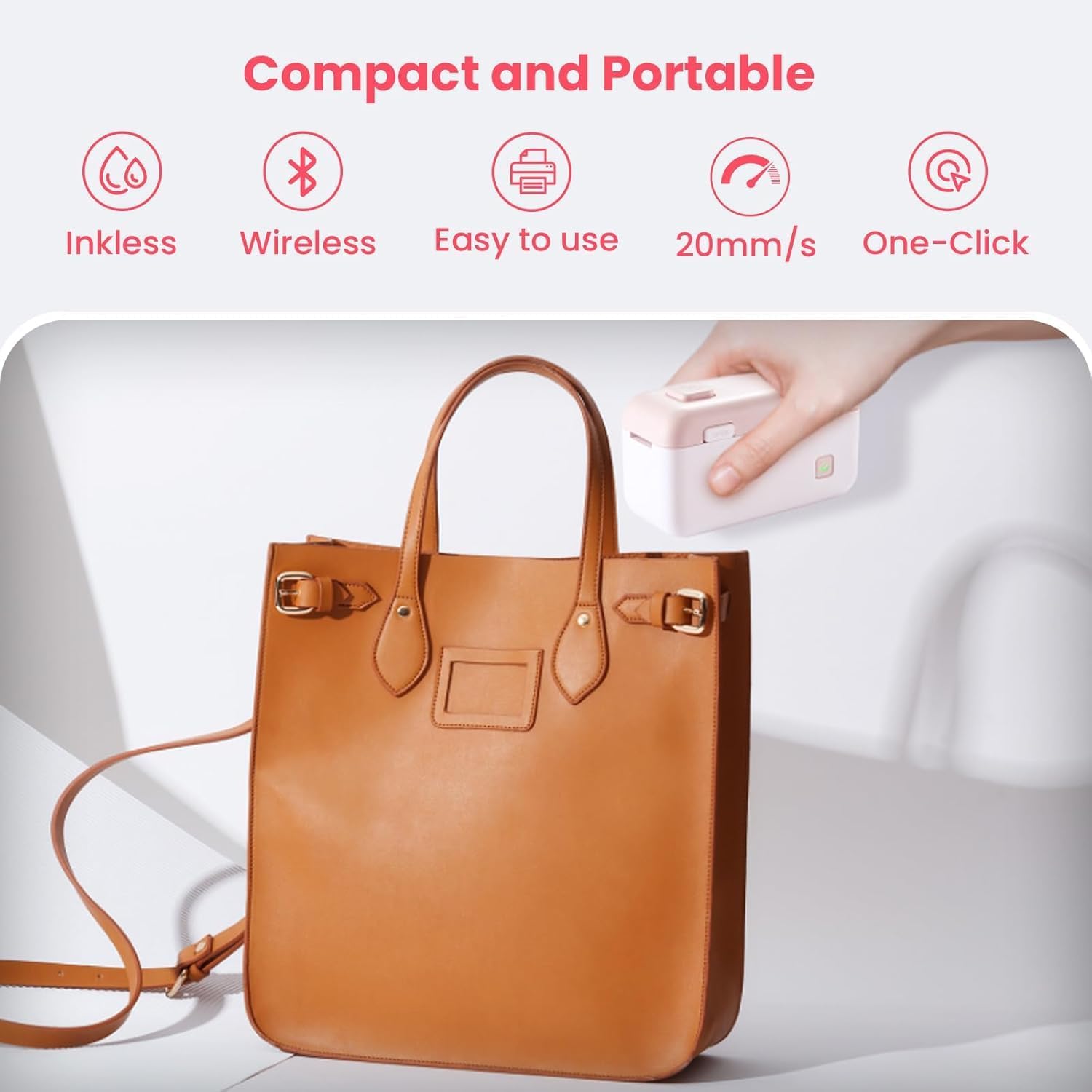
Image: The vretti HP4 printer showcasing its compact and portable features.
4. Setup Guide
Follow these steps to set up your vretti HP4 printer:
- Charge the Printer: Connect the provided Type-C charging cable to the printer and a power source. The indicator light will show charging status. Charge immediately if the light turns red.
- Open Top Cover: Gently slide the 'OPEN' switch to open the top cover of the printer.
- Load Print Paper: Insert the label roll into the paper bin, ensuring the printing side faces upwards and the paper feeds smoothly through the slot.
- Turn On Power: Press and hold the power button until the indicator light illuminates.
- Download the App: Scan the QR code in the included manual or search for "Xeasylabel" in your device's app store (available for Android and iOS).
- Connect via Bluetooth: Open the "Xeasylabel" app. In the app, search for available devices and select "HP4" to connect your printer via Bluetooth.
- Cut Paper (Optional): Press the top button to cut the paper if needed after loading.

Image: Step-by-step visual guide for printer setup.
5. Operating Instructions
Once set up, you can begin printing with your vretti HP4 printer:
- Create Your Label: Open the "Xeasylabel" app. You can create various label styles, including text, icons, borders, ID codes, QR codes, and images. The app offers a variety of fonts, filter effects, and themes.
- Preview and Adjust: Before printing, preview your label in the app. Adjust size, position, and content as needed.
- Print: Tap the print button in the app. The printer will quickly produce your label.
- Cut the Label: Use the integrated one-click paper cutting function by pressing the designated button on the printer.

Image: The 'Xeasylabel' app interface for label creation.
Applications
The vretti HP4 printer is versatile for various labeling needs:
- Home Organization: Labeling canned food, spice jars, storage bins, and more.
- Office & School: Organizing files, notebooks, office supplies, and creating memos.
- Personal Use: Labeling craft items, plant tags, or creating personalized stickers.
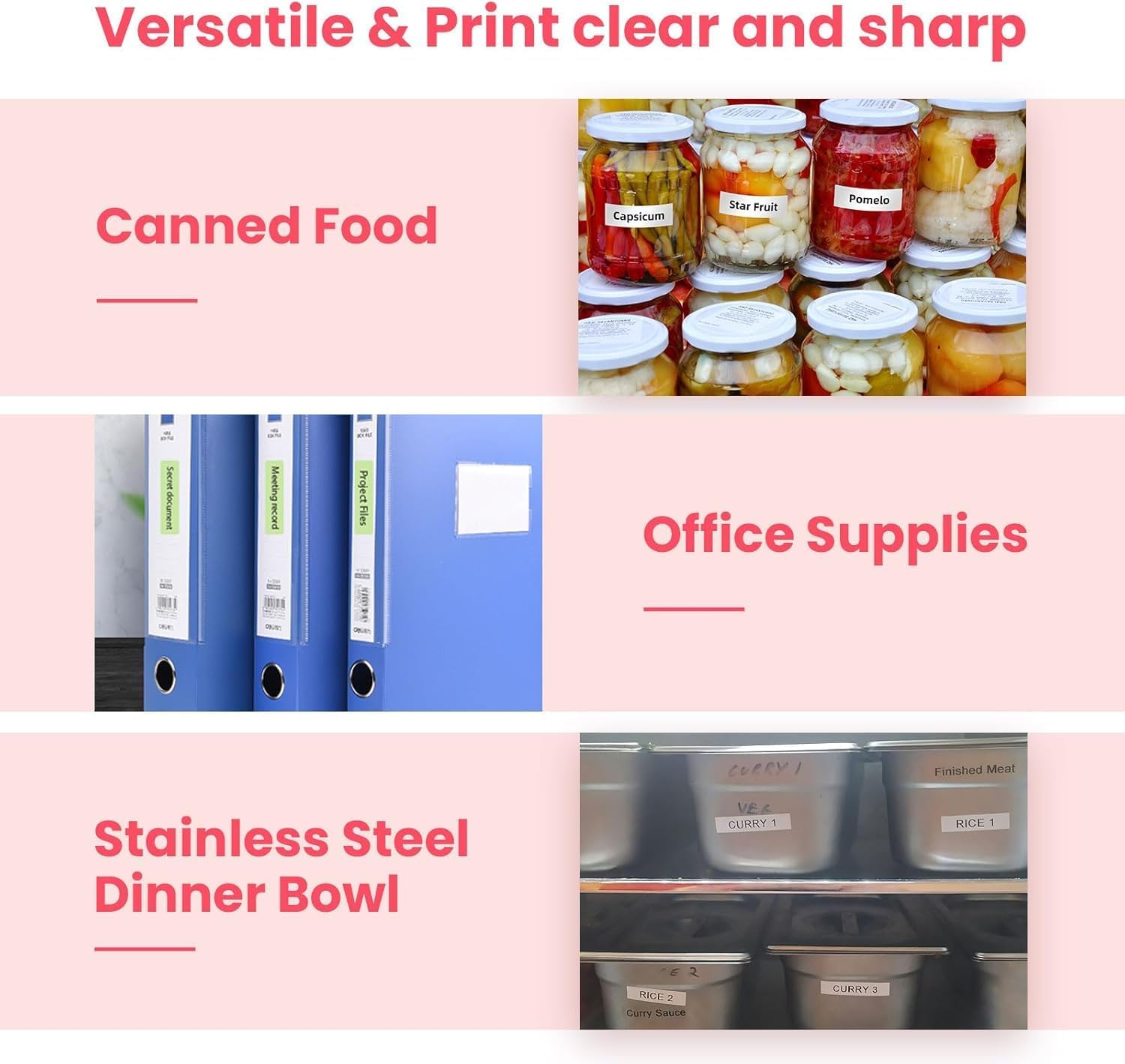

Images: Various applications of the vretti HP4 printer for labeling.
6. Maintenance
To ensure the longevity and optimal performance of your vretti HP4 printer, follow these maintenance guidelines:
- Cleaning: Regularly wipe the exterior of the printer with a soft, dry cloth. For the thermal print head, use a cotton swab lightly dampened with isopropyl alcohol. Ensure the printer is off and completely dry before use.
- Battery Care: Avoid fully discharging the battery frequently. Charge the printer when the indicator light turns red. If storing for an extended period, charge the battery to about 50% every few months.
- Storage: Store the printer in a cool, dry place away from direct sunlight and extreme temperatures.
- Paper Handling: Use only vretti-approved thermal label rolls. Ensure labels are loaded correctly to prevent jams and damage to the print head.
7. Troubleshooting
If you encounter issues with your vretti HP4 printer, refer to the following common problems and solutions:
| Problem | Possible Cause | Solution |
|---|---|---|
| Printer does not turn on | Low battery; Power button not pressed correctly | Charge the printer; Press and hold the power button for a few seconds. |
| Cannot connect via Bluetooth | Bluetooth off; App not open; Printer out of range; Incorrect device selected | Ensure Bluetooth is enabled on your phone; Open the "Xeasylabel" app; Move printer closer to phone; Select "HP4" in the app. |
| Poor print quality / Faint print | Low battery; Incorrect label type; Dirty print head; Expired labels | Charge the printer; Ensure you are using thermal labels; Clean the print head; Use fresh label rolls. |
| Paper jam | Incorrect paper loading; Damaged label roll | Open the cover and re-load the paper correctly; Replace the label roll if damaged. |
| Labels are too long/short | Incorrect label size setting in app; Continuous label mode selected | Adjust label size settings in the "Xeasylabel" app to match your label roll; Ensure you are using the correct label type (e.g., die-cut vs. continuous) and settings. |
8. Specifications
| Specification | Detail |
|---|---|
| Model Number | HP4 |
| Printing Technology | Thermal |
| Connectivity Technology | Bluetooth |
| Compatible Devices | Smartphone (Android, iOS) |
| Max Print Resolution (B&W) | 600 dpi |
| Max Sheet Size | 9 Millimeter (label width) |
| Item Dimensions (L x W x H) | 11.5 x 11.5 x 5 centimeters |
| Special Feature | Portable |
| Included Components | Paper rolls |
9. Warranty and Support
The vretti HP4 Mini Thermal Bluetooth Label Printer comes with a limited warranty. For specific warranty terms and conditions, please refer to the warranty card included in your package or contact vretti customer support.
For technical assistance, troubleshooting, or any other inquiries, please visit the official vretti website or contact their customer service team. Contact information can typically be found on the product packaging or the brand's official online store.