
1. Introduction
Thank you for choosing the KOZWAY Smart Wireless Thermostat. This device is designed to provide efficient and precise temperature control for your gas boiler heating system, enhancing both comfort and energy savings in your home. This manual provides essential information for the safe installation, operation, and maintenance of your thermostat.
The system consists of a wireless thermostat controller and a receiver unit (T9W RC9P). The thermostat offers features such as precise temperature control, programmable schedules, mobile app control, and integration with voice assistants like Amazon Alexa and Google Home.
2. Safety Information
- Electrical Safety: Installation should be performed by a qualified electrician or a trained professional to prevent electrical shock or damage to the device. Ensure the main power supply is turned off before any wiring work.
- Voltage: The receiver unit operates on AC100~240V; 50/60Hz. Ensure your power supply matches these requirements.
- Placement: Install the thermostat in a location away from direct sunlight, drafts, or heat sources that could affect temperature readings.
- Water Exposure: Do not expose the device to water or excessive humidity.
- Children: Keep the device out of reach of children.
3. Package Contents
Please check the package for the following items:
- Wireless Thermostat Controller
- Receiver Unit (T9W RC9P)
- USB Type-C Cable (for thermostat power)
- Mounting Screws and Wall Anchors
- User Manual (this document)
4. Setup
4.1 Receiver Unit Installation and Wiring
The receiver unit connects directly to your gas boiler. Ensure the main power to your boiler is OFF before proceeding.
- Mount the receiver unit in a suitable location near your boiler using the provided screws and anchors.
- Connect the power supply (AC100~240V; 50/60Hz) to the receiver unit.
- Connect the receiver unit to your gas boiler according to the boiler's wiring diagram. Consult a professional if you are unsure.
- Once wiring is complete, restore power to the boiler. The receiver unit should power on.
4.2 Thermostat Controller Power Supply
The thermostat controller can be powered by two methods:
- USB Power: Connect the provided USB Type-C cable to the thermostat and a compatible USB power adapter (not included).
- Battery Power: Insert two 1.5V AA alkaline batteries into the battery compartment on the back of the thermostat.

Image: The thermostat controller showing both USB Type-C and AA battery power options.
4.3 Wireless Pairing (Thermostat and Receiver)
The thermostat controller and receiver communicate wirelessly via RF (Sub-1GHz) up to 200m. They are typically pre-paired. If pairing is lost or a new unit is installed, follow the instructions in the receiver unit's specific manual for re-pairing.

Image: Overview of the wireless thermostat system, highlighting RF communication and smart home integration.
4.4 WiFi Connection
To enable smart features like app control, weather display, and voice assistant integration, connect your thermostat to your home WiFi network:
- Ensure your smartphone is connected to a 2.4GHz WiFi network.
- Download the companion mobile application (e.g., Smart Life or Tuya Smart, refer to the thermostat's display or packaging for the exact app name) from your app store.
- Follow the in-app instructions to add a new device and connect your thermostat to WiFi. This typically involves putting the thermostat into pairing mode (often by holding a button) and entering your WiFi credentials in the app.
- Once connected, the device will automatically synchronize temperature, humidity, and time data for your city.
5. Operating Instructions
5.1 Basic Temperature Control
Use the rotary knob or touch controls on the thermostat display to manually adjust the desired temperature. The current room temperature and set temperature will be displayed.
5.2 Smart Schedule Programming
The thermostat supports 5+2, 6+1, or 7-day programmable schedules, allowing you to set ideal temperatures for six periods each day. Access the scheduling menu through the thermostat's interface or the mobile app to customize your heating plan for energy efficiency and comfort.
5.3 Mobile App Control
After connecting your thermostat to WiFi and setting up the mobile app, you can control your heating system from anywhere, anytime.
- Remote Adjustment: Change temperature settings, switch modes, and manage schedules remotely.
- Data Monitoring: View current temperature, humidity, and weather information.
- Device Sharing: Share control of the thermostat with family members through the app.
- Child Lock: Activate the child lock feature via the app to prevent unauthorized changes to settings.
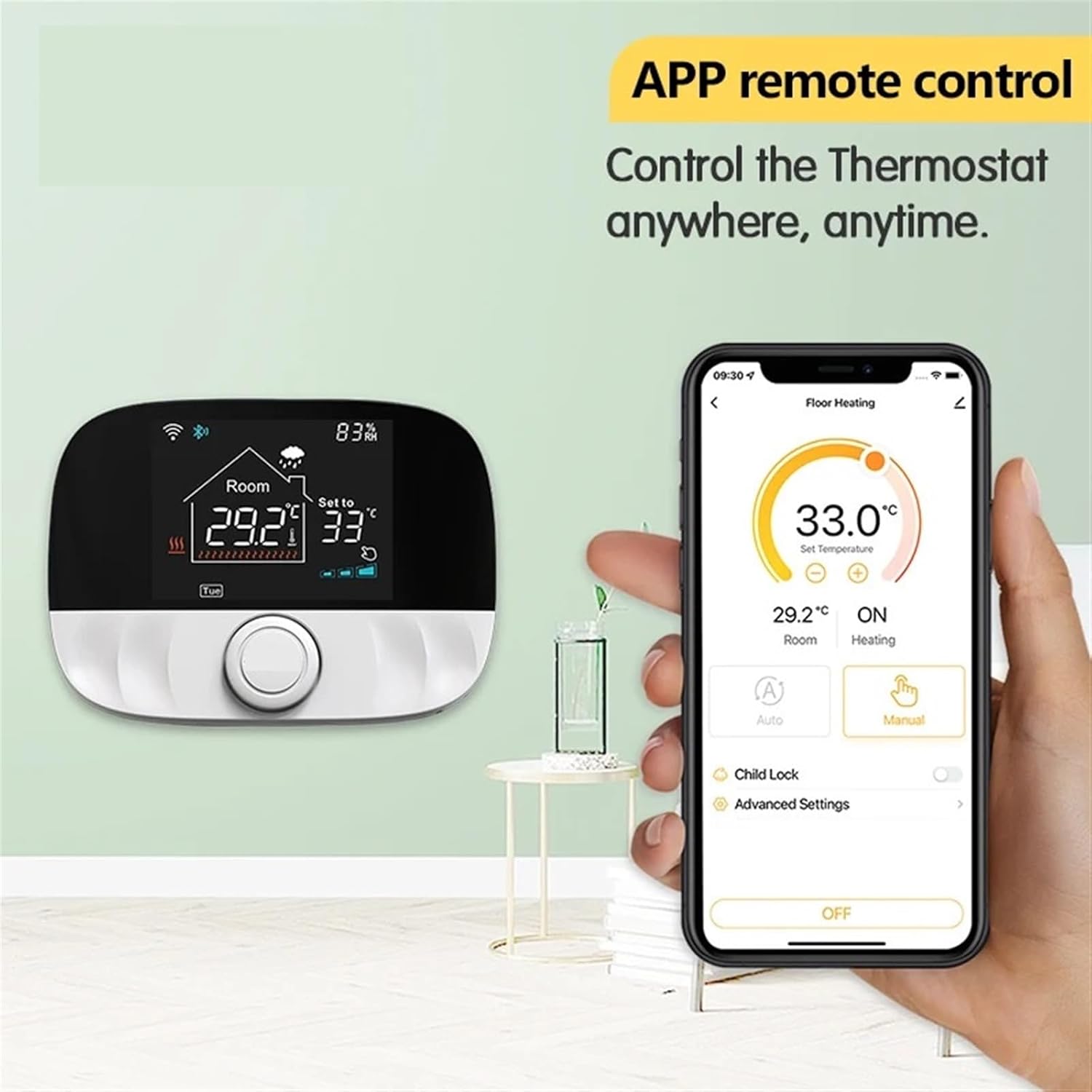
Image: The mobile application interface demonstrating remote control capabilities.
5.4 Voice Control
Integrate your thermostat with Amazon Alexa or Google Home for convenient voice control. Once linked through the mobile app, you can adjust settings using simple voice commands.
- Example commands: "Alexa, set the thermostat to 21 degrees." or "Hey Google, what's the temperature in the living room?"

Image: Voice control integration with popular smart home assistants.
5.5 Dark Mode
The thermostat features an automatic dark mode. The screen brightness is reduced at night to provide a comfortable sleeping environment, minimizing light disturbance.

Image: The thermostat in dark mode, designed for a comfortable night's sleep.
6. Maintenance
- Cleaning: Wipe the thermostat display and casing with a soft, dry cloth. Do not use abrasive cleaners or solvents.
- Battery Replacement: If using battery power, replace the two 1.5V AA alkaline batteries when the low battery indicator appears on the display.
- Software Updates: Periodically check the mobile app for any available firmware updates for your thermostat to ensure optimal performance and access to new features.
7. Troubleshooting
- No Power to Thermostat: Check USB connection or replace AA batteries. Ensure the receiver unit is powered.
- No Heating: Verify the receiver unit is powered and correctly wired to the boiler. Check if the thermostat is set to heating mode and the desired temperature is above the current room temperature. Ensure the thermostat and receiver are paired.
- WiFi Disconnected: Check your home router and internet connection. Re-establish the WiFi connection through the mobile app if necessary. Ensure the thermostat is within range of your 2.4GHz WiFi network.
- Inaccurate Temperature Reading: Ensure the thermostat is not exposed to direct sunlight, drafts, or heat sources. Allow time for the sensor to stabilize after placement.
- App Not Responding: Close and reopen the mobile app. Check your phone's internet connection. Ensure the thermostat is connected to WiFi.
- Data Memory: The thermostat features data memory, so your settings are retained even after a power outage. You do not need to reconfigure settings after a power interruption.
8. Specifications
| Feature | Specification |
|---|---|
| Brand | KOZWAY |
| Model Name | 12345643 |
| Color | White T9n |
| Thermostat Input Voltage | 95-240 V AC |
| Temperature Difference Setting | 0.5-10°C |
| Temperature Accuracy | 0.5°C |
| Temperature Range | 5-95°C |
| Product Dimensions | 118 x 86 x 24 mm |
| Thermostat Power Supply | 2 x 1.5V AA Alkaline Batteries / USB Power (Type-C interface) |
| Receiver Power Supply | AC100~240V; 50/60Hz |
| Item Weight | 400 g |
9. Warranty and Support
For warranty information, please refer to the documentation provided at the time of purchase or contact your retailer. If you encounter any issues or require technical assistance, please contact KOZWAY customer support through the contact information provided on the product packaging or the official KOZWAY website.