
1. Product Overview
The TECKEEN 5-inch IPS TYPE-C Secondary Screen is a compact and versatile display designed to provide real-time monitoring of your computer's vital statistics. This monitor connects via a single USB-C cable, eliminating the need for an HDMI connection or external power supply, simplifying your setup. It features an IPS panel for wide viewing angles and supports both horizontal and vertical screen orientations, with 360-degree rotation capability for optimal placement.
This device is engineered for efficiency, requiring minimal system resources. It operates with built-in software, removing the necessity for third-party applications like AIDA64. Users can select from various pre-designed templates to customize the display according to their preferences. Key data points displayed include CPU, GPU, and RAM usage, temperature readings, internet speed, current date, and time.
The TECKEEN 5-inch IPS TYPE-C Secondary Screen, showcasing its vibrant display with real-time CPU, GPU, RAM, and temperature information.
2. Package Contents
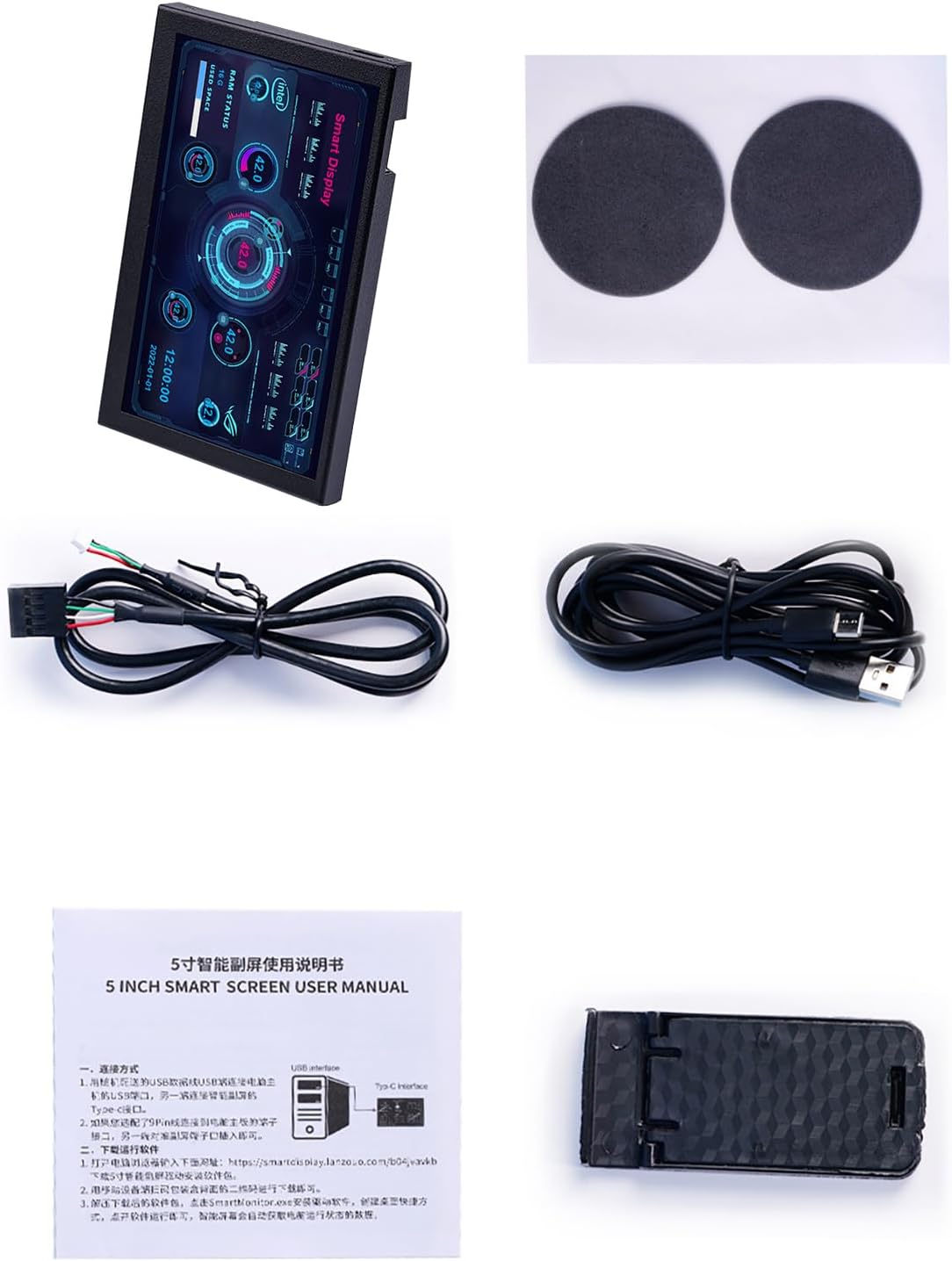
Please verify that all items listed below are included in your package:
- 1x 5-inch IPS TYPE-C Secondary Screen
- 1x 9 Pin Host Cable
- 1x Type-C Cable
- 1x Bracket
- 2x Double-Sided Tape

This image shows the essential connection cables: a 9-pin host cable for internal motherboard connection and a Type-C cable for power and data transfer.
3. Setup Instructions
3.1 Physical Installation
- Choose Placement: Decide where to place your secondary screen. It can be positioned on your desk using the included bracket or mounted inside your PC case.
- Attach Bracket (if applicable): If using the bracket, securely attach the screen to it. The screen supports 360-degree rotation, allowing for flexible orientation.
- Internal Mounting (Optional): For internal PC case mounting, use the provided double-sided tape to secure the screen in a desired location. Ensure proper ventilation and cable routing.

The secondary screen is shown securely placed on its adjustable bracket, demonstrating a stable desktop setup.
3.2 Cable Connections
- Connect Type-C Cable: Plug one end of the Type-C cable into the Type-C port on the secondary screen and the other end into an available USB port on your computer. This cable provides both power and data transfer.
- Connect 9 Pin Host Cable (Optional): For enhanced data monitoring capabilities, connect the 9 Pin Host Cable to the PH port on the secondary screen and to an available 9-pin USB header on your PC's motherboard.

A detailed view of the monitor's side, highlighting the Type-C port for connectivity and the PH port for additional connections.

This image illustrates the 9-pin header on a typical PC motherboard, which is used to connect the secondary screen's host cable for data communication.
3.3 Software Installation
The TECKEEN secondary screen utilizes built-in software and does not require AIDA64. Upon connecting the device to a Windows system, the necessary drivers and software should install automatically. If not, please refer to the manufacturer's website for specific software download and installation instructions.
4. Operating Instructions
4.1 Display Functions
Once connected and powered on, the screen will automatically display real-time system information. This includes:
- CPU Usage and Temperature
- GPU Usage and Temperature
- RAM Usage
- Internet Speed
- Current Date and Time
4.2 Customization
The device offers various templates to customize the visual presentation of your data. Specific instructions for template selection and brightness adjustment can be found within the device's integrated software interface. The screen also features an automatic screen-off function and comfortable eye protection settings, which can be configured through the software.
4.3 Orientation Adjustment
The IPS screen supports horizontal and vertical switching and can be rotated 360 degrees. Adjust the physical orientation of the screen as desired, and the display content will adapt accordingly, or can be manually adjusted via software settings.

An example setup demonstrating the versatility of the TECKEEN secondary screen, with one unit on a desk stand and another mounted vertically inside a computer case, both displaying system information.
5. Maintenance
To ensure the longevity and optimal performance of your TECKEEN secondary screen, follow these maintenance guidelines:
- Cleaning: Use a soft, dry, anti-static cloth to gently wipe the screen and exterior surfaces. Avoid using harsh chemicals, abrasive cleaners, or aerosol sprays, as these can damage the display or finish.
- Handling: Handle the device with care. Avoid dropping it or subjecting it to strong impacts.
- Environment: Operate the monitor in a clean, dry environment, away from direct sunlight, excessive heat, and moisture.
- Cable Management: Ensure cables are not kinked or under strain to prevent damage to the connectors or wires.
6. Troubleshooting
If you encounter issues with your TECKEEN secondary screen, please refer to the following common troubleshooting steps:
- No Display:
- Ensure the Type-C cable is securely connected to both the monitor and your computer's USB port.
- Try connecting to a different USB port on your computer.
- Restart your computer.
- Incorrect Data/No Data:
- Verify that the 9 Pin Host Cable (if used) is correctly connected to both the monitor and the motherboard header.
- Check the device's software settings to ensure all monitoring parameters are enabled.
- Ensure your operating system is Windows, as the device only supports Windows systems.
- Screen Orientation Issues:
- Physically rotate the screen to the desired orientation. The display should adjust automatically.
- If the display does not adjust, check the orientation settings within the device's software.
If problems persist after attempting these steps, please contact TECKEEN customer support for further assistance.
7. Specifications
| Feature | Specification |
|---|---|
| Type | 5-inch IPS TYPE-C Secondary Screen |
| Color | Black |
| Panel Type | IPS |
| Screen Type | LCD |
| Resolution | 800*480 |
| Interface | 1x USB TYPE-C Port, 1x PH Port |
| System Compatibility | Only Supports for Win System |
| Software Requirement | No Need to Download for Aida64 Software |
| Screen Orientation | Horizontal and Vertical Screen Switching, 360° Rotation Support |
| Package Dimensions | 3.94 x 3.15 x 0.79 inches |
| Item Weight | 7 ounces |
| Standing Screen Display Size | 5 Inches |
| Screen Surface Description | Glossy |

This diagram provides the physical measurements of the monitor, showing its compact size for easy integration into various setups.
8. Warranty and Support
For warranty information or technical support, please refer to the documentation included with your purchase or visit the official TECKEEN website. You may also contact TECKEEN customer service directly for assistance with product inquiries, troubleshooting, or service requests.