
Introduction
This manual provides detailed instructions for the installation, operation, and maintenance of your GENBOLT GB-PTZ-4G-Indoor 3G/4G LTE Security Camera. Please read this manual thoroughly before using the product to ensure proper functionality and safety.
The GENBOLT GB-PTZ-4G-Indoor camera is designed for indoor security, offering 2.5K resolution, 3G/4G LTE connectivity, human detection, auto-tracking, two-way audio, and color night vision. It is ideal for monitoring pets, babies, or general indoor spaces where Wi-Fi may not be available.
Product Overview
Package Contents
The package typically includes the following items:
- GENBOLT GB-PTZ-4G-Indoor Camera
- Power Adapter (USB 5V/1A)
- Network Cable
- Mounting Brackets (Bracket 1, Bracket 2)
- Screws
- User Manual

Key Features
- 3G/4G LTE & Wired Connectivity: Operates without Wi-Fi, using a 3G/4G LTE SIM card or an Ethernet cable.
- 2.5K Resolution & Color Night Vision: Provides clear video footage day and night, with enhanced color night vision capabilities.
- Human Detection & Auto Tracking: Intelligently identifies human motion and automatically tracks the subject within its field of view.
- 360° Panoramic View (Pan/Tilt/Zoom): Offers 355° horizontal pan and 90° vertical tilt for comprehensive coverage, with 4x digital zoom.
- Two-Way Audio: Built-in microphone and speaker for real-time communication.
- Active Alarm Siren & Light Defense: Deters intruders with an audible siren and flashing lights upon detection.
- Remote Access: Monitor and control the camera via a smartphone app.
Setup Instructions
1. SIM Card Installation (for 3G/4G LTE connectivity)
- Locate the SIM card slot on the camera. Refer to Figure 1 for component identification.
- Insert a compatible 3G/4G LTE SIM card into the slot. Ensure the SIM card is activated and has data.
- The camera will attempt to connect to the cellular network automatically.
Note: This camera is not battery-powered and requires a wired power connection. It does not support Wi-Fi connectivity.

2. Power Connection
- Connect the provided USB power adapter to the camera's USB power port.
- Plug the adapter into a standard electrical outlet.
- The camera will power on and initiate its startup sequence.
3. App Download and Pairing
- Download the official GENBOLT app from your smartphone's app store (compatible with Android and likely iOS).
- Create an account or log in if you already have one.
- Follow the in-app instructions to add your new camera. This typically involves scanning a QR code on the camera or manually entering its ID.
- Once paired, you should see the camera listed as "Online" in the app.
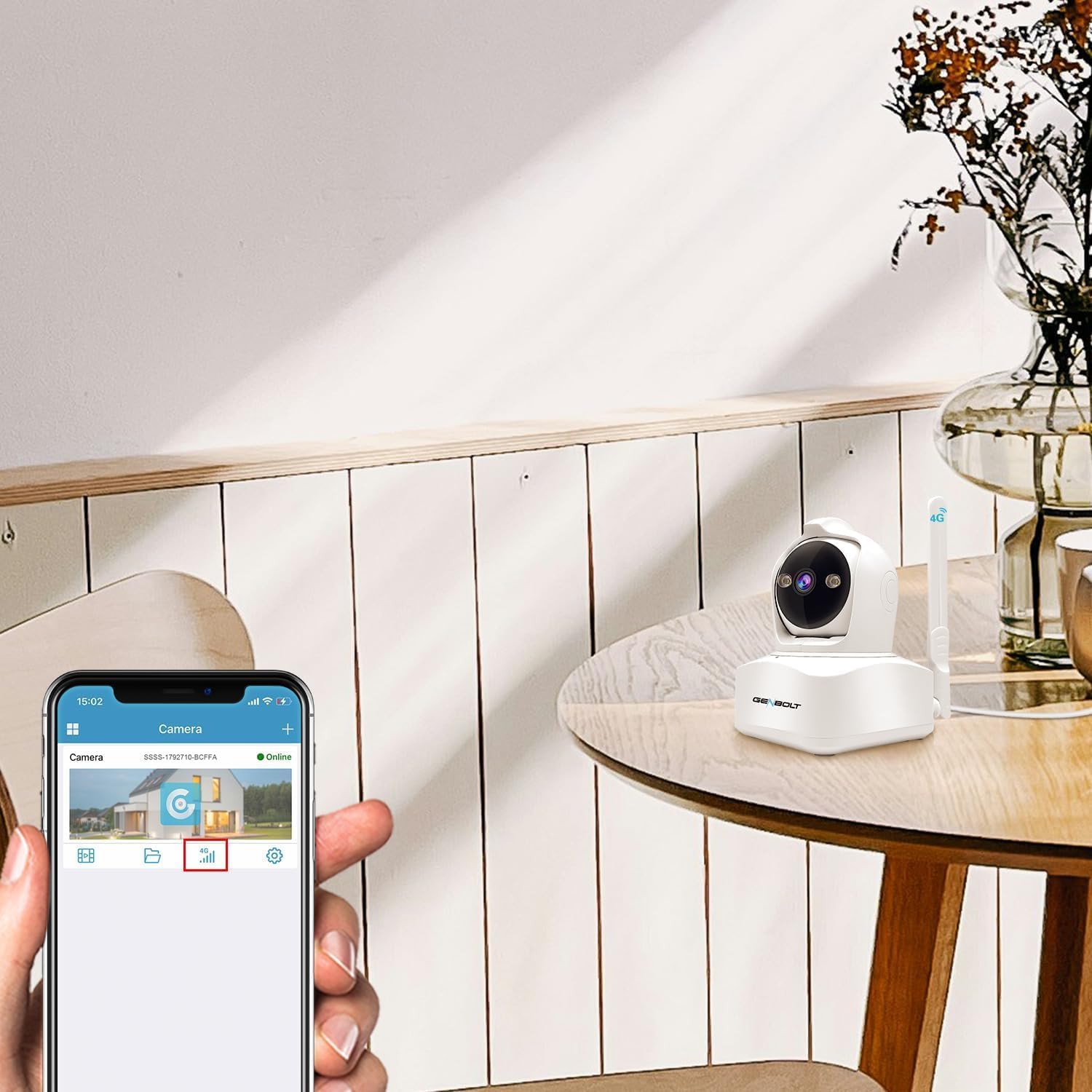
4. Mounting the Camera
The camera can be mounted on a wall, ceiling, or placed on a table. Use the provided brackets and screws for secure installation.
- Table Placement: Simply place the camera on a flat, stable surface.
- Wall/Ceiling Mounting:
- Choose a suitable location for optimal viewing.
- Attach the desired mounting bracket to the camera.
- Mark the drill holes on the wall or ceiling using the bracket as a template.
- Drill pilot holes and secure the bracket using the provided screws.
- Attach the camera with the bracket to the secured mounting point.

Operating Instructions
1. Live View and Pan/Tilt Control
- Open the GENBOLT app and select your camera to view the live feed.
- Use the on-screen controls to pan (355° horizontal) and tilt (90° vertical) the camera lens for a 360° panoramic view.
- Pinch to zoom in/out (4x digital zoom) on the live feed.
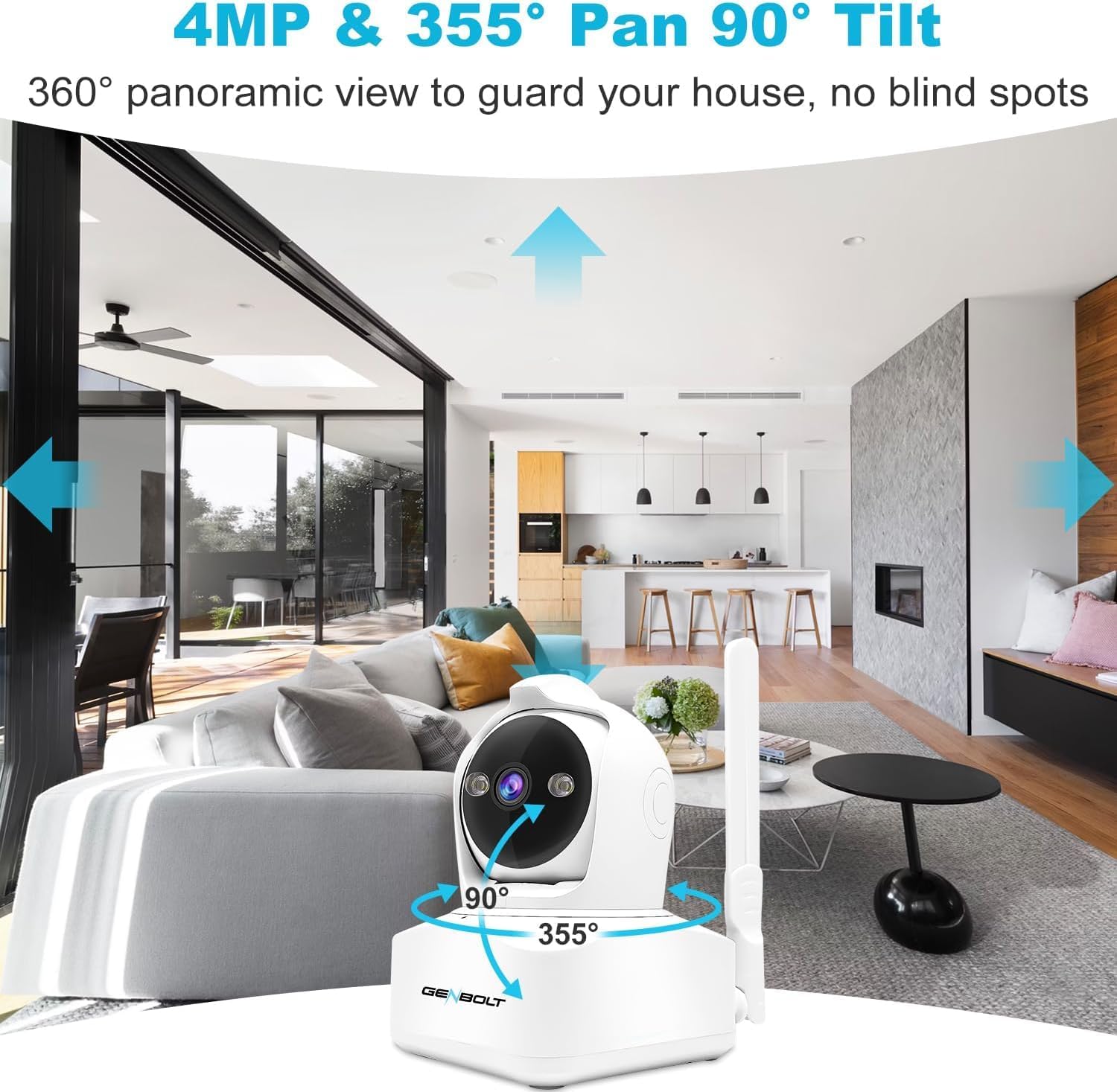
2. Human Detection and Auto Tracking
- In the app settings, navigate to "Detection Settings".
- Enable "Human Detection" to allow the camera to distinguish human shapes from other movements.
- Activate "Auto Tracking" to make the camera follow detected human subjects.
- You can define specific detection zones (1-4 areas) to minimize false alarms.

3. Two-Way Audio
- While in live view, tap the microphone icon in the app to speak through the camera's speaker.
- The camera's built-in microphone will capture audio from the environment, allowing you to hear through the app.
4. Active Alarm and Notifications
- Configure alarm settings in the app to enable the siren and flashing lights upon motion detection.
- Customize the alarm sound if desired.
- Ensure push notifications are enabled in your phone's settings and the GENBOLT app to receive alerts when motion is detected.

5. Night Vision Modes
- The camera supports both standard IR night vision and 2.5K color night vision.
- In the app, you can select between "Normal" (IR), "Color", or "Auto" mode for night vision. "Auto" mode will switch between IR and color based on ambient light conditions.

6. Data Management (for 4G SIM)
- The GENBOLT app allows you to monitor and recharge your 4G data plan directly.
- The camera utilizes a smart algorithm to optimize data usage for surveillance.
Maintenance
- Cleaning: Use a soft, dry cloth to clean the camera lens and body. Avoid abrasive cleaners or solvents.
- Firmware Updates: Regularly check the GENBOLT app for available firmware updates to ensure optimal performance and security.
- Storage: If using a TF card (not included), ensure it is properly inserted and has sufficient storage space. Back up important recordings regularly.
- Power Supply: Ensure the camera is connected to a stable power source.
Troubleshooting
| Problem | Possible Cause | Solution |
|---|---|---|
| Camera not powering on | No power, faulty adapter, loose connection. | Check power outlet, ensure adapter is securely connected to camera and outlet. Try a different outlet. |
| No 3G/4G LTE connection | SIM card not inserted correctly, no data plan, poor signal, incompatible SIM. | Reinsert SIM card, check data plan status, move camera to an area with better cellular coverage. Ensure SIM card is compatible with the camera and local networks. |
| Cannot connect to app | Incorrect pairing process, app issues, camera offline. | Ensure camera is powered on and has network connection. Re-attempt pairing process. Restart the app or reinstall it. |
| False alarms | Sensitive detection settings, environmental factors. | Adjust detection sensitivity in the app. Define specific detection zones to exclude irrelevant areas. |
| Poor video quality | Dirty lens, poor network signal, low light. | Clean the camera lens. Ensure strong 3G/4G LTE signal. Adjust night vision settings if applicable. |
Specifications
| Feature | Detail |
|---|---|
| Brand | GENBOLT |
| Model | GB-PTZ-4G-Indoor |
| Recommended Use | Indoor Security |
| Connectivity Technology | 3G/4G LTE Cellular, Wired LAN (Ethernet) |
| Special Features | 2-Way Audio, Human Detection, Auto Tracking, Color Night Vision, Active Alarm Siren & Light |
| Indoor/Outdoor Use | Indoor |
| Compatible Devices | Smartphone (Android, iOS) |
| Power Source | Corded Electric (USB 5V/1A) |
| Mounting Type | Wall, Ceiling, Table |
| Pan/Tilt Range | Pan 355°, Tilt 90° |
| Digital Zoom | 4x |
Warranty and Support
For warranty information and technical support, please refer to the official GENBOLT website or contact their customer service directly. Contact details are usually provided on the product packaging or within the GENBOLT app.
You can visit the GENBOLT store on Amazon for more products and support: GENBOLT Amazon Store.