
Introduction
This manual provides essential information for the proper setup, operation, and maintenance of your INNOCN 27G1G Plus 27-inch 180Hz IPS Gaming Monitor. Please read this manual thoroughly before using the product to ensure optimal performance and safety. Keep this manual for future reference.
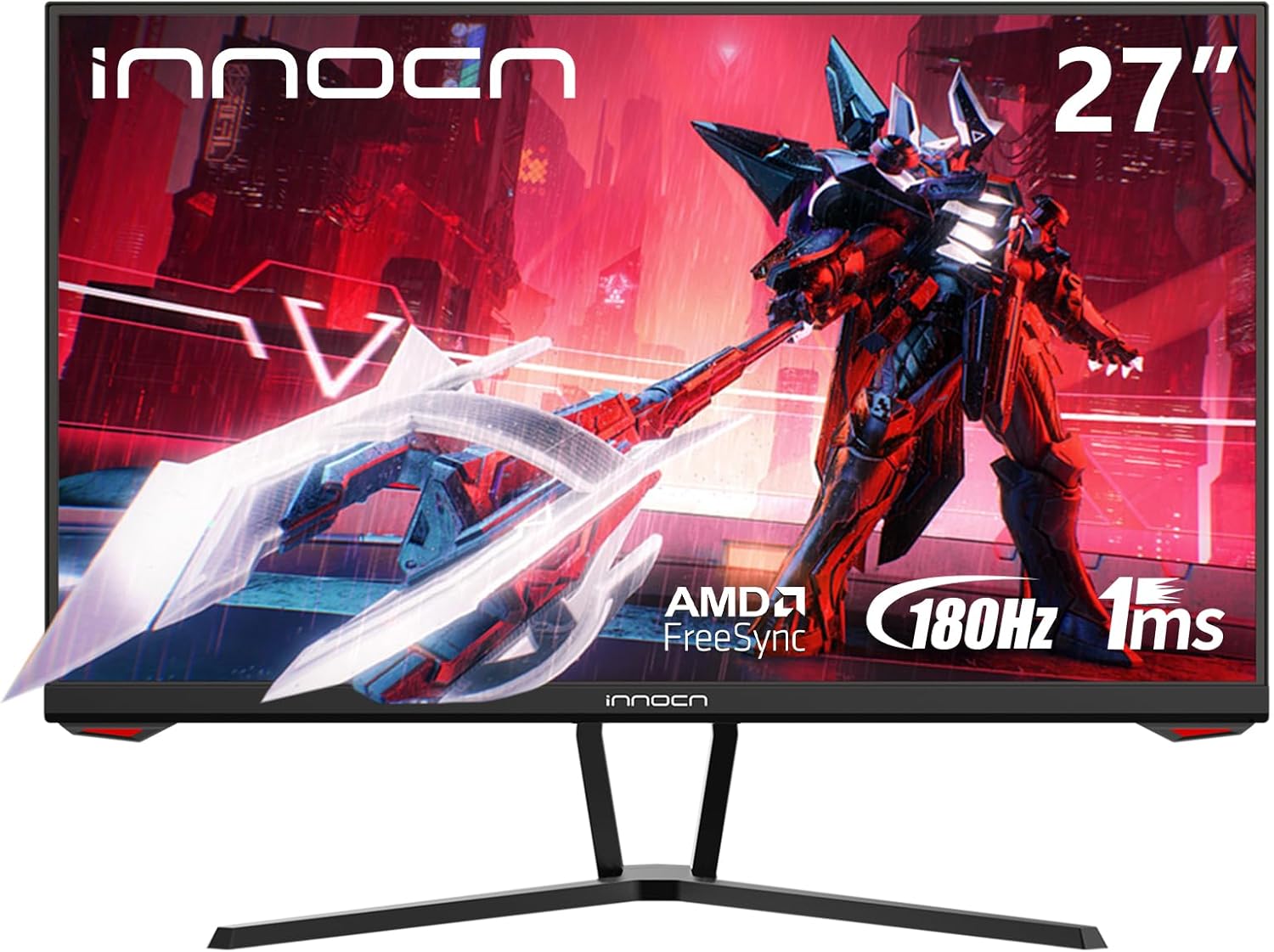
Image: The INNOCN 27G1G Plus 27-inch gaming monitor, showcasing its design and key features like 180Hz refresh rate and 1ms response time.
Important Safety Information
- Do not expose the monitor to rain or moisture to prevent fire or electric shock.
- Do not open the monitor casing. There are no user-serviceable parts inside. Refer all servicing to qualified personnel.
- Place the monitor on a stable, flat surface to prevent it from falling.
- Ensure proper ventilation around the monitor. Do not block ventilation openings.
- Use only the power adapter supplied with the monitor.
- Disconnect the power cable from the outlet during lightning storms or when unused for long periods.
- Avoid placing heavy objects on the power cord.
- Clean the monitor with a soft, dry cloth. Do not use liquid cleaners or aerosol cleaners.
Package Contents
Verify that all items are present and in good condition upon unpacking. If any items are missing or damaged, contact your retailer.
- INNOCN 27G1G Plus Monitor
- Monitor Stand (Base and Neck)
- Power Adapter
- Power Cable
- HDMI Cable
- DisplayPort Cable
- User Manual (This document)
- Warranty Card (if applicable)
Setup Instructions
1. Physical Assembly
Follow these steps to assemble the monitor stand or prepare for VESA mounting.
Attaching the Stand:
- Carefully remove the monitor from its packaging, keeping it protected on a soft surface.
- Attach the stand neck to the monitor panel.
- Secure the stand base to the stand neck using the provided screws.
- Place the assembled monitor on a stable desk.
VESA Mounting:
The monitor supports VESA mounting (75x75mm). Remove the stand if already attached. Use appropriate VESA screws and a compatible wall mount or desk arm (not included).

Image: Monitor dimensions and tilt adjustment capability. The monitor can be tilted from -5 to +15 degrees for ergonomic viewing.
2. Connecting to Devices
Connect your computer or gaming console to the monitor using the appropriate cables.
- HDMI Connection: Use an HDMI cable to connect your device's HDMI output to one of the monitor's HDMI 1.4 ports. Supports up to 144Hz refresh rate.
- DisplayPort Connection: Use a DisplayPort cable to connect your device's DisplayPort output to the monitor's DisplayPort 1.2 port. Supports up to 180Hz refresh rate.
- Audio Output: Connect external speakers or headphones to the 3.5mm audio out jack for sound.

Image: Overview of monitor connectivity ports, illustrating connections to various devices like a desktop PC, gaming console, and headphones.
Power Connection:
Connect the power adapter to the monitor's power input, then plug the power cable into a wall outlet.
Operating Instructions
1. Power On/Off
Press the joystick button located on the back of the monitor to power it on or off. A short press will turn it on, and a long press will turn it off.
2. On-Screen Display (OSD) Menu
The monitor's settings are adjusted using the joystick control located on the back. Press the joystick to open the OSD menu. Move the joystick up, down, left, or right to navigate and select options.

Image: Detailed guide to the monitor's joystick control, explaining how to use it for power, OSD menu access, and setting adjustments.
OSD Menu Options:
- View Mode: Select preset display modes (e.g., Standard, Game, Movie).
- Manual Image Adjust: Fine-tune brightness, contrast, sharpness, etc.
- Color Adjust: Adjust color temperature, gamma, and color space.
- Audio Adjust: Control volume and mute settings for the audio output.
- Input Select: Manually switch between HDMI 1, HDMI 2, and DisplayPort inputs.
- Setup Menu: Access advanced settings like language, OSD timeout, and reset options.
3. Display Performance Settings
Refresh Rate:
The monitor supports a maximum refresh rate of 180Hz via DisplayPort and 144Hz via HDMI. To achieve higher refresh rates, ensure your graphics card and cable support the desired frequency, and configure the setting in your operating system's display settings.

Image: Visual comparison demonstrating the difference between 180Hz and 60Hz refresh rates, highlighting smoother motion at higher frequencies.
Response Time:
The monitor features a 1ms response time (Overdrive). This reduces motion blur and ghosting, particularly beneficial for fast-paced gaming.

Image: Visual representation of 1ms response time versus a slower response time, showing reduced motion blur for clearer images during fast movement.
Adaptive Sync (G-Sync Compatible/FreeSync):
This monitor is compatible with G-Sync and FreeSync technologies, which synchronize the monitor's refresh rate with your graphics card's frame rate. This eliminates screen tearing and minimizes stuttering for a smoother gaming experience. Ensure this feature is enabled in your graphics card control panel and the monitor's OSD if available.

Image: Illustration of Adaptive Sync technology, showing how it prevents screen tearing for a more fluid visual experience in games.
Eye Care Features:
The monitor includes Flicker-Free technology and a Low Blue Light mode to reduce eye strain during prolonged use. These features can be adjusted or enabled through the OSD menu.
Maintenance
Cleaning the Monitor:
- Always unplug the monitor from the power outlet before cleaning.
- Use a soft, lint-free cloth to gently wipe the screen and exterior surfaces.
- For stubborn marks, lightly dampen the cloth with water or a mild, non-abrasive screen cleaner. Do not spray cleaner directly onto the screen.
- Avoid using benzene, thinner, ammonia-based cleaners, or abrasive materials, as these can damage the monitor's surface.
Storage:
If storing the monitor for an extended period, disconnect all cables and pack it in its original packaging or a suitable protective container. Store in a cool, dry place.
Troubleshooting
If you encounter issues with your monitor, refer to the following common problems and solutions.
| Problem | Possible Solution |
|---|---|
| No image on screen |
|
| Image is blurry or distorted |
|
| Screen tearing or stuttering in games |
|
| No sound from audio out |
|
| Monitor not reaching 180Hz |
|
Specifications
| Feature | Detail |
|---|---|
| Model | 27G1G Plus |
| Screen Size | 27 Inches |
| Panel Type | IPS |
| Resolution | 1920 x 1080 (FHD) |
| Aspect Ratio | 16:9 |
| Refresh Rate | Up to 180Hz (DisplayPort), Up to 144Hz (HDMI) |
| Response Time | 1ms (Overdrive) |
| Adaptive Sync | G-Sync Compatible, FreeSync |
| Color Gamut | 99% sRGB |
| Viewing Angle | 178° (H/V) |
| Connectivity | 2 x HDMI 1.4, 1 x DisplayPort 1.2, 1 x Audio Out (3.5mm) |
| VESA Mount | 75 x 75 mm |
| Tilt Adjustment | -5° to +15° |
| Eye Care Features | Flicker-Free, Low Blue Light |
| Product Dimensions (with stand) | 24.3 x 14.36 x 8.0 inches (approx.) |
| Item Weight (with stand) | 13.32 pounds |
Warranty and Support
For warranty information and technical support, please refer to the warranty card included in your package or visit the official INNOCN website. Keep your proof of purchase for warranty claims.
Online Support: www.innocn.com


