
1. Introduction
Thank you for choosing the UGREEN CM565 USB-C to HDMI 2.1 8K 60Hz Cable. This high-performance cable is designed to deliver superior audio and video quality, providing vibrant colors and clear sound without compression. It is ideal for connecting your USB-C enabled devices, such as computers, laptops, tablets, or phones, to HDMI displays like TVs or projectors, supporting resolutions up to 8K at 60Hz.
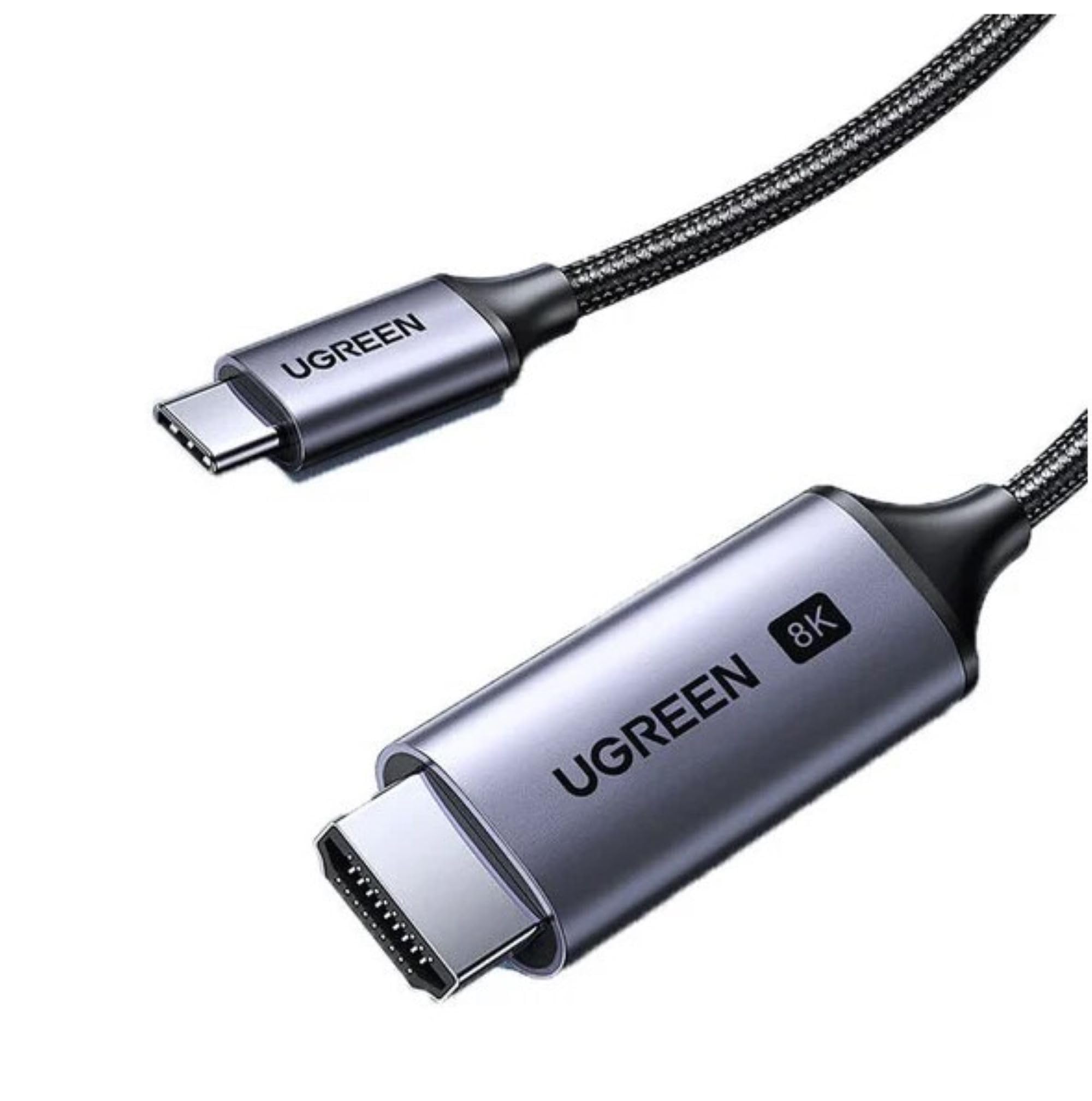
Image 1.1: UGREEN USB-C to HDMI 2.1 cable connected to a television.
2. Product Features
- High Resolution Support: Supports resolutions up to 8K (7680x4320) at 60Hz, ensuring crisp and detailed visuals.
- HDMI 2.1 Standard: Compliant with HDMI 2.1 specifications for enhanced bandwidth and features.
- Vibrant Visuals: Delivers vibrant and vivid colors for an immersive viewing experience.
- Clear Audio: Transmits clear, noise-free audio alongside video.
- Uncompressed Transmission: Ensures audio and video are transmitted without compression, preserving the highest quality.
- Versatile Compatibility: Ideal for connecting computers, laptops, tablets, and phones to TVs or projectors.

Image 2.1: Front view of the UGREEN USB-C to HDMI 2.1 cable.
3. Package Contents
- 1 x UGREEN CM565 USB-C to HDMI 2.1 8K 60Hz Cable (1.5m)
4. Setup Instructions
Follow these steps to connect your UGREEN CM565 cable:
- Identify Ports: Locate the USB-C port on your source device (e.g., laptop, tablet, phone) and an available HDMI input port on your display device (e.g., TV, projector, monitor).
- Connect USB-C: Insert the USB-C connector of the UGREEN cable into the USB-C port on your source device. Ensure the USB-C port on your device supports DisplayPort Alternate Mode (Alt Mode) for video output.
- Connect HDMI: Insert the HDMI connector of the UGREEN cable into the HDMI input port on your display device.
- Select Input: On your display device, select the correct HDMI input source using its remote control or on-screen menu.
- Verify Display: Your device's screen should now be mirrored or extended to the connected display.
Important Note: For 8K 60Hz resolution, your source device's USB-C port must support DisplayPort 1.4 Alt Mode, and your display device must support HDMI 2.1.
5. Operating Instructions
Once connected, the UGREEN CM565 cable operates as a plug-and-play device. Here are some tips for optimal use:
- Display Settings: Access your source device's display settings to configure screen mirroring, extended display, or primary display options. You can also adjust resolution and refresh rate settings here.
- Audio Output: Ensure your source device's audio output is set to the HDMI display if you wish to hear sound through the connected TV or monitor speakers.
- Resolution and Refresh Rate: For the best experience, ensure both your source device and display device are capable of the desired resolution and refresh rate (e.g., 8K 60Hz).

Image 5.1: UGREEN USB-C to HDMI cable in use with a laptop and external monitor.
6. Maintenance
To ensure the longevity and optimal performance of your UGREEN CM565 cable, follow these maintenance guidelines:
- Cleaning: Use a soft, dry cloth to gently wipe the cable and connectors. Avoid using harsh chemicals or abrasive materials.
- Storage: When not in use, store the cable in a cool, dry place, away from direct sunlight and extreme temperatures. Avoid tightly coiling or bending the cable at sharp angles.
- Handling: Always grasp the connectors when plugging or unplugging the cable. Avoid pulling on the cable itself, as this can damage the internal wires.
- Protection: Keep the cable away from liquids, dust, and excessive force.
7. Troubleshooting
If you encounter issues with your UGREEN CM565 cable, refer to the following troubleshooting tips:
- No Signal on Display:
- Ensure both the USB-C and HDMI connectors are fully inserted into their respective ports.
- Verify that your display device is set to the correct HDMI input source.
- Check if your source device's USB-C port supports DisplayPort Alt Mode for video output. Not all USB-C ports support video.
- Try connecting the cable to a different HDMI port on your display or a different display altogether.
- Restart your source device.
- Low Resolution or Refresh Rate:
- Ensure your source device's graphics card and drivers are up to date and support the desired resolution and refresh rate (e.g., 8K 60Hz).
- Verify that your display device also supports the desired resolution and refresh rate via its HDMI input.
- Check your source device's display settings to manually adjust the resolution and refresh rate.
- Confirm that your USB-C port supports DisplayPort 1.4 Alt Mode for 8K 60Hz output.
- No Audio Output:
- Check your source device's sound settings and ensure the HDMI output is selected as the default playback device.
- Verify that the volume on both your source device and display device is turned up and not muted.
- Flickering or Unstable Display:
- Ensure the cable connections are secure.
- Reduce the resolution or refresh rate in your source device's display settings to see if the issue resolves.
- Test the cable with another device or display to rule out compatibility issues.
8. Specifications
| Brand | UGREEN |
| Model Number | CM565 (Part Number: 6957303894512) |
| Cable Type | USB-C to HDMI |
| Connector Type | USB-C Male to HDMI Male |
| HDMI Standard | HDMI 2.1 |
| Max Resolution | 8K (7680x4320) |
| Max Refresh Rate | 60 Hz (at 8K) |
| Cable Length | 1.5 meters |
| Color | Grey |
| Item Weight | 40 Grams |
| Compatible Devices | Projector, Personal Computer, Tablet, Laptop |
| Recommended Uses | Connecting to TVs or projectors for video output |

Image 8.1: Connector dimensions of the UGREEN CM565 cable.
9. Warranty Information
This UGREEN CM565 USB-C to HDMI 2.1 8K 60Hz Cable comes with a UGREEN Standard Warranty. For specific details regarding warranty coverage, duration, and claims process, please refer to the official UGREEN website or contact UGREEN customer support directly. Please retain your proof of purchase for warranty service.
10. Support
For further assistance, technical support, or inquiries regarding your UGREEN CM565 cable, please visit the official UGREEN website or contact their customer service department. You can typically find contact information, FAQs, and additional resources on their support pages.
UGREEN Official Website: www.ugreen.com


