
Introduction
This manual provides comprehensive instructions for the setup, operation, maintenance, and troubleshooting of your Dexnor Keyboard Case. This accessory is designed to enhance the functionality of your Samsung Galaxy Tab S6 Lite, transforming it into a versatile productivity tool.
Compatibility: This keyboard case is exclusively compatible with the Samsung Galaxy Tab S6 Lite 10.4 inch models released in 2024 (SM-P620/P625), 2022 (SM-P613/P619), and 2020 (SM-P610/P615). Please verify your tablet model before use.

Image: Samsung Galaxy Tab S6 Lite compatibility details, highlighting the 10.4-inch screen size and specific model numbers for 2020, 2022, and 2024 releases.
Package Contents
Ensure all items are present in your package:
- 1 x Dexnor Bluetooth Keyboard Case
- 1 x USB-C Charging Cable
- 1 x Quick-start Guide
- 1 x User Manual (this document)
Product Overview
The Dexnor Keyboard Case integrates several features to enhance your tablet experience:
- Magnetic Floating Cantilever Stand: Provides stable and adjustable viewing angles.
- Multi-Touch Trackpad: Supports multi-finger gestures for precise navigation.
- Wireless Backlit Keyboard: Features 7 solid color backlights and 3 adjustable brightness levels for comfortable typing in various lighting conditions.
- S Pen Holder: Securely stores your S Pen for quick access and prevents loss.
- Long-lasting Rechargeable Battery: Offers extended working and standby times.
- Auto Wake/Sleep Function: Conserves battery life by automatically waking or sleeping the tablet when the case is opened or closed.
- Practical Shortcut Keys: A full row of dedicated keys for media control, volume, and other functions.

Image: The Dexnor Keyboard Case with a Samsung Galaxy Tab S6 Lite tablet, showcasing the backlit keyboard and floating display.
Setup
1. Attaching Your Tablet
- Open the keyboard case.
- Align your Samsung Galaxy Tab S6 Lite with the magnetic back panel of the case.
- The tablet will securely snap into place due to the strong magnetic connection.

Image: The Dexnor Keyboard Case with a tablet attached, illustrating its use on a lap and a table, highlighting the secure magnetic attachment.
2. Charging the Keyboard
- Locate the USB-C charging port on the side of the keyboard.
- Connect the included USB-C cable to the keyboard and a compatible USB power adapter (not included).
- The charging indicator light will illuminate. A full charge typically takes approximately 3.5 hours.
3. Pairing the Keyboard (Bluetooth)
- Ensure the keyboard is charged.
- Turn on the keyboard by sliding the power switch (usually located on the side). The Bluetooth indicator light will flash.
- On your Samsung Galaxy Tab S6 Lite, go to Settings > Connections > Bluetooth.
- Turn on Bluetooth. Your tablet will search for available devices.
- Select "Dexnor Keyboard" (or a similar name) from the list of available devices.
- Follow any on-screen prompts to complete the pairing process. The Bluetooth indicator light on the keyboard will stop flashing once successfully paired.
Operating Instructions
1. Power On/Off
- To power on, slide the power switch to the 'ON' position.
- To power off, slide the power switch to the 'OFF' position.
2. Adjusting the Stand
The magnetic floating cantilever stand allows for flexible viewing angles. Gently adjust the tablet's position to achieve your desired angle for typing, viewing, or drawing. The stand is designed to be stable on various surfaces.

Image: Side profile of the Dexnor Keyboard Case illustrating the adjustable angles of the floating cantilever stand, including a 125-degree maximum tilt.
3. Using the Backlit Keyboard
The keyboard features 7 solid color backlights and 3 adjustable brightness levels.
- Press the Light Bulb key (usually next to the Spacebar or Function keys) to cycle through backlight colors.
- Press Fn + Light Bulb key to adjust backlight brightness (Low, Medium, High, Off).

Image: Close-up view of the Dexnor keyboard with its keys illuminated in blue, demonstrating the backlit feature.
4. Using the Multi-Touch Trackpad
The integrated trackpad supports various multi-finger gestures for efficient navigation:
- Single Finger Tap: Left-click.
- Two Finger Tap: Right-click (context menu).
- Two Finger Scroll: Scroll up/down or left/right.
- Pinch to Zoom: Zoom in or out on content.
- Three Finger Swipe Up: View open applications.
- Three Finger Swipe Left/Right: Switch between open applications.
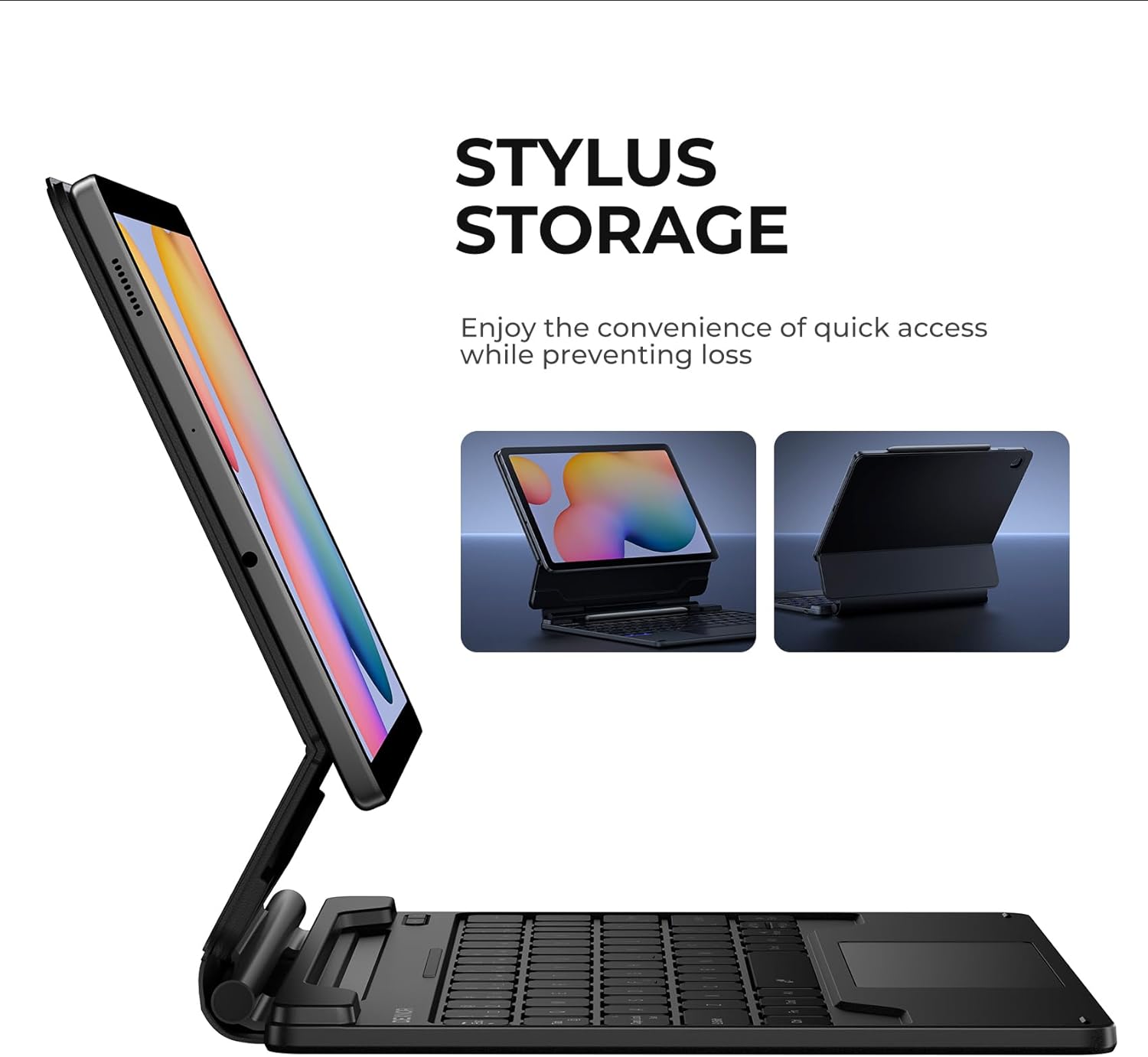
Image: Detailed view of the Dexnor keyboard's multi-touch trackpad, highlighting its illuminated surface and precision capabilities.
5. Using Shortcut Keys
The top row of keys provides quick access to common functions:
- Esc: Home/Back
- F1-F12: Various functions such as screen brightness, media control (play/pause, next/previous track), volume control, and search. Refer to the key icons for specific functions.
- Fn Key: Use in combination with other keys to access secondary functions.
6. S Pen Storage
The integrated magnetic S Pen holder provides a convenient and secure location for your S Pen.
- Simply place your S Pen into the designated slot on the case. The magnetic attraction will hold it in place.
- This ensures your S Pen is always accessible and reduces the risk of misplacement.
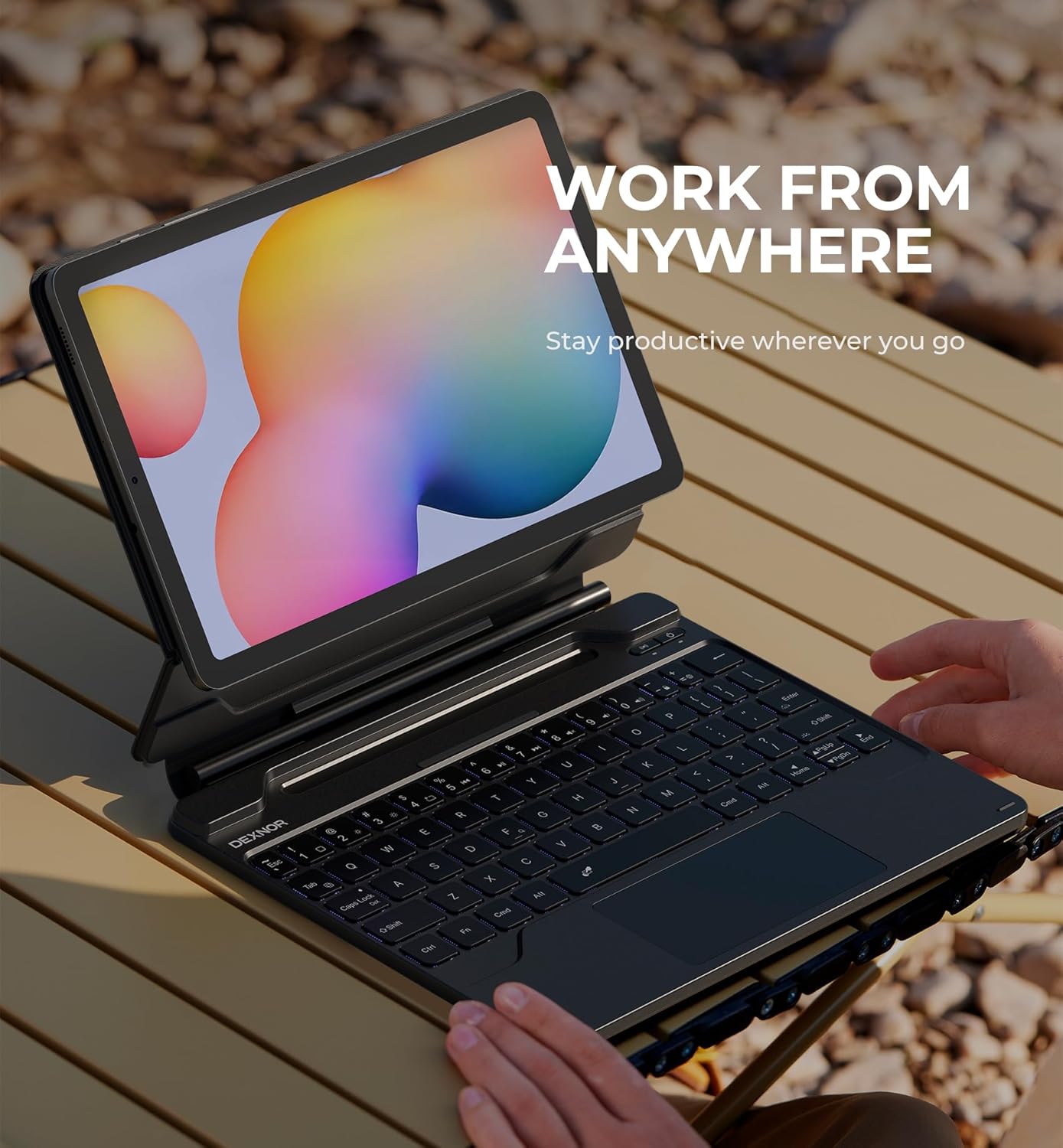
Image: Side view of the Dexnor Keyboard Case illustrating the magnetic S Pen holder, with the S Pen securely stored.
Maintenance
- Cleaning: Use a soft, damp cloth to wipe the exterior of the case. Avoid harsh chemicals or abrasive materials. For the keyboard keys, use a soft brush or compressed air to remove dust and debris.
- Storage: When not in use for extended periods, store the keyboard case in a cool, dry place. Ensure the keyboard is powered off to conserve battery life.
- Avoid Liquids: Do not expose the keyboard case to excessive moisture or submerge it in water.
Troubleshooting
- Keyboard Not Connecting:
- Ensure the keyboard is powered on and charged.
- Verify Bluetooth is enabled on your tablet.
- Try unpairing and re-pairing the keyboard in your tablet's Bluetooth settings.
- Restart both the keyboard and your tablet.
- Backlight Not Working:
- Ensure the keyboard has sufficient battery charge.
- Press the backlight key to cycle through brightness levels and colors.
- Trackpad Unresponsive:
- Ensure the keyboard is connected via Bluetooth.
- Clean the trackpad surface to remove any dirt or obstructions.
- Restart the keyboard and tablet.
- Short Battery Life:
- Ensure the keyboard is fully charged before use.
- Reduce backlight brightness or turn it off when not needed.
- Ensure the keyboard is powered off when not in use.
Specifications
| Model Number | DK006 |
| Product Dimensions | 9.85 x 7.95 x 0.72 inches |
| Item Weight | 1.43 pounds |
| Connectivity Technology | Bluetooth |
| Battery Type | 1 Lithium Ion battery (included) |
| Battery Capacity | 650mAh |
| Working Time | Up to 200 hours (without backlight) |
| Standby Time | Up to 1200 hours |
| Charging Time | Approx. 3.5 hours |
| Backlight Colors | 7 RGB colors |
| Brightness Levels | 3 adjustable levels |
Warranty and Support
Dexnor provides a 1-year manufacturer's warranty for this product, covering defects in materials and workmanship under normal use. Additionally, lifetime technical support is available to assist you with any questions or issues you may encounter.
For technical assistance or warranty claims, please contact Dexnor customer support through the retailer's platform or the official Dexnor website.


