
VENTION USB to 3.5mm
VENTION USB Sound Card Instruction Manual
Model: USB to 3.5mm
1. Introduction
The VENTION USB Sound Card is an external stereo audio adapter designed to provide high-quality sound output and input capabilities for various devices. It serves as an excellent solution for systems with damaged internal sound cards or for adding additional audio ports. This adapter supports standard stereo headphones, earphones, headsets, and microphones with a 3.5mm jack, making it ideal for gaming, video conferencing, and multimedia consumption.

Image 1.1: VENTION USB Sound Card, showcasing its compact design and various ports.
This device is plug-and-play, requiring no additional drivers, and features easy-to-use volume control and mute functions. It is widely compatible with various operating systems and devices, enhancing your audio experience.

Image 1.2: The VENTION USB Sound Card connected to a laptop, highlighting its use as an external stereo sound adapter, particularly useful for systems with damaged internal sound cards.
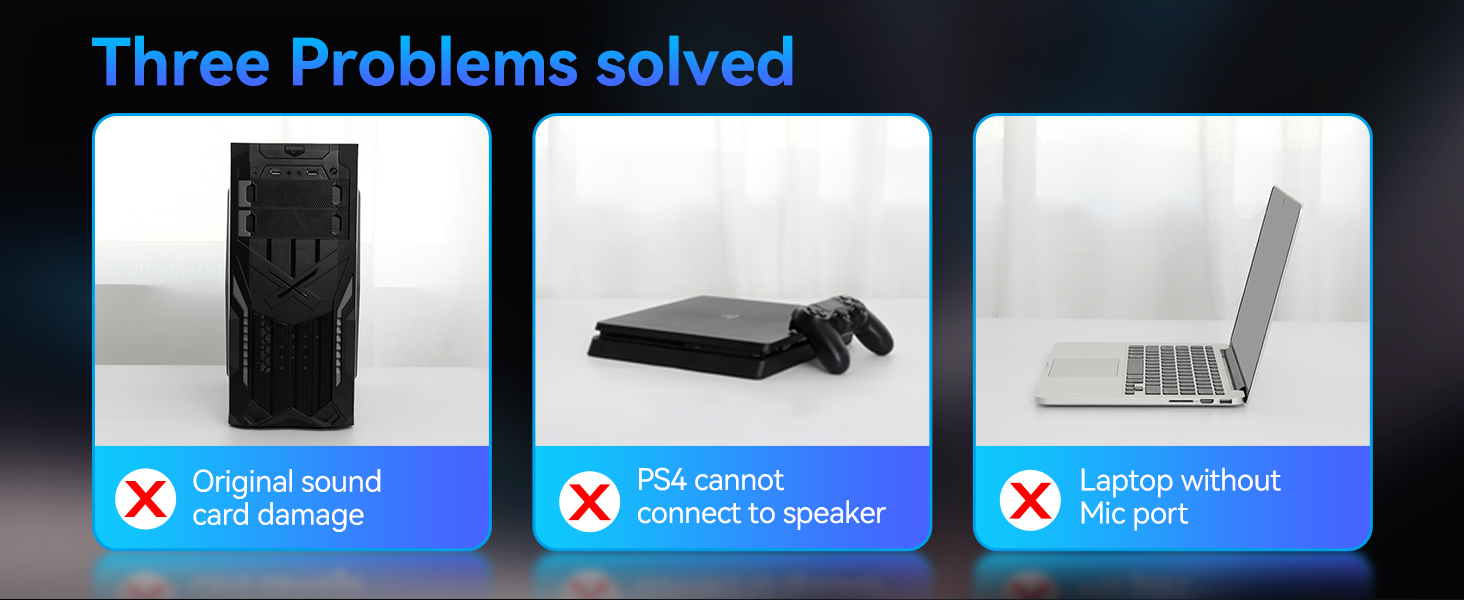
Image 1.3: Visual representation of common audio problems solved by the VENTION USB Sound Card, including internal sound card damage, connectivity issues with gaming consoles, and lack of microphone ports on laptops.
2. Setup
Setting up your VENTION USB Sound Card is straightforward due to its plug-and-play design. No special drivers are required for most operating systems.
2.1 Connecting the Device
- Locate an available USB port on your computer (desktop, laptop), gaming console (PS4, PS5, Switch), or compatible smartphone/tablet (with OTG function).
- Insert the USB connector of the VENTION USB Sound Card firmly into the USB port.
- Your operating system should automatically detect the device and install any necessary generic drivers. This process usually takes a few seconds.

Image 2.1: Illustrates connecting the VENTION USB Sound Card to a computer's USB port and then attaching various audio devices like headsets, earphones, or speakers to its 3.5mm jacks.
2.2 Connecting Audio Devices
The sound card features multiple 3.5mm jacks for different audio peripherals:
- Red Port: 3.5mm microphone input. Connect your external microphone here.
- Black Port: 3.5mm earphone & microphone combo jack (supports both OMTP and CTIA standards). Use this for headsets with a single 3.5mm TRRS plug.
- Green Port: 3.5mm earphone/headphone output. Connect your headphones or speakers here for audio playback.

Image 2.2: Detailed view of the 3.5mm audio jacks on the VENTION USB Sound Card, indicating their specific functions for microphone, combo earphone/mic, and earphone output.

Image 2.3: Explains the 3-in-1 audio jack configuration, allowing simultaneous use for two people or separate microphone and headphone connections.
3. Operating the VENTION USB Sound Card
The VENTION USB Sound Card features intuitive controls for managing your audio experience.
3.1 Volume Control
The large rotary knob on the device allows for easy and precise volume adjustment. Rotate the knob clockwise to increase volume and counter-clockwise to decrease it.

Image 3.1: Demonstrates the adjustable volume knob on the sound card, providing easy and intuitive control over audio output.

Image 3.2: A closer look at the volume control knob, emphasizing its smooth rotation and visual feedback.
3.2 Mute Functions
The device includes dedicated buttons for quick audio and microphone muting:
- Headphone Mute Button: Press this button to instantly mute or unmute the audio output to your headphones or speakers.
- Microphone Mute Button: Press this button to instantly mute or unmute the microphone input. This is particularly useful during calls or gaming sessions.

Image 3.3: Illustrates the one-touch mute buttons for both audio output and microphone input, providing convenient control during various activities.
3.3 Usage Scenarios
- PC/Laptop Connectivity: Connect to your computer for enhanced audio, especially if the built-in sound card is damaged or lacks sufficient ports.
- Gaming Consoles: Use with PS4, PS5, or Nintendo Switch for improved audio and microphone functionality with your gaming headset.
- Mobile Devices: Connect to smartphones or tablets (with OTG support) for external audio and microphone capabilities, useful for live streaming or karaoke.
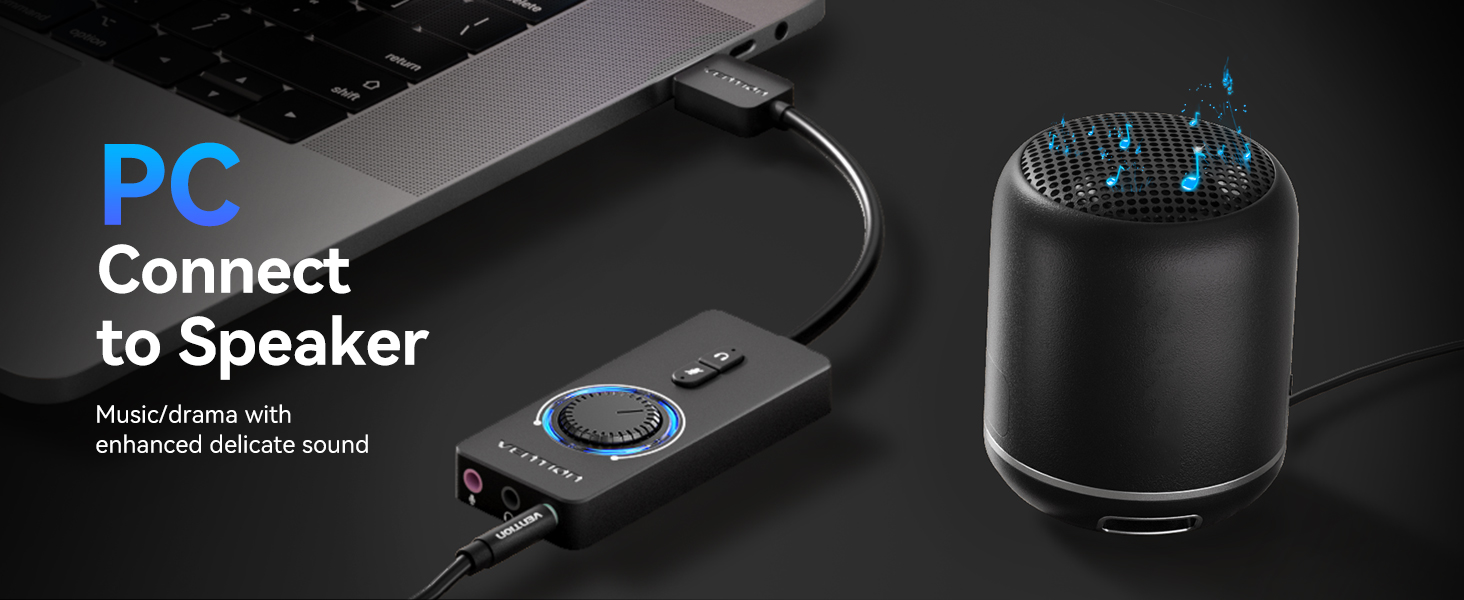
Image 3.4: Depicts the sound card connected to a PC and an external speaker, demonstrating its use for enhanced music and drama audio.
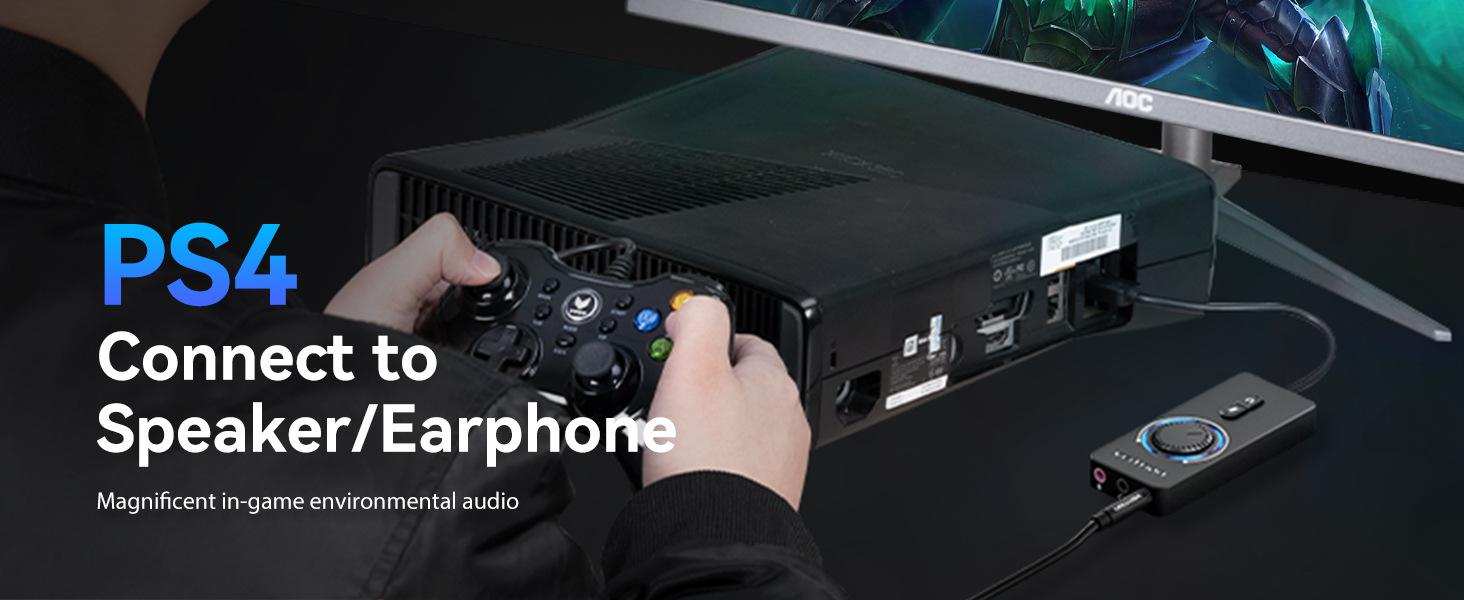
Image 3.5: Shows the sound card connected to a PS4, enabling magnificent in-game environmental audio through a connected headset or earphone.
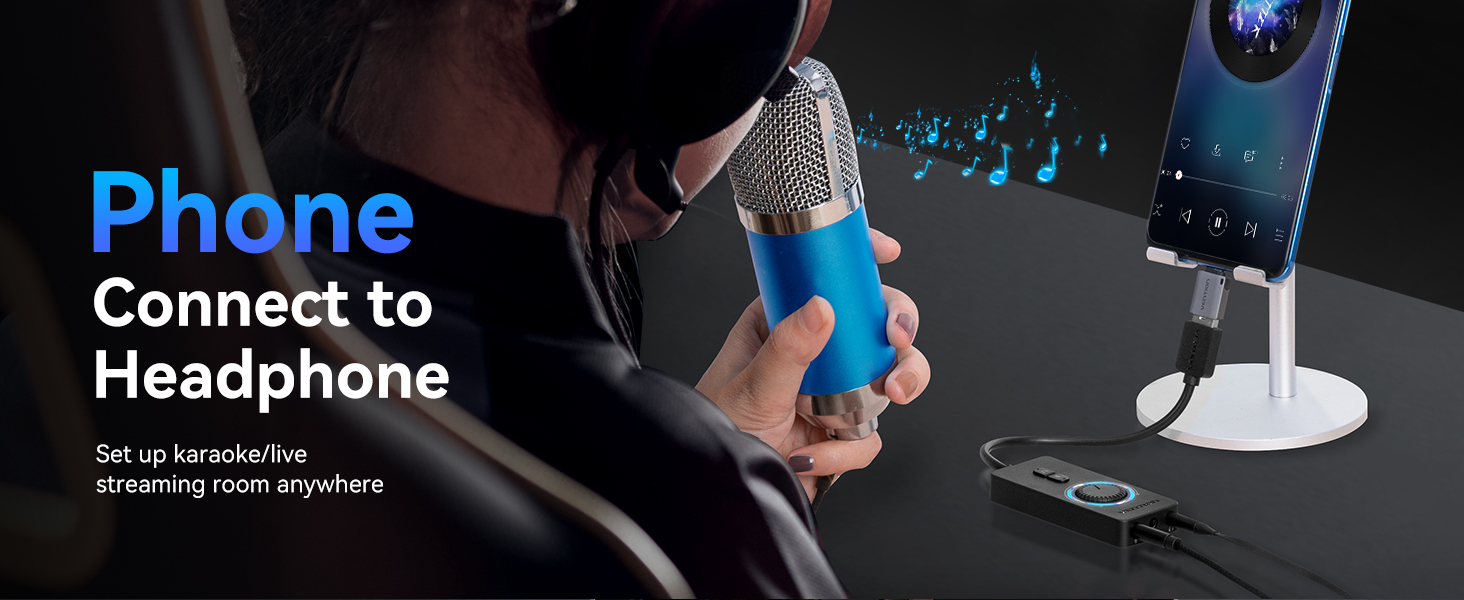
Image 3.6: Illustrates connecting the sound card to a phone with a microphone and headphones, facilitating live streaming or karaoke setups anywhere.
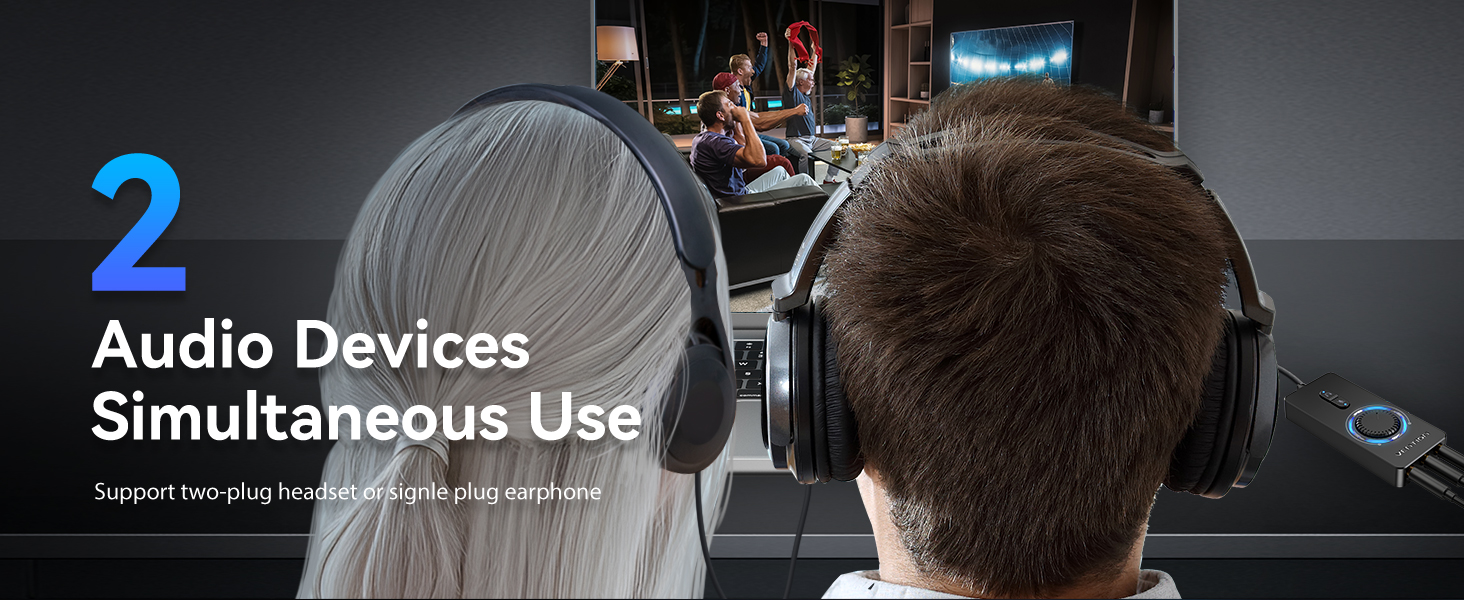
Image 3.7: Demonstrates the capability of supporting two audio devices simultaneously, ideal for shared listening experiences.
4. Compatibility
The VENTION USB Sound Card offers wide compatibility with various operating systems and devices, ensuring a seamless audio experience across your platforms.
4.1 Supported Operating Systems
- Windows (Win11 / Win10 / Win8.1 / Win8 / Win7 / Win XP)
- Mac OS
- Android (with OTG function)
- Google Chromebook
- Nintendo Switch
- PlayStation 4 (PS4)
- PlayStation 5 (PS5)
4.2 Compatible Devices
- Personal Computers (Desktops, Laptops)
- Smartphones and Tablets (with OTG support)
- Gaming Consoles (PS4, PS5, Nintendo Switch)
- Headsets, Earphones, Speakers, Microphones with 3.5mm jacks

Image 4.1: Overview of the wide compatibility of the VENTION USB Sound Card with various USB-enabled devices and 3.5mm audio peripherals.
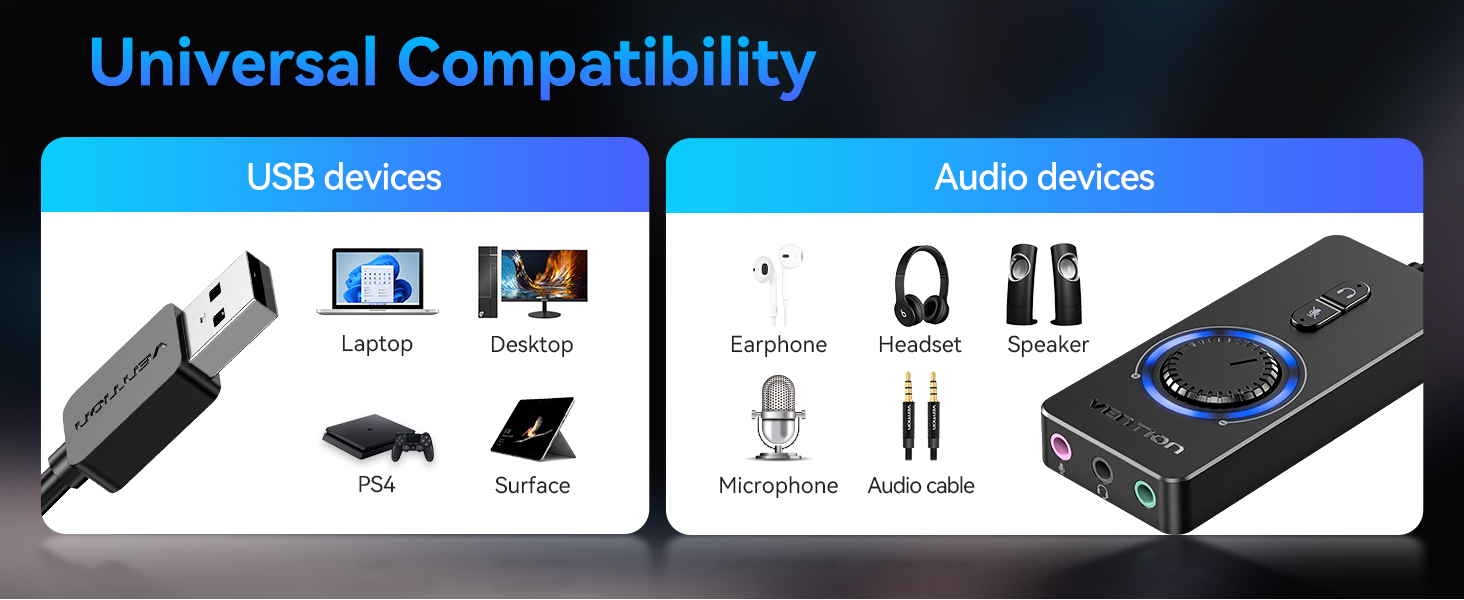
Image 4.2: Further illustrates the universal compatibility of the sound card with a broad range of USB and audio devices.
5. Key Features
- USB to 3.5mm Audio Adapter: Converts a USB port into multiple 3.5mm audio jacks for headphones, microphones, and combo headsets.
- No Drivers Needed: True plug-and-play functionality for instant audio playback without software installation.
- Easy Volume Control: Integrated rotary knob for convenient and precise volume adjustment.
- One-Touch Mute Buttons: Separate buttons for muting audio output and microphone input for quick control.
- 3-in-1 Audio Jacks: Features dedicated ports for microphone, earphone, and a combo earphone/mic jack, supporting simultaneous use.
- Noise-Cancelling Chip: Equipped with the SSS1629A5 noise-cancelling chip for CD-quality audio standard and a 16bit/48KHz audio sampling rate, ensuring clear sound.
- Compact and Portable: Small size makes it easy to carry and use on the go.

Image 5.1: Highlights the SSS1629A5 noise-cancelling chip, which ensures high-quality, CD-standard audio with a 16bit/48KHz sampling rate.
6. Troubleshooting
| Problem | Possible Cause | Solution |
|---|---|---|
| No sound output. | 1. Device not properly connected. 2. Volume too low or muted. 3. Incorrect audio output device selected in system settings. 4. Headphone/speaker cable not fully inserted. | 1. Ensure the USB sound card is firmly plugged into the USB port. 2. Rotate the volume knob clockwise and check the mute button. Ensure the system volume is also up. 3. In your operating system's sound settings, select the 'USB Audio Device' or similar as the default playback device. 4. Ensure the 3.5mm jack of your headphones/speakers is fully inserted into the green output port. |
| Microphone not working. | 1. Microphone muted. 2. Incorrect audio input device selected. 3. Microphone cable not fully inserted. 4. Microphone type incompatibility (for combo jack). | 1. Press the microphone mute button to unmute. 2. In your operating system's sound settings, select the 'USB Audio Device' or similar as the default recording device. 3. Ensure the microphone's 3.5mm jack is fully inserted into the red (microphone) or black (combo) port. 4. If using the black combo jack, ensure your headset supports either OMTP or CTIA standard. Try a different microphone if available. |
| Static or distorted sound. | 1. Loose connection. 2. Interference from other devices. 3. Faulty audio cable or peripheral. | 1. Re-seat all connections (USB, 3.5mm jacks). 2. Try moving the sound card away from other electronic devices. 3. Test with a different set of headphones/speakers or microphone to isolate the issue. |
| Device not recognized. | 1. USB port issue. 2. System driver conflict. | 1. Try plugging the sound card into a different USB port on your device. 2. Restart your computer. For advanced users, check Device Manager (Windows) or System Information (Mac) for USB device status. |
7. Specifications
| Feature | Detail |
|---|---|
| Model | USB to 3.5mm |
| Hardware Interface | USB |
| Audio Output Mode | Stereo |
| Audio Sampling Rate | 16bit/48KHz |
| Chipset | SSS1629A5 (Noise-cancelling) |
| Ports | 1x USB-A Input, 1x 3.5mm Microphone Input (Red), 1x 3.5mm Earphone & Mic Combo (Black), 1x 3.5mm Earphone Output (Green) |
| Controls | Volume Knob, Headphone Mute Button, Microphone Mute Button |
| Compatible Devices | Personal Computer, Laptop, Smartphone, Tablet, Gaming Console (PS4, PS5, Switch) |
| Supported OS | Win11 / Win10 / Win8.1 / Win8 / Win7 / Win XP / Mac OS / Android / Google Chromebook / Switch |
| Package Dimensions | 7.44 x 3.75 x 1.14 inches |
| Item Weight | 2.89 ounces |
8. Warranty and Support
8.1 Warranty Information
VENTION products are manufactured to high-quality standards. For specific warranty details regarding your USB Sound Card, please refer to the warranty card included in your product packaging or visit the official VENTION website. Keep your purchase receipt as proof of purchase for warranty claims.
8.2 Customer Support
If you encounter any issues or have questions about your VENTION USB Sound Card that are not covered in this manual, please contact VENTION customer support. Our dedicated team is committed to providing assistance and ensuring your satisfaction.
- Online Support: Visit the VENTION official website for FAQs, driver downloads (if applicable), and support contact information.
- Email Support: Refer to your product packaging or the VENTION website for the customer support email address.
Related documentsUSB to 3.5mm

Ask a question about this manual
Ask about setup, troubleshooting, compatibility, parts, safety, or missing instructions. Manuals+ will review the question and use this page’s manual context to help answer it.