
1. Product Overview
The OWON DGE1030 is a versatile waveform generator designed for various electronic testing and measurement applications. It features a 30MHz bandwidth, 125MSa/s sampling rate, and 14-bit vertical resolution, making it suitable for generating precise and stable signals. The device includes a 3.6-inch TFT LCD display for clear waveform observation and an intuitive interface for ease of use.

Figure 1.1: Front view of the OWON DGE1030 Waveform Generator, showing the display, control knobs, and keypad.
Key Features:
- Waveform Generation: 30MHz bandwidth, 125MSa/s real-time sampling rate, 8K record depth, 14-bit vertical resolution.
- Extensive Waveform Library: Includes 5 basic waveforms and 160 built-in arbitrary waveforms (e.g., exponential rise, fall, sin(x)/x, step wave).
- User-Friendly Display: 3.6-inch TFT LCD for clear waveform visualization and intuitive function settings.
- Multiple Modulation Modes: Supports AM, FM, PM, and FSK modulation.
- Advanced Functions: Features sweep and burst functions.
- Storage: Capable of storing 16 digital arbitrary waveforms.
- Remote Control: Compatible with PC remote control for enhanced operation.
- Compact Design: Ultra-thin body for portability and efficient use of workspace.
Video 1.1: An overview of the OWON DGE1030 Waveform Generator, highlighting its compact size, display, and various functions such as high-frequency stable output, arbitrary waveforms, modulation, sweep, burst, and storage capabilities. The video also demonstrates PC remote operation.
2. Setup and Connections
2.1. Unpacking the Device
Carefully unpack the OWON DGE1030 Waveform Generator and verify that all components are present. Retain the packaging for future transport or storage.
Included Components:
- OWON DGE1030 Host Machine
- BNC to Alligator Clip Cable
- USB Cable
- USB to DC Cord
- Power Adapter
- Quick Guide
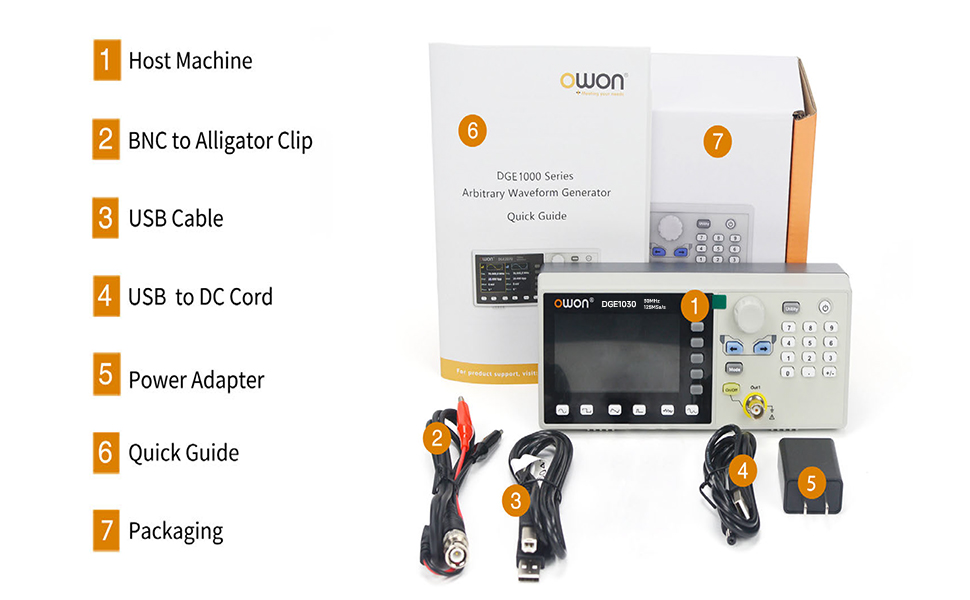
Figure 2.1: Contents of the OWON DGE1030 package, showing the main unit, BNC to alligator clip cable, USB cable, USB to DC cord, power adapter, and quick guide.
2.2. Power Connection
Connect the provided power adapter to the DC 5V power connector on the rear panel of the DGE1030. Plug the power adapter into a suitable electrical outlet. Ensure the power source meets the device's voltage requirements (100V-240V, 50/60Hz).

Figure 2.2: Rear panel connections, indicating the USB device interface and the DC 5V power connector.
2.3. Output Connections
Connect the BNC to alligator clip cable to the 'Out1' BNC connector on the front panel. Connect the alligator clips to your test circuit or device. Ensure proper polarity and secure connections to avoid damage or inaccurate readings.
3. Basic Operation
3.1. User Interface Overview
The DGE1030 features a 3.6-inch TFT LCD display and a clear control panel. The display shows waveform parameters, settings, and output status. The control panel includes a numeric keypad, navigation buttons, a rotary knob, and dedicated function buttons for waveform selection and output control.

Figure 3.1: Front panel layout, identifying the 3.6-inch TFT LCD, function setting area, waveform switching area, and channel output control area.
3.2. Powering On/Off
Press the Utility button, then press the On/Off button located on the top right of the keypad to power on the device. To power off, repeat the same sequence.
3.3. Waveform Selection
Use the dedicated waveform buttons (Sine, Square, Pulse, Ramp, Noise, Arbitrary) located below the display to select the desired waveform type. The selected waveform will be displayed on the screen.
3.4. Parameter Adjustment
After selecting a waveform, use the rotary knob and navigation buttons to adjust parameters such as frequency, amplitude, offset, and phase. The display will show the current values. Use the numeric keypad for precise value entry.

Figure 3.2: Display showing sine wave parameter settings, including frequency, amplitude, offset, and phase.
4. Advanced Features
4.1. Arbitrary Waveforms
The DGE1030 includes 160 built-in arbitrary waveforms, offering a wide range of complex signal generation capabilities. To access these, press the Arb waveform button and navigate through the available options.
Figure 4.1: Arbitrary waveform selection menu, displaying various built-in arbitrary waveform types.
4.2. Modulation Modes (AM, FM, PM, FSK)
The device supports Amplitude Modulation (AM), Frequency Modulation (FM), Phase Modulation (PM), and Frequency Shift Keying (FSK). To select a modulation mode, press the Mode button and choose the desired option from the menu. Adjust modulation parameters as needed.
4.3. Sweep Function
The sweep function allows the generator to continuously vary its output frequency over a specified range. Both linear and logarithmic sweep types are available. Access the sweep settings via the Mode button and configure the start frequency, stop frequency, and sweep time.

Figure 4.2: Display showing available modulation modes and sweep function parameters.
4.4. Burst Function
The burst function generates a specific number of waveform cycles or a gated burst. This is useful for testing transient responses in circuits. Configure the burst period, number of cycles, or gated mode through the Mode menu.

Figure 4.3: Display showing burst function settings and the arbitrary waveform storage menu.
4.5. Remote Control
The DGE1030 supports PC remote control via its USB device interface. This allows for advanced control and programming of the waveform generator from a computer, using SCPI commands. Connect the device to your PC using the provided USB cable.

Figure 4.4: The DGE1030 connected to a PC for remote operation, showing waveform control software.
5. Technical Specifications
The following table details the technical specifications for the OWON DGE1030 Waveform Generator.
| Parameter | DGE1030 |
|---|---|
| Channel | 1 |
| Frequency Output | 30MHz |
| Sample Rate | 125MSa/s |
| Vertical Resolution | 14 bits |
| Waveform | |
| Standard Waveform | Sine, Square, Pulse, Ramp, Noise |
| Arbitrary Waveform | Exponential rise, exponential fall, sin(x)/x, step wave, and others; total 160 built-in waveforms, and user-defined arbitrary waveform |
| Frequency | |
| Sine | 1µHz - 30MHz |
| Square | 1µHz - 15MHz |
| Pulse | 1µHz - 15MHz |
| Ramp | 1µHz - 1MHz |
| Noise | 20MHz (-3dB, typical) |
| Arbitrary Waveform | 1µHz - 10MHz |
| Frequency Resolution | 1 µHz or 7 significant figures |
| Frequency Stability | ±30 ppm at 0~40°C |
| Frequency Aging Rate | ±30 ppm per year |
| Arbitrary | |
| Waveform Length | 2 - 8K points |
| Sample Rate | 125MSa/s |
| Amplitude | |
| Into 50Ω Load | 1mVpp - 10Vpp (≤10MHz) 1mVpp - 4Vpp (>10MHz) |
| DC Offset Range (AD+DC) | high resistance: ±(10 Vpk - Amplitude Vpp/2) (≤10MHz); ±4Vpk - Amplitude Vpp/2) (>10MHz) 50Ω: ±(5 Vpk - Amplitude Vpp/2) (≤10MHz); ±(2 Vpk - Amplitude Vpp/2) (>10MHz) |
| DC Offset Resolution | 1mV or 4 digits |
| Load Impedance | 50Ω (typical) |
| DC Offset Accuracy | ±(1% of [setting] + 1 mV + Amplitude Vpp * 0.5%) |
| Modulation | |
| Type | AM, FM, PM, FSK, Sweep, Burst |
| Internal Modulation Frequency | 2 mHz to 100 kHz |
| Sweep | |
| Carrier | Sine, rectangular wave, ramp wave, arbitrary (except DC) |
| Minimum / Maximum Starting Frequency | 2mHz (minimum) / maximum frequency of corresponding carrier |
| Minimum / Maximum Termination Frequency | 2mHz (minimum) / maximum frequency of corresponding carrier |
| Trigger Source | Internal, Manual |
| Burst | |
| Waveform | Sine wave, square wave, ramp wave, pulse wave and arbitrary wave (Except DC) |
| Types | N-Cycle |
| Trigger Source | Internal, Manual |
| Carrier Frequency | 1µHz ≤ Offset ≤ Maximum frequency of corresponding carrier /2 |
| Input / Output | |
| Display | 3.6-inch TFT LCD with resolution 480 x 272 |
| Communication Interface | USB Device |
| Mechanical Specifications | |
| Dimension (W×H×D) | 200mm x 68.5mm x 73.6mm |
| Weight (without package) | 0.5kg |
6. Troubleshooting
This section provides solutions to common issues you might encounter with your OWON DGE1030 Waveform Generator.
- No Power:
- Ensure the power adapter is securely connected to the device and a working power outlet.
- Verify the power outlet is functional by plugging in another device.
- Check the power adapter for any visible damage.
- No Output Signal:
- Confirm that the 'Out1' button is illuminated, indicating the output is enabled.
- Check the BNC cable and alligator clip connections for proper contact.
- Verify the waveform parameters (frequency, amplitude, offset) are set to appropriate values for your application.
- Ensure the load impedance matches the generator's output impedance setting (50Ω or High Z).
- Incorrect Waveform Display:
- Check the selected waveform type and its parameters on the display.
- Ensure the display settings (e.g., vertical scale, horizontal scale) are appropriate for the signal being generated.
- PC Remote Control Not Working:
- Ensure the USB cable is correctly connected between the DGE1030 and your PC.
- Verify that the necessary drivers are installed on your computer.
- Check the remote control software settings and communication port.
If you continue to experience issues, refer to the full user manual or contact OWON customer support.
7. Safety Information
To ensure safe operation and prevent damage to the device or injury to yourself, please observe the following safety precautions:
- Always use the provided power adapter and cables.
- Do not operate the device in wet or damp conditions.
- Avoid exposing the device to extreme temperatures or direct sunlight.
- Do not open the device casing; there are no user-serviceable parts inside. Refer all servicing to qualified personnel.
- Ensure proper ventilation around the device to prevent overheating.
- Before making any connections, ensure that the device and the circuit under test are powered off.
- Do not apply voltages or currents exceeding the specified maximum ratings.
8. Warranty and Support
The OWON DGE1030 Waveform Generator comes with a standard manufacturer's warranty. For detailed warranty terms and conditions, please refer to the warranty card included with your product or visit the official OWON website.
For technical support, service, or inquiries, please contact OWON customer service or your local distributor. You can find more information and contact details on the OWON Brand Store.


